
1. Уводзіны
This manual provides essential information for the safe and efficient use of your HUAWEI PixLab B5 Multifunction Laser Printer. Please read it thoroughly before operating the device and keep it for future reference.
The HUAWEI PixLab B5 is a versatile 3-in-1 device, offering high-speed printing, copying, and scanning functionalities. It features automatic duplex printing, a user-friendly one-step toner replacement system, and multiple connectivity options including USB, Wi-Fi, and LAN.
2. Інфармацыя па бяспецы
Заўсёды выконвайце асноўныя меры бяспекі пры выкарыстанні гэтага вырабу, каб знізіць рызыку пажару, паражэння электрычным токам і траўмаў людзей.
- Do not place the printer on an unstable cart, stand, or table.
- Do not block or cover the slots and openings in the printer.
- Выкарыстоўвайце толькі шнур харчавання і крыніцу харчавання, пазначаныя ў гэтым кіраўніцтве.
- Не спрабуйце абслугоўваць прынтар самастойна. Звяртайцеся па любыя паслугі па абслугоўванні да кваліфікаванага персаналу.
- Трымайце прынтар далей ад вады і вільгаці.
- Забяспечце належную вентыляцыю вакол прынтара.
3. Змесціва ўпакоўкі
Праверце, ці ўсе прадметы ўваходзяць у камплект:
- HUAWEI PixLab B5 Multifunction Laser Printer
- Сілавы кабель
- Кабель USB
- HUAWEI F-1500BZ Toner Cartridge
- HUAWEI X-15000BZ Drum Unit
- Кіраўніцтва карыстальніка (гэты дакумент)
4. Прадукт скончыўсяview
Familiarize yourself with the main components of your HUAWEI PixLab B5 printer.

Малюнак 4.1: Фронт view of the HUAWEI PixLab B5 printer, showing the HUAWEI logo on the front panel.

Малюнак 4.2: Зверху ўніз view of the HUAWEI PixLab B5 printer, illustrating a document exiting the output tray after printing.
5. Настройка
5.1 Распакаванне
- Акуратна дастаньце прынтар з упакоўкі.
- Зніміце ўсе ахоўныя стужкі і ўпаковачныя матэрыялы з вонкавай і ўнутранай паверхняў прынтара.
5.2 Усталёўка тонера і блока фотобарабана
The HUAWEI PixLab B5 features an innovative drawer-type toner cartridge for easy replacement.
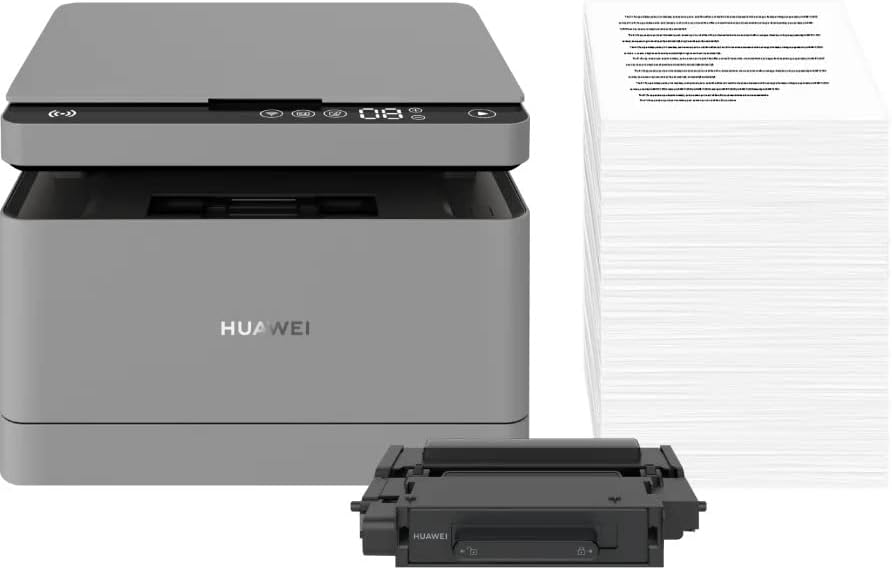
Малюнак 5.1: The HUAWEI PixLab B5 printer shown alongside a replacement toner cartridge and a stack of paper, highlighting the separate components.

Малюнак 5.2: A diagram illustrating the toner cartridge detached from the drum unit, demonstrating the modular design for replacement.
- Адкрыйце пярэднюю крышку прынтара.
- Gently pull out the toner cartridge drawer.
- Insert the HUAWEI F-1500BZ toner cartridge into the HUAWEI X-15000BZ drum unit until it clicks into place.
- Slide the assembled toner and drum unit back into the printer until it is securely seated.
- Зачыніце пярэднюю крышку.
5.3 Загрузка паперы
- Адкрыйце латок для паперы.
- Adjust the paper guides to the correct paper size (e.g., A4).
- Load paper into the tray, ensuring it is not overfilled (maximum capacity: 150 sheets).
- Зачыніце латок для паперы.
5.4 Падключэнне харчавання
- Падключыце кабель харчавання да порта харчавання прынтара.
- Падключыце другі канец кабеля харчавання да заземленай электрычнай разеткі.
- Націсніце кнопку харчавання, каб уключыць прынтар.
5.5 Усталёўка праграмнага забеспячэння і падключэнне
The HUAWEI PixLab B5 supports multiple connection methods for seamless integration with various devices.
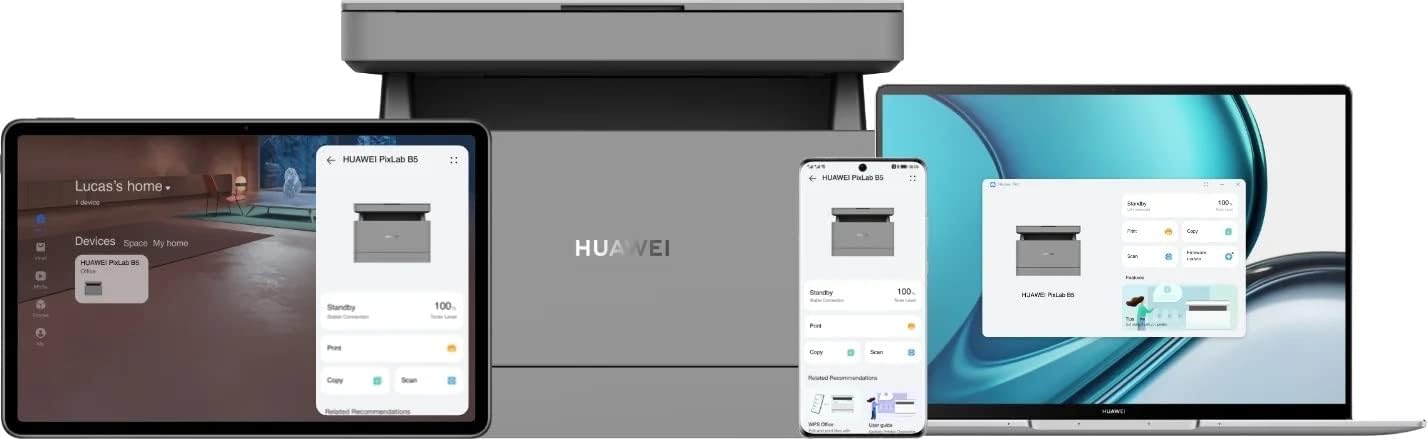
Малюнак 5.3: The HUAWEI PixLab B5 printer demonstrating its versatile connectivity by being linked to a tablet, a smartphone, and a laptop, all displaying the printer's interface.

Малюнак 5.4: An illustrative image depicting various devices such as a tablet, smartphone, and laptop connected to the printer, emphasizing multi-device compatibility.


Малюнак 5.5: Icons representing various connectivity options: USB, LAN, Wi-Fi, and Printer Hotspot.
- USB-злучэнне: Connect the printer to your computer using the provided USB cable. The necessary drivers should install automatically.
- Падключэнне да лакальнай сеткі: Connect an Ethernet cable from your router or network switch to the LAN port on the printer.
- Падключэнне Wi-Fi:
- Download and install the HUAWEI AI Life app on your smartphone or tablet.
- Follow the in-app instructions to connect your printer to your Wi-Fi network.
- For PC/laptop, ensure your device is on the same Wi-Fi network as the printer and add the printer through your operating system's printer settings.
- NFC-злучэнне: For compatible devices, tap your device to the NFC tag on the printer to establish a quick connection.
6. Інструкцыя па эксплуатацыі
6.1 Друк
The HUAWEI PixLab B5 offers high-speed monochrome printing at up to 30 pages per minute.

Малюнак 6.1: An image highlighting the printer's capability of printing 30 pages per minute for single-sided documents.
- Open the document you wish to print on your connected device.
- Выберыце опцыю друку (звычайна File > Друк).
- Choose the HUAWEI PixLab B5 from the list of available printers.
- Adjust print settings as needed:
- Двухбаковая друк: The printer supports automatic double-sided printing. Select this option in your print settings to save paper.
- якасць: The printer uses Q14 grayscale for clear and layered black and white prints.
- Націсніце кнопку «Друк».
6.2 Капіраванне
The printer can make up to 100 copies in a single series.

Малюнак 6.2: A person placing a smart card on the scanner bed of the HUAWEI PixLab B5, demonstrating the Smart Card Copy function.

Малюнак 6.3: An image showing a user placing a card on the scanner glass, indicating the process for copying or scanning small items like ID cards.
- Place the document face down on the scanner glass or face up in the automatic document feeder (if available).
- На панэлі кіравання прынтара абярыце функцыю «Капіраванне».
- Adjust settings such as number of copies, darkness, or paper size.
- Smart Card Copy: This feature automatically corrects the position and orientation of cards for perfect copies, even if not perfectly aligned.
- Націсніце кнопку «Пуск», каб пачаць капіраванне.
6.3 Сканаванне
The HUAWEI PixLab B5 functions as a photo and sheet-fed scanner.
- Place the document on the scanner glass or in the document feeder.
- On your connected computer or mobile device, open the scanning software (e.g., HUAWEI AI Life app or your operating system's scanning utility).
- Select the HUAWEI PixLab B5 as your scanner.
- Choose scan settings such as resolution, color mode (monochrome), and destination folder.
- Пачніце сканаванне.
6.4 Remote Printing
The HUAWEI AI Life app allows for flexible remote printing.

Малюнак 6.4: The HUAWEI PixLab B5 printer positioned on a desk next to a computer monitor, which displays the printer's software interface, indicating remote management capabilities.
- Ensure your HUAWEI PixLab B5 is connected to the internet via Wi-Fi or LAN.
- Open the HUAWEI AI Life app on your smartphone or tablet.
- Select your PixLab B5 printer from the device list.
- You can now send print jobs to your printer remotely, even when you are away from your office.
7. Тэхнічнае абслугоўванне
7.1 Замена картрыджа з тонерам
The HUAWEI PixLab B5 uses separate toner and drum units, allowing for independent replacement and cost savings.

Малюнак 7.1: An image displaying the maximum page yield for the drum cartridge (15,000 pages) and the toner cartridge (1,500 pages).
- When the toner low indicator appears, prepare a new HUAWEI F-1500BZ toner cartridge.
- Адкрыйце пярэднюю крышку прынтара.
- Pull out the toner cartridge drawer.
- Remove the empty toner cartridge from the drum unit.
- Unpack the new toner cartridge and insert it into the drum unit until it clicks.
- Slide the assembled unit back into the printer and close the front cover.
7.2 Drum Unit Replacement
The HUAWEI X-15000BZ drum unit has a yield of up to 15,000 pages.
- When the drum unit needs replacement, open the front cover of the printer.
- Pull out the toner cartridge drawer, which contains the drum unit.
- Remove the toner cartridge from the old drum unit.
- Insert the toner cartridge into the new HUAWEI X-15000BZ drum unit.
- Slide the new assembled unit back into the printer and close the front cover.
7.3 Ачыстка
- Выключыце прынтэр і адключыце шнур сілкавання.
- Выкарыстоўвайце мяккую тканіну без ворса dampвадой, каб працерці знешнія паверхні прынтара.
- For the scanner glass, use a glass cleaner applied to a cloth (not directly to the glass) to clean any smudges or dust.
- Не выкарыстоўвайце абразіўныя ачышчальнікі або растваральнікі.
8. Выпраўленне непаладак
This section addresses common issues you might encounter with your HUAWEI PixLab B5 printer.
8.1 Прынтар не адказвае
- Check if the printer is powered on and the power cable is securely connected.
- Verify the USB, LAN, or Wi-Fi connection. For Wi-Fi, ensure the printer is connected to the correct network.
- Restart both the printer and your connected device.
- Пераканайцеся, што драйверы прынтара ўсталяваныя і абноўленыя правільна.
8.2 Праблемы з якасцю друку
- Check the toner level and replace the toner cartridge if it is low.
- Ensure the drum unit is not worn out (check its page yield).
- Ачысціце ўнутраныя кампаненты прынтара ў адпаведнасці з раздзелам аб абслугоўванні.
- Use recommended paper types and ensure paper is loaded correctly.
8.3 Захрасанне паперы
- Выключыце прынтэр і адключыце яго ад сеткі.
- Carefully open all covers and remove any jammed paper, pulling in the direction of the paper path.
- Пераканайцеся, што ўнутры не засталося дробных кавалачкаў паперы.
- Close all covers, plug in, and power on the printer.
9. Тэхнічныя характарыстыкі
| Асаблівасць | Спецыфікацыя |
|---|---|
| Марка | HUAWEI |
| Назва мадэлі | HUPIXLABB5 |
| Тып прадукту | Copy, Scan, Print |
| Тэхналогія друку | Лазерная |
| Вывад на прынтэр | Манахромны |
| Максімальная хуткасць чорна-белых друкаў | 30 старонак у хвіліну |
| Максімальнае разрозненне друку | 600 х 600 DPI |
| Двухбаковая друк | Так (аўтаматычна) |
| Тып сканера | Photo, Sheet-fed |
| Максімальная колькасць копій у серыі | 100 |
| Тэхналогія падлучэння | Ethernet, NFC, USB, Wi-Fi |
| Усяго партоў USB | 1 |
| Сумяшчальныя прылады | Desktop Computer, Laptop, Smartphone, Tablet |
| Падтрымка аперацыйнай сістэмы | OS X 10.9 Mavericks, Windows 10 |
| Максімальны памер носьбіта | A4 |
| Памер ліста | 210×297 мм |
| Максімальная ёмістасць падачы лістоў | 150 |
| Ёмістасць памяці | 512 Мб |
| Энергаспажыванне | 410 ват |
| Power (Operating) | 240 ват |
| Вага прадмета | 12.3 кілаграма |
| Памеры прадукту | 10 Г х 20 Ш х 10 В сантыметраў |
| Колер | Чорны |
| Асаблівасці | Versatile connectivity (USB, LAN, Wi-Fi), Stable Wi-Fi, High print quality (Q14 grayscale), Remote printing (AI Life app), Print history erase for privacy. |
10. Гарантыя і падтрымка
For warranty information and technical support, please refer to the official HUAWEI website or contact your local HUAWEI customer service center. Keep your purchase receipt as proof of purchase.
Information regarding spare parts availability and guaranteed software updates is not available at this time.