
1. Уводзіны
Thank you for choosing the MokerLink 8-Port Gigabit PoE Managed Switch. This device is designed to provide reliable and high-performance network connectivity with Power over Ethernet (PoE) capabilities. This manual will guide you through the installation, configuration, and operation of your new switch, ensuring optimal performance and longevity.
2. Змесціва ўпакоўкі
Verify that all items are present and in good condition. If any items are missing or damaged, please contact your vendor.
- MokerLink 8-Port Gigabit PoE Managed Switch
- Адаптар сілкавання
- Кароткае кіраўніцтва

Image: The MokerLink 8-Port Gigabit PoE Managed Switch, its power adapter, and a quick start guide are shown packaged in a brown cardboard box.
3. Прадукт скончыўсяview
3.1 Асноўныя магчымасці
- 8 гігабітныя парты: Includes 7 Gigabit PoE Ethernet ports and 1 Gigabit Ethernet Uplink port.
- Высокая магутнасць PoE: Ports 1-7 support IEEE 802.3af/at, with each port providing up to 30W, and a total power supply of 96W.
- L2 Smart Managed: Supports Layer 2 Ethernet configurations such as VLAN, QoS, IGMP, link aggregation, loop protection, port mirroring, port isolation, and bandwidth control.
- Web GUI: магутны web-based graphical user interface for managing PoE ports, displaying PSE power supply status, and configuring PoE functions.
- Безвентылятарны дызайн: Ensures silent operation, suitable for various environments.
- Трывалы металічны корпус: Provides robust protection and multiple cooling holes for heat dissipation.
- Абарона ад маланкі 4 кВ: Integrated protection against power surges.
- Насценны мантаж: Flexible installation options.

Выява: Оверview of the MokerLink 8-Port Gigabit PoE Managed Switch, illustrating its features including IEEE 802.3af/at support, full Gigabit ports, web interface, wall mountable design, 4KV lightning protection, and L2 management capabilities.
3.2 Пярэдняя і задняя панэль
The front panel features 7 PoE Gigabit ports, 1 Gigabit Uplink port, and LED indicators. The rear panel includes the DC power input and a grounding hole.

Выява: Падрабязная view of the switch's front and rear panels. The front panel shows 7 Gigabit PoE ports (1-7) and 1 Gigabit Uplink port (8), along with PWR and Port indicators. The rear panel displays the DC input port (48-52V) and a grounding hole. A reset button is also visible on the front.
3.3 Святлодыёдныя індыкатары
- PWR (індыкатар харчавання): Green light on indicates power is supplied; light off indicates no power.
- Port Indicator: Green light on indicates link is connected; light off indicates link is off; flashing indicates data transmitting.
4. Настройка
4.1 Фізічная ўстаноўка
- Размяшчэнне: Размясціце камутатар на ўстойлівай роўнай паверхні або прымацуйце яго да сцяны з дапамогай адпаведнага абсталявання. Забяспечце дастатковую вентыляцыю вакол прылады.
- Зазямленне: Connect a grounding wire to the grounding hole on the rear panel of the switch for electrical safety.
- Падключэнне сілкавання: Connect the provided power adapter to the DC input port on the rear panel and then plug it into a power outlet. The PWR LED should illuminate.
4.2 Сеткавае падключэнне
- Падключэнне да ўзыходзячай лініі сувязі: Connect your router or main network device to the Gigabit Uplink port (Port 8) using a standard Ethernet cable.
- Падключэнне прылады PoE: Connect your PoE-powered devices (e.g., IP cameras, wireless access points, VoIP phones) to any of the Gigabit PoE ports (Ports 1-7) using Ethernet cables. The switch will automatically detect and provide power to compliant devices.
- Non-PoE Device Connection: Non-PoE devices can also be connected to Ports 1-7, but they will not receive power.
5. Інструкцыя па эксплуатацыі
5.1 Асноўныя аперацыі
Once powered on and connected, the switch operates automatically. Data transmission will occur between connected devices. The port LEDs will indicate link status and activity.
5.2 Remote PoE Device Reboot
The managed features allow you to remotely power cycle PoE devices connected to the switch. This can be useful for troubleshooting or resetting devices without physical access.

Image: A diagram illustrating how to remotely reboot PoE devices. A laptop screen shows a 'PoE Port ON/OFF' interface, connected to the switch. The switch then controls the power to a connected camera, effectively turning it on or off.
6. Configuration (Web графічны інтэрфейс)
The MokerLink switch features a powerful web-based management interface for advanced configuration and monitoring.
6.1 Доступ да Web Інтэрфейс
- Ensure your computer is connected to the same network as the switch.
- Адкрыйце a web браўзер (напрыклад, Chrome, Firefox).
- Увядзіце IP-адрас па змаўчанні: 192.168.2.1 у адрасным радку.
- Log in using the default credentials: User Name: адмін, Пароль: адмін.
- It is highly recommended to change the default password immediately after the first login for security purposes.
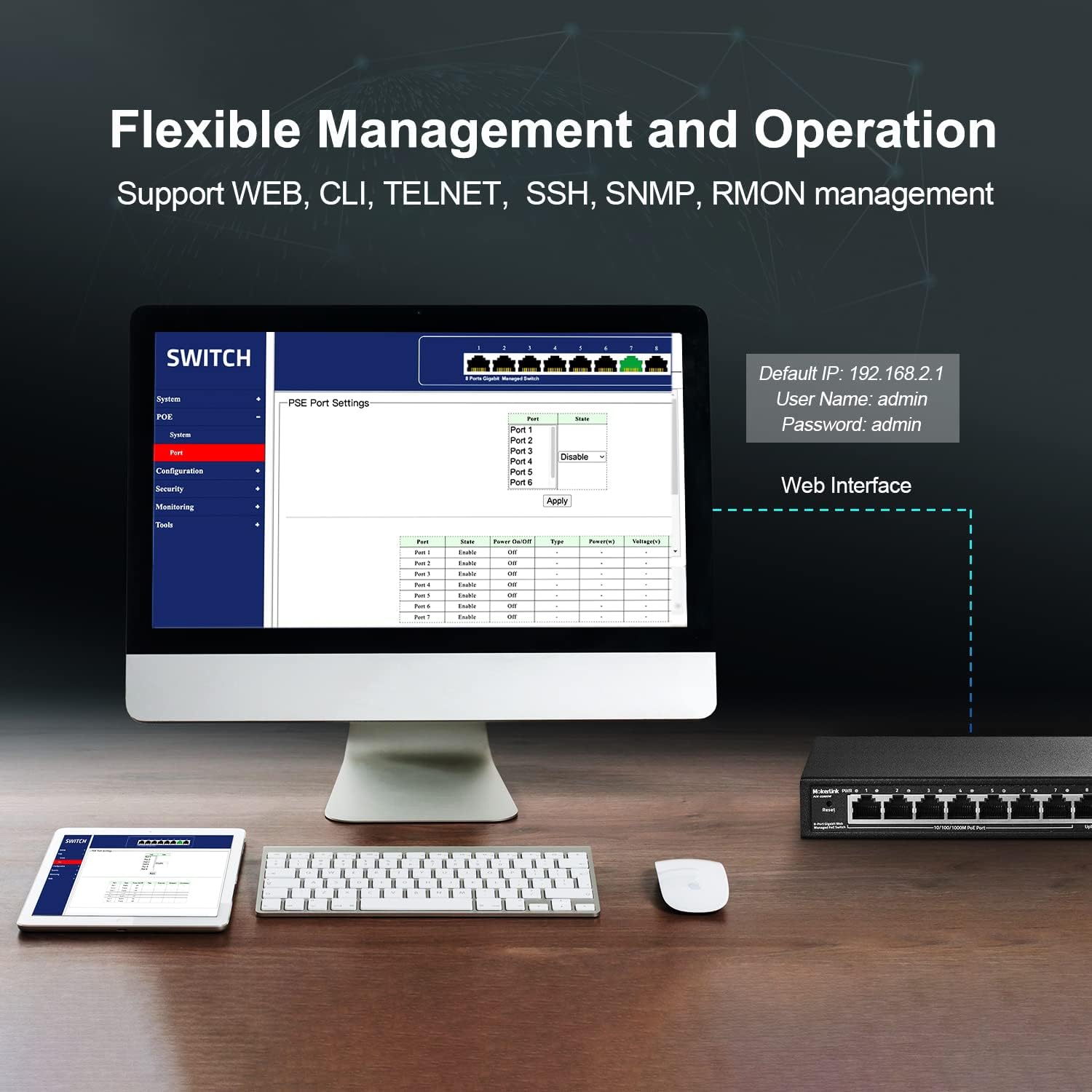
Image: A computer monitor displaying the web-based management interface for the MokerLink switch. The interface shows options for System, PoE, Configuration, Security, Monitoring, and Tools. Default login credentials (IP: 192.168.2.1, User: admin, Password: admin) are also displayed.
6.2 L2 Managed Features
The web interface provides access to various Layer 2 management functions:
- VLAN: Create Virtual Local Area Networks to segment network traffic.
- QoS (Якасць абслугоўвання): Прыярытэзацыя сеткавага трафіку для крытычна важных праграм.
- IGMP: Manage multicast traffic.
- Link Aggregation (LACP): Combine multiple physical links into a single logical link for increased bandwidth and redundancy.
- Loop Protection (RSTP): Prevent network loops.
- Зеркаванне порта: Monitor network traffic by sending a copy of packets from one port to another.
- Ізаляцыя порта: Isolate ports to prevent communication between them.
- Кіраванне прапускной здольнасцю: Manage bandwidth usage per port.
- Табліца MAC-адрасоў: View and manage MAC address entries.
- Кантроль шырокавяшчальнага шторму: Prevent network performance degradation due to excessive broadcast traffic.
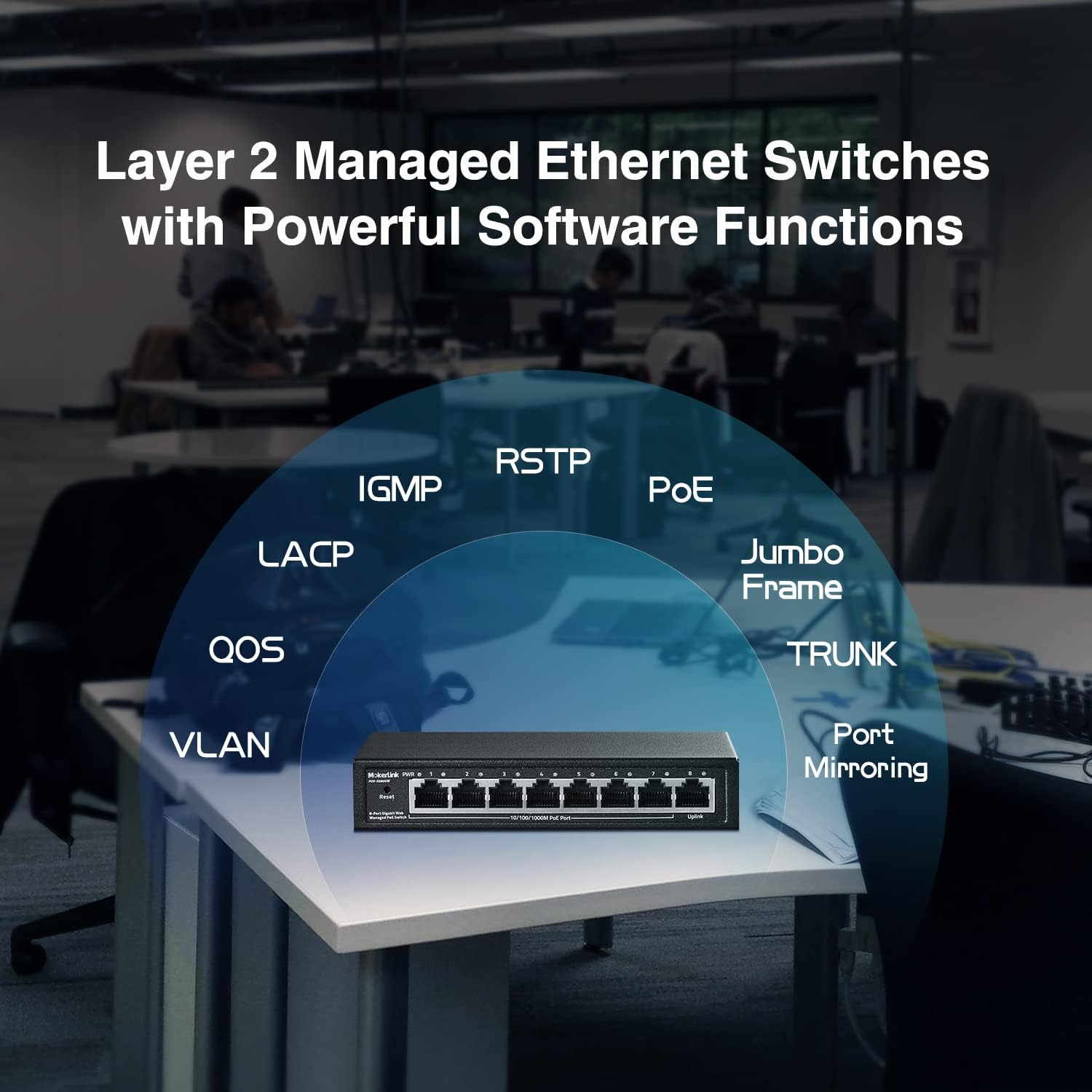
Image: A conceptual diagram showing the various Layer 2 managed features supported by the MokerLink switch, including VLAN, QoS, IGMP, LACP, RSTP, PoE, Jumbo Frame, TRUNK, and Port Mirroring, arranged around an image of the switch.
7. Тэхнічнае абслугоўванне
7.1 Ачыстка
Regularly clean the exterior of the switch with a soft, dry cloth. Do not use liquid or aerosol cleaners, as they may damage the device.
7.2 Абнаўленне прашыўкі
Праверце афіцыйны сайт MokerLink website periodically for firmware updates. Keeping your device's firmware up-to-date ensures optimal performance, security, and access to new features. Follow the instructions provided with the firmware update package carefully.
7.3 Скід да заводскіх налад
If you encounter persistent issues or forget your login credentials, you can restore the switch to its factory default settings. To perform a factory reset, press and hold the Скінуць button on the front panel for approximately 5-10 seconds until the LEDs flash, then release. The switch will reboot with default settings.
8. Выпраўленне непаладак
- Няма харчавання: Ensure the power adapter is securely connected to both the switch and a working power outlet. Check the PWR LED. If it's off, try a different outlet or power adapter.
- Няма спасылкі/актыўнасці на порце: Verify that the Ethernet cable is properly connected to both the switch port and the connected device. Check the cable for damage. Ensure the connected device is powered on and functioning correctly.
- Прылада PoE не атрымлівае сілкавання: Confirm that the connected device is IEEE 802.3af/at compliant. Passive 24V PoE and non-PoE devices will not receive power. Check the PoE power budget in the web interface to ensure sufficient power is available.
- Немагчыма атрымаць доступ Web інтэрфейс: Ensure your computer's IP address is in the same subnet as the switch's default IP (192.168.2.x, where x is not 1). Verify the physical connection. Try clearing your browser's cache or using a different browser. If the password was changed and forgotten, perform a factory reset.
- Павольная прадукцыйнасць сеткі: Check for excessive network traffic or loops. Utilize L2 managed features like bandwidth control or loop protection if configured. Ensure all cables are Gigabit-rated.
9. Тэхнічныя характарыстыкі
| Асаблівасць | Апісанне |
|---|---|
| Нумар мадэлі | 8 Gigabit PoE(Managed) |
| Колькасць партоў | 8 (7 Gigabit PoE, 1 Gigabit Uplink) |
| Стандарт PoE | IEEE 802.3af / at |
| Максімальная магутнасць PoE на порт | 30 Вт |
| Агульны бюджэт харчавання PoE | 96 Вт |
| Камутацыйны патэнцыял | 16 Гбіт/с |
| Хуткасць перадачы даных | 16 гігабіт у секунду |
| Тып кіравання | L2 Smart Managed (Web GUI, VLAN, QoS, IGMP, LACP, etc.) |
| Матэрыял корпуса | Метал |
| Безвентылятарны дызайн | так |
| Электразабеспячэнне | Знешні адаптар сілкавання (96 Вт) |
| тtage | 48 вольт |
| Вага прадмета | 1.8 фунта |
| Памеры ўпакоўкі | 9.76 х 7.64 х 2.44 цалі |
10. Гарантыя і падтрымка
MokerLink products come with a standard manufacturer's warranty. For detailed warranty information, technical support, or service inquiries, please refer to the warranty card included in your package or visit the official MokerLink website. You can also contact MokerLink customer service directly for assistance.
Афіцыйны MokerLink Webсайт: Visit MokerLink Store on Amazon