
1. Прадукт скончыўсяview
The Alacrity 2D Bluetooth Wireless Barcode Scanner is a versatile and portable device designed for efficient barcode scanning. It features a retractable back clip for easy attachment to smartphones, offering multiple connectivity options including Bluetooth, 2.4G wireless, and USB wired. This scanner is capable of decoding a wide range of 1D, 2D, and QR codes from both printed materials and digital screens.

Image: The Alacrity 2D Back Clip Bluetooth Barcode Scanner in use, attached to a smartphone and scanning a barcode.
2. Настройка
2.1 Зарадка сканера
Before first use, fully charge the scanner. Connect the scanner to a power source using the provided USB cable. A full charge takes approximately 4 гадзіны. The charging indicator light will provide status updates.

Image: Battery specifications including 3000 mAh capacity, 4 hours charging time, 720 hours standby time, and 48 hours scanning time.
2.2 Падключэнне да смартфона
The scanner features a retractable back clip designed to securely attach to smartphones. Adjust the clip to fit phones with lengths between 147 мм (5.8 цалі) і 181 мм (7.1 цалі). The protective flannel inside the clip helps prevent scratches to your phone.
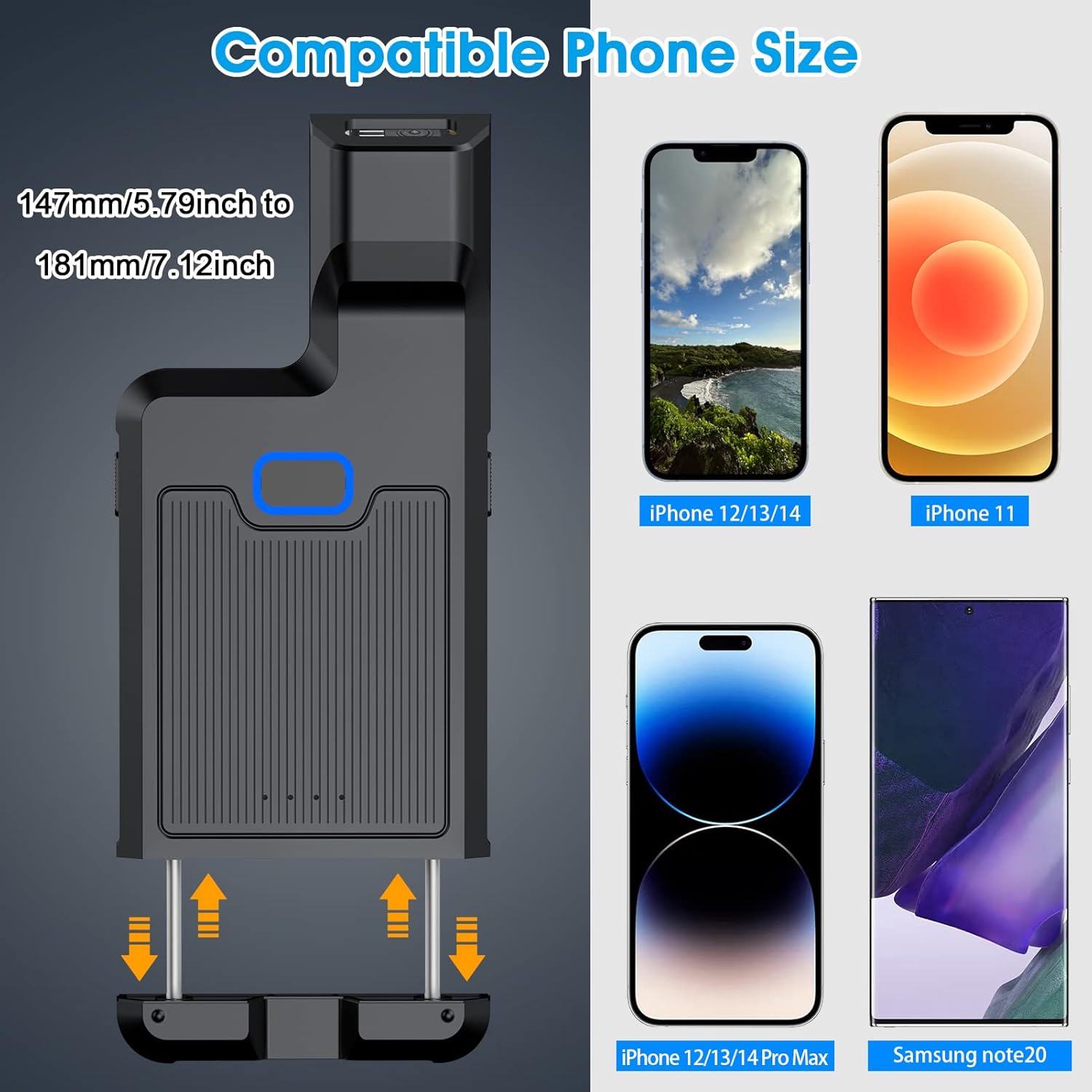
Image: Illustration of the scanner's adjustable clip and compatible phone sizes.
2.3 Рэжымы падключэння
The Alacrity barcode scanner supports three connection methods: Bluetooth, 2.4G Wireless, and USB Wired.

Выява: Зверхуview of the 3-in-1 connection options: Bluetooth, 2.4G Wireless, and USB Cable.
2.3.1 Спалучэнне па Bluetooth
- Націсніце сярэдняя кнопка on the scanner. The Bluetooth signal light will flash once the scanner is turned on.
- On your device (smartphone, tablet, or computer), open Bluetooth settings and search for 'Fsc-barcodescanner'.
- Click on 'Fsc-barcodescanner' to initiate the pairing process.
- Once you hear a beep, the connection is successful, and the blue indicator light on the scanner will remain solid.

Image: Step-by-step guide for Bluetooth pairing the scanner with a smartphone.
2.3.2 Бесправадное злучэнне 2.4G
For devices without Bluetooth or for a dedicated wireless connection, plug the 2.4G USB dongle into your computer or POS system. The scanner will automatically connect to the dongle.
2.3.3 Правадное падключэнне USB
Connect the scanner directly to your computer or POS system using the USB cable for a wired connection. This mode also charges the device.

Image: Visual representation of the three ways to use the scanner: with phone, standalone, and with 2.4G dongle.
2.4 Сумяшчальнасць сістэмы
The Alacrity barcode scanner is compatible with a wide range of operating systems, including iOS, Android, Windows, macOS, and Linux.

Image: Icons indicating broad operating system compatibility.
3. Інструкцыя па эксплуатацыі
3.1 Сканіраванне штрых-кодаў
The scanner uses an advanced CMOS sensor to decode most 1D, 2D, and QR barcodes, whether printed on paper or displayed on screens. It can also scan damaged, distorted, colored, and reflective barcodes.
Падтрымліваюцца тыпы штрых-кодаў:
- 2D штрых-коды: QR, PDF417, Data Matrix, Aztec
- 1D штрых-коды: UPC/EAN, Code39, Interleaved 2 of 5, Code93, Code 128, Codabar і г.д.

Малюнак: Examples of various 1D and 2D barcodes the scanner can decode.
3.2 Scanning Buttons
The scanner is equipped with three scanning buttons: left, middle, and right. You can use any of these buttons to initiate a scan, offering flexibility in how you hold and operate the device.

Image: Depiction of the three scanning buttons for flexible operation.
3.3 Рэжымы сканавання
The scanner supports continuous scan mode for rapid, successive barcode reading. This mode is ideal for high-volume scanning tasks.
3.4 Даданне прэфікса/суфікса
The scanner can be configured to add custom prefixes or suffixes to scanned data. This feature is useful for data organization and integration with various software systems. Refer to the advanced settings in the full manual for detailed instructions on this feature.
3.5 Функцыя знешніх зарадных прылад
The scanner's built-in 3000 mAh battery can also function as a power bank to charge your smartphone in emergency situations. Connect your phone to the scanner using a compatible USB cable.
4. Тэхнічнае абслугоўванне
4.1 Кіраванне батарэяй
The scanner is equipped with a 3000 мАг акумулятар, providing approximately 48 гадзіны of continuous scanning or 720 гадзіны of standby time on a single charge. Charging takes about 4 гадзіны.
4.2 Рэжым энергазберажэння
To conserve battery life, the scanner automatically powers off after 5 хвілін бяздзейнасці. This auto-shutdown time can be adjusted or disabled through specific configuration barcodes (refer to the full manual for details).
4.3 Ачыстка
To clean the scanner, use a soft, dry cloth. Do not use abrasive cleaners, solvents, or excessive moisture, as these may damage the device or its internal components. Keep the scanning window clear of dust and debris for optimal performance.
5. Выпраўленне непаладак
5.1 Сканер не ўключаецца
- Пераканайцеся, што акумулятар зараджаны. Падключыце сканер да крыніцы харчавання з дапамогай USB-кабеля і дайце яму зарадзіцца не менш за 30 хвілін, перш чым зноў уключыць яго.
- Праверце працу кнопкі харчавання.
5.2 Праблемы з падключэннем Bluetooth
- Ensure the scanner is in Bluetooth pairing mode (blue light flashing).
- Verify Bluetooth is enabled on your host device (smartphone, tablet, PC).
- Forget previous 'Fsc-barcodescanner' connections on your device and attempt to re-pair.
- Ensure your computer supports Bluetooth functionality if connecting to a PC.
- Move the scanner closer to the host device to ensure a strong signal.
5.3 Scanning Inaccuracies or Failures
- Ensure the barcode is clean and not excessively damaged or distorted. While the scanner supports damaged barcodes, severe damage may prevent scanning.
- Adjust the distance between the scanner and the barcode. Optimal scanning distance varies by barcode type and size.
- Check for sufficient lighting conditions. Avoid direct glare or very dim environments.
- Ensure the scanner's lens is clean and free of obstructions.
5.4 Прылада не зараджаецца
- Check the USB cable and power adapter for damage. Try a different cable or power source.
- Ensure the charging port on the scanner is clean and free of debris.
6. Тэхнічныя характарыстыкі
| Марка | Практычнасць |
| Нумар мадэлі | B0B7JRF38T |
| Сумяшчальныя прылады | Смартфон |
| Крыніца харчавання | акумулятар |
| Тэхналогія падлучэння | Bluetooth, бесправадная сувязь 2.4G, USB-кабель |
| Тып батарэі | 1 літый-палімерны (у камплекце) |
| Ёмістасць батарэі | 3000 мАг |
| Час зарадкі | 4 гадзіны |
| Час чакання | 720 гадзіны |
| Час сканавання | 48 гадзіны |
| Аперацыйная Voltage | 4 вольт |
| Рэальны View Вугал | 66 градусаў |
| Памеры прадмета (Д х Ш х У) | 15 см x 6.9 см x 2.3 см (5.9 цалі x 2.7 цалі x 0.9 цалі) |
| Вага | 89 г (3.14 унцыі) |
| Adjustable Phone Length | 147mm - 181mm (5.8 in - 7.1 in) |
| UPC | 719986949974 |
| ASIN | B0B7JRF38T |
| Вытворца | Gaona |

Image: Detailed dimensions and weight of the scanner.
7. Гарантыя і падтрымка
7.1 Інфармацыя аб гарантыі
For detailed warranty information, please refer to the product packaging or contact Alacrity customer support directly. Keep your proof of purchase for warranty claims.
7.2 Падтрымка кліентаў
If you encounter any issues or have questions not covered in this manual, please contact Alacrity customer support through the retailer where the product was purchased or visit the official Alacrity website for support resources. Please have your model number (B0B7JRF38T) and UPC (719986949974) ready when contacting support.