
Уводзіны
This manual provides essential information for the safe and efficient operation of your UniFormation GKtwo 8K Resin 3D Printer. Please read it thoroughly before initial use and keep it for future reference.
The UniFormation GKtwo is a high-resolution 8K resin 3D printer featuring a 10.3-inch monochrome LCD screen, a built-in heating system, and an odor removal filter, designed for detailed and large-volume resin printing.
Змест пакета
Upon unboxing, please verify that all components listed below are present and undamaged.

Малюнак 1: Камплектацыя. This image displays all items included in the UniFormation GKtwo 3D printer package, including the printer unit, build plate, resin vat, power cord, U disk, gloves, plier, rubber scraper, nFEP film, wrench tools kit, funnel, metal scraper, and screen protector.
- 3D Resin Printer (GKtwo 8K)
- Пабудаваць пліту
- Смаляны куб
- Пратэктар экрана
- Шнур харчавання
- Дыск U
- Металічны скрабок
- Пальчаткі
- Фільм nFEP
- Абцугі
- Wrench Tools Kit
- Варонка
- Rubber Scraper
Настройка
1. Распакаванне і першапачатковы агляд
Carefully remove the printer from its packaging. Inspect the unit for any visible damage that may have occurred during transit. Remove all protective films and packaging materials.
Video 1: Unboxing Video of Uniformation GKTWO 3D Resin Printer. This video demonstrates the unboxing process, showing how to safely remove the printer and its components from the packaging.
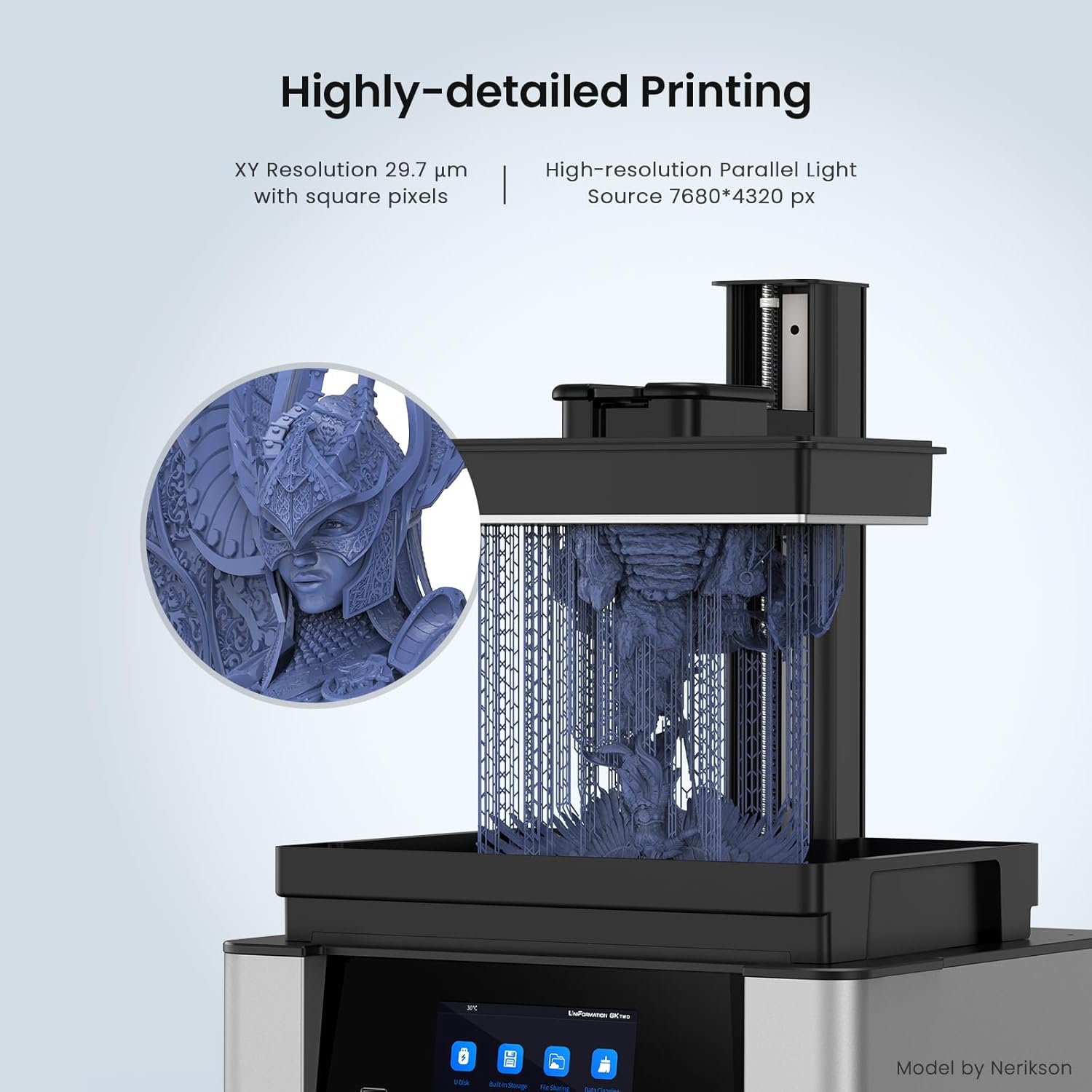
Figure 2: Removing Protective Film. Ensure all protective films, especially from the LCD screen, are carefully removed before operation.
2. Installing the Carbon Filter
The GKtwo features a built-in odor removal filter. Install the carbon filter into its designated slot at the rear of the printer.

Figure 3: Powerful Air Filter. The diagram illustrates the large volume activated carbon filter and 4000 RPM high-speed purification fan, crucial for odor removal.
3. Падключэнне сілкавання
Connect the power cord to the printer and then to a suitable power outlet. Ensure the power switch is in the OFF position before connecting.
4. Build Plate and Resin Vat Installation
Install the resin vat onto the LCD screen area. Then, attach the build plate to the Z-axis arm. The GKtwo features a quick-release design for easy installation and removal.

Figure 4: User-friendly Design. This image highlights the vertical flip-up cover, quick-release build plate, and screwless resin vat for convenient operation.
5. Build Plate Leveling
The GKtwo build plate is pre-leveled at the factory. However, it is recommended to verify the leveling before the first print or if print failures occur. Use the provided leveling paper.
- Place the leveling paper on the LCD screen.
- Lower the build plate until it gently presses the paper.
- Ensure the paper can be pulled with slight resistance from all sides. Adjust if necessary using the Z-axis movement controls on the touchscreen.
Інструкцыя па эксплуатацыі
1. Powering On and User Interface
Press the power button to turn on the printer. The 5-inch touch screen will display the user interface, allowing access to various functions.

Figure 5: User-Friendly UI. The interface provides real-time temperature monitoring and settings for the heating system, along with other printer information.
2. Heating System Operation
The GKtwo features a built-in PTC ceramic heating technology to maintain optimal resin temperature. You can set the desired temperature (77°F, 86°F, 95°F) via the system settings.
Video 2: How does GKTwo heating system work? This video visually explains the internal heating mechanism and its benefits for resin printing.

Figure 6: GKtwo 8K Resin 3D Printer. The printer is shown alongside a highly detailed 3D printed model, demonstrating its capability.
3. Preparing Your Model for Printing
The GKtwo is compatible with popular slicers like Chitubox and UniFormation slicer. For optimal results, use UniFormation's recommended preset profiles.
- Import your 3D model (.STL, .OBJ, etc.) into your chosen slicer software.
- Adjust print settings (layer height, exposure time, lift speed, etc.) according to your resin type and desired print quality.
- Add supports as necessary for complex geometries.
- Slice the model and save the print file (.ctb) to the provided U disk.

Figure 7: Highly-detailed Printing. This image highlights the 8K monochrome screen with 7680x4320 px resolution and 29.6 micron XY resolution, enabling exceptional detail.

Figure 8: Non-submersible Build Plate. The design features a gutter around the edge to save resin drips and facilitate easy cleaning.
4. Пачатак друку
- Insert the U disk into the printer's USB port.
- On the touchscreen, navigate to "U Disk" or "Built-in Storage" to select your print file.
- Ensure the resin vat is filled with resin, not exceeding the MAX fill line (700g).
- Confirm the print settings and press "Start" to begin printing.
Figure 9: Resin Filling. Fill the resin vat carefully, ensuring not to exceed the maximum fill line to prevent overflow during printing.
Video 3: GKtwo 8K Resin Printer. This short video showcases the printer in action, highlighting its speed and precision during the printing process.
Тэхнічнае абслугоўванне
1. Cleaning the Resin Vat and Build Plate
After each print, or if changing resin types, clean the resin vat and build plate thoroughly with isopropyl alcohol (IPA).
- Remove the build plate and scrape off any remaining resin. Clean with IPA.
- Carefully pour unused resin back into its bottle using a filter funnel.
- Clean the resin vat and FEP film with IPA. Avoid using sharp objects on the FEP film.
2. Replacing the Carbon Filter
The honeycomb carbon filters in the odor purification system should be replaced every 15 days for optimal air purity, especially with constant printing.
3. LCD Screen Protection
The LCD screen has an upgraded anti-scratch film to protect against accidental resin leakage. Regularly inspect the screen for any damage or cured resin and clean gently.

Figure 10: Screen Protector. The printer comes with a screen protector to safeguard the LCD from resin spills and scratches.
Ліквідацыю непаладак
| праблема | Магчымая прычына | Рашэнне |
|---|---|---|
| Print not sticking to build plate | Improper leveling, insufficient bottom exposure time, low resin temperature. | Re-level the build plate. Increase bottom exposure time in slicer. Use the built-in heating system to warm resin to optimal temperature (e.g., 77-95°F). |
| Print failures (partial prints, warped layers) | Incorrect exposure settings, insufficient supports, FEP film wear, resin contamination. | Adjust exposure time. Add more supports. Inspect and replace FEP film if damaged. Filter resin for debris. |
| Моцны пах падчас друку | Carbon filter saturation, inadequate ventilation. | Replace the carbon filter. Ensure adequate room ventilation. |
| Прынтар не ўключаецца | Loose power connection, power supply issue. | Check all power connections. Contact customer support if the issue persists. |
Тэхнічныя характарыстыкі
| Асаблівасць | Дэталь |
|---|---|
| мадэль | GKtwo |
| Пабудаваць аб'ём | 228 x 128 x 245 mm (10.3 inches) |
| ВК-экран | 10.3'' 8K Monochrome LCD |
| Дазвол XY | 29.6 мікрон |
| Крыніца святла | Matrix Parallel Light Source |
| Сістэма ацяплення | Built-in PTC Ceramic Heating Technology (77°F, 86°F, 95°F settings) |
| Фільтр пахаў | Honeycomb Carbon Filters (circulatory system) |
| Сувязь | USB |
| Compatible Slicers | Chitubox, UniFormation Slicer |
| Памеры прадукту | 14 х 12 х 18 цалі |
| Вага прадмета | 42 фунта |
| Энергаспажыванне ў рэжыме | 130.0 ват |
Гарантыя і падтрымка
For warranty information and technical support, please refer to the official UniFormation webсайт або звярніцеся непасрэдна ў службу падтрымкі кліентаў. Захоўвайце чэк аб куплі як пацверджанне пакупкі.
Вы таксама можаце знайсці дадатковыя рэсурсы і часта задаваныя пытанні на UniFormation Store on Amazon.
PDF-версія кіраўніцтва карыстальніка даступная для запампоўкі: Кіраўніцтва карыстальніка (PDF).


