
1. Уводзіны
Welcome to the Nokia T10 Wi-Fi Tablet user manual. This guide provides essential information to help you set up, operate, maintain, and troubleshoot your new device. The Nokia T10 is an 8-inch HD Android 12 tablet designed for everyday use, offering a balance of performance and portability.
Please read this manual carefully to ensure proper use and to maximize the lifespan of your tablet.
2. Што ў скрынцы
Upon unboxing your Nokia T10 tablet, please verify that all the following items are included:
- Nokia T10 Tablet Device
- USB-кабель тыпу C
- Зарадная прылада
- Кароткае кіраўніцтва (QSG)
- Буклет бяспекі
- User Guide Band
- Plastic Bag (packaging material)
If any items are missing or damaged, please contact your retailer or Nokia customer support immediately.
3. Настройка
3.1 Зарадка планшэта
Before first use, fully charge your Nokia T10 tablet. Connect the provided Type-C USB cable to the tablet's charging port and the other end to the charger. Plug the charger into a power outlet. The battery indicator on the screen will show the charging status.
3.2 Уключэнне/выключэнне
- Каб уключыць: Press and hold the Power button until the Nokia logo appears.
- Каб выключыць: Press and hold the Power button until the power options appear on the screen. Select "Power off" and confirm.
- Каб перазапусціць: Press and hold the Power button until the power options appear. Select "Restart" and confirm.
3.3 Пачатковая налада
When you power on your tablet for the first time, you will be guided through an initial setup process:
- Выбар мовы: Выберыце пераважную мову.
- Падключэнне Wi-Fi: Connect to a Wi-Fi network to access the internet. This is crucial for downloading updates and setting up your Google account.
- Уліковы запіс Google: Sign in with your existing Google account or create a new one. This is necessary for accessing the Google Play Store, Gmail, and other Google services.
- Дата і час: Усталюйце правільную дату і час або дазвольце сетцы ўсталяваць іх аўтаматычна.
- Бяспека: Set up a screen lock (PIN, pattern, password) and consider enabling AI Face Unlock for convenient access.
3.4 Устаўка карты MicroSD
The Nokia T10 supports expandable storage via a MicroSD card. Locate the SIM/SD card tray on the side of the tablet. Use the provided SIM ejector tool to open the tray. Carefully place the MicroSD card into the designated slot with the gold contacts facing down, then reinsert the tray firmly.
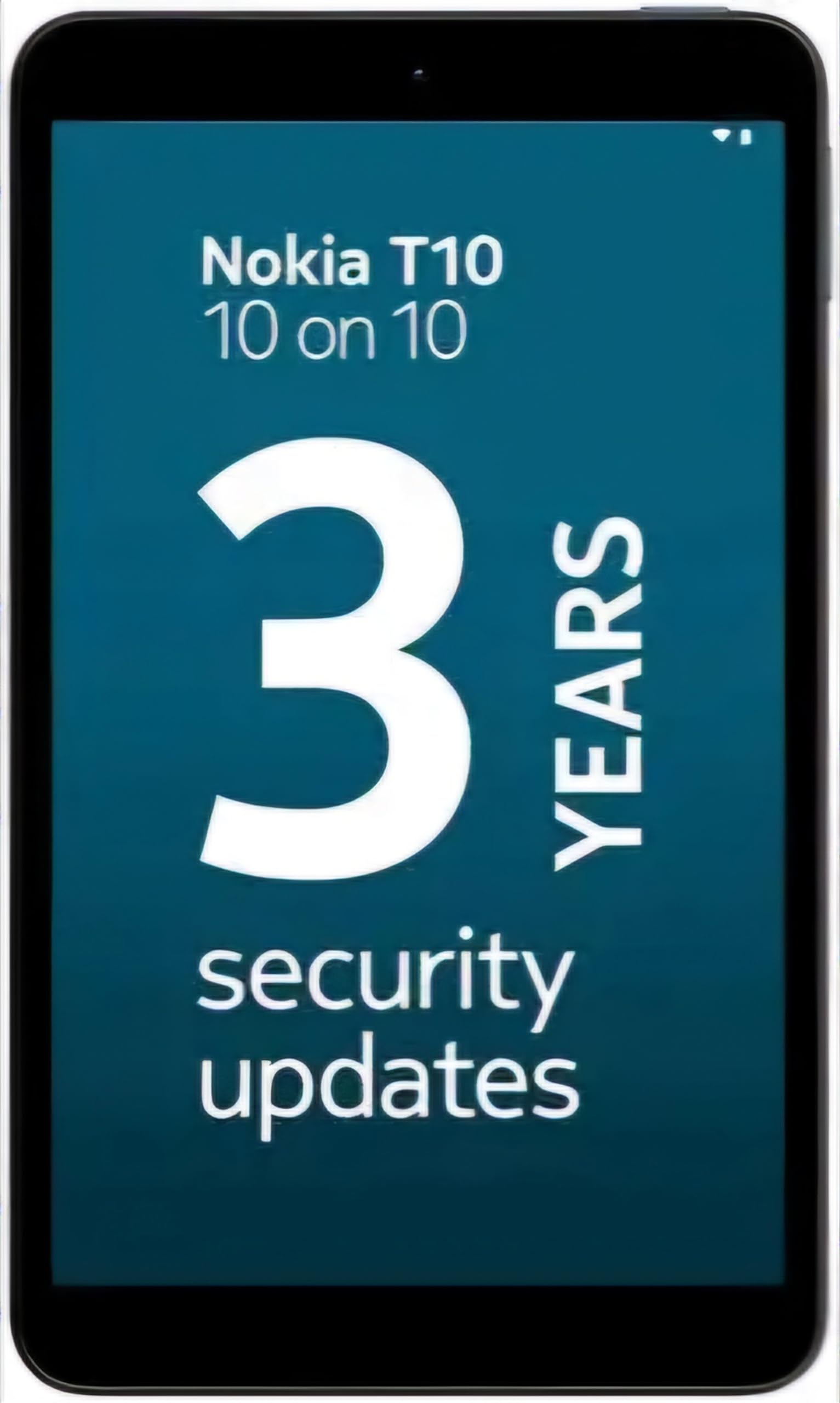
Image: Nokia T10 tablet, showcasing its sleek design and the rear camera module.
4. Інструкцыя па эксплуатацыі
4.1 Дысплей і навігацыя
The Nokia T10 features an 8-inch HD display (1280x800 pixels). Navigate the interface using touch gestures:
- Націсніце: Выберыце элемент або адкрыйце праграму.
- Правядзіце пальцам: Пракручваць экраны, спісы або змест.
- Звядзенне пальцамі для павелічэння: Павялічваць або памяншаць маштаб фатаграфій і web старонкі.
- Доўгі націск: Доступ да кантэкстных меню або перамяшчэнне значкоў праграм.
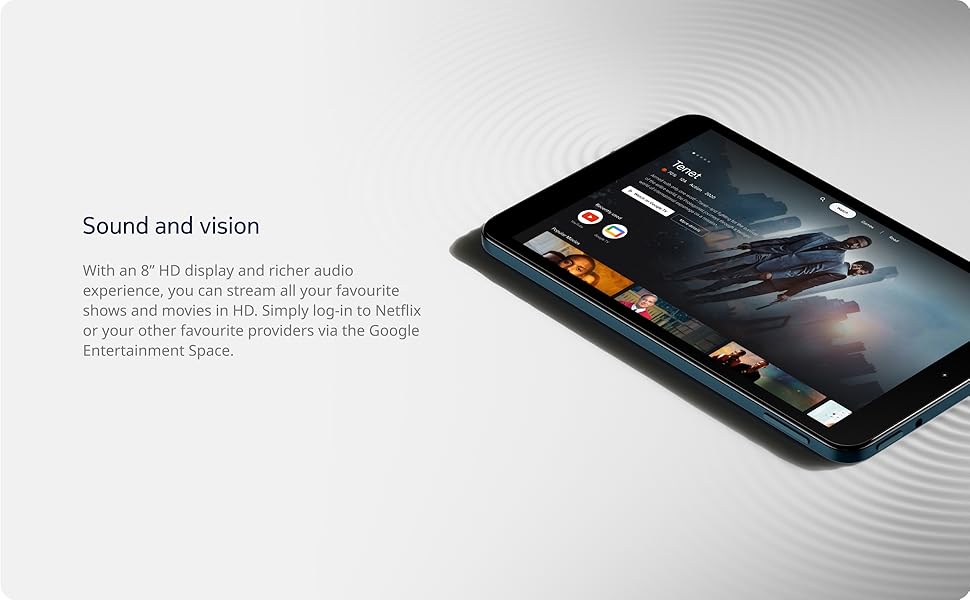
Image: The Nokia T10 tablet showcasing its 8-inch HD display with streaming video content.
4.2 Функцыі камеры
Your tablet is equipped with an 8MP rear camera with autofocus and flash, and a 2MP front camera.
- Фотаздымкі: Адкрыйце праграму «Камера», сфармуйце кадр і націсніце кнопку спуску засаўкі.
- Запіс відэа: Switch to video mode in the Camera app and tap the record button to start/stop. The tablet supports FHD 1080p video capture.
- Пярэдняя камера: Tap the camera switch icon to use the front camera for selfies or video calls.

Image: A Nokia T10 tablet displaying a video call, highlighting its front camera functionality.
4.3 Кіраванне батарэяй
The Nokia T10 has a 5250 mAh battery designed for all-day use. To optimize battery life:
- Паменшыць яркасць экрана.
- Выключайце Wi-Fi і Bluetooth, калі яны не выкарыстоўваюцца.
- Зачыніце фонавыя праграмы.
- Уключыце рэжым эканоміі батарэі ў наладах.
4.4 Падключэнне
- Wi-Fi: Connect to wireless networks via Settings > Network & internet > Wi-Fi. The tablet supports 802.11a/b/g/n/ac standards.
- Bluetooth: Pair with Bluetooth devices (headphones, speakers) via Settings > Connected devices > Bluetooth. The tablet features Bluetooth 5.0.
- USB Type-C: Выкарыстоўвайце порт USB-C для зарадкі і перадачы дадзеных.
4.5 Разблакіроўка па твары з дапамогай штучнага інтэлекту
For quick and secure access, set up AI Face Unlock:
- Go to Settings > Security > Face unlock.
- Выконвайце інструкцыі на экране, каб зарэгістраваць свой твар.
- Ensure you are in a well-lit environment during setup and use.
4.6 Праграмнае забеспячэнне і абнаўленні
The Nokia T10 runs on Android 12. Nokia provides 2 years of OS updates and 3 years of monthly security updates to keep your device secure and up-to-date. You will receive notifications when updates are available. It is recommended to install updates over a Wi-Fi connection.
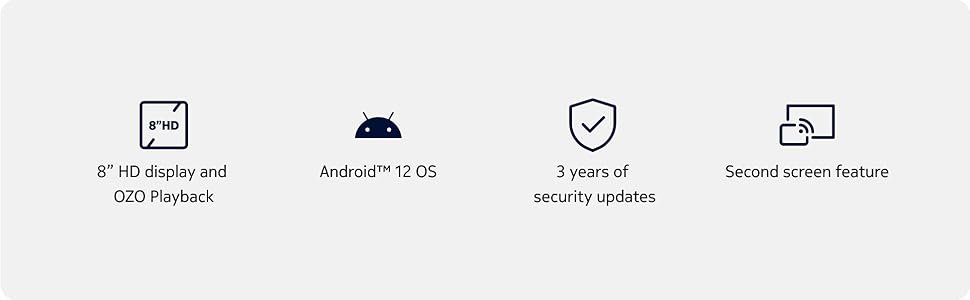
Image: Visual representation of Nokia T10 features including Android 12 OS and 3 years of security updates.
5. Тэхнічнае абслугоўванне
5.1 Чыстка планшэта
- Для чысткі экрана і корпуса выкарыстоўвайце мяккую тканіну без ворса.
- Пазбягайце выкарыстання агрэсіўных хімікатаў, абразіўных ачышчальнікаў або аэразольных распыляльнікаў.
- Do not expose the tablet to excessive moisture.
5.2 Абнаўленне праграмнага забеспячэння
Рэгулярна правярайце наяўнасць абнаўленняў праграмнага забеспячэння і ўсталёўвайце іх, каб забяспечыць аптымальную прадукцыйнасць і бяспеку. Перайдзіце ў раздзел «Налады» > «Сістэма» > «Абнаўленне сістэмы».
5.3 Кіраванне сховішчам
To maintain performance, periodically manage your tablet's storage:
- Выдаліце непатрэбныя праграмы і files.
- Перамясціць вялікі files (photos, videos) to a MicroSD card or cloud storage.
- Clear app cache regularly via Settings > Apps > [App Name] > Storage & cache.
6. Выпраўленне непаладак
If you encounter issues with your Nokia T10 tablet, try the following solutions:
| праблема | Рашэнне |
|---|---|
| Планшэт не ўключаецца | Пераканайцеся, што акумулятар зараджаны. Падключыце зарадную прыладу і пачакайце некалькі хвілін, перш чым зноў уключыць прыладу. |
| Праблемы з падключэннем да Wi-Fi | Restart your Wi-Fi router. Go to Settings > Network & internet > Wi-Fi, turn Wi-Fi off and then on again. Forget the network and reconnect. |
| Павольнае выкананне | Close unused apps. Clear app caches. Restart the tablet. Check for available software updates. |
| Збоі або завісанні праграм | Force stop the app (Settings > Apps > [App Name] > Force stop). Clear the app's cache and data. Reinstall the app. |
| Акумулятар хутка разраджаецца | Зменшце яркасць экрана. Адключайце непатрэбныя функцыі, такія як GPS, Bluetooth і Wi-Fi, калі яны не выкарыстоўваюцца. Праверце выкарыстанне батарэі ў наладах, каб вызначыць праграмы, якія спажываюць шмат энергіі. |
If the problem persists after trying these steps, please contact Nokia customer support.
7. Тэхнічныя характарыстыкі
Below are the key technical specifications for the Nokia T10 Wi-Fi Tablet:
- Назва мадэлі: Nokia T10 TA-1472 WIFI 3/32
- Аперацыйная сістэма: Android 12
- Працэсар: Unisoc T606 (восьміядзерны, 1.6 ГГц)
- Графічны супрацэсар: Малі-G57
- Аператыўная памяць: 3 ГБ
- Унутраная памяць: 32 ГБ
- Пашыраная памяць: Yes, via MicroSD card (up to 512GB, sold separately)
- Дысплей: 8-inch HD (1280 x 800 pixels) TFT, 16:10 aspect ratio
- Задняя камера: 8 MP with AF and Flash
- Пярэдняя камера: 2 МП
- Дазвол відэазахопу: FHD 1080p at 30 fps
- акумулятар: Літый-палімерны 5250 мАг
- Падключэнне: Wi-Fi (802.11a/b/g/n/ac), Bluetooth 5.0, USB Type-C, 3.5mm Audio Jack
- Функцыі бяспекі: ІІ разблакоўка тварам
- Аўдыё: Stereo Speakers, OZO Playback
- Dimensions (L x W x Thickness): 20.8Д х 12.3Ш х 0.9 сантыметраў
- Вага: 375 грам
- колер: Сіні
8. Інфармацыя аб гарантыі
The Nokia T10 tablet comes with a Гарантыя ад вытворцы 1 год for the device and battery from the date of purchase. In-box accessories are covered by a Гарантыя ад вытворцы 6 месяцаў from the date of purchase. Please retain your proof of purchase for warranty claims. For detailed terms and conditions, refer to the warranty card included in your product packaging or visit the official Nokia support webсайт.
9. Падтрымка
For further assistance, technical support, or to find service centers, please visit the official Nokia support website or contact their customer service. You can typically find support contact information on the Nokia website or in the safety booklet provided with your tablet.
Інтэрнэт-падтрымка: Падтрымка Nokia Webсайт


