
Уводзіны
This manual provides essential information for setting up, operating, maintaining, and troubleshooting your CUPEISI 7-inch Android 14 Tablet. Please read this guide thoroughly to ensure proper use and to maximize your tablet's performance and longevity.
Што ў скрынцы
Пераканайцеся, што ўсе прадметы наяўныя пасля распакавання:
- CUPEISI 7-inch Android 14 Tablet
- Кабель Type-C
- Кіраўніцтва карыстальніка (гэты дакумент)
Прадукт скончаныview
The CUPEISI Q2S tablet features a 7-inch HD IPS display, powered by a 1.6GHz Quad-core processor and running Android 14. It includes 8GB RAM (4GB physical + 4GB virtual) and 32GB internal storage, expandable up to 1TB via microSD card. The tablet is equipped with dual cameras and supports Wi-Fi and Bluetooth connectivity.
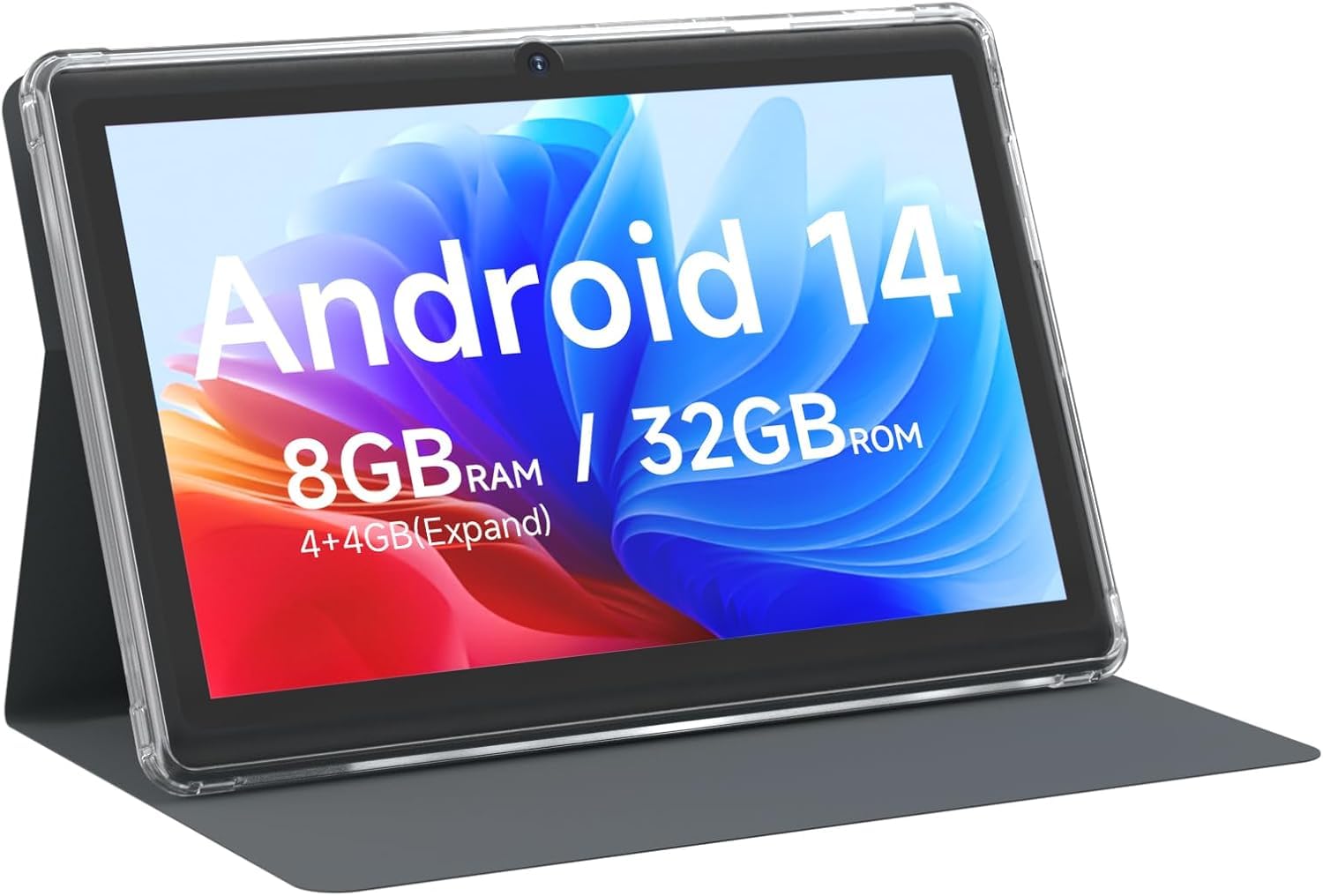
CUPEISI 7-inch Android 14 Tablet, front view.

Скончанаview of CUPEISI 7-inch Android 14 Tablet features including OS, CPU, RAM, ROM, Screen, Camera, Battery, and WiFi.
Настройка
1. Зарадка планшэта
Before first use, fully charge the tablet. Connect the provided Type-C cable to the tablet's charging port and the other end to a compatible USB power adapter (not included) or a computer's USB port. The battery indicator on the screen will show charging status.
2. Уключэнне і пачатковая налада
- Націсніце і ўтрымлівайце кнопку харчавання, пакуль не загарыцца экран.
- Follow the on-screen prompts to select your language, region, and other initial settings.
3. Падключэнне да Wi-Fi
- Перайсці да Налады > Сетка і інтэрнэт > Wi-Fi.
- Уключыць/выключыць Wi-Fi On.
- Выберыце патрэбную сетку Wi-Fi са спісу.
- Увядзіце пароль сеткі, калі будзе запытана, а затым націсніце Злучыцца.
4. Налада ўліковага запісу Google
A Google account is required to download apps from Google Play Store and access Google services. You can sign in with an existing account or create a new one during the initial setup or later via Налады > Рахункі.
Кіраванне вашым планшэтам
1. Basic Navigation and Gestures
- Націсніце: Выберыце элемент або адкрыйце праграму.
- Правядзіце пальцам: Пракручваць экраны або спісы.
- Дробка: Павялічваць або памяншаць маштаб малюнкаў і web старонкі.
- Доўгі націск: Доступ да кантэкстных меню або перамяшчэнне значкоў.
2. Кіраванне праграмамі

Tablet screen showing various application icons, illustrating the 8GB RAM and 32GB ROM storage capacity.
- Усталяваць праграмы: Open the Google Play Store app, search for your desired app, and tap Усталяваць.
- Выдаленне праграм: Long-press an app icon on the home screen or app drawer, then drag it to the Выдаліць варыянт або перайдзіце да Налады > Праграмы > выберыце праграму > Выдаліць.
3. Кіраванне сховішчам
The tablet has 32GB of internal storage. You can expand this by inserting a microSD card (up to 1TB) into the designated slot. To manage storage, go to Налады > Захоўванне.
4. Выкарыстанне камеры
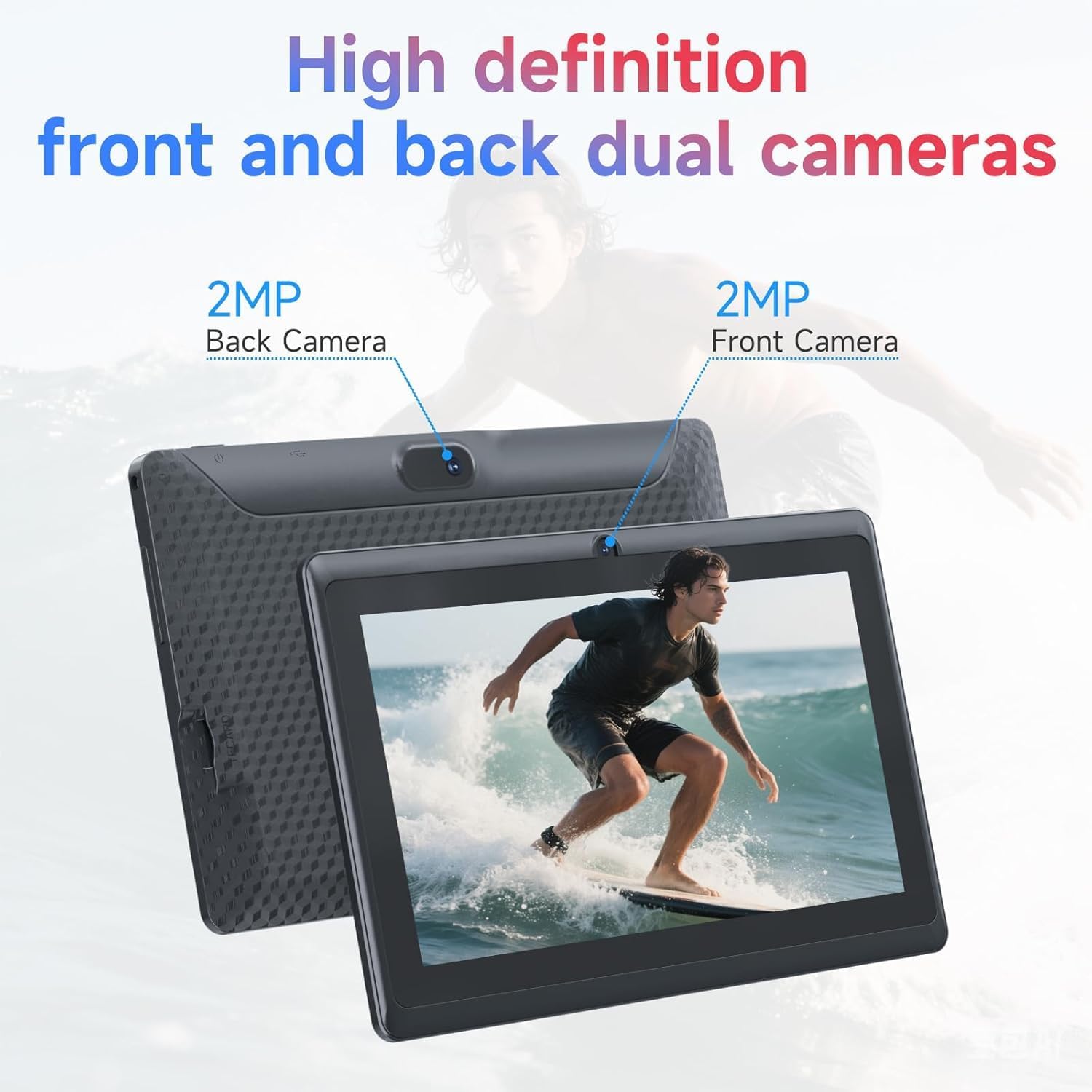
Illustration of the tablet's dual cameras, featuring a 5MP front camera and an 8MP rear camera.
The tablet features a 5MP front camera and an 8MP rear camera. Open the Камера app to take photos or record videos. Tap the camera icon to switch between front and rear cameras.
5. Connectivity (Bluetooth)
Каб падключыць прылады Bluetooth:
- Перайсці да Налады > Падключаныя прылады > Bluetooth.
- Пераключыць Bluetooth On.
- Выберыце Спалучыце новую прыладу і абярыце сваю прыладу са спісу.
6. Eye Protection Mode

The 7-inch IPS HD screen of the tablet displaying a colorful image, highlighting its 1024x600 resolution.
The tablet's display is designed to reduce blue light emission for eye comfort. You can enable or adjust eye protection settings in Налады > Дысплей.

A user engaged in a video conference on the tablet, demonstrating its suitability for work and study.
Тэхнічнае абслугоўванне
1. Чыстка і догляд
- Выкарыстоўвайце мяккую тканіну без ворса для чысткі экрана і корпуса планшэта.
- Пазбягайце выкарыстання агрэсіўных хімікатаў або абразіўных матэрыялаў.
- Keep the tablet away from extreme temperatures, direct sunlight, and moisture.

An image depicting the tablet's drop protection feature, showing it withstands impacts.
2. Абнаўленне праграмнага забеспячэння
Рэгулярна правярайце наяўнасць абнаўленняў праграмнага забеспячэння і ўсталёўвайце іх, каб забяспечыць аптымальную прадукцыйнасць і бяспеку. Перайдзіце па спасылцы Налады > сістэма > Абнаўленне сістэмы.
3. Аптымізацыя батарэі
- To prolong battery life, reduce screen brightness, disable Wi-Fi/Bluetooth when not in use, and close background apps.
- Пазбягайце частай поўнай разрадкі акумулятара.
Ліквідацыю непаладак
| выпуск | Магчымае рашэнне |
|---|---|
| Планшэт не ўключаецца | Ensure the tablet is charged. Connect to a power source and wait a few minutes before attempting to power on again. |
| Праблемы з падключэннем да Wi-Fi | Праверце, ці ўключаны Wi-Fi у наладах. Перазагрузіце маршрутызатар і планшэт. Пераканайцеся, што вы ўвялі правільны пароль. |
| Павольнае выкананне | Close unnecessary background applications. Clear cache from apps in Settings > Apps. Consider performing a factory reset if issues persist (back up data first). |
| Збоі або завісанні праграм | Update the app to the latest version. Clear the app's cache and data in Settings > Apps. Reinstall the app. |
Тэхнічныя характарыстыкі
| Марка | КУПЕЙЗІ |
| Нумар мадэлі | Q2S |
| Аперацыйная сістэма | Android 14 |
| Працэсар | 1.6 GHz Quad-core (ARM Cortex) |
| АЗП | 8 GB (4GB fixed + 4GB virtual) |
| Унутраная памяць | 32 ГБ |
| Сховішча з магчымасцю пашырэння | Да 1 ТБ праз карту microSD |
| Памер экрана | 7 цалі |
| Дазвол дысплея | 1024 x 600 Pixels IPS HD |
| Пярэдняя камера | 5 МП |
| Задняя камера | 8 МП |
| Ёмістасць батарэі | 3000 мАг |
| Сярэдні тэрмін службы батарэі | 6 гадзін |
| Сувязь | Wi-Fi (802.11g), Bluetooth |
| Інтэрфейс | USB Type-C |
| Памеры (Д х Ш х Г) | 7.5" x 4.3" x 0.3" |
| Вага прадмета | 0.38 кілаграма |
Інфармацыя аб гарантыі
The CUPEISI Q2S Tablet comes with a 1-year limited warranty from the date of purchase. This warranty covers manufacturing defects and workmanship under normal use. It does not cover damage caused by misuse, accidents, unauthorized modifications, or external factors. Please retain your proof of purchase for warranty claims.
Падтрымка кліентаў
For further assistance, technical support, or warranty inquiries, please refer to the contact information provided with your product packaging or visit the official CUPEISI website. When contacting support, please have your tablet model number (Q2S) and proof of purchase ready.