
1. Уводзіны
Thank you for choosing the UNITED LED40HS82A11 40-inch Full HD Smart Android TV. This television combines a vibrant Full HD display with the power of Android 11, offering a seamless entertainment experience. With built-in Chromecast and Airplay, Wi-Fi, Ethernet, and support for various digital broadcasting standards (DVB/T2/S2/C, MPEG-4, HEVC Main 10), your new TV is designed for versatile use, from watching movies and playing games to browsing the internet.
This manual provides essential information for setting up, operating, and maintaining your television. Please read it thoroughly before using the product and keep it for future reference.

Выява 1.1: Спераду view of the UNITED LED40HS82A11 TV with Android TV interface.
2. Інфармацыя па бяспецы
Before operating your TV, please read all safety instructions carefully. Improper use can result in electric shock, fire, or damage to the appliance.
- крыніца харчавання: Ensure the TV is connected to an AC 100-240V, 50/60Hz power supply. Do not overload power outlets.
- Вентыляцыя: Не блакуйце вентыляцыйныя адтуліны. Пакіньце дастатковую прастору вакол тэлевізара для належнай цыркуляцыі паветра.
- Вада і вільгаць: Не падвяргайце тэлевізар уздзеянню дажджу або вільгаці. Не стаўце на тэлевізар прадметы, напоўненыя вадкасцямі, напрыклад, вазы.
- Крыніцы цяпла: Трымайце тэлевізар далей ад крыніц цяпла, такіх як радыятары, абагравальнікі, пліты або іншыя прыборы, якія выпрацоўваюць цяпло.
- Уборка: Адключыце тэлевізар ад разеткі перад чысткай. Выкарыстоўвайце мяккую сухую тканіну. Не выкарыстоўвайце вадкія або аэразольныя ачышчальнікі.
- Абслугоўванне: Не спрабуйце самастойна абслугоўваць гэты прадукт. Звярніцеся да ўсіх абслугоўванняў кваліфікаванага абслуговага персаналу.
- дзеці: Supervise children to ensure they do not play with the TV.
3. Змесціва ўпакоўкі
Калі ласка, праверце, ці ўваходзяць у камплект вашага тэлевізара наступныя рэчы:
- UNITED LED40HS82A11 40-inch Full HD Smart Android TV
- Remote Control (with 2x AAA 1.5V batteries)
- Шнур харчавання
- Падстаўка для тэлевізара (2 штукі) і шрубы
- MiniAV Adapter Cable
- Кіраўніцтва карыстальніка (гэты дакумент)
Калі якія-небудзь прадметы адсутнічаюць або пашкоджаныя, звярніцеся да прадаўца.
4. Настройка
4.1 Прымацаванне падстаўкі
- Асцярожна пакладзеце тэлевізар экранам уніз на мяккую, роўную паверхню (напрыклад, коўдру або пенапласт), каб пазбегнуць пашкоджання экрана.
- Сумясціце ножкі падстаўкі з адпаведнымі пазамі ў ніжняй частцы тэлевізара.
- Замацуйце кожную ножку падстаўкі з дапамогай шруб, якія ўваходзяць у камплект. Пераканайцеся, што яны надзейна зацягнуты.
- Асцярожна падніміце тэлевізар у вертыкальнае становішча і пастаўце яго на ўстойлівую, роўную паверхню.
4.2 Насценны мантаж (дадаткова)
This TV is compatible with VESA standard wall mounts. The VESA mounting pattern for this model is typically 200x200mm. Please consult a professional for wall mounting to ensure proper installation and safety. Wall mount bracket and screws are not included.
4.3 Падключэнне знешніх прылад
Your TV offers various connectivity options for external devices.
Малюнак 4.1: ззаду view of the TV with port layout.
- HDMI: Connect Blu-ray players, game consoles, set-top boxes, or other HDMI-enabled devices. The TV supports multiple HDMI inputs.
- USB: Connect USB storage devices (e.g., flash drives) to play media fileс. Тэлевізар мае 1 USB-порт.
- MiniAV: Use the provided MiniAV adapter cable to connect older devices with composite video and stereo audio outputs.
- Выхад для навушнікаў: Падключыце навушнікі для асабістага праслухоўвання.
4.4 Antenna/Cable Connection
Connect your terrestrial antenna (DVB-T/T2) or satellite dish (DVB-S/S2) cable to the appropriate input on the back of the TV. For cable TV (DVB-C), connect the cable to the antenna input.
4.5 Network Connection (Wi-Fi & Ethernet)
Your TV can connect to the internet via Wi-Fi or an Ethernet cable.
- Wi-Fi: During the initial setup or via the settings menu, select your Wi-Fi network and enter the password.
- Ethernet: Падключыце кабель Ethernet ад маршрутызатара да порта LAN на задняй панэлі тэлевізара.
5. Першая ўстаноўка
- Уключэнне: After connecting all necessary cables, plug the power cord into an electrical outlet. Press the power button on the remote control or on the TV.
- Першапачатковая канфігурацыя: The TV will guide you through the initial setup process.
- Выбар мовы: Выберыце пераважную мову.
- Налада сеткі: Connect to your Wi-Fi network or use an Ethernet connection.
- Уліковы запіс Google: Sign in with your Google account to access the Google Play Store, personalized recommendations, and other Android TV features.
- Сканаванне каналаў: The TV will prompt you to scan for available channels based on your antenna/cable connection.
- Налады прыватнасці: Review і адрэгулюйце параметры прыватнасці па жаданні.
- Усталяванне завершана: Once all steps are finished, your TV is ready for use.
6. Кіраванне тэлевізарам
6.1 Функцыі дыстанцыйнага кіравання
Пульт дыстанцыйнага кіравання дазваляе карыстацца функцыямі тэлевізара. Азнаёмцеся з кнопкамі:
- Магутнасць: Уключае/выключае тэлевізар.
- Увод: Выбірае крыніцу ўваходнага сігналу (HDMI, AV, TV).
- Кнопкі навігацыі (Уверх/Уніз/Улева/Управа): Перамяшчацца па меню і опцыях.
- ОК/Увядзіце: Пацвярджае выбар.
- Назад: Вяртае да папярэдняга экрана.
- Дом: Доступ да галоўнага экрана Android TV.
- Павялічыць/паменшыць гучнасць: Рэгулюе гучнасць.
- Канал уверх/уніз: Змяняе тэлеканалы.
- Памочнік Google: Актывуе галасавыя каманды.
- Кнопкі праграмы: Direct access to popular streaming applications.
6.2 Navigating Android TV Interface
The Android TV home screen provides access to your installed apps, live TV, and recommended content. Use the navigation buttons on your remote to browse categories like Search, Home, Discover, and Apps.

Image 6.1: Android TV home screen with various applications.
6.3 Выбар крыніцы ўваходнага сігналу
Націсніце Увод button on your remote control to switch between connected devices (e.g., HDMI 1, HDMI 2, AV) and the built-in TV tuner.
6.4 Налада каналаў
If you connected an antenna or cable, you can access live TV channels. Use the Канал уверх/уніз buttons to change channels. To perform a new channel scan or adjust channel settings, go to the TV's settings menu.
6.5 Выкарыстанне разумных функцый
- Праграмы: Спампуйце і ўсталюйце шырокі спектр праграм з крамы Google Play.
- Убудаваны Chromecast: Cast content (videos, photos, music) from your compatible smartphone, tablet, or computer directly to your TV. Look for the Chromecast icon in supported apps.
- Эфір: For Apple device users, Airplay allows you to stream content or mirror your screen to the TV.
- Інтэрнэт-браўзэр: Выкарыстоўвайце a web browser app to surf the internet.
7. Тэхнічнае абслугоўванне
7.1 Чыстка тэлевізара
- Заўсёды адключайце тэлевізар ад сеткі перад чысткай.
- Выкарыстоўвайце мяккую, сухую тканіну без ворса, каб праціраць экран і корпус.
- Для выдалення ўстойлівых плям на экране злёгку працярыцеampпрацярыце тканіну вадой або спецыяльным сродкам для чысткі экранаў (не распыляйце непасрэдна на экран).
- Пазбягайце выкарыстання абразіўных ачышчальнікаў, воску або растваральнікаў, бо яны могуць пашкодзіць пакрыццё тэлевізара.
7.2 Абнаўленне праграмнага забеспячэння
Your Android TV may receive software updates to improve performance and add new features. It is recommended to keep your TV connected to the internet to receive these updates automatically. You can also check for updates manually in the TV's settings menu.
8. Выпраўленне непаладак
Калі ў вас узніклі праблемы з тэлевізарам, звярніцеся да наступных распаўсюджаных праблем і іх рашэнняў:
- Няма харчавання:
- Праверце, ці надзейна падключаны шнур сілкавання да тэлевізара і разеткі.
- Ensure the wall outlet is working by plugging in another device.
- Паспрабуйце націснуць кнопку харчавання на самым тэлевізары, а не толькі на пульце дыстанцыйнага кіравання.
- Няма выявы, але гук ёсць:
- Пераканайцеся, што выбрана правільная крыніца ўваходнага сігналу.
- Check the cable connections to external devices.
- Паспрабуйце перазагрузіць тэлевізар і падключаную прыладу.
- Няма гуку, але выява ёсць:
- Праверце ўзровень гучнасці і пераканайцеся, што гук тэлевізара не выключаны.
- Verify audio settings in the TV menu and on the external device.
- Try a different HDMI cable or input.
- Пульт дыстанцыйнага кіравання не працуе:
- Замяніце батарэйкі ў пульце дыстанцыйнага кіравання.
- Пераканайцеся, што паміж пультам дыстанцыйнага кіравання і ІЧ-датчыкам тэлевізара няма перашкод.
- Накіруйце пульт непасрэдна на тэлевізар.
- Праблемы з падключэннем Wi-Fi:
- Перазагрузіце маршрутызатар і мадэм.
- Праверце, ці правільна ўведзены пароль Wi-Fi.
- Move the TV closer to the router or use an Ethernet cable for a stable connection.
Па больш складаных пытаннях звярніцеся ў службу падтрымкі кліентаў.
9. Тэхнічныя характарыстыкі
Here are the technical specifications for the UNITED LED40HS82A11 TV:
| Асаблівасць | Спецыфікацыя |
|---|---|
| Марка | АБ'ЯДНАНЫЯ |
| Назва мадэлі | LED40HS82A11 |
| Памер экрана | 40 цаляў |
| Дазвол дысплея | Full HD (1920 x 1080 пікселяў) |
| Аперацыйная сістэма | Android 11 |
| Тэхналогія падлучэння | Wi-Fi, Ethernet, Bluetooth, HDMI, USB |
| Асаблівасці | Smart TV, Flat Screen, Chromecast Built-in, Airplay, Pre-installed Apps |
| Цюнеры | DVB/T2/S2/C |
| Дэкадаванне відэа | MPEG-4, HEVC Main 10 |
| Частата абнаўлення | 60 Гц |
| Суадносіны бакоў | 16:9 |
| Парты USB | 1 |
| Сумяшчальныя прылады | Навушнікі |
| Колер | Чорны |
| Вытворца | CHANGHONG EUROPE ELECTRIC SRO |
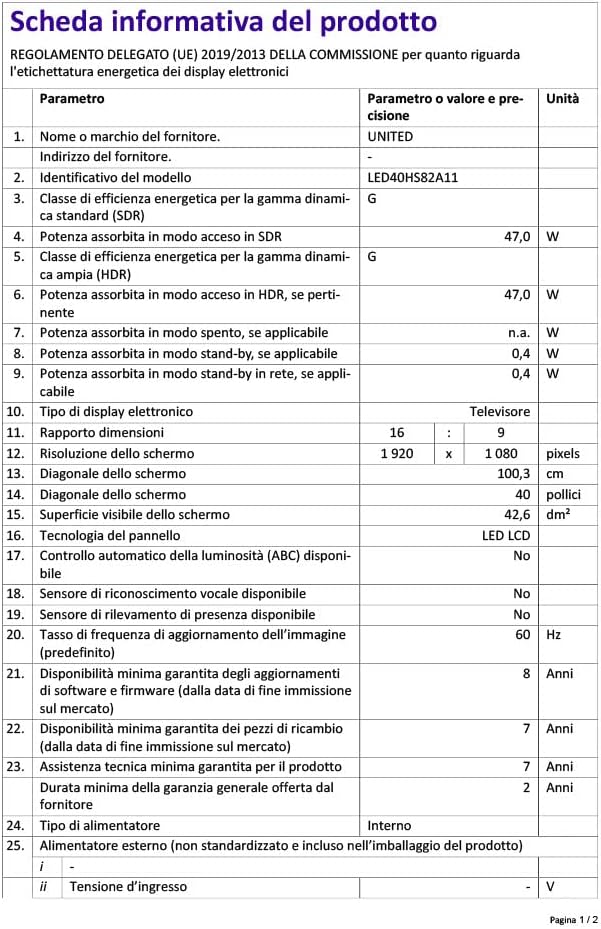
Image 9.1: EU Energy Label for LED40HS82A11.
For detailed product information, including energy consumption data, please refer to the official EU EPREL database via the QR code on the energy label or by visiting https://eprel.ec.europa.eu/qr/1068369.
10. Гарантыя і падтрымка
For warranty information, please refer to the warranty card included with your product or contact your retailer. The manufacturer, CHANGHONG EUROPE ELECTRIC S.R.O., provides general support for this product.
Please note that information regarding software update guarantees and spare parts availability is not explicitly provided for this model. For any technical assistance or service inquiries, please contact the customer support channels provided by your point of purchase.