
Renkchip Renkchip
Renkchip Wireless HDMI Display Adapter User Manual
Model: Renkchip
Уводзіны
Thank you for choosing the Renkchip Wireless HDMI Display Adapter. This device allows you to effortlessly mirror the screen of your mobile phones, tablets, or laptops to a larger display such as a TV, monitor, or projector, providing a seamless 1080P/60Hz real-time transmission experience. Designed for simplicity, it requires no apps, drivers, or complex software setup, making it truly plug-and-play.
Важная інфармацыя па бяспецы
Please read and follow all safety instructions carefully before using this product to ensure safe operation and prevent damage.
- Трымайце прыладу далей ад вады, вільгаці і экстрэмальных тэмператур.
- Не спрабуйце разбіраць або рамантаваць прыладу самастойна. Звяртайцеся да кваліфікаванага персаналу па любыя паслугі па абслугоўванні.
- Use only the provided power cable (5V/1A) to power the device.
- Забяспечце належную вентыляцыю вакол прылады падчас працы.
Змест пакета
Праверце, ці ёсць усе прадметы ў вашай упакоўцы:
- Renkchip Wireless HDMI Display Adapter
- USB Power Cable (5V/1A)
- Кабель HDMI
- AV-кабель
- Кіраўніцтва карыстальніка (гэты дакумент)
Прадукт скончаныview
The Renkchip Wireless HDMI Display Adapter is a compact device designed for easy screen mirroring. Below are its key components and dimensions.

Image: The Renkchip Wireless HDMI Display Adapter, a black square device with an antenna, designed for wireless display.

Image: Diagram showing the dimensions of the Renkchip Wireless HDMI Display Adapter: 6cm x 6cm base, 1.5cm height, and 9cm antenna height.

Image: Close-up of the Renkchip Wireless HDMI Display Adapter's ports, indicating the Switch button (for iOS/Android mode), POWER (5V/1A) input, and HDMI output.

Image: Illustration of the included cables: an HDMI cable (53cm), a 5V/1A USB power cable (88cm), and an AV cable (18cm).
Кіраўніцтва па ўстаноўцы
Follow these steps to set up your Renkchip Wireless HDMI Display Adapter:
- Падключэнне да дысплея: Plug the HDMI cable from the Renkchip adapter into an available HDMI port on your TV, monitor, or projector.
- Уключэнне: Connect the USB power cable to the adapter's POWER (5V/1A) port and plug the other end into a USB power source (e.g., a USB wall adapter or a USB port on your display device). Ensure the device receives stable power.
- Выберыце ўвод: On your display device, switch the input source to the HDMI port where the Renkchip adapter is connected. You should see the adapter's standby screen.
- Choose Mode (iOS/Android): The adapter has a switch button to toggle between iOS and Android modes. Press this button to select the appropriate mode for your source device. The standby screen will indicate the current mode.

Image: A visual representation of the plug-and-play setup, showing the Renkchip adapter connected to a TV via HDMI and powered by a USB adapter, ready to receive signals from various mobile devices and laptops.
Інструкцыя па эксплуатацыі
Screen Mirroring (Plug and Play)
The Renkchip adapter is designed for one-click connection without complex setup. Ensure the adapter is powered on and connected to your display.

Image: A family watching a movie mirrored from a mobile phone to a large TV screen using the Renkchip Wireless HDMI Display Adapter, illustrating the mirror mode functionality.
Для прылад iOS (iPhone/iPad):
- Ensure the adapter is in iOS mode (check the display screen).
- On your iOS device, swipe down from the top-right corner (or up from the bottom for older models) to open Control Center.
- Tap on "Screen Mirroring" or "AirPlay Mirroring".
- Select "Renkchip-XXXX" from the list of available devices. Your screen will now be mirrored.
Для прылад Android:
- Ensure the adapter is in Android mode (check the display screen).
- On your Android device, navigate to "Settings" and look for "Wireless Display", "Cast", "Smart View", "Screen Mirroring", or similar options. The exact name may vary by device manufacturer.
- Enable the feature and select "Renkchip-XXXX" from the list of detected devices. Your screen will now be mirrored.
Для прылад Windows:
- On your Windows laptop or desktop, press the Клавіша Windows + P адначасова.
- Select "Connect to a wireless display".
- Choose "Renkchip-XXXX" from the list of available devices.
For MacOS Devices:
- On your Mac, click the AirPlay icon in the menu bar (it looks like a rectangle with an upward-pointing arrow).
- Select "Renkchip-XXXX" from the AirPlay menu.

Image: A diagram illustrating the wide compatibility of the Renkchip adapter, showing connections from Android phones, Windows laptops, iPhones, iPads, and MacBooks to TVs, monitors, and projectors.

Image: Step-by-step visual guide for connecting iOS and Android devices to the Renkchip adapter, showing the process of accessing screen mirroring/wireless projection settings and selecting the device.

Image: Step-by-step visual guide for connecting MacOS and Windows devices to the Renkchip adapter, demonstrating the AirPlay menu for Mac and the Windows+P shortcut for Windows to connect to a wireless display.
DLNA Function (Advanced)
The Renkchip Wireless Display Adapter also supports DLNA for more advanced streaming needs. To use DLNA, the device needs to be connected to your home Wi-Fi network.
Setting up Network Connection for DLNA:
- Ensure the adapter is in Android/Windows system dedicated mode (check the display screen).
- On your phone, open Wi-Fi settings and find the "Renkchip-XXXX" hotspot. Connect to it using the password: 12345678.
- Once connected, open your phone's web браўзэр і ўвядзіце URL 192.168.49.1. Press "Enter".
- На ст webpage, click "SCAN" and wait for your phone to search for surrounding router hotspots.
- Select your router's name from the list and enter your router's Wi-Fi password.
- Wait for a moment for the device to complete the network connection. The adapter will automatically connect to this Wi-Fi network in the future after being powered on.
Заўвага: For optimal performance, connect the device to a 5G Wi-Fi network if available.
Using DLNA Function:
After the adapter is connected to your Wi-Fi network:
- Open an audio or video application on your mobile phone (e.g., YouTube, a media player).
- Select the content you wish to play.
- While the content is playing, look for the DLNA/Airplay screen projection button (often in the upper right corner of the video player).
- Tap the button and select "Renchip-XXXX" to stream the content via DLNA/Airplay.
Screen Orientation (Flip the Screen)
When the wireless HDMI adapter is successfully mirrored to a large screen, you can switch the screen orientation between landscape and portrait modes using the switch button on the device. This feature is useful for various scenarios, such as webcasting or game recording.
Business and Presentation Use
The Renkchip Wireless HDMI Display Adapter is ideal for business meetings and presentations, allowing for easy projection of documents and content to a large screen.

Image: A business meeting scenario where a laptop screen is wirelessly projected onto a large screen using the Renkchip Wireless HDMI Display Adapter, facilitating easy display of documents and presentations.
Сумяшчальнасць
The Renkchip Wireless HDMI Display Adapter offers broad compatibility with various devices and display types:
- Аперацыйныя сістэмы: iOS, MacOS, Android, Windows, HarmonyOS.
- Прылады-крыніцы: Mobile phones, tablets, laptops, desktop computers.
- Прылады дысплея: Televisions, monitors, projectors.
Important Note on Content Protection:
Due to copyright protection protocols (HDCP), this device НЕ ПАДТРЫМАЕ mirroring content from applications such as Netflix, Amazon Video, HULU, Prime Video, Sky Go, iTunes, Comcast TV, Xfinity, HBO Go, DIRECTV, and other apps that require paid subscriptions or have strict content protection measures.
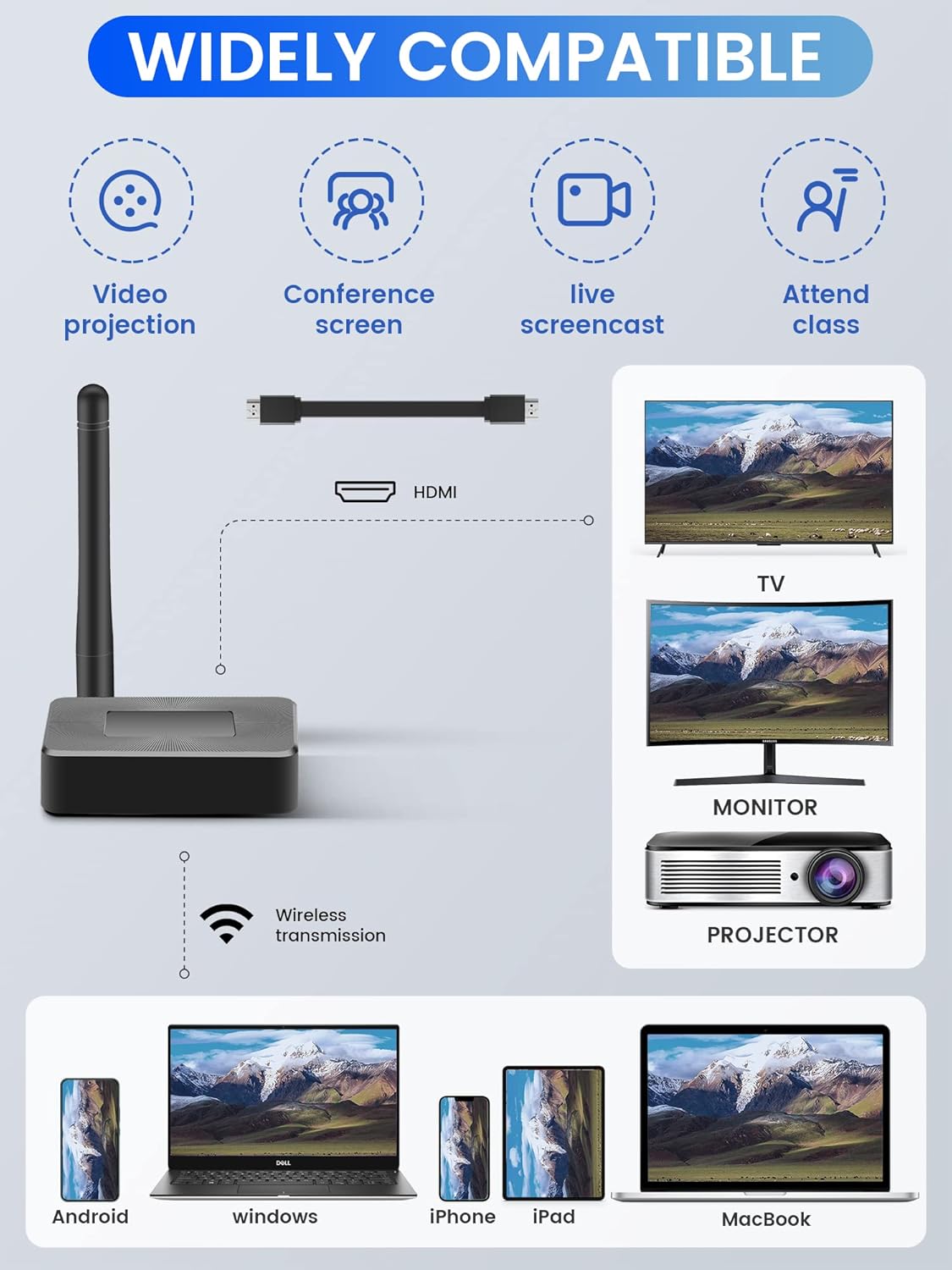
Image: A visual guide showing applications that work with the Renkchip adapter (e.g., Chrome, Spotify, Office, YouTube) and those that are not supported due to HDCP (e.g., Amazon, Hulu, Netflix).
Тэхнічнае абслугоўванне
To ensure the longevity and optimal performance of your Renkchip Wireless HDMI Display Adapter, follow these simple maintenance guidelines:
- Уборка: Для чысткі прылады выкарыстоўвайце мяккую сухую тканіну. Не выкарыстоўвайце вадкія ачышчальнікі або аэразолі.
- захоўванне: Калі прылада не выкарыстоўваецца працяглы час, захоўвайце яе ў прахалодным, сухім месцы, удалечыні ад прамых сонечных прамянёў.
- Апрацоўка: Не кідайце прыладу і не падвяргайце яе моцным ударам.
Ліквідацыю непаладак
If you encounter issues with your Renkchip Wireless HDMI Display Adapter, refer to the following common problems and solutions:
| праблема | Магчымая прычына | Рашэнне |
|---|---|---|
| Няма адлюстравання на экране. | Incorrect HDMI input selected; insufficient power; loose cable connection. | Ensure your display is set to the correct HDMI input. Check that the USB power cable is securely connected and the adapter is receiving sufficient power (5V/1A). Reconnect HDMI cable. |
| Screen mirroring is laggy or choppy. | Interference from other wireless devices; distance from adapter; low signal strength. | Reduce distance between source device and adapter. Minimize interference from other Wi-Fi devices. Ensure your source device has a strong Wi-Fi signal. For DLNA, connect to a 5G Wi-Fi network if possible. |
| Cannot find "Renkchip-XXXX" in mirroring options. | Adapter not powered on; incorrect mode selected (iOS/Android); device not discoverable. | Verify the adapter is powered on and its standby screen is visible. Press the switch button to ensure the correct iOS or Android mode is selected. Restart both the adapter and your source device. |
| Cannot mirror certain apps (e.g., Netflix, Prime Video). | Content protection (HDCP) restrictions. | This is expected behavior. The adapter does not support content from apps with HDCP protocols due to copyright protection. |
| DLNA function not working. | Adapter not connected to home Wi-Fi; incorrect DLNA setup steps. | Ensure the adapter is successfully connected to your home Wi-Fi network via the 192.168.49.1 setup page. Verify your phone is on the same Wi-Fi network as the adapter. |
Тэхнічныя характарыстыкі
Detailed technical specifications for the Renkchip Wireless HDMI Display Adapter:
- Марка: Рэнкчып
- Нумар мадэлі: Рэнкчып
- ASIN: B0BJ29QLYG
- UPC: 726361401453
- дазвол: 1080P/60 Гц
- Падключэнне: Wireless (Wi-Fi), HDMI, USB (for power)
- Сумяшчальныя аперацыйныя сістэмы: Android, iOS, Windows, MacOS, HarmonyOS
- Спажываная магутнасць: 5 В/1 А
- Вага прадмета: 5 унцыі
- Памеры ўпакоўкі: 7.87 х 3.82 х 0.91 цалі
- Першая даступная дата: 29 чэрвеня 2022 г
Гарантыя і падтрымка
Renkchip products are designed for reliability and performance. For any questions, technical support, or warranty inquiries, please refer to the contact information provided with your purchase or visit the official Renkchip webсайт. Калі ласка, захавайце пацвярджэнне пакупкі для прэтэнзій па гарантыі.