
Уводзіны
This manual provides essential information for the safe and efficient operation of your Saba SA40S77A11 40-inch Full HD Smart Android TV. Please read these instructions carefully before using the product and retain them for future reference. This television combines Full HD resolution with the Android 11 operating system, offering integrated smart features like Chromecast and Airplay, along with versatile connectivity options.
Важная інфармацыя па бяспецы
Заўсёды выконвайце наступныя меры бяспекі, каб пазбегнуць паражэння электрычным токам, пажару або пашкоджання тэлевізара.
- Не падвяргайце тэлевізар уздзеянню дажджу або вільгаці.
- Не адчыняйце тэлевізарasinг; звяртайцеся да кваліфікаванага персаналу па ўсё абслугоўванне.
- Забяспечце належную вентыляцыю вакол тэлевізара. Не блакуйце вентыляцыйныя адтуліны.
- Пастаўце тэлевізар на ўстойлівую, роўную паверхню, каб ён не ўпаў.
- Абараніце сеткавы шнур ад наступання або заціскання.
- Адключайце тэлевізар ад сеткі падчас навальніцы або калі ён не выкарыстоўваецца працяглы час.
- Трымайце дробныя прадметы і вадкасці далей ад тэлевізара, каб прадухіліць іх трапленне ў прыладу.
Змест пакета
Праверце, ці ёсць усе прадметы ў скрынцы:
- Saba SA40S77A11 40-inch Full HD Smart Android TV
- Remote Control (with 2x AAA 1.5V batteries)
- Mini AV Adapter Cable
- Сілавы кабель
- TV Stand (if not pre-assembled)
- Кіраўніцтва карыстальніка (гэты дакумент)
Настройка
1. Мацаванне падстаўкі (неабавязкова)
If your TV stand is not pre-assembled, carefully attach it to the bottom of the television using the provided screws. Ensure the TV is placed face down on a soft, clean surface to prevent screen damage during this process.

Выява: спераду view of the Saba SA40S77A11 TV with its silver stand attached, ready for placement.
Alternatively, the TV can be wall-mounted using a compatible VESA mount (sold separately). Refer to the wall mount's instructions for installation.
2. Падключэнне перыферыйных прылад
Падключыце знешнія прылады да адпаведных партоў на задняй або бакавой панэлі тэлевізара.
- HDMI: For Blu-ray players, game consoles, set-top boxes, etc.
- USB: For USB drives to play media or connect compatible accessories.
- Антэна/кабель: Connect an antenna or cable TV signal for DVB-T2/S2/C reception.
- Ethernet: Для праваднога падключэння да Інтэрнэту.
- Міні AV: Use the provided adapter cable for older analog devices.

Выява: Збоку view of the Saba SA40S77A11 TV, illustrating the various input and output ports for connecting external devices.
3. Уключэнне і пачатковая налада
After connecting all necessary cables, plug the power cord into an electrical outlet. Press the power button on the remote control or on the TV itself.
The first time you turn on the TV, a setup wizard will guide you through initial configurations:
- Выбар мовы: Выберыце пераважную мову.
- Падключэнне да сеткі: Connect to your Wi-Fi network or use an Ethernet cable for internet access.
- Уліковы запіс Google: Увайдзіце ў свой уліковы запіс Google, каб атрымаць доступ да крамы Google Play і іншых функцый Android TV.
- Сканаванне каналаў: Scan for available digital TV channels (DVB-T2/S2/C).
Інструкцыя па эксплуатацыі
1. Пульт дыстанцыйнага кіраванняview
The remote control allows you to navigate the TV's interface and control various functions. Common buttons include:
- Магутнасць: Уключае або выключае тэлевізар.
- Увод: Выбірае крыніцу ўваходнага сігналу (HDMI, AV, TV).
- Navigation (Up/Down/Left/Right) & OK: Для навігацыі па меню і выбару.
- Гучнасць (+/-): Рэгулюе ўзровень гучнасці.
- Канал (P+/P-): Змяняе тэлеканалы.
- Дом: Вяртаецца на галоўны экран Android TV.
- Назад: Вяртанне да папярэдняга экрана або меню.
- Памочнік Google: Актывуе галасавое кіраванне.
2. Smart Android TV Features
Your Saba TV runs on Android 11, providing access to a wide range of smart features.

Image: The Saba SA40S77A11 TV screen showing the Android TV home interface with various streaming app icons and content recommendations.
- Крама Google Play: Download and install your favorite streaming apps, games, and utilities.
- Убудаваны Chromecast: Cast content (videos, photos, music) from your compatible smartphone, tablet, or computer directly to the TV.
- Эфір: Stream content from Apple devices to your TV.
- Галасавое кіраванне: Use the Google Assistant button on your remote to search for content, control smart home devices, and get information using voice commands.
3. Выбар крыніцы ўводу
Press the "Input" button on your remote control to cycle through available input sources (e.g., HDMI 1, HDMI 2, AV, TV Tuner). Select the desired source for your connected device.
Тэхнічнае абслугоўванне
1. Чыстка тэлевізара
- Заўсёды адключайце тэлевізар ад сеткі перад чысткай.
- Выкарыстоўвайце мяккую, сухую тканіну для працірання экрана і корпуса.
- Для выдалення ўстойлівых плям на экране злёгку працярыцеampПрацярыце тканіну вадой або спецыяльным сродкам для чысткі экранаў. Ніколі не распыляйце вадкасць непасрэдна на экран.
- Пазбягайце выкарыстання абразіўных ачышчальнікаў, воску або растваральнікаў.
2. Абнаўленне праграмнага забеспячэння
Your Android TV may receive software updates periodically to improve performance and add new features. Ensure your TV is connected to the internet to receive these updates. You can usually check for updates in the TV's settings menu under "About" or "System Update."
Ліквідацыю непаладак
Калі ў вас узніклі праблемы з тэлевізарам, звярніцеся да наступных распаўсюджаных праблем і іх рашэнняў:
| праблема | Магчымае рашэнне |
|---|---|
| Няма ўлады | Праверце, ці надзейна падключаны шнур сілкавання да тэлевізара і разеткі. Паспрабуйце іншую разетку. Пераканайцеся, што батарэйкі пульта дыстанцыйнага кіравання не разрадзіліся. |
| Няма выявы, але гук ёсць | Ensure the correct input source is selected. Check cable connections (HDMI, AV). Try restarting the TV. |
| Няма гуку, але выява ёсць | Check the volume level and ensure the TV is not muted. Verify audio settings in the TV menu. Check external audio device connections if applicable. |
| Паведамленне «Няма сігналу» | Verify the antenna/cable connection. Ensure the correct input source is selected. Perform a channel scan if using the TV tuner. |
| Немагчыма падключыцца да Wi-Fi | Пераканайцеся, што ваш маршрутызатар Wi-Fi уключаны і працуе. Паўторна ўвядзіце пароль Wi-Fi. Паспрабуйце перазагрузіць тэлевізар і маршрутызатар. |
| Пульт дыстанцыйнага кіравання не працуе | Замяніце батарэйкі. Пераканайцеся, што паміж пультам дыстанцыйнага кіравання і ІЧ-датчыкам тэлевізара няма перашкод. |
Тэхнічныя характарыстыкі
Below are the technical specifications for the Saba SA40S77A11 TV:
| Асаблівасць | Дэталь |
|---|---|
| Марка | Саба |
| Нумар мадэлі | SA40S77A11 |
| Памер экрана | 40 цаляў (100.3 см па дыяганалі) |
| Тэхналогія адлюстравання | святлодыёд |
| дазвол | 1920 x 1080 (Full HD) |
| Аперацыйная сістэма | Android 11 |
| Частата абнаўлення | 60 Гц |
| Сувязь | Wi-Fi, Ethernet, Bluetooth, HDMI, USB |
| Асаблівасці | Flat screen, Chromecast, Airplay |
| Усяго партоў USB | 1 |
| Уключаныя кампаненты | Mini AV adapter cable, Remote control with 2x AAA 1.5V batteries |
| Памеры прадукту (ДxШxВ) | 22.9 х 89.8 х 56.8 см |
| Клас энергаэфектыўнасці (SDR) | G |
| Спажыванне энергіі (SDR) | 47.0 Вт / 1000 г |
| Энергаспажыванне (у рэжыме чакання) | 0.4 Вт |
| Minimum Software Updates Guaranteed Until | Інфармацыя недаступная |
| Мінімальная наяўнасць запасных частак | Інфармацыя недаступная |

Image: EU Energy Label for the Saba SA40S77A11 TV, showing energy efficiency class G and power consumption of 47 kWh/1000h.
Для атрымання дадатковай інфармацыі наведайце База дадзеных EPREL.
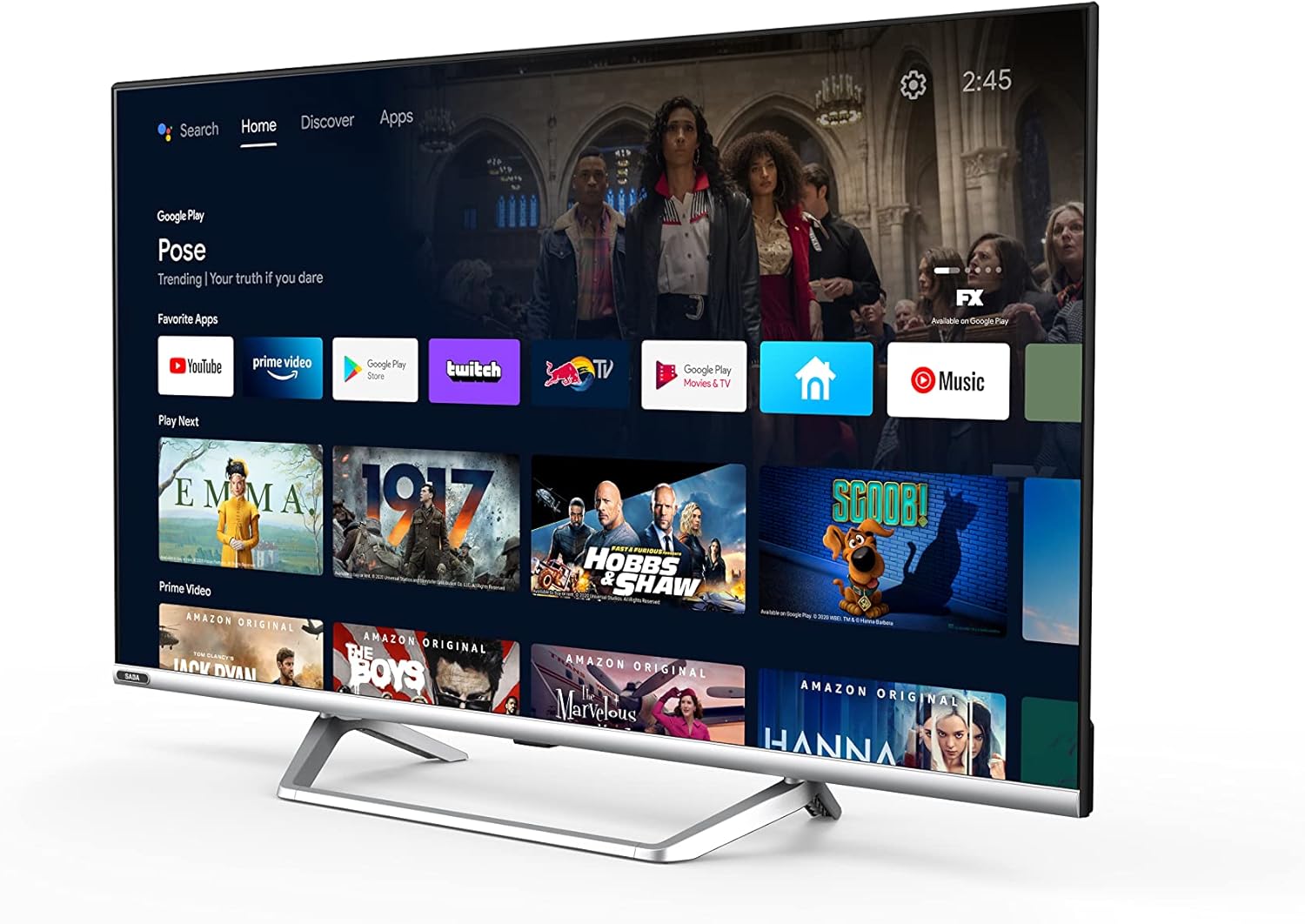
Image: Official product information sheet for the Saba SA40S77A11 TV, detailing various technical parameters and energy consumption data.
Гарантыя і падтрымка
The manufacturer provides a minimum general warranty period of 2 гады for this product. For specific warranty terms and conditions, please refer to the warranty card included with your product or contact the retailer where the TV was purchased.
For technical support, troubleshooting beyond this manual, or inquiries regarding spare parts and software updates, please contact Saba customer service or your local dealer. Information regarding the guaranteed availability of spare parts and software updates is not explicitly provided in the product specifications.