
1. Уводзіны
This manual provides instructions for the MOFII Wireless Keyboard and Mouse Combo, designed for use with various computer systems. This combo features a retro-style keyboard with round keycaps and a compact USB mouse, both operating on a 2.4GHz wireless connection. It is compatible with Windows operating systems and offers an ergonomic design for comfortable use.
2. Змесціва ўпакоўкі
- MOFII Wireless Keyboard
- MOFII Wireless Mouse
- 2.4 ГГц USB Nano прыёмнік
- Кіраўніцтва карыстальніка
3. Інструкцыі па ўсталёўцы
- Усталюйце батарэі: Open the battery compartments on both the keyboard and the mouse. Insert the required batteries (typically AA for keyboard, AAA for mouse, not included) ensuring correct polarity.
- Падключыце USB-рэсівер: Locate an available USB port on your computer (PC, Laptop, Smart TV). Insert the 2.4GHz USB Nano Receiver into the USB port.
- Уключаныя прылады: Turn on the keyboard and mouse using their respective power switches. The devices should automatically connect to the receiver.
- Тэставае злучэнне: Verify functionality by typing on the keyboard and moving/clicking the mouse. If the devices do not respond, ensure batteries are correctly installed and the receiver is securely plugged in.

4. Інструкцыя па эксплуатацыі
4.1 Выкарыстанне клавіятуры
- Увод: The keyboard features a standard QWERTY layout with round keycaps for a comfortable typing experience.
- Функцыянальныя клавішы (F1-F12): These keys often have secondary functions (hotkeys) when pressed in combination with the 'Fn' key. Refer to the keycap legends for specific functions such as media control, volume adjustment, and more.
- Лічбавая клавіятура: Для эфектыўнага ўводу дадзеных прадугледжана спецыяльная лічбавая клавіятура.

4.2 Выкарыстанне мышы
- Рух: Move the mouse on a flat surface to control the cursor on your screen.
- Пстрычка: Выкарыстоўвайце левую і правую кнопкі для першаснага і другаснага клікаў.
- Кола пракруткі: Кола пракруткі дазваляе лёгка перамяшчацца па дакументах і web старонкі.
5. Асаблівасці
- Бесправадное злучэнне 2.4 ГГц: Provides a stable and dropout-free connection up to 33 feet (10 meters).
- Retro Design with Round Keycaps: Offers a unique aesthetic and comfortable typing feel.
- Эрганамічны дызайн: The keyboard features foldable stands to adjust the typing angle, promoting wrist comfort.
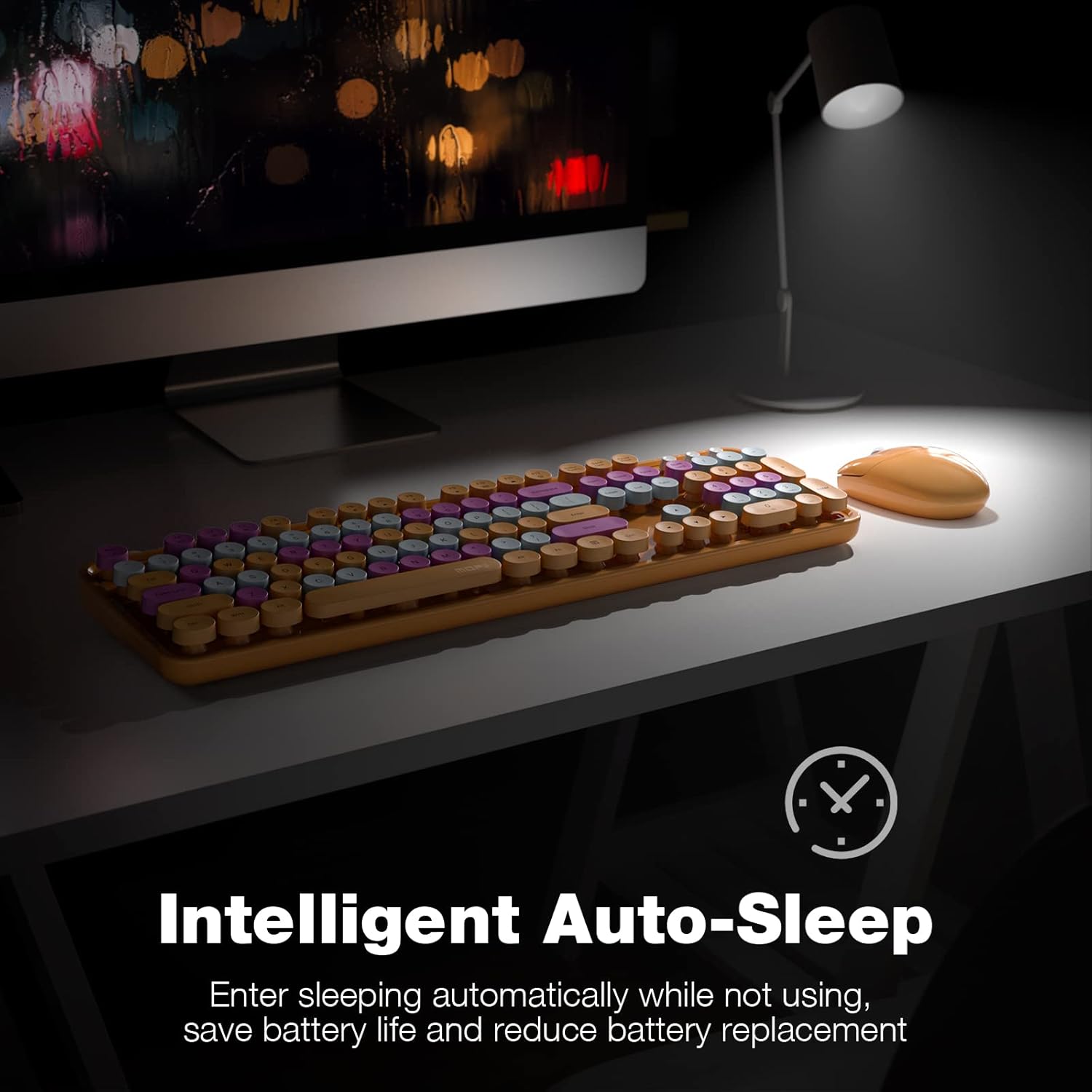
- Intelligent Auto-Sleep: Both the keyboard and mouse enter sleep mode after 5 minutes of inactivity to conserve battery life. Press any key or move the mouse to wake them up.
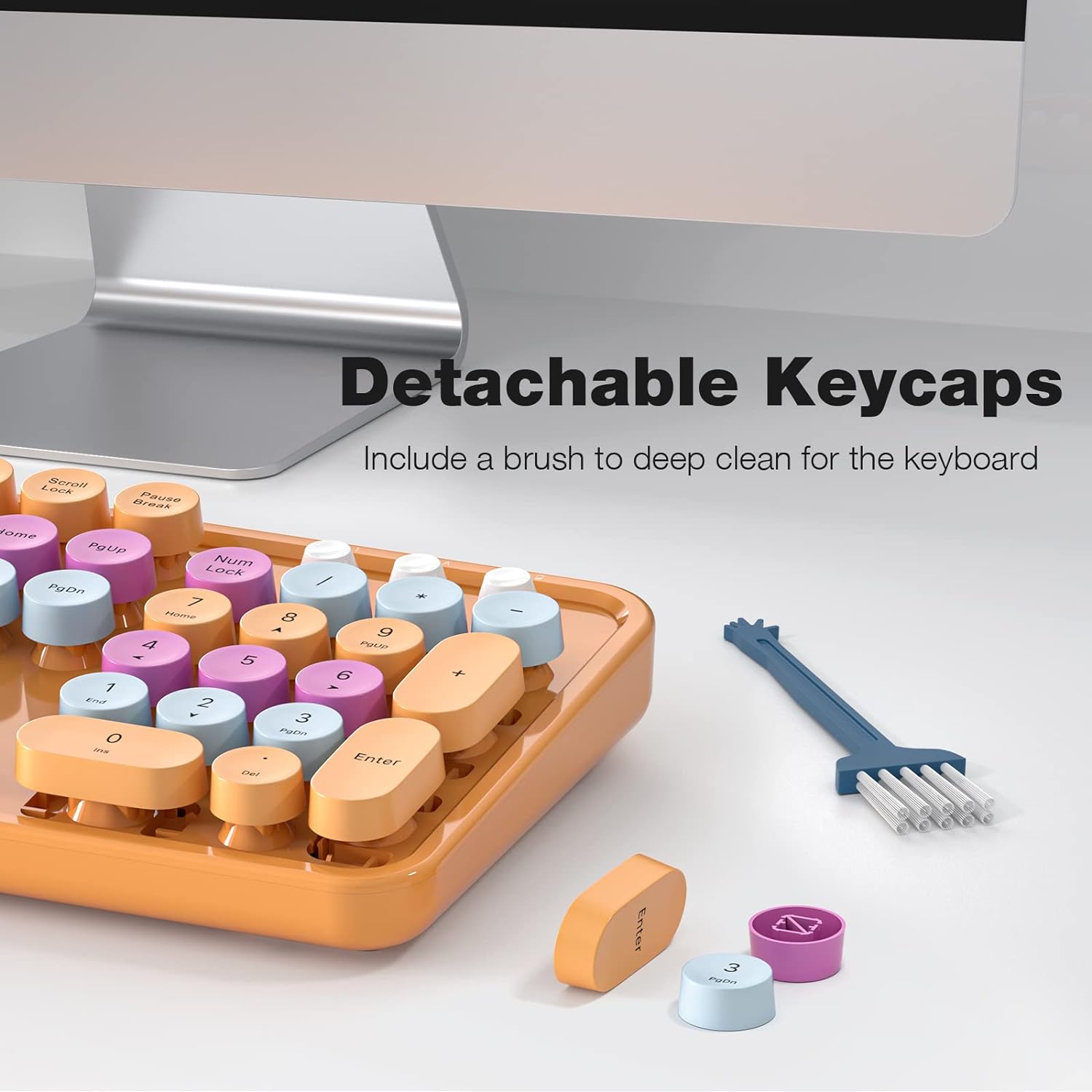
- Здымныя каўпачкі клавіш: Facilitates easy cleaning and maintenance of the keyboard.

6. Тэхнічнае абслугоўванне
- Уборка: Use a soft, dry cloth to clean the surface of the keyboard and mouse. For deeper cleaning, remove the keycaps and use a small brush or compressed air to clear debris.
- Замена батарэі: Replace batteries when performance degrades. Ensure to use the correct battery type and dispose of old batteries responsibly.
- захоўванне: Захоўвайце прылады ў прахалодным, сухім месцы, удалечыні ад прамых сонечных прамянёў і экстрэмальных тэмператур, калі яны не выкарыстоўваюцца працяглы час.
7. Выпраўленне непаладак
| выпуск | Рашэнне |
|---|---|
| Прылады не падключаюцца | 1. Ensure batteries are correctly installed and charged. 2. Verify the USB receiver is securely plugged into a working USB port. 3. Try plugging the receiver into a different USB port. 4. Power cycle both the keyboard and mouse. |
| Затрымка або перарывістае падключэнне | 1. Move the devices closer to the USB receiver. 2. Avoid placing the receiver near other wireless devices (e.g., Wi-Fi routers, cordless phones) that may cause interference. 3. Ensure no large metal objects are between the devices and the receiver. |
| Keys sticking or unresponsive | 1. Clean under the keycaps to remove any debris. 2. Ensure keycaps are properly seated. |
| Mouse cursor erratic | 1. Clean the optical sensor on the bottom of the mouse. 2. Use the mouse on a clean, non-reflective surface. |
8. Тэхнічныя характарыстыкі
- Марка: МОФІІ
- мадэль: B0BJP7WNCL
- колер: Orange Colorful
- Тэхналогія падключэння: 2.4 ГГц бесправадная
- Сумяшчальныя прылады: PC, Laptop, Smart TV (Windows 7, 8, 10, XP/Vista). Not compatible with Apple systems.
- Keyboard Special Feature: Ergonomic, Round Keycaps
- Вага прадмета: 1.94 фунта
- Памеры ўпакоўкі: 17.8 х 5.47 х 2.91 цалі

9. Гарантыя і падтрымка
For warranty information, technical support, or service inquiries, please refer to the contact information provided on the product packaging or visit the official MOFII webсайт. Захоўвайце чэк аб пакупцы на выпадак прэтэнзій па гарантыі.