
1. Уводзіны
Thank you for choosing the TMEZON 4G LTE Solar Wireless Outdoor Security Camera. This manual provides detailed instructions for the installation, operation, and maintenance of your camera. Please read this manual thoroughly before use to ensure proper functionality and to maximize the camera's performance.
This camera is designed for outdoor surveillance in areas without Wi-Fi access, utilizing 4G LTE connectivity. It features a built-in rechargeable battery and a solar panel for continuous power, 2K resolution, 355° pan and 90° tilt capabilities, color night vision, PIR motion detection, and two-way audio communication.
2. Змесціва ўпакоўкі
Калі ласка, праверце змесціва пасылкі пасля атрымання. Калі якія-небудзь прадметы адсутнічаюць або пашкоджаныя, звярніцеся ў службу падтрымкі кліентаў.
- TMEZON 4G LTE Solar Wireless Outdoor Security Camera
- Панэль сонечных батарэй
- Мантажны кранштэйн
- Мантажныя шрубы і анкеры
- USB-кабель для зарадкі
- Кіраўніцтва карыстальніка
- Pre-installed 100MB SIM Card
3. Прадукт скончыўсяview
Familiarize yourself with the camera's components.

Выява: спераду view of the TMEZON 4G LTE Solar Wireless Outdoor Security Camera, showing the main camera unit, solar panel, and antennas. This camera operates using 4G LTE signal, eliminating the need for Wi-Fi.
- Аб'ектыў камеры: Захоплівае відэа footage.
- Інфрачырвоныя святлодыёды: Для чорна-белага начнога бачання.
- Пражэктары: For color night vision and alarm illumination.
- Датчык PIR: Detects motion based on heat signatures.
- Мікрафон: Захоплівае гук для двухбаковай сувязі і запісу.
- Дакладчык: Outputs audio for two-way communication and alarms.
- Антэны: For 4G LTE signal reception.
- Панэль сонечных батарэй: Зараджае ўнутраную батарэю з дапамогай сонечнага святла.
- Слот для SIM-карты: For the 4G LTE SIM card.
- Слот для карты Micro SD: For local video storage (up to 128GB, not included).
- Кнопка скіду: Выкарыстоўваецца для скіду камеры да заводскіх налад.
- Порт для зарадкі USB: For initial charging or manual charging.
4. Настройка
4.1 Першапачатковая зарадка
Before first use, fully charge the camera's built-in battery using the provided USB cable and a 5V/2A power adapter (not included). The charging indicator light will turn solid blue when fully charged.
4.2 Усталёўка SIM-карты і карты Micro SD
The camera comes with a pre-installed 100MB SIM card. If you wish to use your own SIM card or install a Micro SD card for local storage, follow these steps:
- Locate the SIM card and Micro SD card slots on the camera body. These are typically protected by a rubber cover.
- Асцярожна адкрыйце гумовую вечка.
- Insert the Nano SIM card into the SIM card slot with the gold contacts facing down and the notched corner oriented correctly. Push until it clicks into place.
- Insert a Micro SD card (Class 10 or higher, up to 128GB, not included) into the Micro SD card slot with the gold contacts facing down. Push until it clicks into place.
- Пераканайцеся, што абедзве карты надзейна замацаваны.
- Close the rubber cover firmly to maintain the camera's IP65 waterproof rating.

Выява: Крупны план view of the camera's card slots, showing how to insert a Nano SIM card (included) and a Micro SD card (not included).
4.3 Усталёўка праграмы і стварэнне ўліковага запісу
The camera operates with the UBox app. Download it from your smartphone's app store (iOS App Store or Google Play Store).
- Пошук "UBox" in your app store and download the application.
- Open the UBox app and register a new account using your email address.
- Выконвайце інструкцыі на экране, каб завяршыць працэс рэгістрацыі і ўваходу.
4.4 Спалучэнне камеры
- Ensure your camera is powered on and fully charged.
- Open the UBox app and tap the "+" icon to add a new device.
- Select "4G Camera" or "Add 4G Device" from the options.
- Адсканіруйце QR-код, размешчаны на камеры або яе ўпакоўцы.
- Follow the app's prompts to connect the camera. The camera will emit a voice prompt when successfully connected.
- Назавіце камеру для лёгкай ідэнтыфікацыі.
4.5 Мантаж камеры
Choose a suitable location for mounting the camera. Consider areas with good 4G signal reception and sufficient sunlight exposure for the solar panel.
- Выберыце месцазнаходжанне: Identify a mounting spot that provides the desired viewing angle and receives direct sunlight for several hours daily.
- Пазначце адтуліны для свідравання: Use the mounting bracket as a template to mark the positions for drilling holes on the wall or surface.
- Свідраваць адтуліны: Drill holes at the marked positions. Insert wall anchors if mounting on masonry or concrete.
- Прымацаваць кранштэйн: Замацуйце мантажны кранштэйн да сцяны з дапамогай прадугледжаных шруб.
- Прымацаваць камеру: Mount the camera onto the bracket. Adjust the angle of the solar panel to maximize sun exposure.
- Бяспечныя злучэнні: Ensure all cables (solar panel to camera) are securely connected and protected from weather.

Image: The TMEZON camera mounted outdoors with its solar panel, illustrating its wire-free, solar-powered operation.

Image: The camera being sprayed with water, highlighting its IP65 waterproof rating, suitable for outdoor use in various weather conditions.
5. Інструкцыя па эксплуатацыі
5.1 У прамым эфіры View & Кіраванне панарамаваннем/нахілам
Access the live video feed and control the camera's movement through the UBox app.
- Open the UBox app and select your camera from the device list.
- З'явіцца відэатрансляцыя ў рэжыме рэальнага часу.
- Use the directional controls (pan/tilt) on the app interface to rotate the camera horizontally (355°) and vertically (90°).

Выява: смартфон, на якім адлюстроўваецца жывая трансляцыя view from the camera, with on-screen controls for 355° horizontal and 90° vertical rotation.
5.2 Выяўленне руху і абвесткі
The camera uses PIR (Passive Infrared) detection to identify human movement and send alerts.
- Enable motion detection in the camera settings within the UBox app.
- Adjust sensitivity levels as needed to minimize false alarms.
- When motion is detected, the camera will send an alert notification to your smartphone.
- The camera can also activate its spotlights and siren as an alarm.

Image: A smartphone screen showing a "Motion Detection" alarm message from the UBox app, indicating a person detected by the camera.

Image: The camera's alarm siren and flashes activating in response to an intruder, with a smartphone notification showing "Person is detected from Device 01."
5.3 Двухбаковае аўдыё
Communicate with visitors or deter intruders using the camera's built-in microphone and speaker.
- У жывым эфіры view, tap the microphone icon in the UBox app to speak.
- Your voice will be transmitted through the camera's speaker.
- Release the microphone icon to listen to the audio from the camera's location.
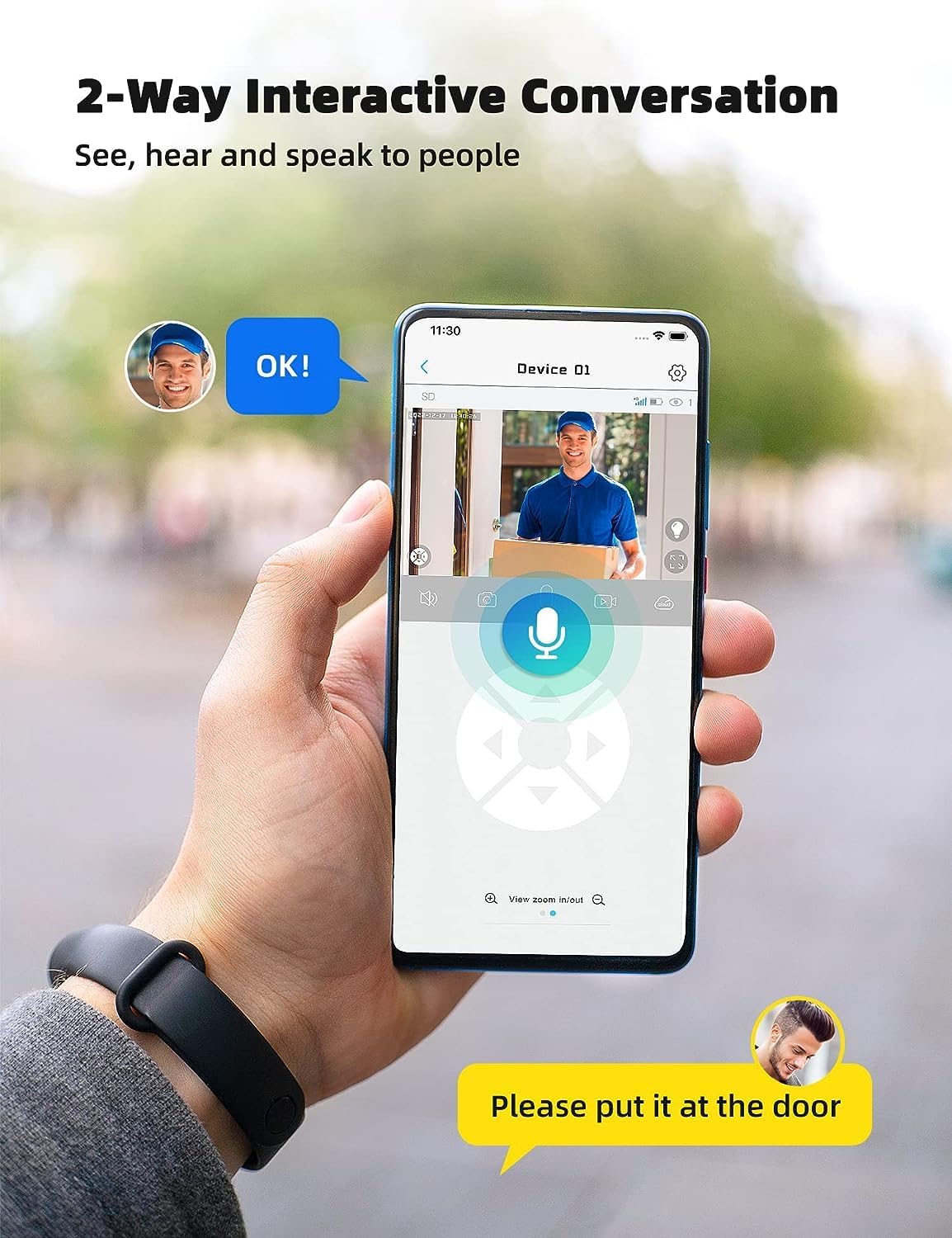
Image: A smartphone displaying the UBox app interface for two-way communication, showing a person speaking through the camera to a delivery person.

Image: A user communicating in real-time with a delivery person via the camera's two-way audio feature, instructing them to place a package by the door.
5.4 Запіс і прайграванне
The camera supports both Micro SD card storage and cloud storage (subscription may be required).
- Motion-triggered events are automatically recorded.
- каб view recordings, navigate to the "Playback" section in the UBox app.
- Выберыце дату і час для паўторнагаview запісана footage.
- If the Micro SD card is full, older recordings will be overwritten by new ones.
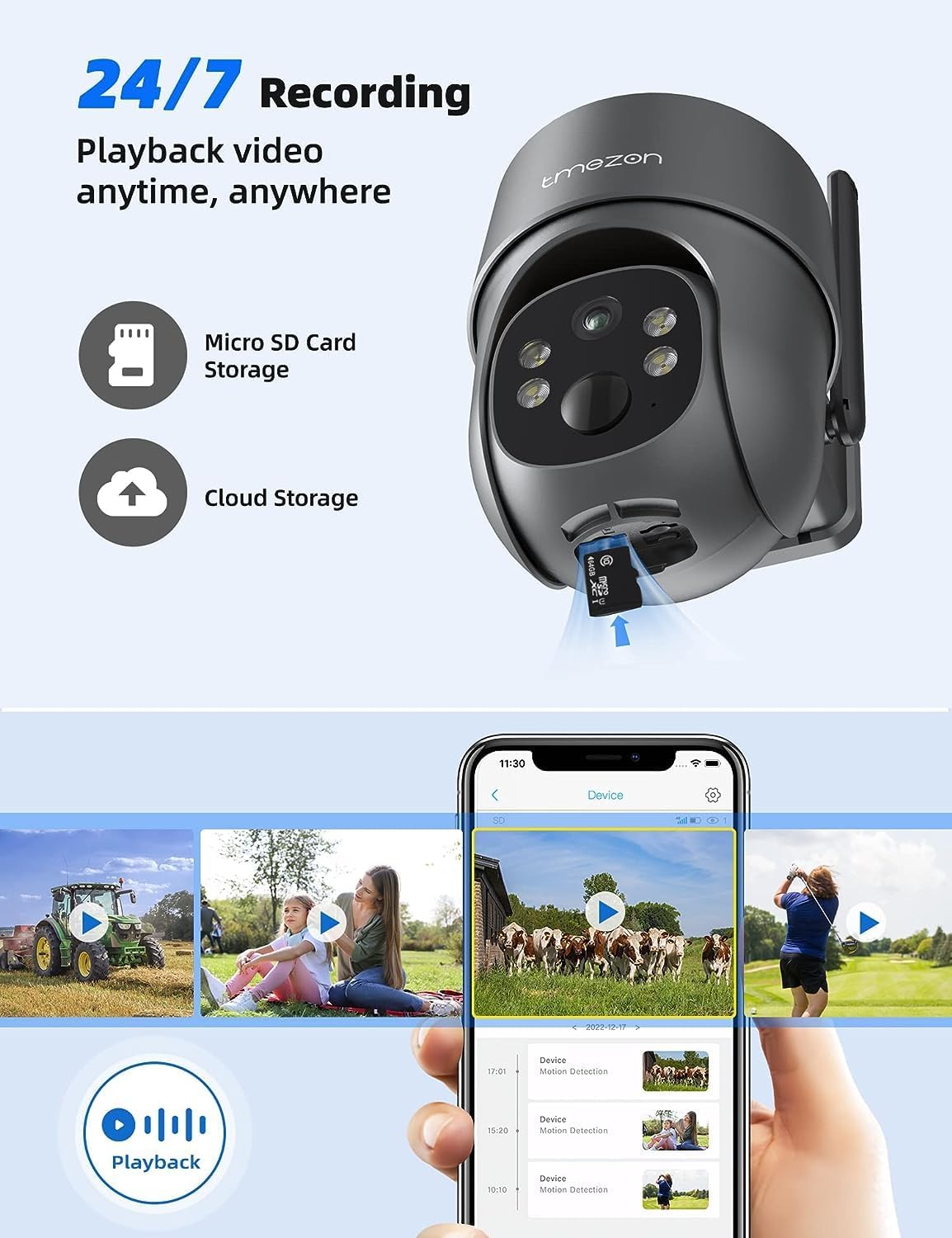
Image: A smartphone displaying the UBox app's playback interface, showing a timeline of recorded events and various video clips.
5.5 Рэжымы начнога бачання
Камера прапануе два рэжымы начнога бачання:
- Інфрачырвонае (ІЧ) начное бачанне: Забяспечвае выразнае чорна-белае відэа ва ўмовах нізкай асветленасці.
- Каляровы начны бачанне: Activates the camera's spotlights to provide full-color video even in darkness. This mode can be enabled in the app settings.
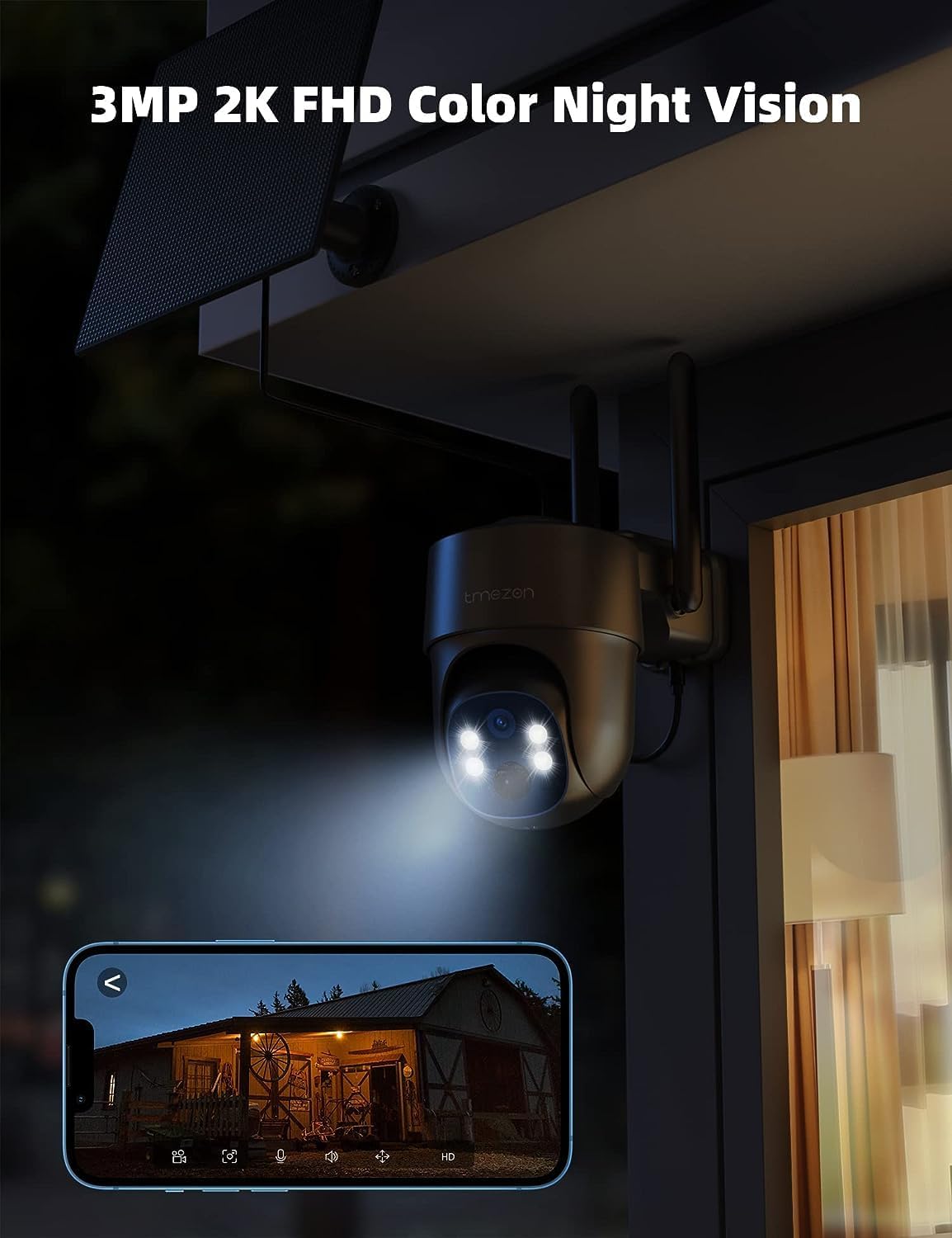
Image: The TMEZON camera operating at night with its spotlights on, providing clear 2K color night vision of the surrounding area.

Image: A split image demonstrating the difference between night vision with spotlights off (monochrome) and spotlights on (color), showcasing the camera's 2K color night vision capability.
6. Тэхнічнае абслугоўванне
6.1 Battery & Solar Panel Care
- Regularly check the battery level in the UBox app.
- Ensure the solar panel is clean and free from dust, dirt, or obstructions (e.g., leaves, snow) to ensure efficient charging.
- Position the solar panel to receive maximum direct sunlight throughout the day.
- If the camera's battery level is consistently low due to insufficient sunlight, consider manually charging it via the USB port.
6.2 Ачыстка
- Выкарыстоўвайце мяккі, damp cloth to clean the camera lens and body.
- Do not use harsh chemicals or abrasive cleaners, as these can damage the camera's finish or lens.
- Ensure the rubber covers for the card slots and charging port are securely closed after any maintenance to maintain waterproofing.
7. Выпраўленне непаладак
7.1 Camera Not Connecting to 4G Network
- Пераканайцеся, што SIM-карта правільна ўстаўлена і актывавана.
- Check if the SIM card has an active data plan.
- Verify 4G signal strength at the camera's location. Move the camera to an area with better signal if necessary.
- Restart the camera by pressing the reset button or power cycling it.
7.2 Частыя адключэнні
- Poor 4G signal strength can cause disconnections. Relocate the camera or consider a 4G signal booster.
- Ensure the camera's battery is sufficiently charged.
7.3 Motion Detection Not Working or Too Many False Alarms
- Check motion detection settings in the UBox app. Ensure it is enabled.
- Adjust PIR sensitivity levels. Lower sensitivity for fewer false alarms, higher for more sensitive detection.
- Ensure there are no objects (e.g., tree branches, reflective surfaces) that might trigger false alarms in the detection zone.
7.4 Cannot View Запісы
- Ensure a Micro SD card is inserted correctly and formatted (if applicable) in the app.
- Check if cloud storage is active and your subscription is valid.
- Verify that motion detection recording is enabled in the app settings.
7.5 Camera Not Charging via Solar Panel
- Пераканайцеся, што сонечная панэль чыстая і без перашкод.
- Verify the solar panel cable is securely connected to the camera.
- Check if the solar panel is receiving direct sunlight for several hours daily.
- In prolonged cloudy weather, manual charging via USB may be required.
8. Тэхнічныя характарыстыкі
| Асаблівасць | Дэталь |
|---|---|
| Нумар мадэлі | MZ-C8-4G-EU |
| Тэхналогія падлучэння | Wireless (4G LTE) |
| дазвол | 2K (2000 Pixels effective capture) |
| Пан Кут | 355 градусаў |
| Кут нахілу | 90 градусаў |
| Начное бачанне | Каляровы начны бачанне |
| Асаблівасці | Motion Detector, Two-Way Audio |
| Крыніца харчавання | Solar Powered (with 9,600 mAh rechargeable battery) |
| Тып батарэі | 2 літый-іённы акумулятар (у камплекце) |
| тtage | 5 вольт |
| Ватtage | 5 ват-гадзін |
| Рэйтынг IP | IP65 (воданепранікальны) |
| Захоўванне | Micro SD Card (up to 128GB, not included), Cloud Storage (subscription optional) |
| Тып кантролера | Android (UBox App) |
| Тып мацавання | Насценнае мацаванне |
9. Гарантыя і падтрымка
9.1 Інфармацыя аб гарантыі
TMEZON products typically come with a standard manufacturer's warranty. Please refer to the warranty card included in your package or visit the official TMEZON webпадрабязныя ўмовы гарантыі глядзіце на сайце. Захоўвайце чэк аб куплі як пацвярджэнне пакупкі для прэтэнзій па гарантыі.
9.2 Падтрымка кліентаў
If you encounter any issues or have questions regarding your TMEZON 4G LTE Solar Wireless Outdoor Security Camera, please contact TMEZON customer support. Contact information can usually be found on the official webсайце або ва ўпакоўцы прадукту.
- Інтэрнэт-падтрымка: Visit the TMEZON official webсайт з часта задаванымі пытаннямі, кіраўніцтвамі па ліквідацыі непаладак і кантактнымі формамі.
- Падтрымка па электроннай пошце: Звярніцеся да дакументацыі да прадукту, каб даведацца пра адрас электроннай пошты службы падтрымкі кліентаў.