
1. Уводзіны
This manual provides instructions for the installation, operation, and maintenance of your NETGEAR GS305P 5-Port PoE Gigabit Ethernet Unmanaged Switch. This device is designed to expand your network connectivity with both standard Gigabit Ethernet and Power over Ethernet (PoE+) capabilities, ideal for small office or home network environments.
2. Змесціва ўпакоўкі
Пераканайцеся, што ваш пакет змяшчае наступныя элементы:
- NETGEAR GS305P 5-Port PoE Gigabit Ethernet Unmanaged Switch (GS305Pv3)
- Адаптар харчавання
- Настенны камплект
- Кіраўніцтва па хуткай ўстаноўцы

Image: The NETGEAR GS305P switch, power adapter, and power cord as typically found in the package.
3. Прадукт скончыўсяview
The NETGEAR GS305P is an unmanaged switch featuring 5 Gigabit Ethernet ports, with 4 of these ports supporting PoE+ (Power over Ethernet Plus). It provides a total power budget of 63W for connected PoE devices. The switch is designed for plug-and-play operation, requiring no software installation or configuration.
Відэа: Оверview of the NETGEAR 5-Port PoE Switch, demonstrating its features and ease of use.
Пярэдняя панэль

Image: Front panel of the GS305P switch, highlighting the 5 Gigabit Ethernet ports and LED indicators for power, PoE Max, link/activity, and PoE fault.
- Святлодыёд харчавання: Паказвае стан харчавання.
- Святлодыёд PoE Max: Illuminates when PoE power consumption is near maximum capacity.
- Link/Activity LEDs (Ports 1-5): Green for 1000Mbps link, Yellow for 10/100Mbps link. Blinks to indicate activity.
- Святлодыёдныя індыкатары стану PoE (порты 1-4): Green for PoE powered, Yellow for PoE fault.
- Парты Ethernet (1-5): RJ-45 ports for network connections. Ports 1-4 support PoE+.
4. Настройка і ўстаноўка
The NETGEAR GS305P switch is designed for simple plug-and-play installation. No software configuration is required.
4.1 Падключэнне камутатара
- Connect the power adapter to the switch's power input and then plug the power adapter into an electrical outlet. The Power LED on the switch will illuminate.
- Connect your router or modem to any of the 5 Gigabit Ethernet ports on the switch using an Ethernet cable.
- Connect your network devices (computers, printers, network storage) to the remaining Gigabit Ethernet ports. For PoE-powered devices (e.g., IP cameras, wireless access points), connect them to ports 1-4.

Image: A diagram illustrating the plug-and-play nature of the unmanaged switch, connecting various devices like WiFi Access Points, IP Cameras, Computers, and NAS.
4.2 Варыянты мантажу
The GS305P switch can be placed on a desktop or mounted on a wall. A wallmount kit is included for secure installation.
- Размяшчэнне на працоўным стале: Пераканайцеся, што выключальнік размешчаны на роўнай, устойлівай паверхні з належнай вентыляцыяй.
- Насценны мацаванне: Use the provided wallmount kit to secure the switch to a wall. Refer to the quick installation guide for detailed steps on wall mounting.
5. Кіраванне перамыкачом
Once connected, the switch operates automatically. The LEDs provide visual feedback on the network status.
- Уключэнне: The Power LED will be green when the switch is receiving power.
- Network Activity: The Link/Activity LEDs will light up when a device is connected and blink to indicate data transmission.
- Магутнасць PoE: For PoE-powered devices, the PoE Status LED will be green when power is being supplied. If a PoE fault occurs, the LED will turn yellow.
- Ціхая праца: The fanless design ensures quiet operation, making it suitable for noise-sensitive environments.
6. Тэхнічнае абслугоўванне
To ensure optimal performance and longevity of your switch, follow these maintenance guidelines:
- Уборка: Для чысткі вонкавага боку перамыкача выкарыстоўвайце мяккую сухую тканіну. Не выкарыстоўвайце вадкія або аэразольныя ачышчальнікі.
- Вентыляцыя: Пераканайцеся, што вентыляцыйныя адтуліны не заблакіраваны, каб прадухіліць перагрэў.
- Асяроддзе: Operate the switch within its specified temperature and humidity ranges. Avoid direct sunlight or extreme temperatures.
- Кабельнае кіраванне: Keep network cables organized to prevent strain on ports and improve airflow.
7. Выпраўленне непаладак
If you encounter issues with your NETGEAR GS305P switch, refer to the following common troubleshooting steps:
- Няма харчавання: Ensure the power adapter is securely connected to the switch and a working electrical outlet. Check the Power LED.
- Няма спасылкі/актыўнасці: Verify that Ethernet cables are properly connected to both the switch and the connected device. Try a different cable or port. Check the Link/Activity LED.
- Прылада PoE не ўключаецца: Ensure the device is PoE-compatible and connected to one of the PoE+ ports (1-4). Check the PoE Status LED for the port; a yellow light indicates a fault. Verify the total power budget (63W) is not exceeded by all connected PoE devices.
- Павольная хуткасць сеткі: Ensure all connected devices and cables support Gigabit Ethernet for optimal performance. Check for excessive network traffic.
8. Тэхнічныя характарыстыкі
Key technical specifications for the NETGEAR GS305P switch:
| Асаблівасць | Апісанне |
|---|---|
| мадэль | GS305P (GS305Pv3) |
| Колькасць партоў | 5 гігабітных партоў Ethernet |
| Парты PoE+ | 4 (Ports 1-4) |
| Агульны бюджэт харчавання PoE | 63 Вт |
| Хуткасць перадачы даных | 1000 Мбіт/с (гігабіт) |
| Тып перамыкача | Некіравальны |
| Матэрыял корпуса | Метал |
| Памеры (Д х Ш х У) | 9.5" x 6.7" x 3.4" (approximate, from product data) |
| тtage | 240 Volts (Power adapter input) |
| Працоўнае асяроддзе | Designed for indoor use in U.S. & CA. |
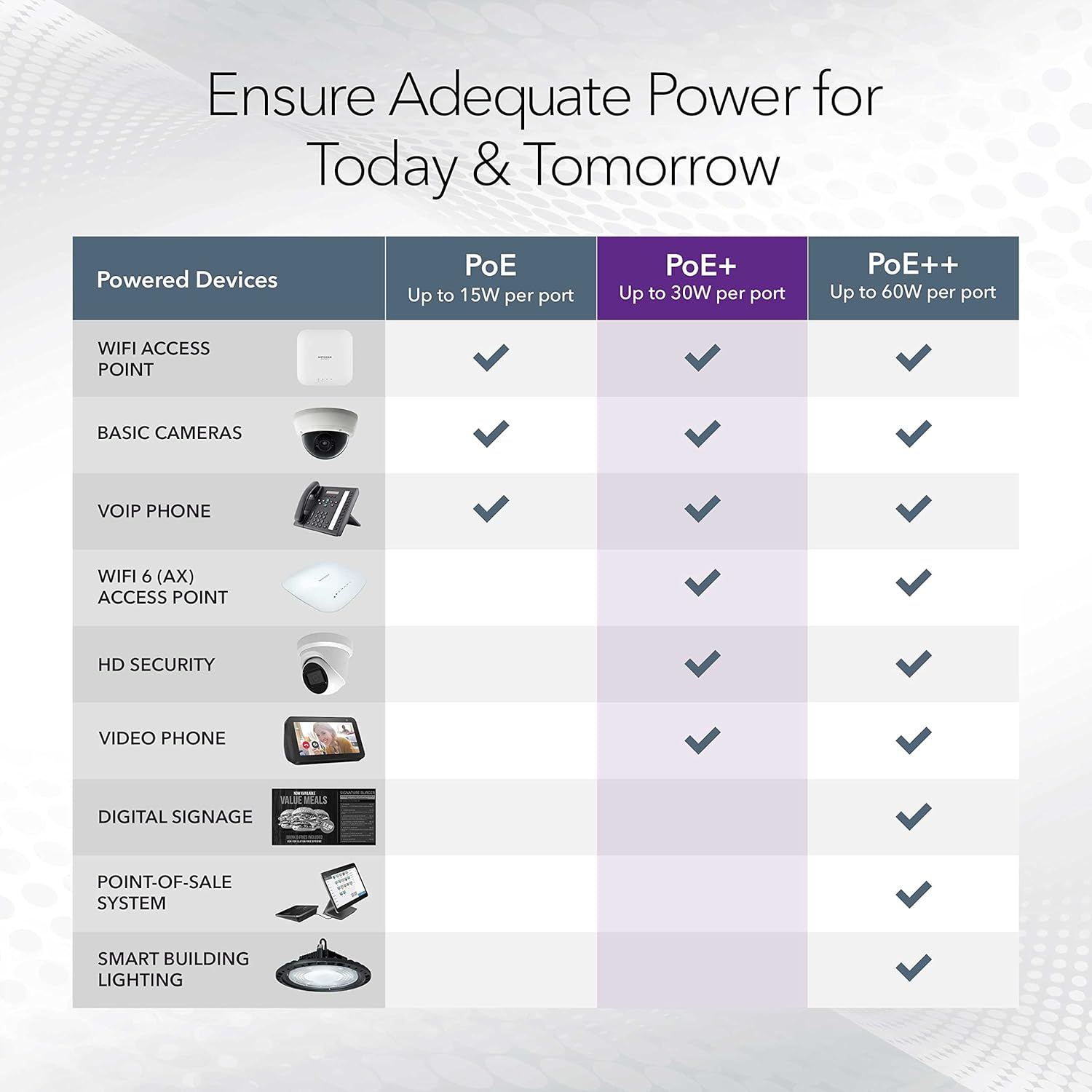
Image: A table illustrating the power capabilities of PoE, PoE+, and PoE++ for different powered devices.
9. Гарантыя і падтрымка
9.1 Інфармацыя аб гарантыі
The NETGEAR GS305P switch comes with an industry-leading 3-гадовая абмежаваная гарантыя на абсталяванне. Please retain your proof of purchase for warranty claims. For full warranty terms and conditions, refer to the official NETGEAR webсайт або дакументацыю, якая пастаўляецца з вашым прадуктам.
9.2 Тэхнічная падтрымка
For technical assistance, product registration, or to access additional resources, visit the official NETGEAR support website. You can find FAQs, firmware updates, and community forums there.
Падтрымка NETGEAR Webсайт: www.netgear.com/support


