
1. Уводзіны
This manual provides comprehensive instructions for the installation, operation, and maintenance of your owltron Home Security Camera. Please read this manual thoroughly before using the product to ensure proper functionality and safety. Keep this manual for future reference.
The owltron Home Security Camera is designed to provide reliable surveillance for your home, pets, or nursery. It features 2-way audio, WiFi connectivity, motion detection, and night vision capabilities.
2. Прадукт скончыўсяview
The owltron Home Security Camera is a compact and versatile device. Below are its main components and features.

Малюнак 2.1: Спераду view of the owltron Home Security Camera, showing the lens and main body.
Асноўныя характарыстыкі:
- Раздзяленне 1080P HD: Забяспечвае выразнае і падрабязнае відэа footage.
- 2-баковае аўдыё: Дазваляе весці сувязь у рэжыме рэальнага часу праз камеру.
- Падключэнне Wi-Fi: Enables wireless connection to your home network for remote access.
- Выяўленне руху: Папярэджвае вас аб выяўленым руху ў полі зроку камеры view.
- Начное бачанне: Ensures clear monitoring even in low-light or dark conditions.
- Dome Form Factor: Designed for discreet placement and wide coverage.
- Насценны мантаж: Can be securely mounted for optimal positioning.

Figure 2.2: The owltron camera is designed with an IP65 rating, indicating resistance to dust and water splashes, suitable for various indoor environments.

Figure 2.3: Illustration of the camera's night vision capabilities, providing clear images in low-light conditions.
3. Настройка
Follow these steps to set up your owltron Home Security Camera:
- Распакуйце камеру: Carefully remove all components from the packaging. Verify that all accessories are present.
- Уключэнне: Connect the power adapter to the camera's power port and plug it into a standard electrical outlet. The camera will power on and initiate its startup sequence.
- Спампаваць прыкладанне: Пошук the "owltron" app (or specified app in product documentation) on your smartphone's app store (iOS or Android) and install it.
- Стварыць уліковы запіс: Адкрыйце праграму і выконвайце інструкцыі на экране, каб стварыць новы ўліковы запіс карыстальніка, або ўвайдзіце ў сістэму, калі ў вас ужо ёсць уліковы запіс.
- Дадаць прыладу: In the app, select "Add Device" or the '+' icon. Choose your camera model from the list.
- Падключыцеся да Wi-Fi: Follow the app's instructions to connect the camera to your 2.4GHz Wi-Fi network. This typically involves scanning a QR code generated by the app with the camera's lens or entering Wi-Fi credentials.
- Устанавіце камеру: Once connected, decide on the optimal mounting location. Use the provided mounting hardware to secure the camera to a wall or ceiling. Ensure the camera has a clear view вобласці, якую вы хочаце кантраляваць.
- Канчатковыя карэкціроўкі: Adjust the camera's angle and pan/tilt (if applicable) through the app to achieve the desired viewнага ахопу.
For detailed visual guides, refer to the in-app tutorials or the manufacturer's official support webсайт.
4. Інструкцыя па эксплуатацыі
Once your owltron Home Security Camera is set up, you can begin monitoring and utilizing its features through the mobile application.
4.1 У прамым эфіры View і запіс
- Доступ да жывой стужкі: Open the owltron app and select your camera from the device list to view жывое відэа.
- Ручная запіс: Націсніце кнопку запісу ў прамым эфіры view interface to manually start or stop video recording. Recordings are saved to your phone or the camera's storage (if a microSD card is installed).
- Здымак экрана: Use the screenshot button to capture still images from the live feed.
4.2 Двухбаковае аўдыё
- гаварыць: У прамым эфіры view, press and hold the microphone icon to speak through the camera's speaker. Release to stop speaking.
- Слухай: The camera's microphone is active by default, allowing you to hear audio from the camera's environment.
4.3 Выяўленне руху і абвесткі
- Уключыць/Выключыць: Navigate to the camera settings in the app to enable or disable motion detection.
- Адчувальнасць: Адрэгулюйце адчувальнасць выяўлення руху, каб мінімізаваць колькасць ілжывых спрацоўванняў.
- Абвесткі: Configure push notifications to receive alerts on your smartphone when motion is detected.
4.4 Начное бачанне
The camera automatically switches to night vision mode in low-light conditions. Some models may offer different night vision modes (e.g., infrared, full-color night vision) which can be configured in the app settings.
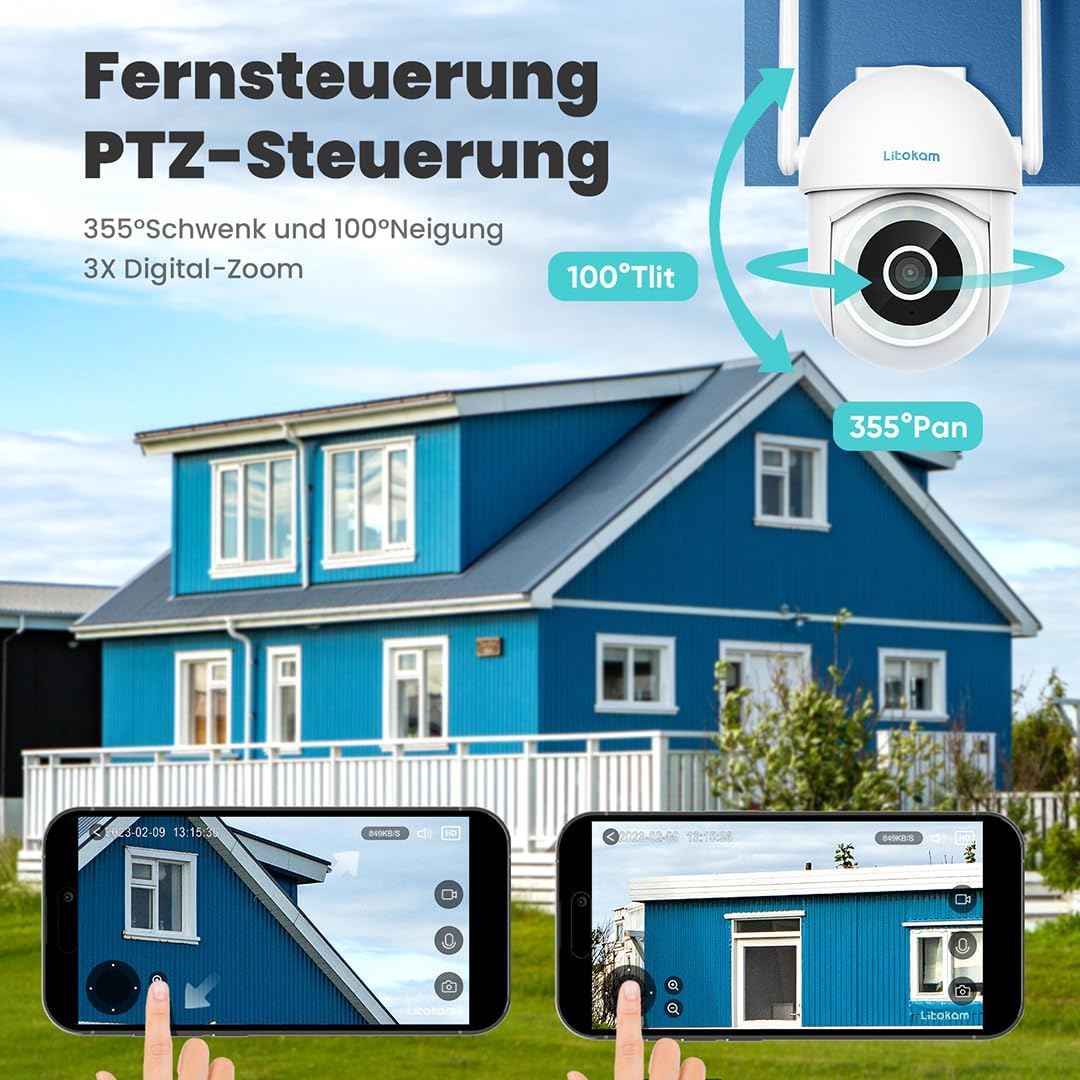
Малюнак 4.1: Выпample of the mobile application interface for controlling camera pan and tilt functions.
5. Тэхнічнае абслугоўванне
Regular maintenance ensures the longevity and optimal performance of your owltron Home Security Camera.
- Ачысціце аб'ектыў: Gently wipe the camera lens with a soft, dry, lint-free cloth to remove dust or smudges. Do not use harsh chemicals or abrasive materials.
- Праверце злучэнні: Periodically inspect all cable connections (power, network) to ensure they are secure.
- Абнаўленні праграмнага забеспячэння: Keep the camera's firmware and the mobile app updated to the latest versions. Updates often include performance improvements and security enhancements. Check for updates within the app settings.
- Умовы навакольнага асяроддзя: Ensure the camera is operating within its specified temperature and humidity ranges. While rated IP65, avoid direct exposure to heavy rain or prolonged submersion.
6. Выпраўленне непаладак
If you encounter issues with your owltron Home Security Camera, refer to the following common problems and solutions:
| праблема | Магчымая прычына | Рашэнне |
|---|---|---|
| Камера па-за сеткай/Немагчыма падключыцца да Wi-Fi | Weak Wi-Fi signal, incorrect Wi-Fi password, camera too far from router, router issues. |
|
| Дрэнная якасць відэа | Dirty lens, insufficient lighting, weak network connection. |
|
| Датчык руху не працуе або занадта шмат ілжывых спрацоўванняў | Motion detection disabled, sensitivity too low/high, environmental factors (e.g., shadows, moving branches). |
|
| Праблемы з двухбаковым гукам | Microphone/speaker muted, app permissions, network latency. |
|
Калі праблема не знікне, звярніцеся ў службу падтрымкі кліентаў.
7. Тэхнічныя характарыстыкі
| Асаблівасць | Дэталь |
|---|---|
| Марка | owltron |
| Нумар мадэлі | O1 |
| Эфектыўнае дазвол відэа | 1080 пікселя |
| Тэхналогія бесправадной сувязі | Wi-Fi |
| Пратакол злучэння | Wi-Fi |
| Формаў-фактар | Купал |
| Тып мацавання | Насценнае мацаванне |
| Тып абвесткі | Толькі рух |
| Міжнародны рэйтынг абароны | IP65 |
| Вага прадмета | 1.34 фунта |
| Памеры ўпакоўкі | 7.44 х 7.01 х 4.37 цалі |
| Ватtage | 3 ват |
| Патрабуюцца батарэі? | няма |
| Рэкамендуемае выкарыстанне для прадукту | Маніторынг дзіцяці |
| Сумяшчальныя прылады | Смартфон |
| Фармат захопу відэа | MPEG-4 |
| Колькасць каналаў | 2 |
| Колькасць адзінак | 1.0 Граф |
| Тып нумара | Гадавальнік |
| Дата першай даступнасці | 5 верасня 2023 г |
8. Гарантыя і падтрымка
Інфармацыя аб гарантыі: The owltron Home Security Camera comes with a standard manufacturer's warranty. Please refer to the product packaging or the official owltron website for specific warranty terms and conditions, including coverage period and claim procedures.
Падтрымка кліентаў: For technical assistance, troubleshooting not covered in this manual, or warranty claims, please contact owltron customer support through the following channels:
- Афіцыйны Webсайт: Visit the owltron official webсайт з часта задаванымі пытаннямі, артыкуламі падтрымкі і кантактнымі формамі.
- Падтрымка па электроннай пошце: Refer to your product documentation or the webсайт для адраса электроннай пошты службы падтрымкі кліентаў.
- Падтрымка ў дадатку: Some issues can be resolved directly through the support section within the owltron mobile application.
When contacting support, please have your product model number (O1) and purchase information ready.