
CUPEISI CP20
CUPEISI CP20 Android 15 Tablet User Manual
Мадэль: CP20
1. Уводзіны
Thank you for choosing the CUPEISI CP20 Android 15 Tablet. This manual provides essential information for setting up, operating, and maintaining your device. Please read it thoroughly to ensure optimal performance and longevity of your tablet.
2. Што ў скрынцы
Праверце, ці ёсць усе прадметы ў вашай упакоўцы:
- CUPEISI CP20 Android 15 Tablet
- Бесправадная клавіятура
- Foldable Protective Cover
- Bluetooth мыш
- Стылус
- Кабель Type-C
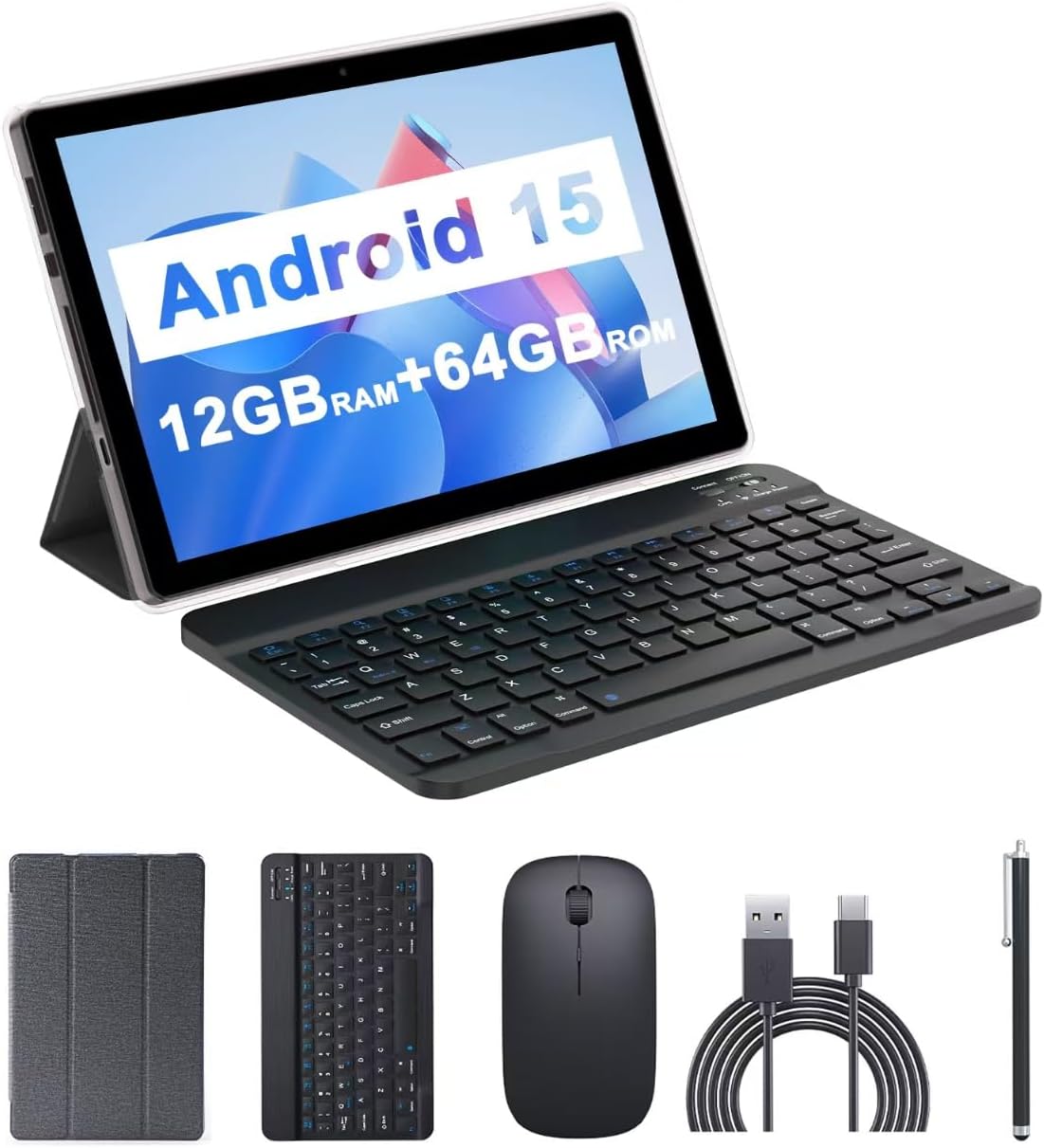
Image: The CUPEISI CP20 Tablet alongside its accessories, including the wireless keyboard, Bluetooth mouse, stylus, and foldable protective cover.
3. Асаблівасці і кампаненты прадукту
The CUPEISI CP20 Tablet is designed for versatility and performance, offering a seamless user experience for both work and entertainment.
3.1 Асноўныя магчымасці
- Аперацыйная сістэма: Stable Android 15.0 system.
- Працэсар: Built-in 1.8GHz Quad-core CPU for efficient multitasking.
- Памяць і захоўванне: 12GB RAM (4GB+8GB expansion) and 64GB ROM, expandable up to 1TB via microSD card.
- Дысплей: Stunning 10.1-inch 1280x800 IPS HD touch screen for immersive visuals and eye protection.
- акумулятар: Powered by a 6000mAh battery, providing approximately 6 hours of regular operation and up to 12 hours of standby time. Charges via 5V2A Type-C port.
- Камеры: 8MP rear camera with auto-focus and flash, and a 2MP front camera for clear video calls and photos.
- Падключэнне: Supports 5G WiFi 6 and Bluetooth 5.0.
- Функцыянальнасць 2-у-1: Transforms into a laptop or computer mode with the included Bluetooth keyboard, wireless mouse, and foldable protective case.

Выява: Зверхуview of the tablet's core specifications and features.
3.2 Фізічныя кампаненты
Familiarize yourself with the tablet's physical layout:
- Кнопка харчавання: Размешчаны збоку, выкарыстоўваецца для ўключэння/выключэння планшэта або абуджэння/пераключэння экрана ў рэжым сну.
- Кнопкі гучнасці: Адрэгулюйце ўзровень гуку.
- Порт тыпу C: Для зарадкі і перадачы дадзеных.
- TF/SIM Card Slot: Устаўце карту microSD для пашырэння памяці.
- Пярэдняя камера: Для відэазванкоў і сэлфі.
- Rear Camera & Flash: Для высакаякасных фота і відэа.
- Дакладчыкі: Two speakers for audio output.

Image: Labeled diagram of the tablet's ports and buttons.
4. Кіраўніцтва па наладцы
4.1 Першапачатковая зарадка
Before first use, fully charge your tablet. Connect the Type-C cable to the tablet's charging port and the other end to a compatible power adapter (5V2A recommended). The battery indicator will show charging status.
4.2 Уключэнне/выключэнне
- Каб уключыць: Націсніце і ўтрымлівайце кнопку харчавання, пакуль не загарыцца экран.
- Каб выключыць: Press and hold the Power Button, then select 'Power off' from the options that appear on the screen.
- Каб перазапусціць: Press and hold the Power Button, then select 'Restart'.
4.3 Падключэнне да Wi-Fi
- Перайсці да Налады > Сетка і інтэрнэт > Wi-Fi.
- Уключыце Wi-Fi.
- Выберыце патрэбную сетку Wi-Fi са спісу.
- Увядзіце пароль, калі будзе прапанавана, а затым націсніце Злучыцца.
4.4 Pairing Bluetooth Accessories
To use the wireless keyboard and Bluetooth mouse, they must be paired with your tablet.
- Пераканайцеся, што клавіятура і мыш зараджаныя і ўключаныя.
- На планшэце перайдзіце па спасылцы Налады > Падключаныя прылады > Bluetooth.
- Уключыце Bluetooth.
- Планшэт выканае пошук даступных прылад. Выберыце клавіятуру або мыш са спісу.
- Выконвайце любыя падказкі на экране, каб завяршыць працэс спалучэння.

Image: Instructions for connecting the wireless keyboard and mouse via Bluetooth.
4.5 Устаўка карты MicroSD
To expand storage, insert a microSD card (up to 1TB) into the TF/SIM card slot. Ensure the tablet is powered off before inserting or removing the card.
5. Кіраванне планшэтам
5.1 Асноўная навігацыя
Navigate the Android interface using touch gestures:
- Націсніце: Выберыце элемент або адкрыйце праграму.
- Правядзіце пальцам: Пракручваць старонкі або спісы.
- Звядзенне пальцамі для павелічэння: Enlarge or shrink content.
- Доўгі націск: Доступ да кантэкстных меню або перамяшчэнне значкоў.
5.2 Using Keyboard and Mouse
Once paired, the keyboard and mouse function similarly to a laptop. The keyboard allows for efficient typing, while the mouse provides precise cursor control, enhancing productivity.

Image: The tablet in laptop mode, demonstrating its use for productivity tasks.
5.3 Выкарыстанне камеры
Open the Camera app to capture photos and videos. Switch between the 2MP front camera and the 8MP rear camera as needed. The rear camera features auto-focus and flash for improved image quality.

Image: Demonstrating the tablet's front and rear camera functionality for video calls and photography.
5.4 App Installation and Management
Download and install applications from the Google Play Store. To manage installed apps, go to Налады > Праграмы.

Image: The tablet running Android 15 OS, showing popular applications like YouTube, Google Play, and Netflix.
6. Тэхнічнае абслугоўванне
6.1 Ачыстка
Use a soft, lint-free cloth to clean the screen and body of the tablet. Avoid using harsh chemicals or abrasive materials. For stubborn smudges, slightly dampпрацярыце тканіну вадой або сродкам для чысткі экранаў, прызначаным для электронікі.
6.2 Абнаўленне праграмнага забеспячэння
Рэгулярна правярайце наяўнасць абнаўленняў праграмнага забеспячэння і ўсталёўвайце іх, каб пераканацца, што ваш планшэт мае найноўшыя функцыі, патчы бяспекі і паляпшэнні прадукцыйнасці. Перайдзіце па спасылцы Налады > сістэма > Абнаўленне сістэмы.
6.3 Кіраванне сховішчам
To maintain optimal performance, periodically review і кіруйце памяццю планшэта. Выдаліце непатрэбнае fileвыдаляць невыкарыстоўваныя праграмы і перамяшчаць вялікія медыяфайлы files to external storage (microSD card) if applicable. Go to Налады > Захоўванне каб view выкарыстанне і вызваленне месца.
7. Выпраўленне непаладак
This section addresses common issues you might encounter with your CUPEISI CP20 Tablet.
7.1 Планшэт не ўключаецца
- Пераканайцеся, што планшэт дастаткова зараджаны. Падключыце яго да зараднай прылады як мінімум на 30 хвілін.
- Perform a forced restart by pressing and holding the Power Button for 10-15 seconds.
7.2 Павольная праца
- Зачыніце невыкарыстоўваныя праграмы, якія працуюць у фонавым рэжыме.
- Clear cached data for apps (Settings > Apps > [App Name] > Storage & cache > Clear cache).
- Забяспечце дастаткова вольнай прасторы для захоўвання.
- Перыядычна перазагружайце планшэт.
7.3 Праблемы з падключэннем да Wi-Fi
- Уключыце і выключыце Wi-Fi у наладах.
- Перазапусціце свой Wi-Fi маршрутызатар.
- Forget the network and reconnect (Settings > Network & internet > Wi-Fi > [Network Name] > Forget).
7.4 Хуткая разрадка батарэі
- Паменшыць яркасць экрана.
- Адключайце Wi-Fi, Bluetooth і GPS, калі яны не выкарыстоўваюцца.
- Абмежаваць абнаўленне праграм у фонавым рэжыме.
- Праверце выкарыстанне батарэі ў раздзеле «Налады» > «Акумулятар», каб вызначыць праграмы, якія спажываюць шмат энергіі.
8. Тэхнічныя характарыстыкі
| Асаблівасць | Спецыфікацыя |
|---|---|
| Марка | КУПЕЙЗІ |
| Назва мадэлі | CP20 |
| Аперацыйная сістэма | Android 15 |
| Памер экрана | 10 цалі |
| Дазвол экрана | 1280 x 800 пікселяў (IPS HD) |
| Працэсар | 1.8 ГГц чатырох'ядравы працэсар |
| АЗП | 12 GB (4GB+8GB expansion) |
| Памер флэш-памяці | 64 ГБ |
| Сховішча з магчымасцю пашырэння | Да 1 ТБ (microSD) |
| Тыл WebДазвол камеры | 8 МП |
| Раздзяленне франтальнай камеры | 2 МП |
| Бесправадны тып | 802.11ax (5G WiFi 6) |
| Bluetooth | Bluetooth 5.0 |
| Ёмістасць батарэі | 6000mAh літый-палімер |
| Сярэдні тэрмін службы батарэі | 8 гадзін |
| Вага прадмета | 1 фунта |
| Памеры прадукту | 9.7 х 6.5 х 0.3 цалі |
9. Гарантыя і падтрымка
For warranty information and technical support, please refer to the documentation included with your purchase or visit the official CUPEISI webсайт. Захоўвайце пацвярджэнне пакупкі для прэтэнзій па гарантыі.
If you encounter issues not covered in this manual, please contact CUPEISI customer service for assistance.