
ЭНДОРФІ EY5A080
ENDORFY Thock TKL Wireless Keyboard User Manual
Мадэль: EY5A080
1. Уводзіны
Thank you for choosing the ENDORFY Thock TKL Wireless Keyboard. This manual provides detailed instructions for setting up, operating, maintaining, and troubleshooting your new keyboard. Please read this manual carefully before use to ensure optimal performance and longevity of your device.
2. Змесціва ўпакоўкі
Калі ласка, пераканайцеся, што ўсе прадметы прысутнічаюць у вашай упакоўцы:
- ENDORFY Thock TKL Wireless Keyboard
- Кабель USB-C да USB-A
- Бесправадны прыёмнік USB 2.4 ГГц
- Інструмент для здымкі каўпачка/выключальніка
- Кіраўніцтва карыстальніка (гэты дакумент)
3. Настройка
3.1 Пачатковая ўстаноўка і зарадка
Before first use, it is recommended to fully charge the keyboard. Connect the provided USB-C cable to the keyboard's USB-C port and the USB-A end to a powered USB port on your computer or a wall adapter. The keyboard's indicator light will show charging status.
3.2 Рэжымы падключэння
The ENDORFY Thock TKL Wireless Keyboard supports three connection modes: 2.4 GHz Wireless, Bluetooth, and Wired (USB-C).
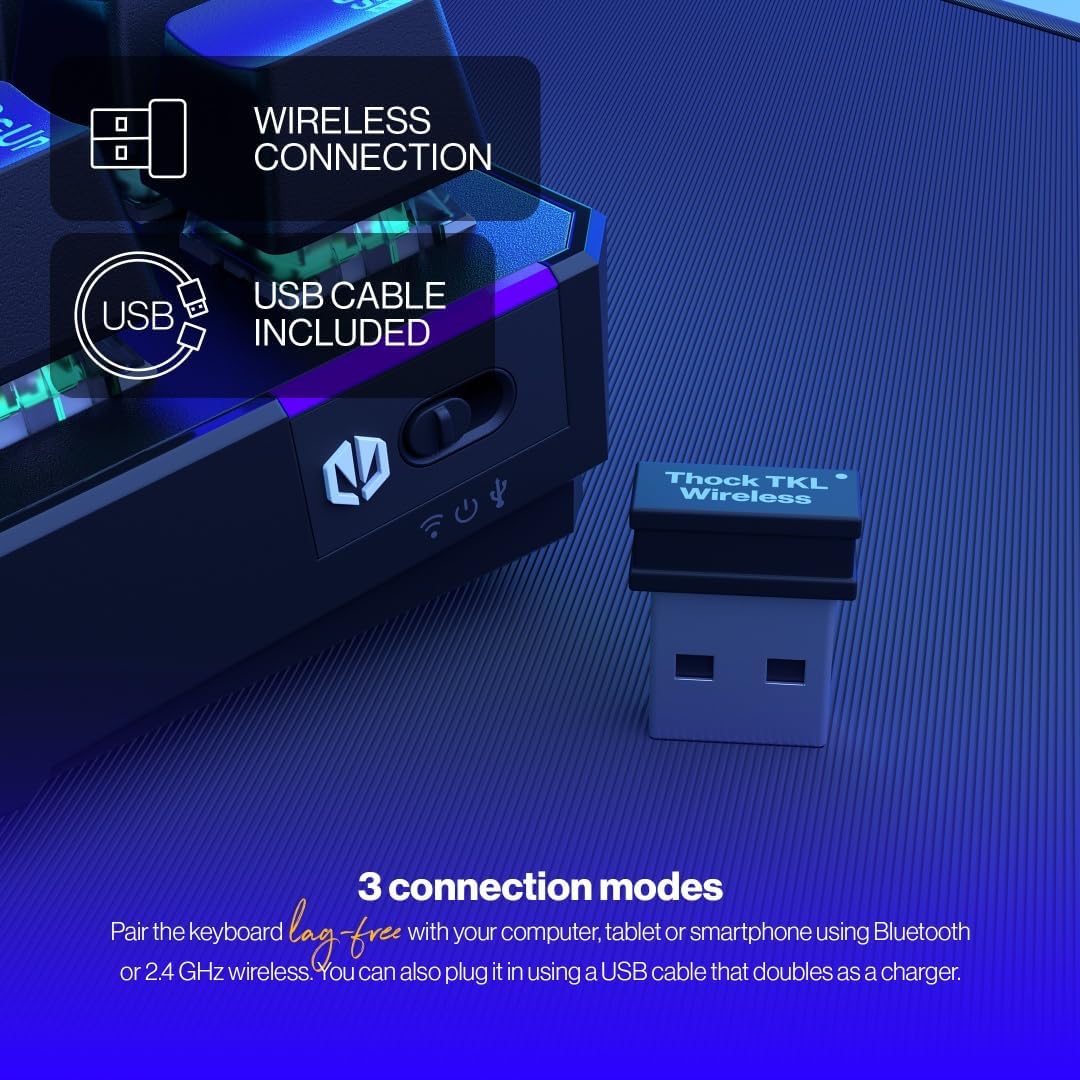
The keyboard offers versatile connectivity options including 2.4 GHz wireless, Bluetooth, and a wired USB connection.
Бесправадное злучэнне 3.2.1 2.4 ГГц
- Locate the 2.4 GHz USB wireless receiver in your package.
- Падключыце USB-прыёмнік да вольнага порта USB на вашым кампутары.
- On the keyboard, locate the mode switch (usually on the side or back) and set it to the '2.4G' or wireless icon position.
- The keyboard should automatically connect to your computer.
3.2.2 Злучэнне Bluetooth
- On the keyboard, set the mode switch to the 'BT' or Bluetooth icon position.
- Клавіятура пяройдзе ў рэжым спалучэння (індыкатар можа міргаць).
- На камп'ютары або прыладзе адкрыйце налады Bluetooth і знайдзіце новыя прылады.
- Select 'ENDORFY Thock TKL' (or similar name) from the list of available devices to pair.
3.2.3 Правадное злучэнне
- Connect the USB-C end of the provided cable to the USB-C port on the keyboard.
- Падключыце канец кабеля USB-A да даступнага порта USB на вашым кампутары.
- The keyboard will function as a wired keyboard and will also charge its internal battery.

The USB-C port on the side of the keyboard allows for wired connection and charging.
4. Інструкцыя па эксплуатацыі
4.1 Асноўныя функцыі
The Thock TKL keyboard features a standard 87-key US layout. Many keys have secondary functions accessible via the 'Fn' key. Refer to the keycaps for specific Fn combinations (e.g., Fn + F1-F12 for media controls, volume, etc.).
4.2 Налада RGB-падсветкі
The keyboard features programmable ARGB backlighting. You can cycle through various lighting effects and colors directly on the keyboard using specific Fn key combinations, or through the dedicated software for more advanced customization.
The keyboard features excellent ARGB backlighting, allowing for various color and effect customizations.
4.3 Software Usage
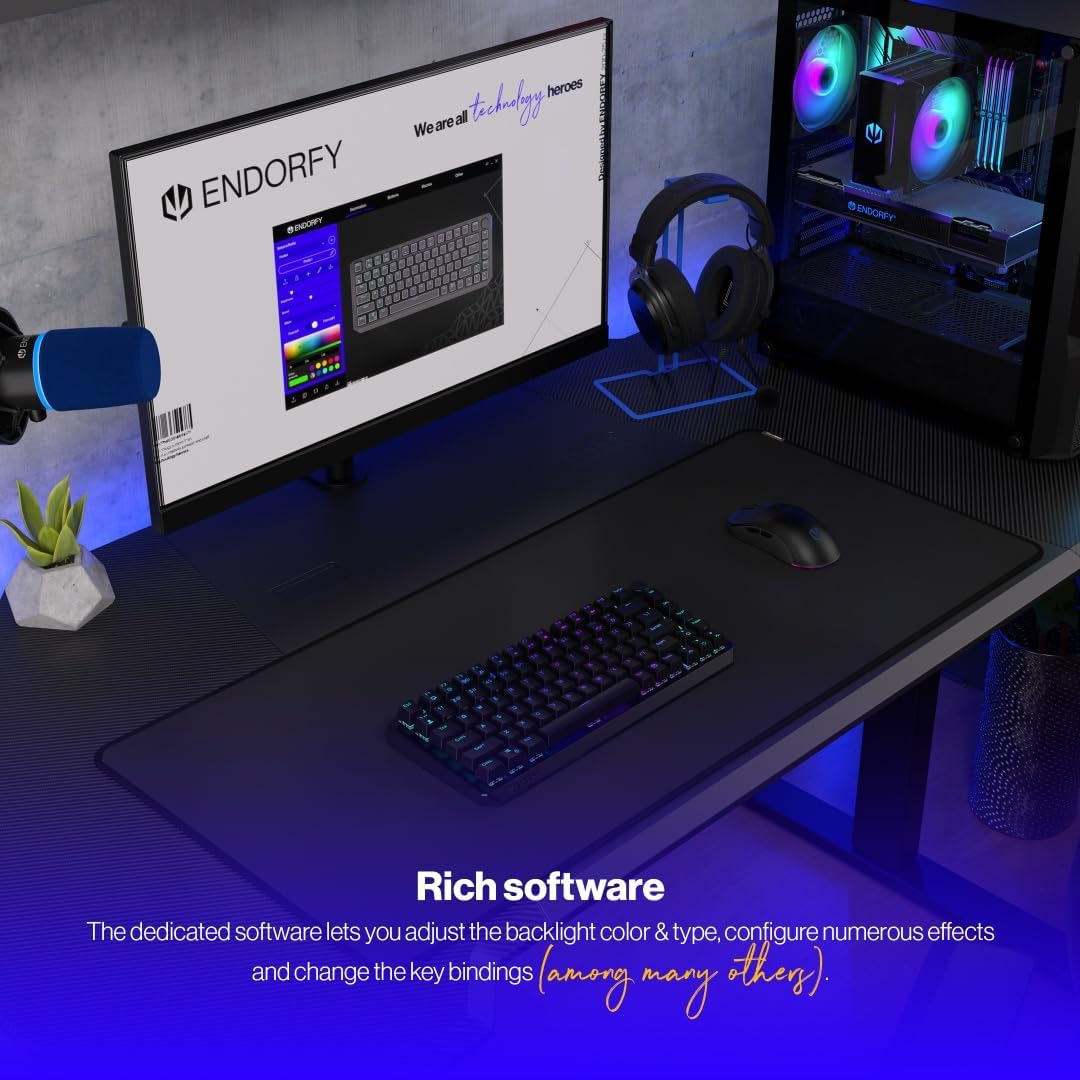
For advanced customization of key bindings, macros, and RGB lighting effects, download and install the dedicated ENDORFY software from the official website. The software provides a graphical interface to fine-tune your keyboard settings.

The dedicated software allows for comprehensive adjustment of backlight color, type, effects, and key bindings.
5. Тэхнічнае абслугоўванне
5.1 Ачыстка
To clean your keyboard, first disconnect it from your computer. Use a soft, dry cloth to wipe down the keycaps and chassis. For deeper cleaning, you may use a can of compressed air to remove dust and debris from between the keys. Avoid using harsh chemicals or abrasive materials.
5.2 Перамыкачы з магчымасцю гарачай замены
The ENDORFY Thock TKL keyboard features hot-swappable switches, allowing you to easily change them without soldering. Use the provided switch puller tool to carefully remove switches. Align the new switch with the pins and gently press it into place until it clicks.

The hot-swap feature allows for easy replacement of switches using the included tool.

The keyboard comes equipped with Kailh Box Red switches, known for their smooth and linear actuation.
5.3 Замена каўпачка клавіш
The keyboard uses durable PBT Double Shot keycaps. To remove a keycap, use the keycap puller tool (often combined with the switch puller) to gently pull it upwards. To install a new keycap, align it with the switch stem and press down firmly until it is seated.

The durable PBT Double Shot keycaps are resistant to wear and maintain their appearance over time.
6. Выпраўленне непаладак
6.1 Клавіятура не рэагуе
- Пераканайцеся, што клавіятура зараджана.
- Праверце, ці правільна ўсталяваны перамыкач рэжымаў падключэння (2.4G, BT, правадное).
- For wireless connections, ensure the USB receiver is properly plugged in or Bluetooth is paired. Try a different USB port.
- For wired connection, try a different USB cable or port.
- Перазагрузіце кампутар.
6.2 Падсветка не працуе або працуе няправільна
- Ensure the backlight is enabled via Fn key combinations.
- Check the brightness level.
- Калі вы карыстаецеся праграмным забеспячэннем, пераканайцеся, што налады ўстаноўлены правільна.
- Perform a factory reset if available (refer to software or advanced Fn commands).
6.3 Ключы не рэгіструюцца
- Пераканайцеся, што клавіятура чыстая і без смецця пад клавішамі.
- If a specific key is not working, try hot-swapping the switch with a known working one to diagnose if the issue is with the switch or the keyboard PCB.
- Update keyboard firmware if available.
7. Тэхнічныя характарыстыкі
| Нумар мадэлі | EY5A080 |
| Тып клавіятуры | Mechanical, TKL (Tenkeyless) |
| Выключальнікі | Kailh Box Red (Hot-Swappable) |
| Клавішы | PBT Double Shot |
| Макет | US Layout, 87 Keys |
| Сувязь | 2.4 GHz Wireless, Bluetooth, USB-C Wired |
| Падсвятленне | ARGB Programmable |
| акумулятар | 1 літый-іённы акумулятар (у камплекце) |
| Памеры прадукту | 14.23 х 5.51 х 1.67 цалі (361.50 х 140 х 42.50 мм) |
| Вага прадмета | 1.74 фунта |
| Сумяшчальныя прылады | PC, Gaming Consoles, Tablets, Smartphones |

Топ view dimensions of the ENDORFY Thock TKL Wireless Keyboard.

Збоку view dimensions illustrating the adjustable height options of the keyboard.
8. Гарантыя і падтрымка
The ENDORFY Thock TKL Wireless Keyboard comes with a Гарантыя 2 год з даты пакупкі. Калі ласка, захавайце пацвярджэнне пакупкі для прэтэнзій па гарантыі.
For technical support, driver downloads, firmware updates, or further information, please visit the official ENDORFY webсайт:
http://endorfy.com/kb/EY5A-THOCK-TKL-WIRELESS
You may also contact ENDORFY customer support directly through the contact information provided on their webсайт.
Звязаныя дакументы - EY5A080
 |
Endorfy Thock TKL Wireless Mechanical Gaming Keyboard - Features and Connectivity Guide Discover the Endorfy Thock TKL Wireless mechanical gaming keyboard. This guide details its USB and wireless connectivity, battery status, multimedia keys, RGB lighting customization, and shortcut functions. |
 |
Механічная клавіятура Endorfy Thock V2 TKL CZ - кіраўніцтва карыстальніка і характарыстыкі Падрабязнае кіраўніцтва карыстальніка для механічнай клавіятуры Endorfy Thock V2 TKL CZ. Даведайцеся пра яе функцыі, наладу RGB-падсветкі, гарачыя клавішы, праграмнае забеспячэнне і рэкамендацыі па бяспецы. |
 |
Кіраўніцтва карыстальніка бесправадной механічнай гульнявой клавіятуры ENDORFY Thock TKL Гэта кіраўніцтва карыстальніка змяшчае падрабязныя інструкцыі па выкарыстанні бесправадной механічнай гульнявой клавіятуры ENDORFY Thock TKL, а таксама інструкцыі па наладзе, функцыянальнасці і ліквідацыі непаладак. Даведайцеся, як падключыцца праз Bluetooth або 2.4G, наладзіць святлодыёдную падсветку і выкарыстоўваць мультымедыйныя функцыі і гарачыя клавішы. |
 |
Бесправадная механічная гульнявая клавіятура Endorfy Thock - кіраўніцтва карыстальніка і бяспекі Падрабязнае кіраўніцтва па механічнай гульнявой клавіятуры Endorfy Thock Wireless, якое ахоплівае наладу, падключэнне (USB, Bluetooth), працу, наладу святлодыёднай падсветкі і інструкцыі па бяспецы. Мае перамыкачы Kailh, каўпачкі клавіш PBT і RGB-падсветку. |
 |
Кіраўніцтва карыстальніка механічнай клавіятуры ENDORFY Thock V2 TKL Detailed user manual for the ENDORFY Thock V2 TKL Mechanical Keyboard, covering setup, features, LED effects, hotkeys, and safety instructions. |
 |
Кіраўніцтва карыстальніка механічнай клавіятуры ENDORFY Thock V2 TKL Падрабязнае кіраўніцтва па механічнай клавіятуры ENDORFY Thock V2 TKL, падрабязнае апісанне функцый, мультымедыйных функцый, гарачых клавіш, налады RGB-падсветкі, падключэння і інфармацыя аб бяспецы. |
Ask a question about this manual
Ask about setup, troubleshooting, compatibility, parts, safety, or missing instructions. Manuals+ will review the question and use this page’s manual context to help answer it.