
lifoarey Q20
Lifoarey Q20 Indoor Security Camera User Manual
Model: Q20 | Brand: lifoarey
1. Уводзіны
This user manual provides comprehensive instructions for the setup, operation, and maintenance of your lifoarey Q20 Indoor Security Camera. Please read this manual carefully before using the device to ensure proper functionality and safety.
2. Што ў скрынцы
Пасля распакавання пераканайцеся, што ўсе пералічаныя ніжэй кампаненты наяўныя:
- Wifi камера
- USB кабель харчавання
- Мантажныя шрубы і анкеры
- Інструкцыя па эксплуатацыі (гэты дакумент)

Малюнак 2.1: Included components of the Lifoarey Q20 Indoor Security Camera. The image displays the white dome camera, a white USB power cable, a small bag with mounting screws and wall anchors, and a printed instruction manual.
3. Прадукт скончыўсяview
The Lifoarey Q20 Indoor Security Camera is designed to provide comprehensive home monitoring with its advanced features:
- Раздзяленне 1080P Full HD: Provides sharp and clear video for detailed monitoring.
- 2-баковае аўдыё: Enables instant communication, allowing you to speak and listen through the camera.
- 360° Ахоп View (Pan/Tilt): Прапануе шырокі viewing angle with horizontal 355° and vertical 75° rotation, controllable via the app.
- Выяўленне і адсочванне руху: Sends instant alerts to your smartphone upon motion detection and automatically tracks the activity.
- Начное бачанне: Ensures clear monitoring even in low-light conditions.
- Cloud & Local Storage: Supports continuous recording with an inserted Micro SD card (up to 128GB, sold separately) or optional cloud service.
- Smart Sharing: Allows sharing camera access with multiple family members.

Малюнак 3.1: Visual representation of the Lifoarey Q20 camera with callouts for its main features: 1080P Resolution, Motion Detection, Motion Tracking, and 2 Way Audio.

Малюнак 3.2: The camera's ability to provide clear images in both daytime and nighttime conditions, indicated by sun and moon icons.

Малюнак 3.3: Illustration of the dual storage options: Cloud storage and Micro SD Card storage (up to 128GB).
4. Кіраўніцтва па наладцы
Follow these steps to set up your Lifoarey Q20 camera:
- Спампаваць прыкладанне: Scan the QR code provided in the physical instruction manual or search for "Clink-Smart Home" in your device's app store (App Store for iOS, Google Play for Android). Look for the app with a 'C' icon.
- Зарэгістравацца і ўвайсці: Open the "Clink-Smart Home" app. Register a new account using your email address and create a password. Verify your email if prompted, then log in.
- Prepare for Connection: Пераканайцеся, што ваш смартфон падключаны да сеткі Wi-Fi 2.4 ГГц. Камера падтрымлівае толькі Wi-Fi 2.4 ГГц.
- Уключыце камеру: Plug the camera into a power outlet using the provided USB power cable. The camera will go through an initial self-check, which may involve rotating and making sounds.
- Reset the Camera (if necessary): If the camera does not respond or you are setting it up for the first time, locate the reset tab. This tab is typically found under the round camera part, near the SD card slot. Press and hold this tab for 5 seconds until you hear a confirmation sound or voice prompt.
- Падключэнне праз праграму:
- In the "Clink-Smart Home" app, follow the on-screen prompts to add a new device.
- The camera will indicate when it is ready to connect (e.g., a voice prompt saying "Waiting for Wi-Fi configuration").
- The app will generate a QR code on your phone screen. Hold your phone's screen approximately 6-8 inches (15-20 cm) in front of the camera lens. Ensure the QR code is clearly visible to the camera.
- Once the camera successfully scans the QR code, it will beep or provide a voice confirmation that it is connecting to Wi-Fi.
- Wait for the camera to confirm successful connection. The app will then display the live camera feed.
- Размяшчэнне: The camera can be placed on a desk or mounted on the ceiling. Choose a location that provides the desired viewінг вобласці.
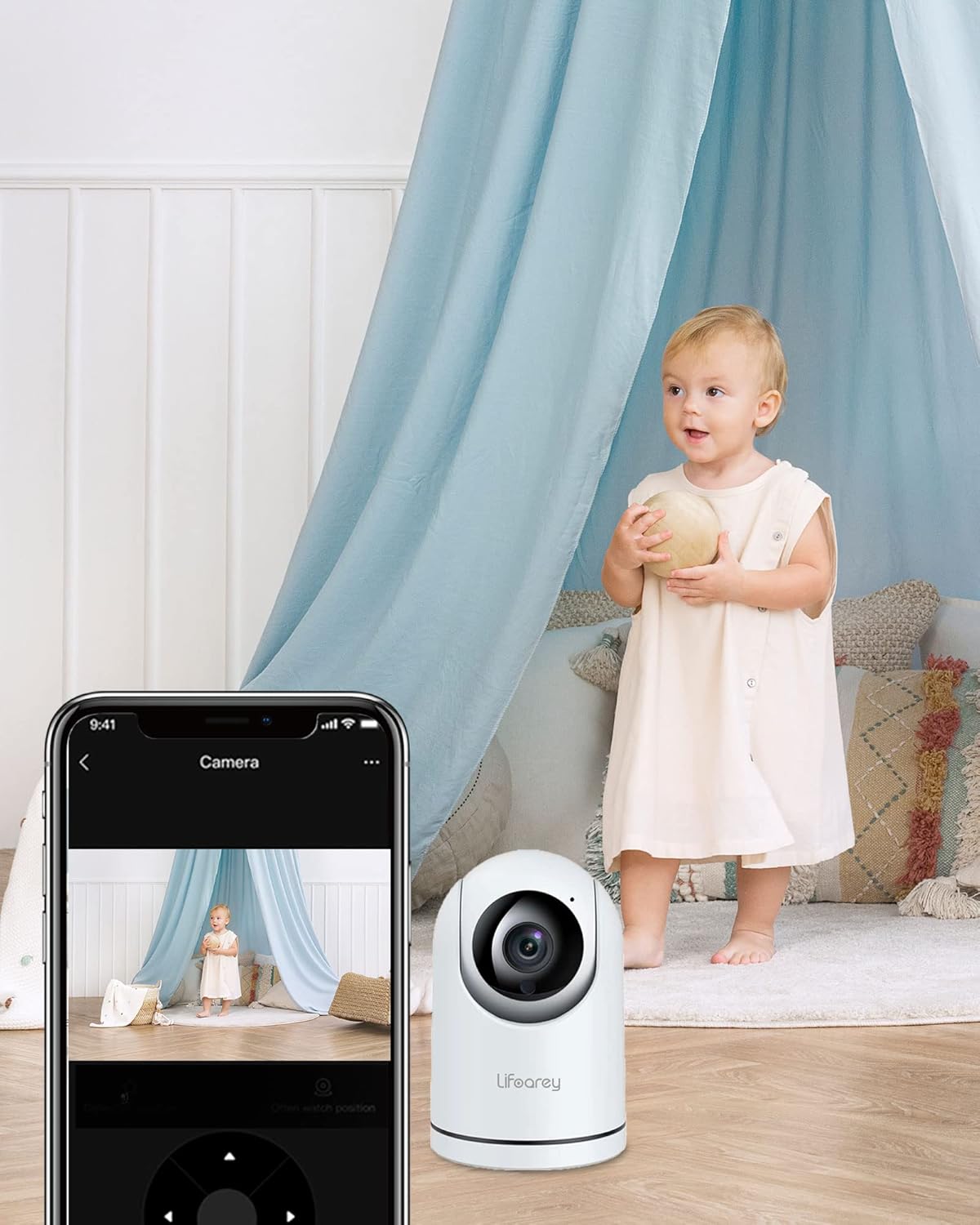
Малюнак 4.1: The Lifoarey Q20 camera monitoring a room, with the live feed displayed on a smartphone, demonstrating remote viewныя магчымасці.

Малюнак 4.2: The Lifoarey Q20 camera can be placed on a desk or mounted on the ceiling, offering flexible installation options.
5. Інструкцыя па эксплуатацыі
5.1 У прамым эфіры View і кіраванне панарамаваннем/нахілам
Once connected, open the "Clink-Smart Home" app to view the live feed. Use the directional controls within the app to pan (horizontal rotation up to 355°) and tilt (vertical rotation up to 75°) the camera lens to adjust your viewкут нахілу.
5.2 Двухбаковае аўдыё
Каб выкарыстоўваць функцыю двухбаковай аўдыёсувязі, націсніце значок мікрафона ў рэжыме рэальнага часу view interface of the app. You can then speak into your phone, and your voice will be transmitted through the camera's speaker. Similarly, you can hear audio from the camera's environment through your phone.

Малюнак 5.1: The 2-Way Audio feature allows for instant communication, enabling users to comfort children or pets remotely.
5.3 Выяўленне і адсочванне руху
The camera is equipped with motion detection. When motion is detected, you will receive instant alerts on your smartphone. The camera can also automatically track the detected activity within its field of view.

Малюнак 5.2: The camera's motion detection feature sends instant notifications to your phone when activity is detected.

Малюнак 5.3: The camera's motion tracking feature allows it to follow detected movement within its range.
5.4 Варыянты захоўвання
The Lifoarey Q20 supports two storage methods for recorded footage:
- Micro SD-карта: Insert a Micro SD card (up to 128GB, purchased separately) into the designated slot on the camera. The camera will continuously record to the card.
- Воблачны сэрвіс: An optional cloud storage service is available for continuous recording and remote access to your footage. Refer to the app for subscription details.

Малюнак 5.4: The camera offers flexible storage options, allowing users to save recordings to a Micro SD card or utilize cloud storage.
5.5 Smart Sharing
You can share access to your camera's live feed with family members or trusted individuals through the "Clink-Smart Home" app. This feature supports up to 4 users viewing simultaneously on phone and tablet.

Малюнак 5.5: The smart sharing feature allows multiple users to view the camera feed simultaneously, facilitating shared monitoring.
6. Тэхнічнае абслугоўванне
- Уборка: Выкарыстоўвайце мяккую сухую тканіну для чысткі аб'ектыва і корпуса камеры. Пазбягайце выкарыстання агрэсіўных хімічных рэчываў або абразіўных ачышчальнікаў.
- Абнаўленні прашыўкі: Regularly check the "Clink-Smart Home" app for available firmware updates to ensure optimal performance and security.
- Размяшчэнне: Ensure the camera is placed in a stable, dry indoor environment. Avoid direct sunlight or extreme temperatures.
7. Выпраўленне непаладак
| праблема | Магчымая прычына | Рашэнне |
|---|---|---|
| Camera does not connect to Wi-Fi. | Incorrect Wi-Fi password; camera too far from router; 5GHz Wi-Fi network used; QR code not scanned properly. | Double-check Wi-Fi password. Move camera closer to router. Ensure your router is broadcasting a 2.4GHz network and your phone is connected to it. Re-scan the QR code, ensuring proper distance and lighting. Try resetting the camera (see Setup Guide). |
| Camera makes repetitive beeping sounds. | Indicates a connection issue or setup mode. | This sound often occurs when the camera is waiting for Wi-Fi configuration. Follow the app's instructions to complete the setup process, especially the QR code scanning step. If it persists after setup, check your Wi-Fi connection. |
| Motion tracking does not work. | Feature might be disabled in settings; environmental factors (e.g., too much light, reflections). | Check the camera settings in the "Clink-Smart Home" app to ensure motion tracking is enabled. Adjust camera placement to minimize environmental interference. |
| App is difficult to find or QR code doesn't work. | Outdated QR code; app name variations. | Search directly for "Clink-Smart Home" in your app store. Ensure you are looking for the correct icon (a 'C' symbol). If the QR code in the manual doesn't work, manually search for the app. |
8. Тэхнічныя характарыстыкі
| Асаблівасць | Дэталь |
|---|---|
| Назва мадэлі | Q20 |
| Выкарыстанне ў памяшканні/на вуліцы | У памяшканні |
| Крыніца харчавання | DC |
| Пратакол злучэння | Wi-Fi (толькі 2.4 ГГц) |
| Тып кантролера | iOS, Android (праз праграму) |
| Тып мацавання | Mount on ceiling or put on desk |
| Дазвол відэазахопу | 1080p |
| Колер | Белы |
| Уключаныя кампаненты | Wifi камера |
| Тэхналогія бесправадной сувязі | Wi-Fi |
| Формаў-фактар | Купал |
| Viewing кут | 355 градусаў (панарамаванне), 75 градусаў (нахіл) |
| Дыяпазон начнога бачання | 25 футаў |
| Частата кадраў | 15 кадраў у секунду |
| Матэрыял | Метал, пластык |
| Памеры прадмета Д х Ш х У | 5.8 х 3.2 х 3.2 цалі |
| Узровень воданепранікальнасці | Не воданепранікальны |
| Тып фокусу | Аўтафокус |
| Тып абвесткі | Толькі рух |
| Тып крыніцы святла | Інфрачырвоны |
| Максімальны памер флэш-памяці, які падтрымліваецца | 128 ГБ (Micro SD) |
| Вага прадмета | 11.2 унцыі |
9. Гарантыя і падтрымка
For any product inquiries, technical support, or warranty claims, please contact Lifoarey customer support:
- электронная пошта: support@lifoarey.com
Калі ласка, захавайце чэк аб куплі ў якасці пацверджання пакупкі для гарантыйных мэт.