
1. Уводзіны
This manual provides essential instructions for setting up, operating, and maintaining your Huawei H158-381 5G CPE Pro 5 Router. Please read this guide thoroughly before using the device to ensure proper functionality and safety.
2. Змесціва ўпакоўкі
Пераканайцеся, што ўсе наступныя элементы ўваходзяць у камплект вашага прадукту:
- Huawei H158-381 5G CPE Pro 5 Router
- Адаптар сілкавання 12 В 3 А
- Кароткае кіраўніцтва (гэта кіраўніцтва)
3. Прадукт скончыўсяview
The Huawei H158-381 5G CPE Pro 5 Router is a high-performance wireless router designed for advanced internet connectivity. It supports both 5G and 4G networks, offering high-speed data transmission and robust Wi-Fi capabilities.
Асноўныя характарыстыкі:
- 5G and 4G Network Compatibility: Supports 5G frequencies in NSA and SA modes (n1/3/5/7/20/28/71/38/40/41/77/78/79) and 4G bands (B1/3/5/7/8/18/19/20/26/28/32/34/38/39/40/41/42/43). Note: 2G and 3G are not supported.
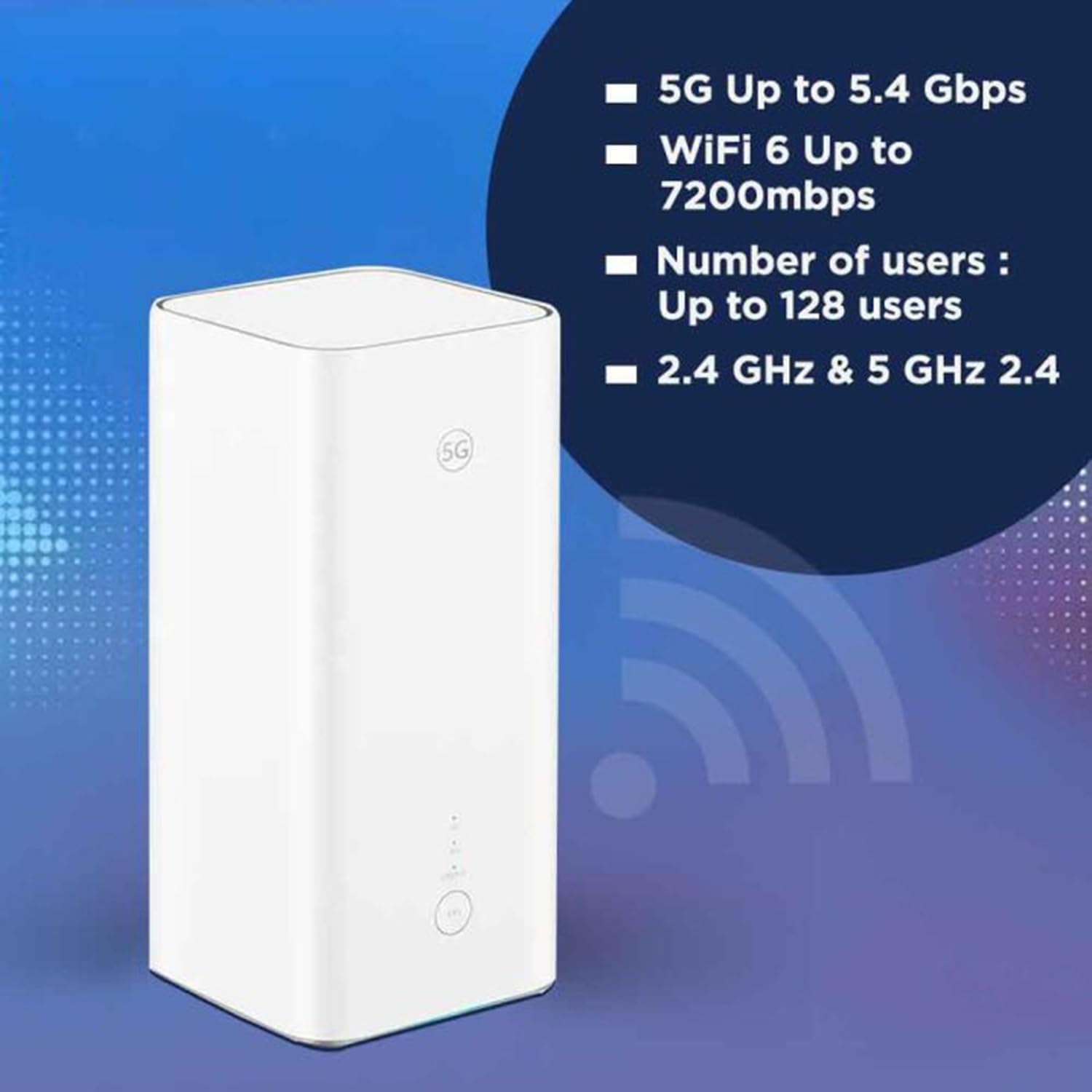
- Высакахуткасныя дадзеныя: Achieves download speeds up to 5.4 Gbps and upload speeds up to 500 Mbps on 5G (network dependent).
- Wi-Fi 6 (AX7200): Provides Wi-Fi speeds up to 7200 Mbps across 2.4 GHz and 5 GHz bands, supporting up to 128 connected users.
- Бяспека WPA3: Enhanced wireless security protocol for a safer network.
- Nano-SIM Slot: For mobile broadband connectivity.
- Integrated 5G NR Antenna: Features a 12 dBi internal antenna for optimized signal reception.
- Парты Ethernet: Includes 2 Ethernet ports for wired connections.
Фізічныя кампаненты:


4. Кіраўніцтва па наладцы
4.1 Усталёўка SIM -карты
- Locate the Nano-SIM card slot on your router.
- Insert a Nano-SIM card into the slot. Ensure the SIM card is correctly oriented according to the diagram near the slot.
- Важна: It is recommended to disable the PIN code of your SIM card using a mobile phone before inserting it into the router for a smoother setup process.
4.2 Падключэнне харчавання
- Connect the provided 12V 3A power adapter to the router's power input port.
- Падключыце адаптар сілкавання да адпаведнай электрычнай разеткі.
- The router will automatically power on. Wait for the status indicators to stabilize.
4.3 Пачатковая канфігурацыя
Once powered on, the router will attempt to connect to the mobile network. You can access the router's web interface or use the dedicated mobile application for further configuration, such as changing Wi-Fi names and passwords.
5. Інструкцыя па эксплуатацыі
5.1 Падключэнне прылад праз Wi-Fi
- На сваёй прыладзе (смартфоне, ноўтбуку, планшэце) знайдзіце даступныя сеткі Wi-Fi.
- Select the Wi-Fi network name (SSID) corresponding to your router. The default SSID and password are usually found on a label at the bottom of the router.
- Калі будзе прапанавана, увядзіце пароль Wi-Fi.
- Цяпер ваша прылада павінна быць падключана да Інтэрнэту.
5.2 Падключэнне прылад праз Ethernet
The router features two Ethernet ports for wired connections:
- Connect one end of an Ethernet cable to an Ethernet port on the back of the router.
- Connect the other end of the Ethernet cable to the Ethernet port on your device (e.g., computer, gaming console, smart TV).
- The device should automatically establish a wired network connection.
6. Пашыраныя магчымасці
6.1 External Antenna Support
The Huawei H158-381 router supports external 5G antennas to enhance signal reception. To utilize this feature:
- Install your external 5G antennas according to their respective instructions.
- Connect the external antennas to the designated external antenna ports on the router.
- Open the router's management application (e.g., Deco app), navigate to Advanced > External Antennas, and activate the external antennas option.
- When activated, the external antennas will replace a portion of the internal antennas for signal reception.
6.2 Product Summary Video
Паглядзіце гэта відэа для хуткага азнаямленняview of the Huawei H158-381 5G CPE Pro 5 Router's features and benefits.
Відэа 6.1: A product summary video showcasing the Huawei H158-381 5G CPE Pro 5 Router's design and core functionalities.
7. Тэхнічныя характарыстыкі
| Асаблівасць | Спецыфікацыя |
|---|---|
| Марка | HUAWEI |
| Вытворца | HUAWEI |
| серыял | H158-381 |
| Памеры прадукту | 10.3 х 10.3 х 22.6 см; 915 г |
| Нумар мадэлі тавару | H158-381 |
| Колер | Белы |
| Тып падключэння | Wi-Fi |
| Бесправадны тып | 802.11ax |
| Колькасць партоў Ethernet | 2 |
| тtage | 12 Вольт |
| Аперацыйная сістэма | RouterOS |
| Батарэі ўваходзяць у камплект | няма |
| Гарантаваныя абнаўленні праграмнага забеспячэння да | 23 мая 2025 г |
| Назва мадэлі | H158-381 |
| Асаблівасці | WPS |
| Клас дыяпазону частот | Двайны дыяпазон |
| Стандарт бесправадной сувязі | 802.11ax |
| Сумяшчальныя прылады | Game console, tablet, personal computer, smartphone, smart television, streaming device, security camera, printer, smart thermostat |
| Рэкамендаванае выкарыстанне прадукту | Дом, Бізнес |
| Уключаныя кампаненты | Manual, 12V 3A Charger, Router H158-381 |
| Тэхналогія падключэння | Ethernet, Wi-Fi |
8. Тэхнічнае абслугоўванне
To ensure the longevity and optimal performance of your router, consider the following maintenance tips:
- Размяшчэнне: Размясціце маршрутызатар у цэнтральным месцы, далей ад перашкод і іншых электронных прылад, якія могуць выклікаць перашкоды.
- Уборка: Трымайце маршрутызатар чыстым і без пылу. Выкарыстоўвайце для чысткі мяккую сухую тканіну.
- Абнаўленні прашыўкі: Regularly check for and install firmware updates to benefit from improved performance, security, and new features. This can usually be done through the router's web інтэрфейс або мабільнае прыкладанне.
- Вентыляцыя: Ensure the router has adequate ventilation to prevent overheating. Do not cover ventilation openings.
9. Выпраўленне непаладак
Калі ў вас узніклі праблемы з маршрутызатарам, паспрабуйце выканаць наступныя дзеянні па ліквідацыі непаладак:
- Няма падключэння да Інтэрнэту:
- Праверце, ці правільна ўстаўлена і актывавана SIM-карта.
- Ensure the router is powered on and all indicator lights are functioning as expected.
- Restart the router by unplugging it from the power source, waiting 30 seconds, and plugging it back in.
- Verify your mobile data plan is active and has sufficient data.
- Павольная хуткасць Wi-Fi:
- Падыдзіце бліжэй да маршрутызатара, каб палепшыць узровень сігналу.
- Зменшце колькасць падлучаных прылад або дзейнасці, якая патрабуе шмат прапускной здольнасці.
- Праверце наяўнасць перашкод ад іншых электронных прылад.
- Consider using external antennas if signal strength is consistently low.
- Немагчыма атрымаць доступ да налад маршрутызатара:
- Пераканайцеся, што ваша прылада падключана да сеткі Wi-Fi маршрутызатара або праз кабель Ethernet.
- Verify you are entering the correct IP address (usually 192.168.8.1 or 192.168.1.1) in your web браўзер.
- Confirm you are using the correct administrator username and password.
If problems persist, consult the official Huawei support webсайт або звярніцеся ў службу падтрымкі кліентаў для атрымання дадатковай дапамогі.
10. Гарантыя і падтрымка
For warranty information, please refer to the warranty card included with your product or visit the official HUAWEI website. Technical support and customer service contact details can also be found on the HUAWEI support portal.