
1. Прадукт скончыўсяview
The SUVCON Dash Cam Front and Rear 2K is a high-definition vehicle recording system designed to capture clear video footage of your journeys. It features both a front-facing camera and a rear-facing camera, providing comprehensive coverage. Equipped with advanced features such as Wi-Fi connectivity, G-sensor for incident detection, seamless loop recording, and a 24-hour parking monitor, this dash cam offers enhanced safety and peace of mind for drivers.
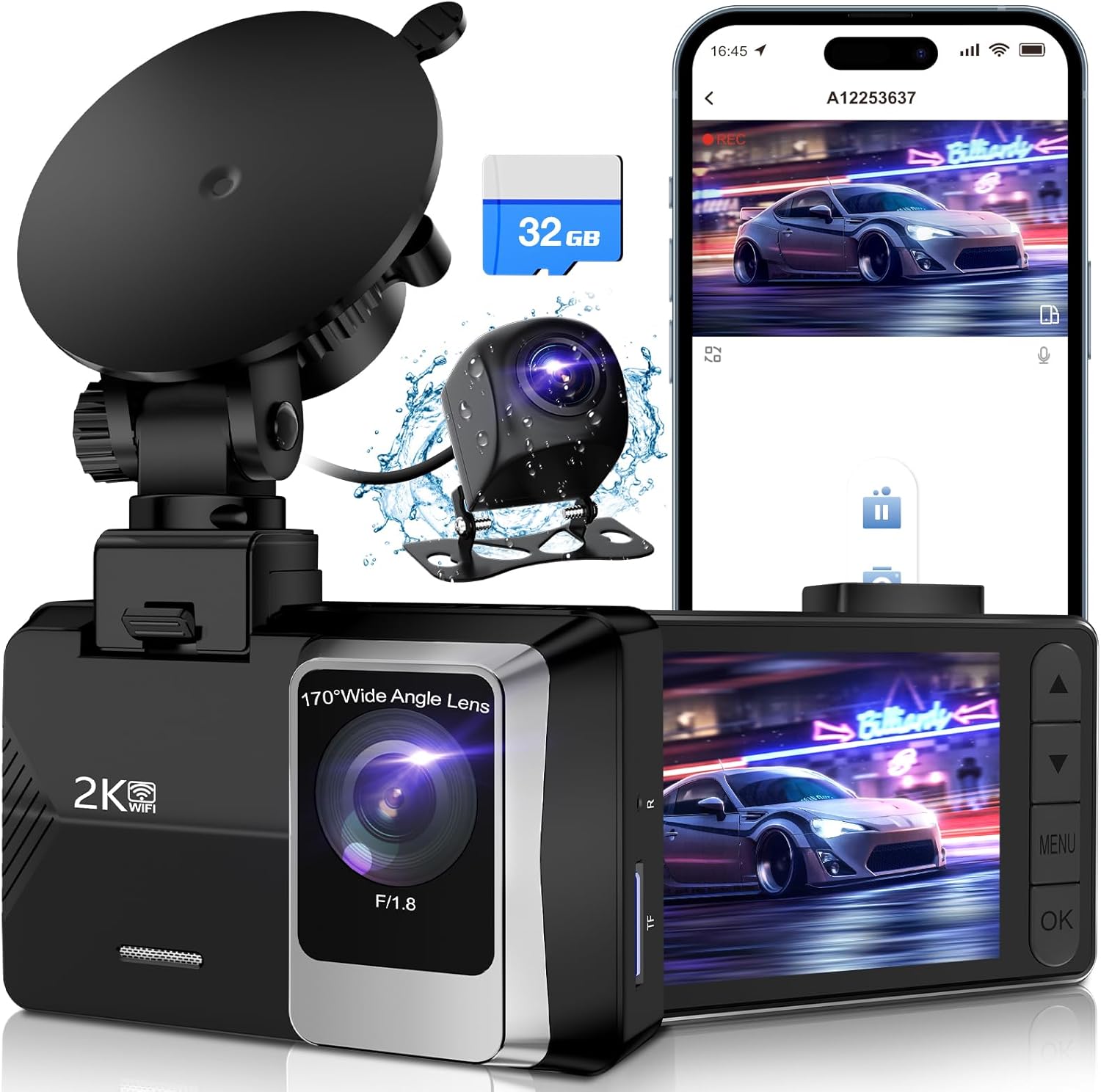
Image: The SUVCON Dash Cam system, showing the main unit, rear camera, and included 32GB memory card.
2. Змесціва ўпакоўкі
Before installation, please verify that all items are present in your package:
- SUVCON Dash Cam (Main Unit)
- Задняя камера
- Карта памяці 32 ГБ
- Аўтамабільная зарадная прылада
- Кабель задняй камеры
- Мацаванне прысоскі
- Кіраўніцтва карыстальніка
- Cable Clips and Adhesive Pads

Выява: Поўная view of all components included in the SUVCON Dash Cam package.
3. Настройка і ўстаноўка
Выканайце наступныя дзеянні для правільнай усталёўкі сістэмы відэарэгістратара:
- Устаўце карту памяці: Ensure the included 32GB memory card is inserted into the main dash cam unit's TF card slot.
- Мацаванне пярэдняй камеры: Attach the suction cup mount to the front dash cam unit. Clean a spot on your windshield, preferably behind the rearview mirror, and firmly press the suction cup to secure the dash cam. Adjust the camera angle to ensure a clear view дарогі наперадзе.
- Усталюйце заднюю камеру: Connect the rear camera to the main unit using the provided cable. Route the cable neatly along the vehicle's interior trim to the rear of the car. Mount the rear camera on the rear windshield, ensuring it has a clear view.
- Падключыце харчаванне: Plug the car charger into your vehicle's 12V power outlet (cigarette lighter socket). Connect the other end of the charger cable to the main dash cam unit. The dash cam will automatically power on and begin recording when your vehicle starts.

Image: Visual guide demonstrating the straightforward installation process of the dash cam within a vehicle.
4. Інструкцыя па эксплуатацыі
4.1 Асноўныя аперацыі
- Уключэнне/выключэнне харчавання: The dash cam powers on automatically with vehicle ignition and powers off when the ignition is turned off. You can also manually power it on/off using the power button.
- Запіс: Once powered on, the dash cam automatically begins loop recording. A red indicator light or on-screen icon typically confirms recording is active.
- Дысплей экрана: The 2.0-inch IPS screen displays live footage from the front and/or rear cameras. You can switch between views or turn off the screen display to avoid distraction while driving.
4.2 Асноўныя магчымасці
The SUVCON Dash Cam includes several important features:
- цыклічны запіс: When the memory card is full, the dash cam automatically overwrites the oldest unlocked video files with new recordings, ensuring continuous operation.
- G-сенсор (аварыйная блакіроўка): The built-in G-sensor detects sudden shakes or collisions. In such an event, it automatically locks the current video segment, preventing it from being overwritten by loop recording.
- Кругласутачны маніторынг паркоўкі: This feature provides continuous surveillance even when your vehicle is parked. It requires a hardwire kit (not included) for constant power supply. When activated, the dash cam will automatically record if it detects a collision or motion while parked.
- Падключэнне Wi-Fi: Connect your smartphone to the dash cam via Wi-Fi using the dedicated app (e.g., Viidure app). This allows you to view жывы footagе, загружаць запісаныя відэа і наладжваць налады непасрэдна з тэлефона.

Image: Illustration of the dash cam's built-in Wi-Fi feature, enabling easy viewзапіс, загрузка і абмен файламі footage via a smartphone app.
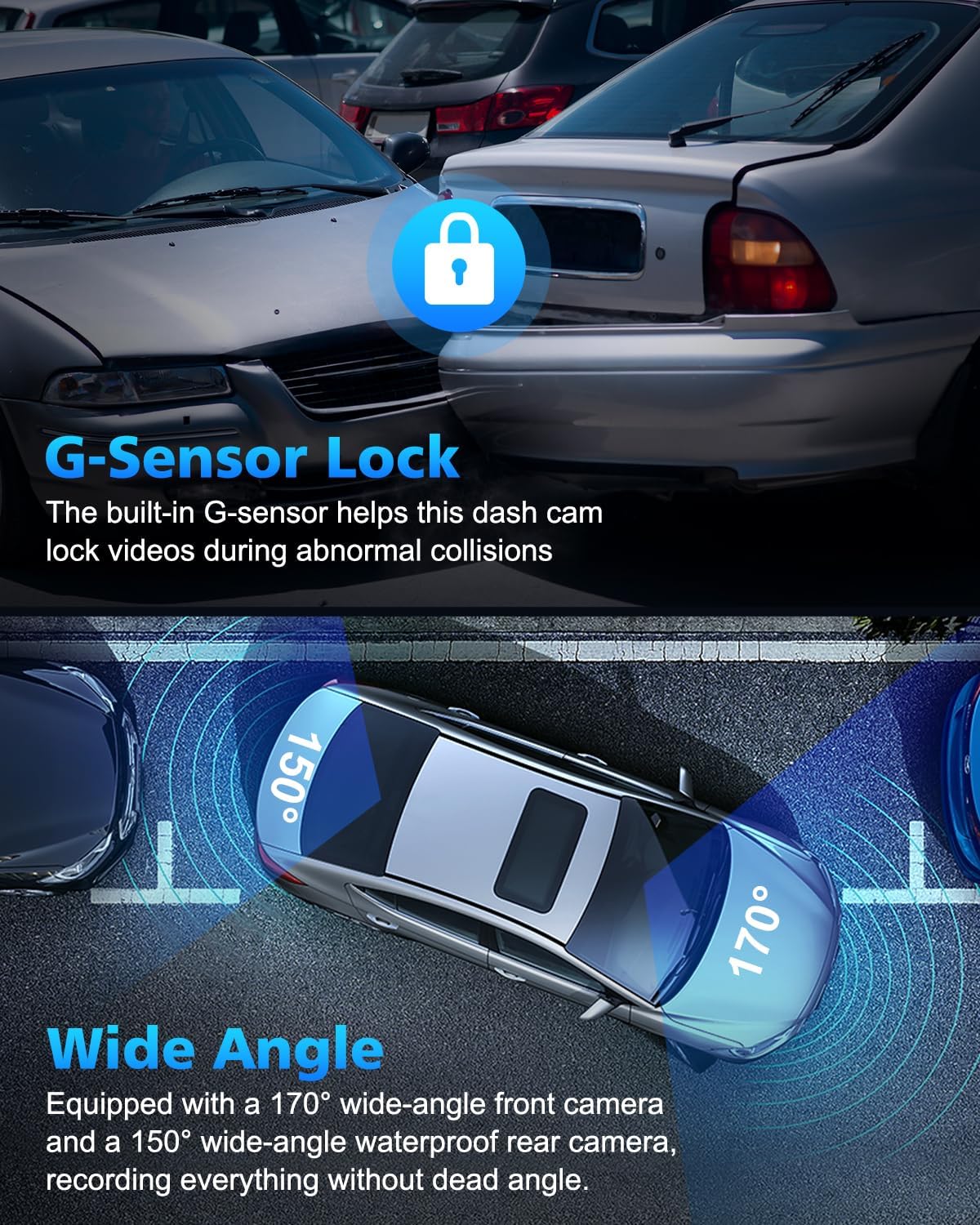
Image: Depiction of the G-Sensor locking mechanism during an impact and the wide 170-degree front and 150-degree rear camera angles.

Image: Visual representation of seamless loop recording, where older files are automatically replaced by new ones when the memory card is full.
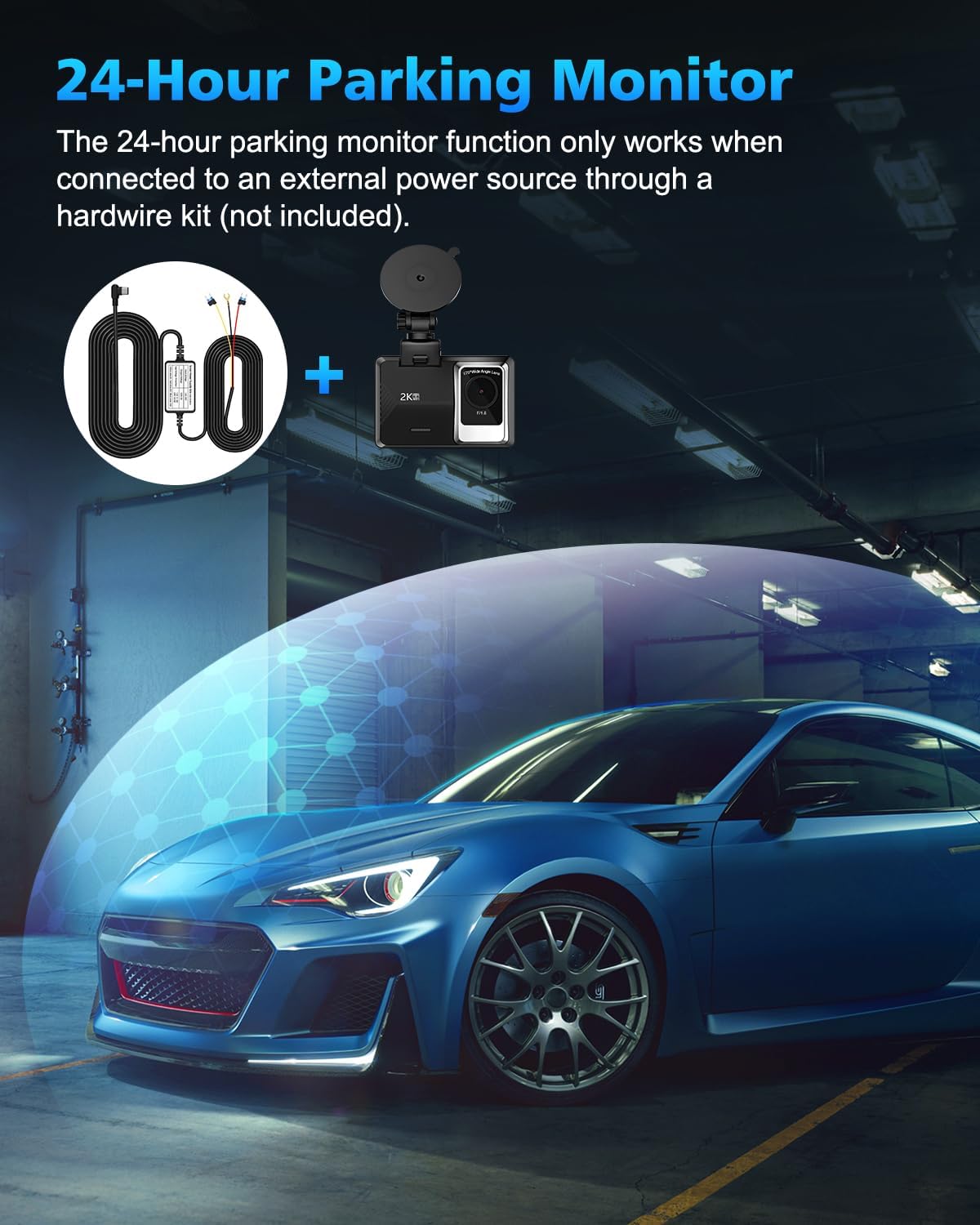
Image: Illustration of the 24-hour parking monitor function, noting its requirement for an external hardwire kit.
5. Тэхнічнае абслугоўванне
To ensure optimal performance and longevity of your SUVCON Dash Cam, follow these maintenance guidelines:
- Чыстыя лінзы: Рэгулярна працірайце аб'ектывы пярэдняй і задняй камер мяккай тканінай без ворса, каб забяспечыць выразную якасць відэа. Пазбягайце абразіўных матэрыялаў, якія могуць падрапаць аб'ектывы.
- Фарматаванне карты памяці: It is recommended to format the memory card every 2-4 weeks to prevent data corruption and ensure smooth loop recording. This can usually be done through the dash cam's settings menu.
- Кантроль тэмпературы: Пазбягайце працяглага ўздзеяння экстрэмальных тэмператур на відэарэгістратар. Калі вы прыпаркаваліся пад прамымі сонечнымі прамянямі, падумайце аб зняцці відэарэгістратара або выкарыстанні сонцаахоўнага тэнта.
- Кабельнае кіраванне: Ensure all cables are securely routed and not interfering with driving controls or vision. Use the provided cable clips to keep wiring tidy.
6. Выпраўленне непаладак
If you encounter issues with your dash cam, refer to the following common solutions:
| праблема | Магчымая прычына | Рашэнне |
|---|---|---|
| Відэарэгістратар не ўключаецца. | Няма харчавання; няшчыльнае злучэнне. | Check car charger connection to both the dash cam and the vehicle's 12V outlet. Ensure the vehicle's ignition is on. |
| Запіс спыняецца або завісае. | Memory card error; full memory card; incompatible card. | Format the memory card. Ensure you are using a high-speed (Class 10 or U3) microSD card. Try a different memory card. |
| Дрэнная якасць відэа. | Dirty lens; protective film still on lens. | Clean the camera lenses. Remove any protective film from the lenses. |
| Праблемы з падключэннем да Wi-Fi. | Incorrect app; Wi-Fi not enabled on dash cam. | Ensure you have downloaded the correct app (e.g., Viidure). Enable Wi-Fi on the dash cam through its settings. Restart both the dash cam and your smartphone. |
7. Тэхнічныя характарыстыкі
Key technical specifications for the SUVCON Dash Cam Front and Rear 2K:
- мадэль: A12
- Раздзяленне франтальнай камеры: 1440P (2K)
- Раздзяленне задняй камеры: 720P
- Кут пярэдняй камеры: 170 degrees wide angle
- Кут задняй камеры: 150 degrees wide angle
- Дысплей: 2.0-цалевы экран IPS
- захоўванне: Supports MicroSD Card (32GB included, up to 256GB supported)
- Асаблівасці: Wi-Fi Control, Loop Recording, G-Sensor, Parking Monitor, Voice Recording
- Тэхналогія падключэння: Powerline, Wireless (Wi-Fi)
- Памеры прадукту: 1 х 1 х 1 цалі
- Вага прадмета: 15.2 унцыі
- вытворца: SUVCON
- Дата першай даступнасці: 8 ліпеня 2023 г
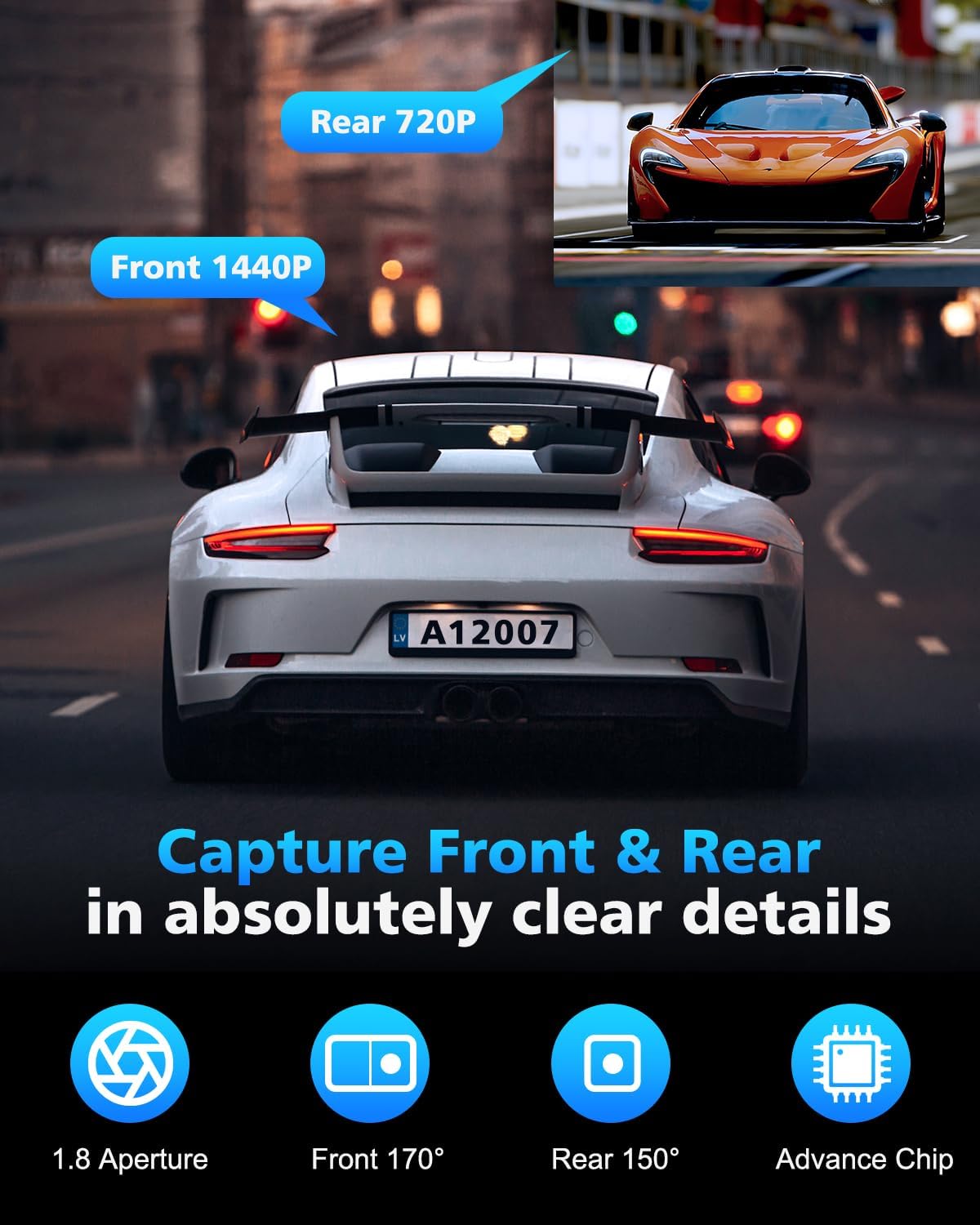
Image: Visual representation of the front camera's 1440P resolution and the rear camera's 720P resolution capabilities.

Выява: Оверview of the powerful features of the SUVCON Dash Cam, highlighting its core functionalities.
8. Гарантыя і падтрымка
For warranty information and technical support regarding your SUVCON Dash Cam, please refer to the official SUVCON webсайт або звярніцеся непасрэдна ў службу падтрымкі кліентаў. Звычайна падрабязная інфармацыя падаецца на ўпакоўцы прадукту або ў прыкладзенай дакументацыі.
You may also find additional resources and frequently asked questions on the product's Amazon listing page or by visiting the SUVCON Store on Amazon.