
1. Уводзіны
This manual provides essential instructions for setting up, operating, and maintaining your Tibuta Android 13 Tablet. Please read this guide thoroughly to ensure proper use and to maximize your device's performance.
The Tibuta 10-inch tablet features the Android 13 operating system, an Octa-Core processor, 8GB RAM, 64GB internal storage (expandable up to 1TB), a 7000mAh battery, and a 1280x800 IPS display. It supports Wi-Fi 6, Bluetooth 5.2, and Widevine L1 for enhanced streaming.

Image 1.1: Tibuta Android 13 Tablet overview, highlighting its 8GB+64GB configuration, Android 13 OS, Wi-Fi 6, 7000mAh battery, and Widevine L1 support.
2. Схема прылады
Familiarize yourself with the physical components and ports of your tablet.

Малюнак 2.1: Пярэдняя і бакавая часткі view of the tablet with numbered components and dimensions.
Ідэнтыфікацыя кампанента:
- Кнопка харчавання: Выкарыстоўваецца для ўключэння/выключэння прылады або абуджэння/пераключэння экрана ў рэжым сну.
- Порт тыпу C: Для зарадкі планшэта і перадачы дадзеных.
- Кнопкі гучнасці: Адрэгулюйце гучнасць гуку.
- Слот для карты Micro SD: Устаўце карту Micro SD для пашырэння памяці.
- Камера: Задняя камера.
- Кнопка скіду: A small pinhole button to force restart the device if unresponsive.
- Headphone Terminal: Аўдыёраздым 3.5 мм для навушнікаў.
- Дакладчыкі: Аўдыё выхад.

Малюнак 2.2: Падрабязны view of the tablet's ports and buttons, including front and rear cameras, speakers, and the 3.5mm headphone jack.
3. Пачатак працы
3.1. Зарадка акумулятара
Before first use, fully charge the tablet's 7000mAh lithium polymer battery. Connect the provided Type-C cable to the tablet's Type-C port and the other end to the power adapter, then plug the adapter into a wall outlet. The charging indicator will show the charging status.

Image 3.1: Visual representation of the tablet's 7000mAh battery capacity and Type-C charging port.
3.2. Уключэнне / выключэнне харчавання
- Каб уключыць: Press and hold the Power Button until the Tibuta logo appears on the screen.
- Каб выключыць: Press and hold the Power Button until the power options menu appears, then select 'Power off'.
- Каб заснуць/прачнуцца: Кароткачасова націсніце кнопку харчавання, каб перавесці планшэт у рэжым сну або абудзіць яго.
3.3. Пачатковая налада
Upon first power-on, the tablet will guide you through an initial setup process. This includes selecting your language, connecting to a Wi-Fi network, and setting up your Google account. Follow the on-screen prompts to complete the setup.
4. Асноўныя аперацыі
4.1. Жэсты на сэнсарным экране
The tablet's 10.1-inch IPS touchscreen responds to various gestures:
- Націсніце: Выберыце элемент або актывуйце кнопку.
- Націсніце і ўтрымлівайце: Доступ да кантэкстных меню або перацягванне элементаў.
- Правядзіце пальцам: Navigate through screens or scroll lists.
- Звядзенне пальцамі для павелічэння: Павялічваць або памяншаць маштаб малюнкаў і web старонкі.
4.2. Злучэнне Wi-Fi
Каб падключыцца да сеткі Wi-Fi:
- Перайсці да Налады > Сетка і інтэрнэт > Інтэрнэт.
- Уключыце Wi-Fi.
- Выберыце патрэбную сетку са спісу і ўвядзіце пароль, калі будзе прапанавана.
The tablet supports 2.4G/5G dual-band Wi-Fi 6 for stable and fast connections.
4.3. Спарванне Bluetooth
Каб злучыцца з прыладай Bluetooth:
- Перайсці да Налады > Падключаныя прылады > Параметры злучэння > Bluetooth.
- Уключыце Bluetooth.
- Пераканайцеся, што ваша прылада Bluetooth знаходзіцца ў рэжыме спалучэння.
- Выберыце прыладу са спісу «Даступныя прылады» і выконвайце падказкі на экране.
4.4. Выкарыстанне камеры
The tablet is equipped with an 8MP rear camera and a 5MP front camera. Open the Camera application to capture photos and videos.

Малюнак 4.1: Прыкладamples of camera usage and the split-screen function for multitasking.
4.5. Кіраванне сховішчам
The tablet comes with 64GB of internal storage. You can expand this by inserting a Micro SD card (up to 1TB) into the dedicated slot.
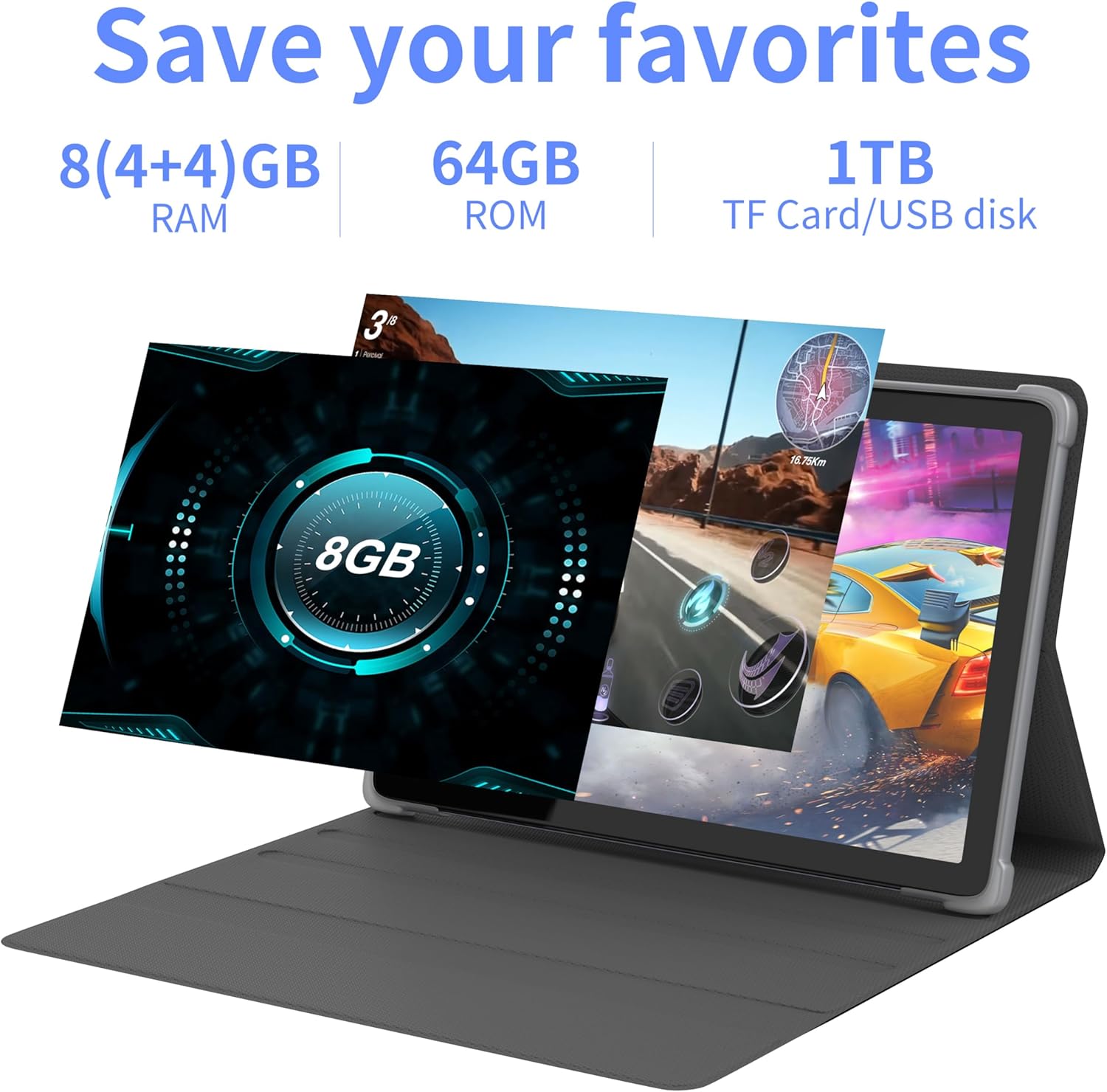
Выява 4.2: Канецview of the tablet's memory and storage capabilities, including RAM, ROM, and expansion options.
4.6. Split-Screen Function
Android 13 allows for split-screen multitasking. To activate, open an app, then swipe up from the bottom of the screen to view recent apps. Touch and hold the app icon at the top of the app's card, then select 'Split screen'. Choose a second app to use simultaneously.
5. Асаблівасці дысплея
The tablet features a 10.1-inch IPS display with a resolution of 1280 x 800 pixels, providing clear visuals and wide viewныя вуглы.

Image 5.1: The tablet's 10.1-inch HD IPS display, showcasing its resolution and wide-angle viewныя магчымасці.
5.1. Падтрымка Widevine L1
The tablet supports Widevine L1, enabling high-definition streaming content from compatible services.
6. Тэхнічнае абслугоўванне
6.1. Ачыстка прылады
Выкарыстоўвайце мяккую тканіну без ворса для чысткі экрана і корпуса планшэта. Пазбягайце выкарыстання агрэсіўных хімічных рэчываў або абразіўных матэрыялаў.
6.2. Абнаўленне праграмнага забеспячэння
Рэгулярна правярайце наяўнасць абнаўленняў сістэмы і ўсталёўвайце іх, каб забяспечыць аптымальную прадукцыйнасць і бяспеку. Перайдзіце па спасылцы Налады > сістэма > Абнаўленне сістэмы.
6.3. Аптымізацыя захоўвання дадзеных
Каб падтрымліваць прадукцыйнасць, перыядычна выдаляйце непатрэбныя files and applications. Go to Налады > Захоўванне кіраваць сховішчам вашай прылады.
7. Выпраўленне непаладак
У гэтым раздзеле разглядаюцца распаўсюджаныя праблемы, з якімі вы можаце сутыкнуцца.
| праблема | Рашэнне |
|---|---|
| Планшэт не ўключаецца. | Пераканайцеся, што акумулятар зараджаны. Падключыце планшэт да зараднай прылады як мінімум на 30 хвілін, перш чым спрабаваць зноў уключыць яго. |
| Tablet is unresponsive. | Use a thin pin or paperclip to press the Reset Button (refer to Device Layout section) to force a restart. |
| Немагчыма падключыцца да Wi-Fi. | Check if Wi-Fi is enabled in Settings. Ensure the Wi-Fi password is correct. Restart your router and the tablet. |
| Павольная прадукцыйнасць. | Зачыніце невыкарыстоўваныя праграмы. Ачысціце кэш і часовыя files. Consider performing a factory reset if the issue persists (backup data first). |
8. Тэхнічныя характарыстыкі
Detailed technical specifications for the Tibuta Android 13 Tablet (Model: 8GB+64GB).
| Асаблівасць | Дэталь |
|---|---|
| Марка | Тыбута |
| Нумар мадэлі | 8 ГБ + 64 ГБ |
| Аперацыйная сістэма | Android 13 |
| Працэсар | Octa-Core (Allwinner A523) |
| АЗП | 8 GB (4GB + 4GB virtual) |
| Унутраная памяць | 64 ГБ |
| Сховішча з магчымасцю пашырэння | Up to 1TB (Micro SD card) |
| Памер экрана | 10.1 цалі |
| Дазвол экрана | 1280 x 800 пікселяў (IPS) |
| Задняя камера | 8 МП |
| Пярэдняя камера | 5 МП |
| Ёмістасць батарэі | Літый-палімерны 7000 мАг |
| Сярэдні тэрмін службы батарэі | Да 8 гадзін (у залежнасці ад выкарыстання) |
| Сувязь | Wi-Fi 6 (802.11ac, b, g, n), Bluetooth 5.2 |
| Памеры | 24.8 х 16.7 х 1.2 см |
| Вага | 539 г |
| Колер | Шэры |
| Асаблівасці | Widevine L1, сертыфікаваны GMS |
9. Падтрымка
For technical assistance or if you encounter any issues with your Tibuta tablet, please contact our customer service team. Refer to your purchase documentation or the retailer's webсайт для атрымання канкрэтнай кантактнай інфармацыі.