
NexiGo D621
Кіраўніцтва карыстальніка для 3-канальнай відэарэгістратара NexiGo D621
Мадэль: D621
1. Уводзіны
This manual provides detailed instructions for the installation, operation, and maintenance of your NexiGo 3 Channel Dash Cam D621. Please read this manual thoroughly before using the device to ensure proper functionality and safety. Keep this manual for future reference.
2. Што ў скрынцы
Пасля распакавання пераканайцеся, што ўсе прадметы ёсць у наяўнасці і знаходзяцца ў добрым стане.
- NexiGo D621 Dash Cam
- SD-карта на 128 ГБ
- Мацаванне ўсмоктвання
- Auxiliary Power Cable (11.5 ft)
- Rear Camera with Extension Cable (21.3 ft)
- Прай інструмент
- Анучка для чысткі
- Кіраўніцтва карыстальніка

Image: NexiGo D621 Dash Cam and its components, including the main unit, suction mount, cables, and SD card.
3. Прадукт скончыўсяview
The NexiGo D621 is a 3-channel dash cam designed to record front, interior, and rear views simultaneously. It features a rotatable interior/front camera for flexible recording options.
Асноўныя характарыстыкі:
- Rotatable Interior/Front Camera: Allows the interior camera to be rotated to face forward, providing dual front-facing recording.
- Запіс у высокім разрозненні: Front camera records in 4K/2K, interior and rear cameras in 1080P.
- Sony STARVIS Sensors: Палепшаная праца пры слабым асвятленні для выразнага начнога бачання.
- Убудаваны Wi-Fi: Supports 5.0 GHz and 2.4 GHz for fast file transfer and app connectivity.
- Убудаваны GPS: Records real-time trip data including location and speed.
- Рэжым паркоўкі 24 гадзіны: Monitors your vehicle when parked (requires hard-wire kit, sold separately).
- G-сэнсар: Automatically locks emergency footage upon impact detection.
- цыклічны запіс: Перазапісвае найстарэйшы footagе. калі SD-карта запоўненая.

Image: Diagram illustrating the three-channel recording capability of the NexiGo D621, showing simultaneous front, interior, and rear views.

Image: Visual representation of the optimized field of view for the front (88°) and interior (132°) cameras of the NexiGo D621.
4. Настройка
4.1. Першапачатковая ўстаноўка
- Attach Suction Mount: Slide the suction cup mount into the slot on the top of the dash cam until it clicks securely into place.
- Устаўце SD-карту: If not already inserted, gently push the provided 128GB Micro SD card into the TF slot on the side of the dash cam until it clicks. The dash cam supports up to 256GB.
- Mount Dash Cam: Clean the desired area on your windshield. Attach the suction mount firmly to the windshield, ensuring it does not obstruct your view.
- Падключыце харчаванне: Plug the auxiliary power cable into the dash cam and then into your vehicle's 12V auxiliary power outlet.
- Усталюйце заднюю камеру: Connect the rear camera to the main unit using the extension cable. Route the cable neatly along the vehicle's interior trim using the pry tool. Mount the rear camera on the rear windshield or above the license plate.
Video: Official NexiGo D621 User Guide demonstrating the physical installation of the dash cam and its components.
4.2. Уключэнне і пачатковыя налады
- Once connected to power, the dash cam will automatically power on and begin recording.
- Use the physical buttons below the screen to navigate the menu.
- Access "Settings" (gear icon) to configure basic settings like date, time, and time zone.
- Ensure the date and time are correct for accurate timestampзапісы.
5. Інструкцыя па эксплуатацыі
5.1. Рэжымы запісу
- Звычайны запіс: Automatically starts when the vehicle is powered on. Footage is saved in continuous loops.
- Экстраны запіс: Activated by the G-sensor upon detecting an impact. This footage is locked and will not be overwritten.
- Рэжым паркоўкі: When connected to a hard-wire kit (ASIN: B0C5RYDBBD, sold separately), the dash cam can monitor your vehicle for impacts or motion while parked.
5.2. Рэгуляванне камеры Views
The interior camera can be rotated to face forward, effectively providing two front-facing cameras. To do this:
- Physically rotate the interior camera lens until it faces forward.
- Navigate to "Camera Settings" in the menu.
- Toggle "Rear Camera: Flip Horizontally" to ON if needed to correct the image orientation.
- Set "Interior Camera Recording" to "Front" to ensure it records the forward view.
Video: Official NexiGo D621 User Guide demonstrating how to rotate the interior camera and adjust settings for dual front-facing recording.
5.3. Night Vision and Exposure
The D621 features Sony STARVIS sensors and infrared LED lights for enhanced night vision. You can adjust the exposure level for optimal clarity in low-light conditions, especially for capturing license plates.
- Press and hold the OK button to quickly access the front camera's special exposure settings.
- Use the up and down buttons to adjust the exposure level until license plates are clearly visible.
- To automate this, go to "Camera Settings" and select "Set special exposure time" to define a time range (e.g., sunset to sunrise) for automatic exposure adjustments.

Image: Comparison showing a default image versus an image with Manual Highlight Compensation (HLC) enabled, demonstrating improved readability of license plates at night.
6. Падключэнне да Wi-Fi і выкарыстанне праграмы
The NexiGo D621 features built-in Wi-Fi (2.4 GHz and 5.0 GHz) for seamless connection to the NexiGo app on your iOS or Android device.
- Спампаваць прыкладанне: Пошук "NexiGo Dash Cam" in your device's app store and install it.
- Уключыце Wi-Fi на відэарэгістратары: On the dash cam, navigate to "Settings" > "Wi-Fi Settings" > "Wi-Fi Information" to view the Wi-Fi SSID and password.
- Connect Phone to Dash Cam Wi-Fi: On your smartphone, go to Wi-Fi settings, find the NexiGo dash cam's SSID, and connect using the provided password.
- Выкарыстоўвайце прыкладанне:
- жыць View: Трансляцыя ежы ў рэжыме рэальнага часуtage from the dash cam to your phone.
- Прайграванне і загрузка: Access recorded videos and photos stored on the SD card. You can stream them directly or download them to your phone.
- Налады: Adjust dash cam settings directly from the app, including video resolution, loop recording duration, G-sensor sensitivity, and Wi-Fi password.

Image: Illustration of the NexiGo D621 Dash Cam wirelessly transferring data to a smartphone via Wi-Fi, showing different transfer speeds for 5G and 2.4G Wi-Fi.
Video: Official NexiGo D621 User Guide demonstrating the process of connecting the dash cam to the mobile app and navigating its features.
7. Тэхнічнае абслугоўванне
- Чыстыя лінзы: Regularly clean the camera lenses with the provided cleaning cloth to ensure clear recordings.
- Фарматаваць SD-карту: Format the Micro SD card periodically (e.g., once a month) to prevent data corruption and ensure optimal performance. This can be done via the dash cam's settings menu.
- Абнаўленні прашыўкі: Check the NexiGo website or app for any available firmware updates to improve performance and add new features.
- тэмпература: The dash cam is designed to operate in temperatures from -4°F (-20°C) to 158°F (70°C). Avoid prolonged exposure to extreme temperatures outside this range.
Video: Official NexiGo D621 User Guide demonstrating how to format the Micro SD card.
8. Выпраўленне непаладак
- Відэарэгістратар не ўключаецца:
- Пераканайцеся, што кабель харчавання надзейна падключаны як да відэарэгістратара, так і да разеткі 12 В аўтамабіля.
- Check the vehicle's 12V outlet for power.
- Паспрабуйце іншы кабель харчавання або разетку, калі такія маюцца.
- Recording Issues (e.g., blurry footage, missing files):
- Ачысціце аб'ектывы камеры.
- Адфарматаваць SD-карту.
- Ensure the SD card is properly inserted and not full. Replace the SD card if it's old or damaged.
- Check video resolution settings in the menu.
- Праблемы з падключэннем Wi-Fi:
- Пераканайцеся, што Wi-Fi уключаны на відэарэгістратары і вашым смартфоне.
- Verify the correct SSID and password are being used.
- Forget the dash cam's Wi-Fi network on your phone and reconnect.
- Перазагрузіце відэарэгістратар і смартфон.
- GPS Data Not Displaying Correctly:
- Пераканайцеся, што GPS-модуль правільна падключаны і мае выразны сігнал view неба.
- Check time zone settings in the dash cam menu.
- For full GPS data, download the DVPlayer app from nexigo.com/dashcam і view фуtagе на кампутары.
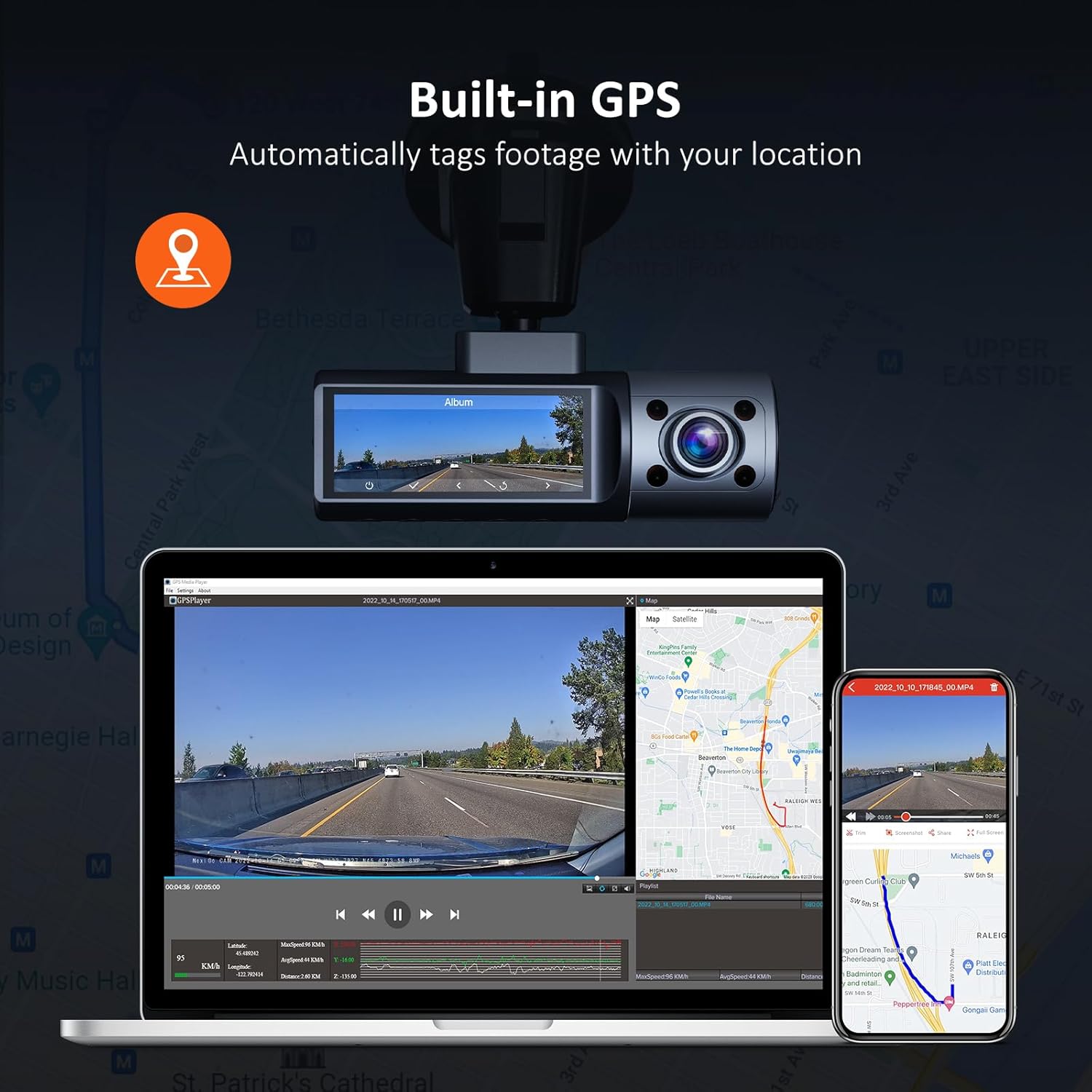
Image: Illustration of the NexiGo D621 Dash Cam's built-in GPS, showing how it tags фуtage with location data, viewable on a map via the app or desktop software.
9. Тэхнічныя характарыстыкі
| мадэль | D621 |
| Дазвол відэа | Front: 4K/2K (1440P), Interior: 1080P, Rear: 1080P |
| Поле в View (FOV) | Пярэдні: 88°, унутраны: 132°, задні: 132° |
| Датчыкі | Sony STARVIS IMX335 & IMX307 |
| Сувязь | Wi-Fi (2.4 GHz & 5.0 GHz), GPS |
| Захоўванне | Падтрымка карт Micro SD да 256 ГБ (128 ГБ у камплекце) |
| Працоўная тэмпература | Ад -4°F да 158°F (ад -20°C да 70°C) |
| Крыніца харчавання | Супер кандэнсатар |
| Памеры | 5 х 4 х 2 цалі |
| Вага | 1.79 фунта |
10. Гарантыя і падтрымка
NexiGo products come with a standard manufacturer's warranty. For specific warranty details, product registration, or technical support, please visit the official NexiGo webсайт або звярніцеся ў службу падтрымкі кліентаў.
- Афіцыйны Webсайт: www.nexigo.com
- Адрас электроннай пошты падтрымкі: Звярніцеся да ўпакоўкі прадукту або да афіцыйнай інфармацыі webсайт для кантактнай інфармацыі.
Для дадатковай абароны падумайце аб купліasing an extended protection plan. Options may include 2-Year or 3-Year Protection Plans, or a Complete Protect plan for broader coverage.
Звязаныя дакументы - D621
 |
Трохканальны відэарэгістратар NexiGo D621: кіраўніцтва карыстальніка і кіраўніцтва па ўсталёўцы Падрабязнае кіраўніцтва карыстальніка для трохканальнага відэарэгістратара NexiGo D621, якое ахоплівае ўстаноўку, наладу, функцыі, характарыстыкі, выкарыстанне праграм, абнаўленні прашыўкі і ліквідацыю непаладак. |
 |
NexiGo N940P 2K QHD WebКіраўніцтва карыстальніка cam User manual for the NexiGo N940P 2K QHD Webcam, detailing setup, features, software, and remote control instructions. |
 |
NexiGo N950P 4K UHD Webкамера: кіраўніцтва карыстальніка і кіраўніцтва па ўсталёўцы Азнаёмцеся з функцыямі, наладамі і характарыстыкамі NexiGo N950P 4K UHD Webз дапамогай гэтага падрабязнага кіраўніцтва карыстальніка. Даведайцеся, як падключыць, наладзіць і ліквідаваць непаладак прылады. |
 |
NexiGo PJ30 Ultra Smart 1080p LCD Projector User Manual This user manual provides comprehensive instructions for the NexiGo PJ30 Ultra Smart 1080p LCD Projector, covering setup, operation, safety, and specifications. Learn how to connect devices, navigate settings, and troubleshoot common issues. |
 |
NexiGo N930AF 1080P FHD AutoFocus WebКіраўніцтва карыстальніка cam User manual and setup guide for the NexiGo N930AF 1080P FHD AutoFocus Webcam. Includes installation steps, troubleshooting, and configuration for Windows and Mac. |
 |
NexiGo N660E 1080P FHD WebКіраўніцтва карыстальніка cam Падрабязнае кіраўніцтва карыстальніка для NexiGo N660E 1080P FHD Webкамера, апісваючы наладу, характарыстыкі, праграмнае забеспячэнне і ліквідацыю непаладак. Даведайцеся, як атрымаць максімальную аддачу ад вашага NexiGo webкулачок. |
Ask a question about this manual
Ask about setup, troubleshooting, compatibility, parts, safety, or missing instructions. Manuals+ will review the question and use this page’s manual context to help answer it.