
1. Уводзіны
Welcome to the user manual for your new ZZB ZB10 10.1-inch Android 14 Tablet PC. This guide provides essential information for setting up, operating, maintaining, and troubleshooting your device. Please read this manual thoroughly to ensure optimal performance and longevity of your tablet.

Малюнак 1: Спераду view of the ZZB ZB10 Tablet.
2. Што ў скрынцы
Upon opening your ZZB ZB10 Tablet PC package, please verify that all the following items are included:
- ZZB ZB10 10.1-inch Android 14 Tablet PC
- Кабель Type-C
- Кіраўніцтва карыстальніка (гэты дакумент)

Figure 2: The ZZB ZB10 Tablet and its packaging.
3. Прадукт скончыўсяview
Familiarize yourself with the physical components of your ZZB ZB10 Tablet.
3.1 Фізічныя кампаненты
- Дысплей: 10.1-inch IPS screen.
- Пярэдняя камера: Размешчаны над экранам.
- Задняя камера: Размешчаны на задняй панэлі.
- Кнопка харчавання: Typically on the side or top edge.
- Кнопкі гучнасці: Адрэгулюйце ўзровень гуку.
- Порт USB Type-C: Для зарадкі і перадачы дадзеных.
- Слот для карты MicroSD: Для пашыранага захоўвання.

Малюнак 3: Задняя частка view of the ZZB ZB10 Tablet, highlighting the camera and model information.
4. Настройка
4.1 Зарадка планшэта
Before first use, fully charge your tablet. Connect the provided Type-C cable to the tablet's charging port and the other end to a compatible USB power adapter (not included) or a computer's USB port. The battery indicator on the screen will show charging status.
4.2 Уключэнне/выключэнне сілкавання
- Каб уключыць: Націсніце і ўтрымлівайце кнопку харчавання, пакуль не загарыцца экран.
- Каб выключыць: Press and hold the Power button until a menu appears, then select 'Power off'.
- Каб перазапусціць: Press and hold the Power button until a menu appears, then select 'Restart'.
4.3 Пачатковая налада
Upon first power-on, the tablet will guide you through the initial setup process. This typically includes:
- Выбар мовы.
- Падключэнне да сеткі Wi-Fi.
- Setting up your Google account (or skipping for later).
- Reviewі прыняцце ўмоў.
5. Інструкцыя па эксплуатацыі
5.1 Асноўная навігацыя
The ZZB ZB10 Tablet runs on Android 14, offering an intuitive touch interface.
- Націсніце: Выберыце элемент або адкрыйце праграму.
- Правядзіце пальцам: Перамяшчайцеся па экранах або пракручвайце змесціва.
- Звядзенне пальцамі для павелічэння: Павялічыць або паменшыць змесціва на экране.
- Доўгі націск: Доступ да кантэкстных меню або перамяшчэнне значкоў.
5.2 Падключэнне да Wi-Fi
- Перайсці да Налады > Сетка і інтэрнэт > Wi-Fi.
- Уключыць/выключыць Wi-Fi On.
- Выберыце патрэбную сетку са спісу.
- Увядзіце пароль, калі будзе прапанавана, а затым націсніце Злучыцца.
5.3 Спалучэнне па Bluetooth
- Перайсці да Налады > Падключаныя прылады > Bluetooth.
- Пераключыць Bluetooth On.
- Ensure the device you wish to pair is in pairing mode.
- Select the device from the 'Available devices' list and follow on-screen prompts.
5.4 Выкарыстанне камеры
Планшэт абсталяваны франтальнай камерай на 2 Мп і задняй камерай на 8 Мп.
- Адкрыйце Камера дадатак.
- Націсніце кнопку спуску засаўкі, каб зрабіць фотаздымак.
- Пераключайцеся паміж пярэдняй і задняй камерамі з дапамогай значка камеры.
- Выберыце рэжым відэа для запісу відэа.

Figure 4: Using the tablet's camera for photos or video calls.
5.5 Кіраванне сховішчам
The tablet comes with 32GB of internal storage and supports up to 1TB expandable storage via a MicroSD card.
- To insert a MicroSD card, locate the card slot on the side of the tablet.
- Gently insert the MicroSD card until it clicks into place.
- You can manage storage in Налады > Захоўванне.

Figure 5: The tablet supports extended storage up to 1TB.
5.6 Рэжым чытання
The tablet features a reading mode designed to reduce eye strain by adjusting screen colors and brightness. This mode can typically be activated from the quick settings panel (swipe down from the top of the screen) or within the display settings.
6. Тэхнічнае абслугоўванне
6.1 Ачыстка
Use a soft, lint-free cloth to clean the screen and body of the tablet. Avoid using harsh chemicals or abrasive materials, which can damage the device.
6.2 Сыход за акумулятарам
- Пазбягайце ўздзеяння экстрэмальных тэмператур на планшэт.
- Не дапускайце частай поўнай разрадкі акумулятара.
- Выкарыстоўвайце для зарадкі толькі кабель Type-C, які ўваходзіць у камплект.
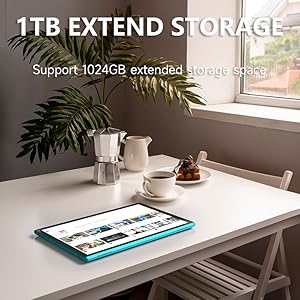
Figure 6: The tablet features a 6000mAh battery for extended use.
6.3 Абнаўленне праграмнага забеспячэння
Перыядычна правярайце наяўнасць абнаўленняў сістэмы, каб пераканацца, што ваш планшэт мае найноўшыя функцыі і патчы бяспекі. Перайдзіце па спасылцы Налады > сістэма > Абнаўленне сістэмы.
7. Выпраўленне непаладак
Калі ў вас узніклі праблемы з планшэтам, звярніцеся да наступных распаўсюджаных рашэнняў:
| праблема | Магчымае рашэнне |
|---|---|
| Планшэт не ўключаецца | Ensure the battery is charged. Connect to a power source for at least 30 minutes. |
| Экран не рэагуе | Restart the tablet by holding the power button for 10-15 seconds. |
| Праблемы з падключэннем да Wi-Fi | Restart your Wi-Fi router. Forget the network in tablet settings and reconnect. |
| Праграмы завісаюць або выходзяць з ладу | Clear the app's cache (Settings > Apps > [App Name] > Storage > Clear cache). If the problem persists, uninstall and reinstall the app. |
| Павольнае выкананне | Зачыніце непатрэбныя фонавыя праграмы. Ачысціце кэш і часовую памяць. files. Consider a factory reset if issues persist (backup data first). |
8. Тэхнічныя характарыстыкі
Key technical specifications for the ZZB ZB10 Tablet PC:
- мадэль: ZB10
- Аперацыйная сістэма: Android 14
- Дысплей: 10.1-inch IPS, 1280 x 800 pixels
- Аператыўная памяць: 6GB (including 4GB virtual memory)
- Унутраная памяць: 32 ГБ ПЗУ
- Пашыраная памяць: Да 1 ТБ праз карту MicroSD
- Задняя камера: 8 МП
- Пярэдняя камера: 2 МП
- Бесправаднае падключэнне: Wi-Fi 802.11ac, Bluetooth
- акумулятар: 6000mAh, up to 12 hours average life
- Памеры: 12 х 7 х 0.3 цалі
- Вага: 1 фунт
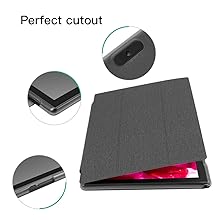
Figure 7: The tablet's 10.1-inch IPS display.
9. Гарантыя і падтрымка
For warranty information and customer support, please refer to the documentation provided with your purchase or visit the official ZZB webсайт. Захоўвайце пацвярджэнне пакупкі для прэтэнзій па гарантыі.