
1. Уводзіны
This manual provides essential information for the installation, operation, and maintenance of your KiriNavi Qualcomm Car Radio. This advanced head unit features an Android 13 operating system, an 8-core CPU, 4GB RAM, and 64GB ROM, offering enhanced performance and a 12.1-inch 2K IPS touch screen. It integrates seamlessly with your vehicle's existing systems, providing modern connectivity and entertainment options.
Калі ласка, уважліва прачытайце гэта кіраўніцтва перад устаноўкай і выкарыстаннем, каб забяспечыць належную функцыянальнасць і максімальна карыстацца прадуктам.
2. Сумяшчальнасць з транспартнымі сродкамі
This KiriNavi car radio is specifically designed for the following Ford truck models:
- Ford F250 (2009-2012)
- Ford F350 (2009-2012)
- Ford F450 (2009-2016)
- Ford F650 (2009-2016)
Важная заўвага:
This unit is compatible ONLY with vehicles that DO NOT have the SYNC 2 System. Please verify your vehicle's current AC control panel configuration to ensure compatibility. Refer to the image below for visual guidance.

Image: Visual guide for compatible (top) and incompatible (bottom) AC control panels. Units with the specified AC control (red X) are not compatible.
3. Змесціва ўпакоўкі
Пасля адкрыцця ўпакоўкі пераканайцеся, што ўсе наступныя кампаненты наяўныя:
- 1x KiriNavi Android Head Unit
- 1x GPS-антэна
- 1x Power Cable and other necessary cables and plugs
- 1x External Microphone
- 1x камера задняга віду

Выява: Зверхуview of the head unit's rear connections and all included wiring harnesses and accessories.
4. Настройка і ўстаноўка
The KiriNavi car radio is designed for a standard fit, eliminating the need for additional accessories. Installation typically involves removing the existing stereo and connecting the new unit using the provided wiring harnesses.
4.1 Праверка перад устаноўкай
- Confirm your vehicle's compatibility as detailed in Section 2.
- Перад пачаткам усталёўкі пераканайцеся, што акумулятар аўтамабіля адключаны, каб пазбегнуць пашкоджання электрычнасцю.
- Familiarize yourself with the included cables and their corresponding ports on the head unit and your vehicle.
4.2 Этапы ўстаноўкі (Агульнае кіраўніцтва)
- Carefully remove the existing factory radio and trim panels from your dashboard.
- Connect the main power harness from the KiriNavi unit to your vehicle's wiring. The connectors are designed to be plug-and-play, with different sizes preventing incorrect connections.
- Connect the GPS antenna, external microphone, and backup camera cables to their respective ports on the head unit.
- Route all cables neatly to avoid interference and ensure a clean installation.
- Mount the KiriNavi head unit into the dashboard opening.
- Reconnect the vehicle's battery and test the unit's functionality before fully reassembling the dashboard trim.

Image: A visual comparison showing the factory radio setup (bottom) and the KiriNavi unit installed (top) in a Ford F-Series truck dashboard.
For detailed, vehicle-specific installation instructions, it is recommended to consult a professional installer or refer to your vehicle's service manual.
5. Інструкцыя па эксплуатацыі
The KiriNavi car radio offers a wide range of features powered by Android 13. Below are instructions for key functionalities.
5.1 Уключэнне/выключэнне і асноўная навігацыя
- Уключэнне: Прылада ўключыцца аўтаматычна пры ўключэнні запальвання аўтамабіля.
- Выключэнне: Прылада аўтаматычна выключыцца пры выключэнні запальвання аўтамабіля.
- Сэнсарны экран: Navigate through menus and applications using the responsive 12.1-inch touch screen.
5.2 Apple CarPlay і Android Auto
The unit supports both wireless and wired Apple CarPlay and Android Auto. This allows for seamless integration with your smartphone, providing access to navigation, phone contacts, messages, music, and more.
- падключэнне: Connect your smartphone via USB for wired connection or wirelessly via Bluetooth and Wi-Fi.
- Галасавое кіраванне: Utilize Siri or Google Assistant for hands-free operation, allowing you to stay focused on the road.
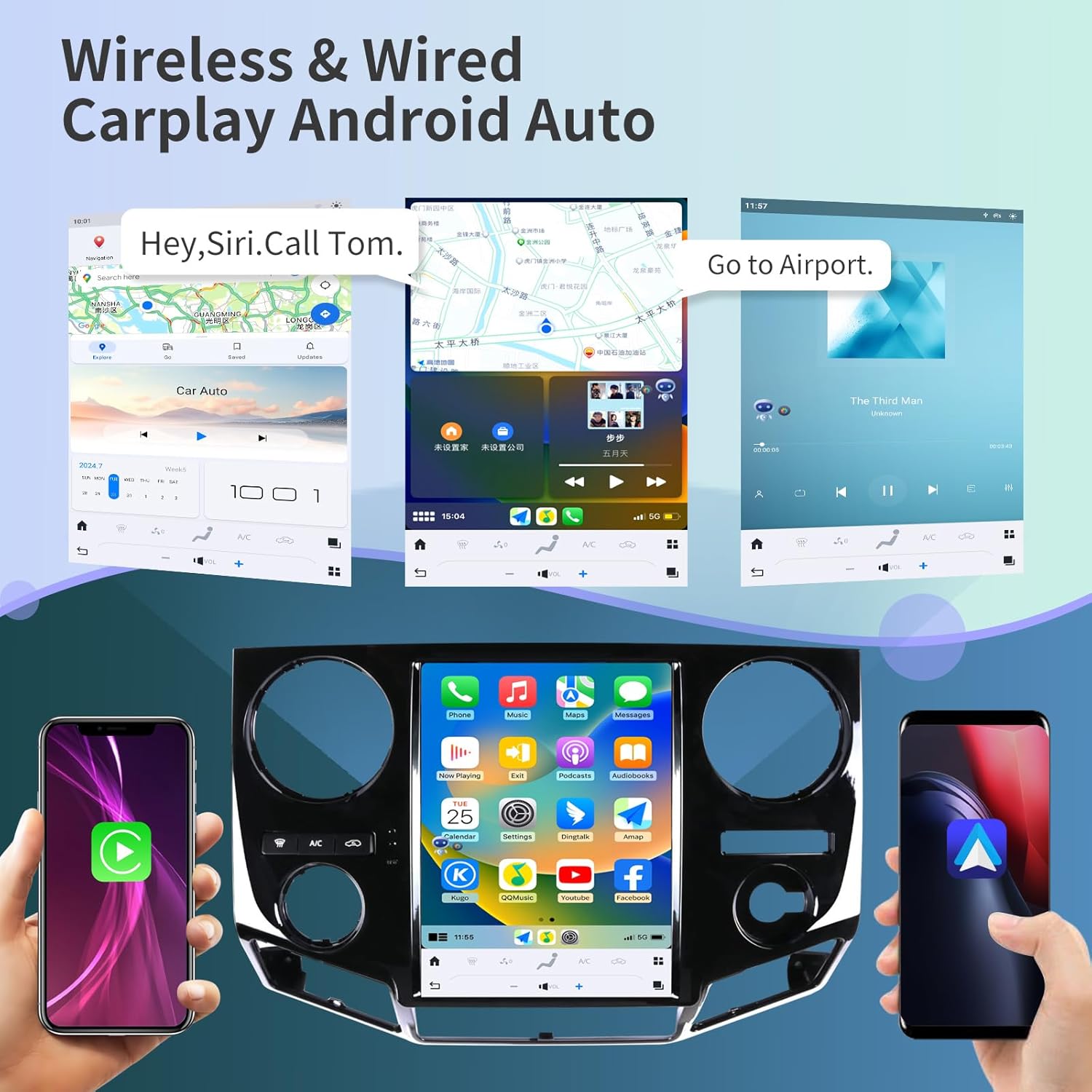
Малюнак: Examples of Apple CarPlay and Android Auto interfaces displayed on the head unit, showing navigation and music playback.
5.3 GPS-навігацыя
The unit features a built-in GPS module with support for both online and offline maps, utilizing GPS + GLONASS for high-precision navigation.
- Map Applications: Compatible with popular navigation apps such as Apple Maps, Google Maps, and Waze.
- Online/Offline: Download offline maps for navigation without an internet connection, or use online maps for real-time traffic updates.

Image: The head unit displaying various navigation application icons and indicating Wi-Fi and 4G network capabilities.
5.4 Wi-Fi & 4G Network Connectivity
Access the internet via Wi-Fi or a 4G network (SIM card required for 4G, not included) to enhance your in-car experience.
- Online Content: Stream online videos, browse the web, and download applications from the app store (e.g., YouTube, Netflix, Facebook).
- Кропка доступу: Connect to your smartphone's hotspot for internet access.
5.5 Bluetooth 5.0
The integrated Bluetooth 5.0 module enables wireless audio streaming and hands-free calling.
- Гучная сувязь: Make and receive calls safely using the external microphone and the unit's display.
- Паток аўдыё: Play music from your Bluetooth-enabled devices.
- Сінхранізацыя кантактаў: Sync your phone contacts for easy access.
5.6 Кіраванне рулявым колам
The unit supports your vehicle's original steering wheel controls, allowing you to manage audio, calls, and other functions without taking your hands off the wheel.
- Канфігурацыя: The unit can be configured to learn and map your vehicle's steering wheel buttons. Refer to the unit's settings menu for steering wheel control setup.

Image: The head unit displaying the interface for configuring steering wheel controls, alongside a view of the backup camera in action.
5.7 Функцыянальнасць камеры задняга віду
The included HD backup camera provides a 170° wide viewing angle and night vision capabilities, enhancing safety during reversing maneuvers.
- Аўтаматычны дысплей: The camera feed automatically appears on the unit's screen when the vehicle is shifted into reverse.
- Начное бачанне: Improved visibility in low-light conditions.
5.8 Лічбавы гукавы працэсар (DSP)
Customize your audio experience with the built-in 16-band equalizer and DSP settings.
- Эквалайзер: Adjust frequency bands to match your audio preferences.
- Рэжымы гуку: Select from various preset sound modes or create custom profiles.
5.9 Падзелены экран
Enhance multitasking by displaying two applications simultaneously on the screen.
- выкарыстанне: Напрыкладample, use navigation on one side and music playback on the other.
6. Тэхнічнае абслугоўванне
Proper maintenance ensures the longevity and optimal performance of your KiriNavi car radio.
- Ачыстка экрана: Выкарыстоўвайце мяккую тканіну без ворса, каб акуратна працерці сэнсарны экран. Для выдалення ўстойлівых плям злёгкуampПрацярыце тканіну вадой або сродкам для ачысткі экрана. Пазбягайце агрэсіўных хімічных рэчываў або абразіўных матэрыялаў.
- Абнаўленні праграмнага забеспячэння: Periodically check for software updates through the unit's settings menu to ensure you have the latest features and performance improvements.
- Праверкі злучэння: Occasionally inspect all visible cable connections to ensure they are secure and free from damage.
- Ахова навакольнага асяроддзя: Пазбягайце працяглага ўздзеяння экстрэмальных тэмператур, прамых сонечных прамянёў або празмернай вільготнасці на прыладу.
7. Выпраўленне непаладак
This section addresses common issues you might encounter with your KiriNavi car radio.
| праблема | Магчымая прычына | Рашэнне |
|---|---|---|
| Прылада не ўключаецца. | Loose power connection, blown fuse, vehicle ignition issue. | Check power cable connections. Inspect vehicle's fuse box for blown fuses. Ensure vehicle ignition is on. |
| Няма гуку або скажоны гук. | Incorrect wiring, volume set to zero, DSP settings. | Verify speaker wiring. Adjust volume. Check DSP equalizer settings. Perform a soft reset. |
| Сігнал GPS страчаны або недакладны. | GPS antenna obstruction or faulty connection. | Пераканайцеся, што антэна GPS усталявана ў вольным месцы без перашкод view неба. Праверце падключэнне антэны да прылады. |
| Wi-Fi/4G connectivity issues. | Weak signal, incorrect network settings, SIM card issue (for 4G). | Move to an area with better signal. Verify Wi-Fi password or 4G SIM card installation and activation. Restart the unit. |
| CarPlay/Android Auto не падключаецца. | Incorrect phone settings, faulty USB cable, software glitch. | Ensure CarPlay/Android Auto is enabled on your phone. Try a different USB cable. Restart both phone and head unit. |
| Unit is slow or unresponsive. | Too many applications running, low memory, software issue. | Close unused applications. Restart the unit. If issues persist, consider a factory reset (see warning below). |
| Не адлюстроўваецца камера задняга віду. | Loose camera connection, incorrect wiring, camera fault. | Check camera cable connections. Ensure the camera is receiving power. Verify settings in the unit. |
Warning regarding Factory Reset:
Performing a factory reset will erase all user data and settings. If you decide to perform a factory reset, ensure you have noted any critical information or settings. Some users have reported losing backup camera functionality after a factory reset without proper re-configuration. Refer to the product's included booklet or contact support for specific instructions if a factory reset is necessary.
8. Тэхнічныя характарыстыкі
| Асаблівасць | Дэталь |
|---|---|
| мадэль | B0C7BP28RS |
| Аперацыйная сістэма | Android 13 |
| Працэсар | 8 Core CPU (Qualcomm 665) |
| АЗП | 4 ГБ |
| ПЗУ | 64 ГБ |
| Памер дысплея | 12.1 цалі |
| дазвол | 1920 x 1080 (2K IPS Touchscreen) |
| Сувязь | Bluetooth 5.0, Ethernet, USB, Wi-Fi, 4G Network Support |
| Асаблівасці | Android Auto, Apple CarPlay, Built-In Bluetooth, DSP, GPS Navigation, Steering Wheel Control Support, Backup Camera Input |
| Тып карты | Satellite (Online/Offline) |
| Галасавая каманда | Кнопкі, мікрафон, сэнсарны экран |
| Рэжым выхаду гуку | Стэрэа |
| Тып мацавання | Мацаванне прыборнай панэлі |
| Вага прадмета | 10.43 фунта |
| Памеры ўпакоўкі | 22 х 16.12 х 8 цалі |
9. Гарантыя і падтрымка
KiriNavi is committed to providing excellent customer service and technical support for your product.
9.1 Тэхнічная падтрымка
If you encounter any issues during installation or operation, or if you have questions about your KiriNavi car radio, please contact our technical support team. We offer one-on-one service to assist you.
To contact support, please follow these steps:
- Visit the KiriNavi store page on Amazon.
- Locate the 'Ask a question' button to send a message to the seller.

Image: A visual guide demonstrating how to navigate to the KiriNavi seller page on Amazon and use the 'Ask a question' feature for support.
9.2 Інфармацыя аб гарантыі
Specific warranty details are typically provided with your purchase documentation. Please retain your proof of purchase for warranty claims. Protection plans may also be available for extended coverage.