
FUWANG A2567/A2568/A2569
FUWANG Touchpad Keyboard Case User Manual
Мадэль: A2567/A2568/A2569
Прадукт скончаныview
The FUWANG Touchpad Keyboard Case is designed to enhance the functionality of your iPad Mini, transforming it into a versatile laptop-like device. It features a responsive keyboard with 7-color backlighting, a multi-touch trackpad, and a durable 360° rotatable case for multiple viewing angles. This manual provides detailed instructions for setup, operation, and maintenance.
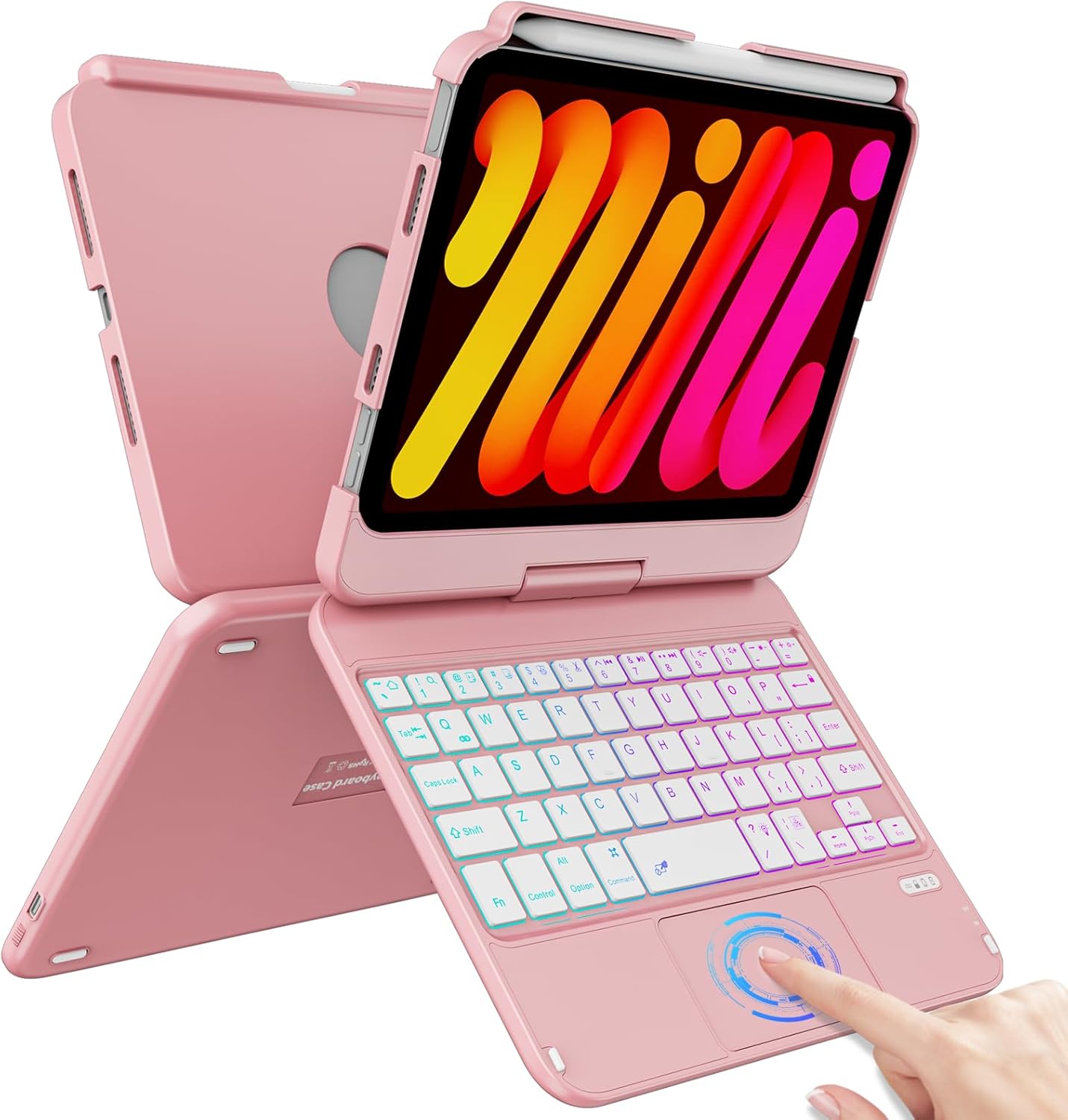
Image: The FUWANG Touchpad Keyboard Case in Rose Gold, shown with an iPad Mini inserted, highlighting its keyboard and trackpad features.
Сумяшчальнасць
This keyboard case is specifically compatible with the following iPad Mini models:
- iPad Mini 7th Generation (A17 Pro) 2024 (Models: A2993, A2995, A2996)
- iPad Mini 6th Generation 2021 (Models: A2567, A2568, A2569)
Note: This case is not compatible with iPad Mini 5th Generation, iPad Mini 4th Generation, or any other iPad models.
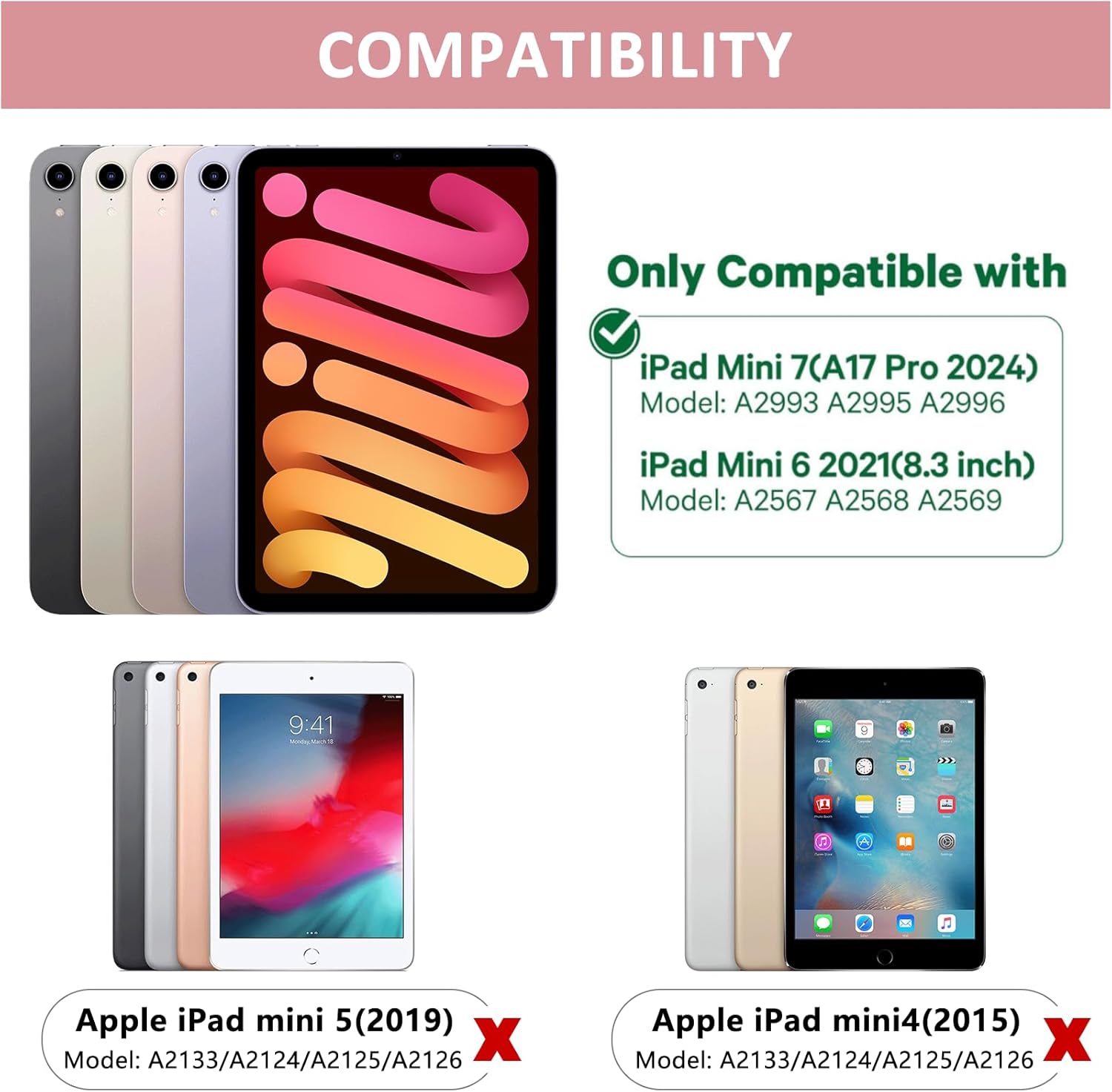
Image: A visual guide illustrating the compatible iPad Mini 7th and 6th generation models, and explicitly showing incompatibility with iPad Mini 5th and 4th generations.
Змест пакета
Upon opening your package, please ensure all the following items are included:
- 1 x FUWANG Touchpad Keyboard Case for iPad Mini 7th/6th Generation
- 1 x Micro USB Charging Cable (Note: Power adapter not included)
- 1 х Кіраўніцтва карыстальніка

Image: An illustration showing the protective box, the touchpad keyboard case, the USB charging cable, and the user guide included in the package.
Кіраўніцтва па ўстаноўцы
1. Зарадка клавіятуры
Before first use, fully charge the keyboard. Connect the provided Micro USB charging cable to the keyboard's charging port and a USB power source (e.g., computer USB port, USB wall adapter). The charging indicator light will illuminate during charging and turn off when fully charged.
- Час зарадкі: прыкладна 2-3 гадзін
- Usable Time: Up to 100 hours of continuous use

Выява: буйны план view of the keyboard case showing the Type-C fast charge port and a charging cable connected.
2. Устаўка iPad
Carefully align your iPad Mini with the case's frame and gently press it into place until it is securely seated. Ensure all ports and buttons are accessible through the precise cutouts.

Image: A person demonstrating how to securely place the iPad Mini into the keyboard case.
3. Спарванне Bluetooth
- Перасуньце выключальнік харчавання на клавіятуры ў становішча «ON».
- Press the "Pair" key (often indicated by a Bluetooth symbol) for 3 seconds. The Bluetooth indicator light will flash blue, indicating it's in pairing mode.
- На вашым iPad перайдзіце па спасылцы Налады > Bluetooth і ўключыць Bluetooth.
- Your iPad will automatically search for nearby devices. Select "Bluetooth Keyboard" (or similar name) from the list to connect.
- Once connected, the Bluetooth indicator light on the keyboard will turn off.

Image: A diagram illustrating the steps to connect the keyboard to an iPad via Bluetooth, including turning on the keyboard, pressing the pair key, and selecting the device on the iPad.
Інструкцыя па эксплуатацыі
Keyboard Backlight Control
The keyboard features 7-color backlighting for enhanced visibility in various lighting conditions.
- Adjusting Monochrome Backlight: Прэса Fn + Lightbulb key to cycle through different single colors.
- Рэгуляванне яркасці падсветкі: Прэса Fn + PgUp (increase brightness) or Fn + PgDn (decrease brightness).
- Switching Keyboard Backlight Color: Прэса Fn + RGB key каб змяніць колер падсвятлення.

Image: The keyboard displaying its 7-color backlit keys, illustrating the various color options available.
Функцыі трэкпада
The integrated multi-touch trackpad provides precise control and navigation, similar to a laptop.
- Enable/Disable Trackpad: Прэса Fn + прабел to toggle the trackpad on or off.
- Multi-touch Gestures: Supports standard iPadOS gestures such as slide up/down, zoom in/out, and switching apps.
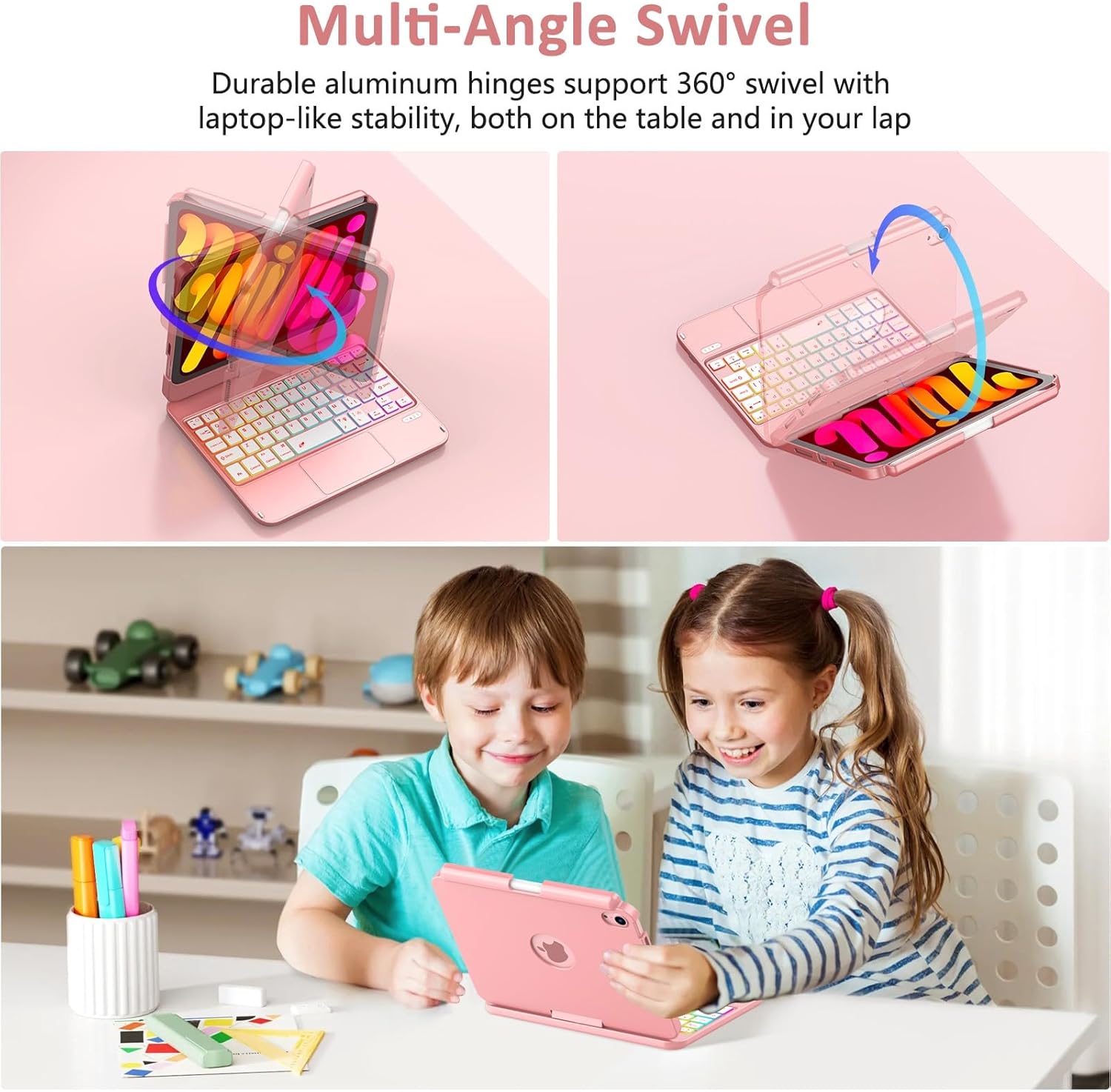
Image: A close-up of the multi-touch trackpad with visual cues for common gestures like slide up/down, zoom in/out, switching apps, and clicking.
360° Rotation and Multi-Angle Use
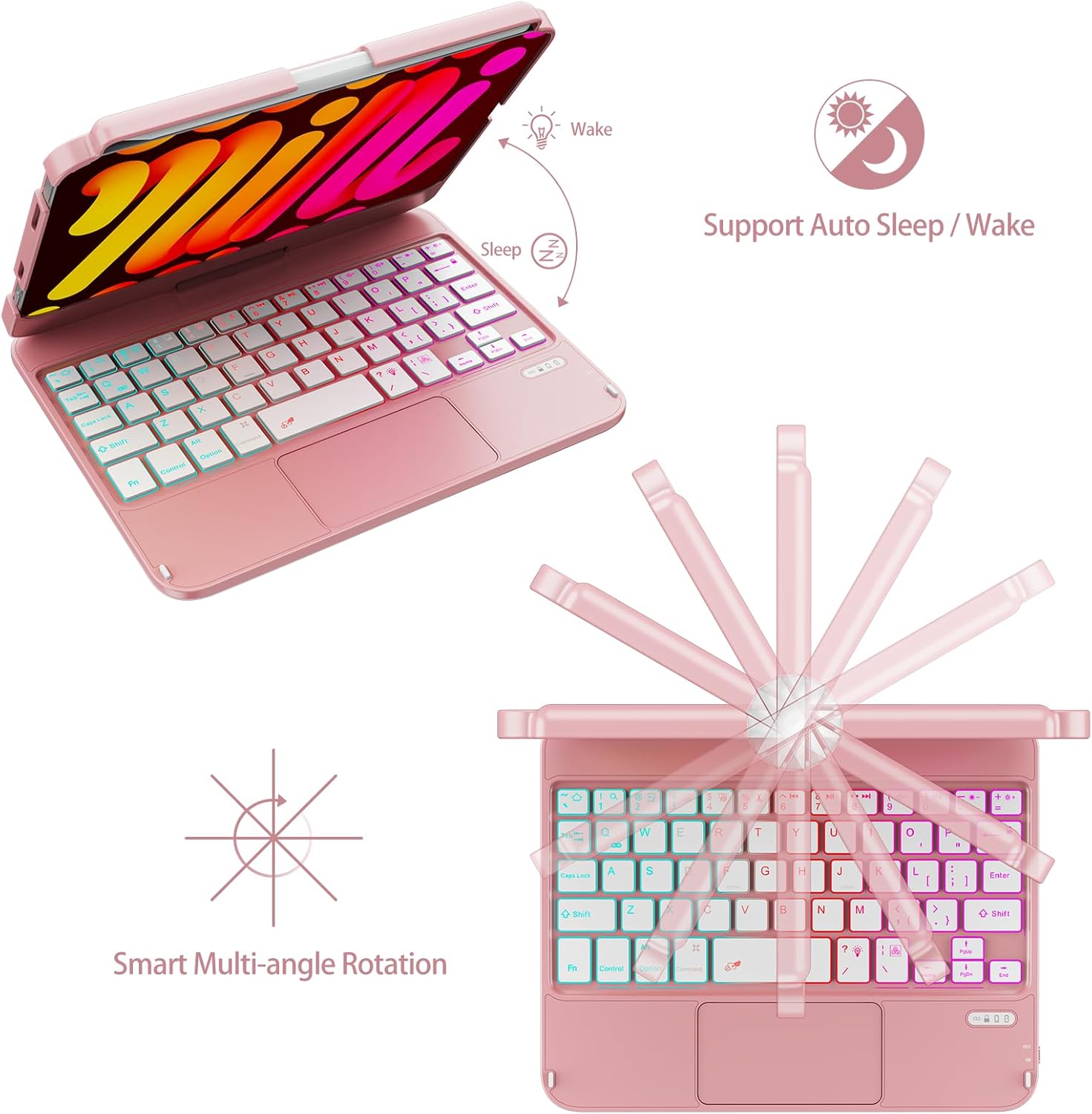
The case features a 360° high-precision adjustable shaft, allowing you to rotate and position your iPad at various angles for optimal viewing and typing comfort. It can be used in laptop mode, tablet mode, or tent mode.
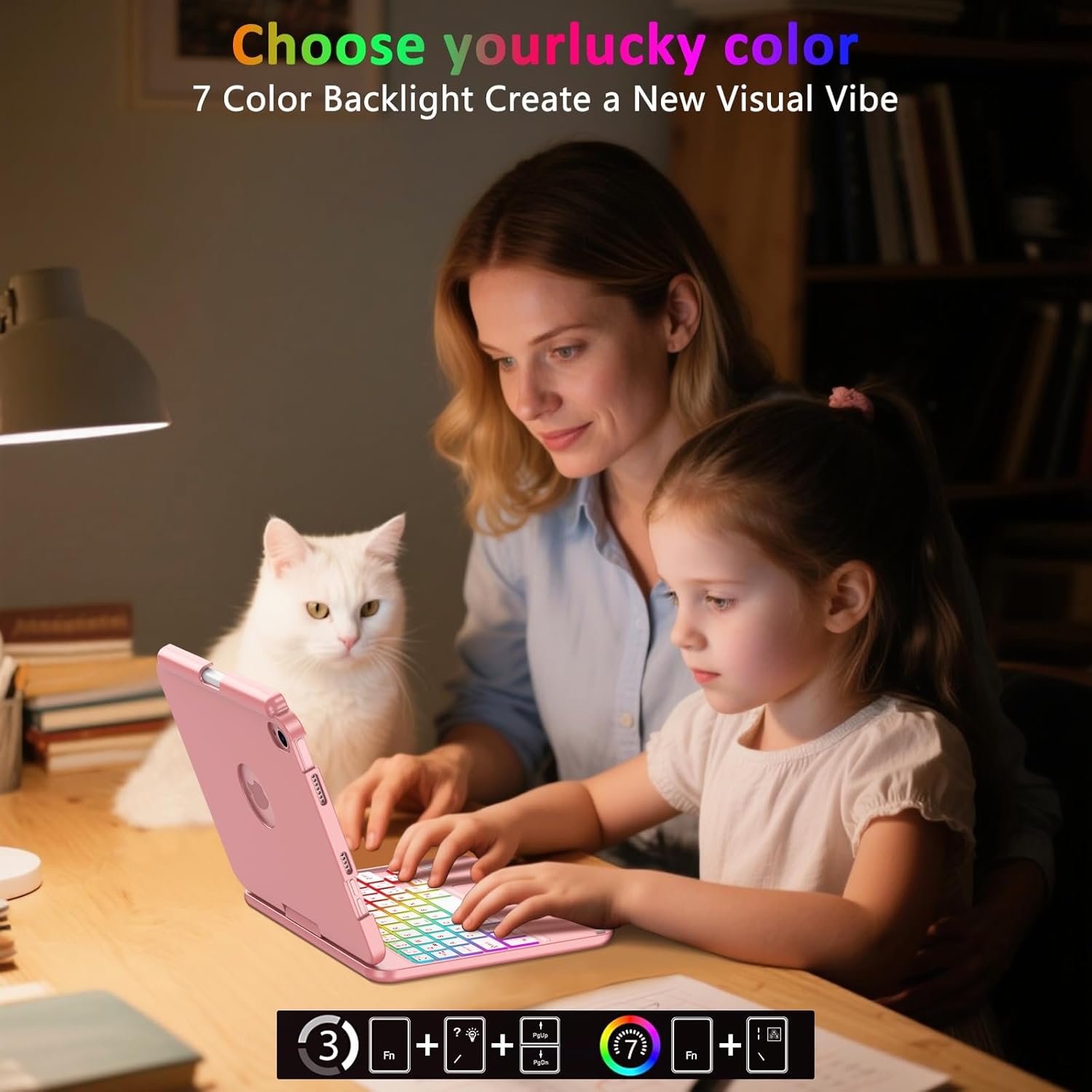
Image: Illustrations showing the keyboard case rotating 360 degrees and flipping 180 degrees, demonstrating its versatility for different viewing angles and modes.
Auto Sleep/Wake Feature
The keyboard cover includes an auto sleep/wake feature. Opening the case will automatically wake your iPad, and closing it will put your iPad to sleep, conserving battery life.

Image: A diagram illustrating the auto sleep/wake function, showing the iPad screen turning on when the case is opened and turning off when closed.
Трымальнік для алоўкаў
The case includes a dedicated pencil holder that supports magnetic attachment and wireless charging for your Apple Pencil (Pencil not included).
Выява: Падрабязны view of the integrated pencil holder on the keyboard case, designed to securely hold and charge the Apple Pencil.
Тэхнічнае абслугоўванне
To ensure the longevity and optimal performance of your FUWANG Touchpad Keyboard Case, follow these maintenance guidelines:
- Уборка: Выкарыстоўвайце мяккую безворсовую тканіну, злёгку dampened with water to clean the exterior of the case and keyboard. Avoid harsh chemicals or abrasive cleaners.
- захоўванне: When not in use for extended periods, store the case in a cool, dry place. Ensure the keyboard is turned off to conserve battery.
- Абарона: While the case offers robust protection, avoid dropping it or exposing it to extreme temperatures or direct sunlight.
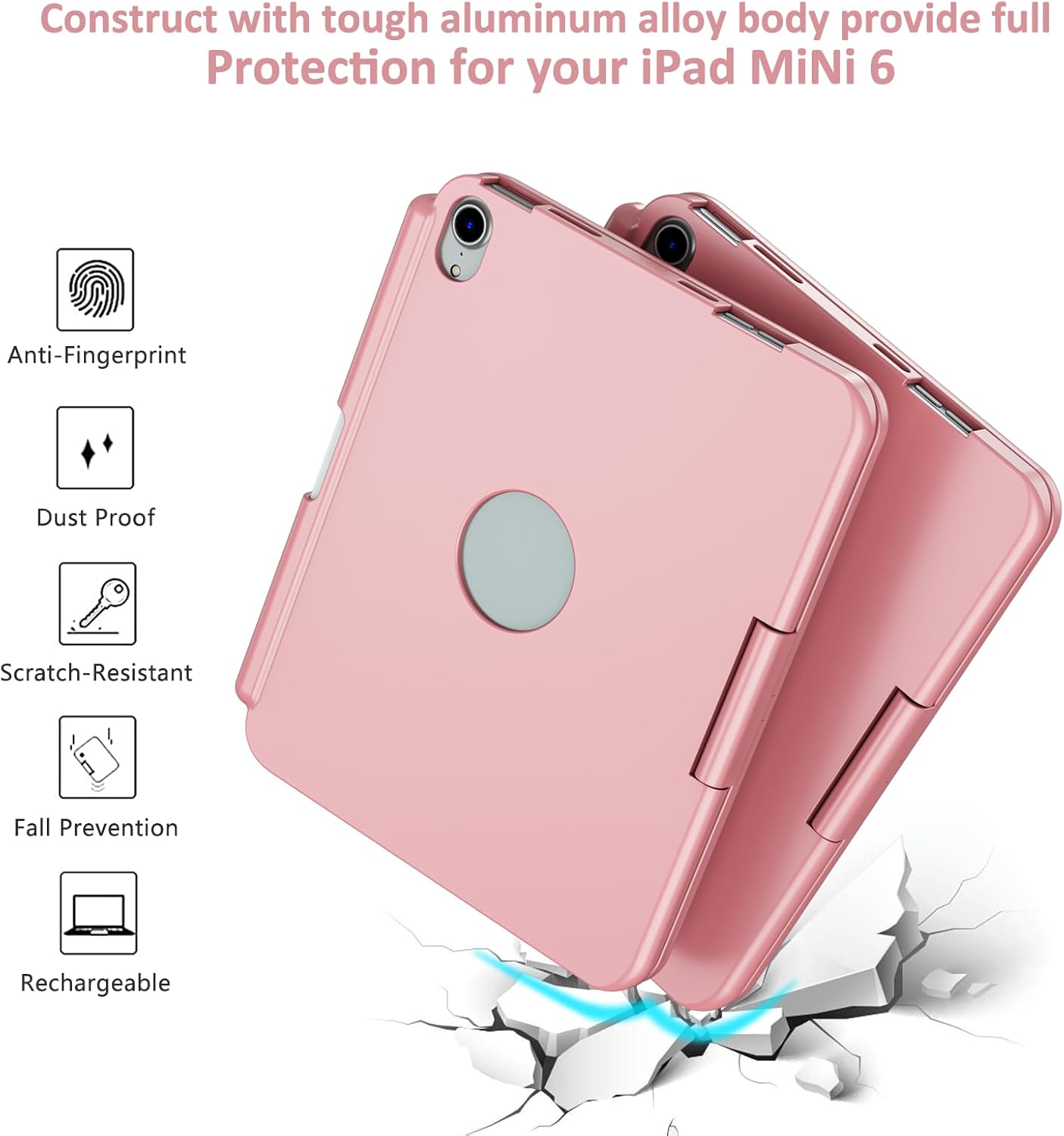
Image: A visual representation of the case's durable construction, highlighting features like anti-fingerprint, dust-proof, scratch-resistant, and fall prevention.
Ліквідацыю непаладак
| праблема | Магчымая прычына | Рашэнне |
|---|---|---|
| Клавіятура не падключаецца праз Bluetooth | Keyboard is off or low battery; Bluetooth not enabled on iPad; incorrect pairing procedure. | Ensure keyboard is charged and turned on. Enable Bluetooth on iPad. Re-attempt pairing by pressing the "Pair" button. Forget and re-pair the device on iPad. |
| Клавішы не адказваюць | Low battery; connection issue; keyboard malfunction. | Charge the keyboard. Reconnect Bluetooth. Restart both iPad and keyboard. |
| Трэкпад не працуе | Trackpad disabled; software glitch. | Прэса Fn + прабел to ensure trackpad is enabled. Restart iPad and keyboard. |
| Backlight not working or changing colors | Low battery; incorrect key combination. | Charge the keyboard. Ensure correct Fn key combinations are used for backlight control. |
Тэхнічныя характарыстыкі
- Памеры прадукту: 8.94 х 6.7 х 0.98 цалі
- Вага прадмета: 0.65 унцыі
- Нумар мадэлі: A2567/A2568/A2569
- батарэі: 1 літый-іённы акумулятар (у камплекце)
- Сумяшчальнасць АС: iPadOS
- Падключэнне: Bluetooth
- Асаблівасці: 360° Rotate/180° Flip, Backlit Keyboard, Integrated Stand, Smart Trackpad
- колер: Ружовае золата
- вытворца: ФУВАНГ
- Колькасць клавіш: 78
- Падсветка клавіятуры: RGB (7 XNUMX XNUMX колераў)
Гарантыя і падтрымка
FUWANG products are designed for durability and performance. For any issues or inquiries regarding your keyboard case, please refer to the following:
- Кіраўніцтва карыстальніка (PDF): A digital version of this manual is available for download: Спампаваць кіраўніцтва карыстальніка ў фармаце PDF
- Падтрымка вытворцы: For direct support, please contact FUWANG customer service through the retailer's platform or visit the official FUWANG store page on Amazon: FUWANG Store
- Інфармацыя аб гарантыі: Specific warranty details may vary by region and retailer. Please retain your purchase receipt for warranty claims.
Звязаныя дакументы - A2567/A2568/A2569
 |
Smart Keyboard User's Guide: Setup, Features, and Troubleshooting Comprehensive user guide for the Smart Bluetooth Keyboard, covering product descriptions, setup instructions, connection steps, indicator lights, troubleshooting, and hotkeys. Learn how to connect and use your keyboard efficiently. |
 |
Інструкцыя па выкарыстанні бесправадных навушнікаў-ўкладышаў - мадэль C12 Інструкцыя па эксплуатацыі бесправадных навушнікаў C12 з падрабязным апісаннем функцый, эксплуатацыі, спецыфікацый і абслугоўвання. Уключае інструкцыі па спалучэнні, сэнсарным кіраванні, актывацыі галасавога памочніка і скідзе налад навушнікаў. |
 |
Кіраўніцтва карыстальніка стылуса Jamjake для iPad - Кіраўніцтва па падключэнні, выкарыстанні і зарадцы Падрабязнае кіраўніцтва карыстальніка для стылуса Jamjake, сумяшчальнага з рознымі мадэлямі iPad. Даведайцеся, як падключыць яго, выкарыстоўваць такія функцыі, як падвойнае націсканне і нахіл, хутка зараджаць яго, а таксама знайсці парады па ліквідацыі непаладак. |
 |
GBEAST iPad Pencil User Guide: Compatibility, Features, and Support Comprehensive user guide for the GBEAST iPad Pencil, detailing compatibility with iPad Pro, Air, and Mini models, features like magnetic charging and palm rejection, battery information, and after-sale support. |
 |
Кіраўніцтва карыстальніка AirSens для iPad: Кіраўніцтва па актыўным ёмістным пяры Падрабязнае кіраўніцтва карыстальніка для стылуса AirSens Active Capacitive Pen для iPad. Даведайцеся, як выкарыстоўваць, зараджаць і ліквідаваць непаладак для розных сумяшчальных мадэляў iPad. |
Ask a question about this manual
Ask about setup, troubleshooting, compatibility, parts, safety, or missing instructions. Manuals+ will review the question and use this page’s manual context to help answer it.