
1. Прадукт скончыўсяview
The CUPEISI Android 15 Tablet YQ10S MAX is a versatile 10-inch device designed for both productivity and entertainment. Running on the latest Android 15.0 system with Google GMS certification, it offers a smooth and secure user experience. This 2-in-1 tablet comes equipped with a powerful quad-core processor, ample memory, and a high-definition IPS screen, making it ideal for various tasks from gaming and multimedia consumption to work and study.

Figure 1.1: CUPEISI Android 15 Tablet with included accessories.
Асноўныя характарыстыкі:
- Аперацыйная сістэма: Android 15.0 with Google GMS certification for enhanced security and performance.
- Памяць і захоўванне: 18GB RAM (6GB + 12GB expansion) and 128GB ROM, expandable up to 2TB via microSD card (not included).
- Працэсар: New generation ultra-high performance and low power consumption 2.0GHz Quad-core CPU.
- Дысплей: 10.1-inch IPS HD screen with 1280x800 resolution, featuring a sensitive touchscreen and a comfortable "reading mode".
- Камеры: 8MP rear camera and 2MP front camera for capturing moments and video calls.
- Падключэнне: Supports 2.4G/5G Wi-Fi 6.0 and Bluetooth 5.0 for stable and fast wireless connections.
- акумулятар: Акумулятар ёмістасцю 6000 мАг забяспечвае да 10 гадзін працы на адным зарадзе.
- Функцыянальнасць 2-у-1: Transforms into a laptop-style device with the included Bluetooth keyboard, wireless mouse, and stylus.
2. Што ў скрынцы
Калі ласка, праверце змесціва вашай упакоўкі, каб пераканацца ў наяўнасці ўсіх прадметаў:
- CUPEISI Android 15 Tablet (YQ10S MAX)
- Бесправадная клавіятура
- Bluetooth мыш
- Foldable Protective Cover
- Стылус
- Кабель Type-C

Малюнак 2.1: Усе кампаненты ў камплекце.
3. Кіраўніцтва па наладцы
3.1 Першапачатковая зарадка
- Connect the provided Type-C cable to the tablet's charging port.
- Падключыце другі канец кабеля да сумяшчальнага адаптара харчавання USB (не ўваходзіць у камплект) і ўстаўце яго ў разетку.
- Allow the tablet to charge fully before first use. The battery indicator on the screen will show charging status.
3.2 Уключэнне/выключэнне
- Каб уключыць: Press and hold the Power button on the side of the tablet until the screen lights up.
- Каб выключыць: Press and hold the Power button until a power-off menu appears. Select "Power off" to shut down the device.
- Каб перазапусціць: У меню выключэння харчавання абярыце «Перазагрузка».
3.3 Падключэнне аксесуараў
The tablet comes with a Bluetooth keyboard, wireless mouse, and stylus for enhanced usability.

Figure 3.1: Tablet used with various accessories.
Connecting the Bluetooth Keyboard:
- Turn on the keyboard using its power switch.
- Press the "Connect" button on the keyboard to enter pairing mode (indicator light will blink).
- На планшэце перайдзіце па спасылцы Налады > Падключаныя прылады > Bluetooth.
- Ensure Bluetooth is enabled. The tablet will search for available devices.
- Select the keyboard from the list (e.g., "Bluetooth Keyboard") and follow any on-screen prompts to complete pairing.
Connecting the Wireless Mouse:
- Insert the necessary batteries into the wireless mouse (refer to mouse instructions for battery type and insertion).
- Locate the USB receiver for the mouse, usually found in a compartment on the mouse itself.
- Plug the USB receiver into the tablet's USB-C port using an appropriate adapter if necessary (adapter not included).
- The tablet should automatically detect and connect to the mouse.
Выкарыстанне стылуса:
The stylus does not require pairing. Simply use it to navigate the touchscreen, draw, or write as you would with your finger.
4. Інструкцыя па эксплуатацыі
4.1 Асноўная навігацыя
- Націсніце: Націсніце на значок, каб адкрыць праграму або выбраць элемент.
- Правядзіце пальцам: Правядзіце пальцам па экране, каб пракручваць старонкі або змест.
- Звядзенне пальцамі для павелічэння: Place two fingers on the screen and spread them apart to zoom in, or pinch them together to zoom out.
- Галоўны экран: Tap the Home button (usually a circle or house icon) to return to the main screen.
- Назад: Tap the Back button (usually a triangle or arrow icon) to return to the previous screen.
- Апошнія праграмы: Націсніце кнопку «Апошнія праграмы» (звычайна гэта квадратны значок), каб view і пераключацца паміж нядаўна выкарыстанымі праграмамі.
4.2 Падключэнне да Wi-Fi
The tablet supports both 2.4GHz and 5GHz Wi-Fi 6 for fast and stable internet access.

Figure 4.1: Tablet showing Wi-Fi connection capabilities.
- Перайсці да Налады > Сетка і інтэрнэт > Wi-Fi.
- Toggle the Wi-Fi switch to the "On" position.
- Выберыце патрэбную сетку Wi-Fi са спісу даступных сетак.
- If prompted, enter the network password and tap "Connect".
4.3 Прайграванне мультымедыя
Enjoy high-definition multimedia content with Widevine L1 support, ensuring a premium viewing experience for streaming services like Netflix and YouTube.
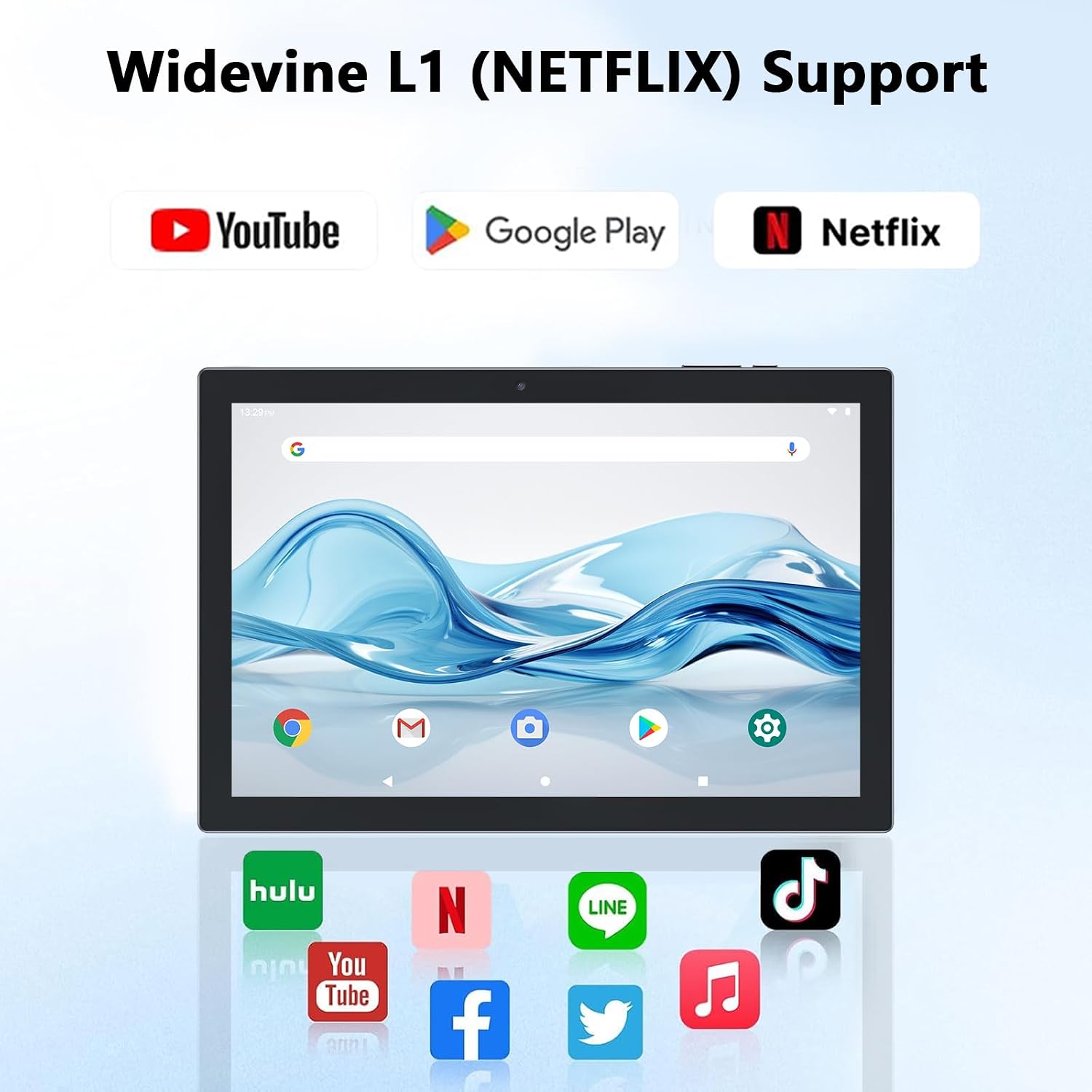
Figure 4.2: Widevine L1 support for popular streaming platforms.
The tablet's IPS HD screen provides vibrant colors and advanced visual effects. Utilize the pre-installed media players or download your preferred streaming apps from the Google Play Store.
Відэа 4.1: Оверview of the YQ10SMAX Android 15 tablet's features and performance, demonstrating its capabilities for daily use and entertainment.
4.4 Выкарыстанне камер
Планшэт абсталяваны задняй камерай на 8 Мп і франтальнай камерай на 2 Мп.

Figure 4.3: Dual cameras for photos and video calls.
- Адкрыйце праграму «Камера» на галоўным экране або ў панэлі праграм.
- Націсніце на значок камеры, каб пераключыцца паміж пярэдняй і задняй камерамі.
- Націсніце кнопку спуску засаўкі, каб зрабіць фотаздымак або пачаць/спыніць відэазапіс.
4.5 Storage and Expansion
The tablet comes with 128GB of internal storage and supports up to 2TB expansion via a microSD card.

Figure 4.4: Mass storage and easy expansion options.
- To insert a microSD card, locate the card slot on the side of the tablet and gently push the card in until it clicks.
- Каб кіраваць сховішчам, перайдзіце па спасылцы Налады > Захоўванне.
5. Тэхнічнае абслугоўванне
5.1 Чыстка планшэта
- Выкарыстоўвайце мяккую тканіну без ворса для чысткі экрана і корпуса планшэта.
- Для ўстойлівых плям злёгкуampпрацярыце тканіну вадой або растворам для чысткі экранаў.
- Пазбягайце выкарыстання агрэсіўных хімікатаў, абразіўных матэрыялаў або празмернай вільготнасці.
5.2 Сыход за акумулятарам
The tablet is equipped with a 6000mAh battery for long-lasting performance.

Figure 5.1: Large-capacity battery with long-lasting battery life.
- Charge the tablet regularly, but avoid leaving it plugged in for extended periods after it's fully charged.
- Выкарыстоўвайце для зарадкі толькі кабель Type-C, які ўваходзіць у камплект.
- Пазбягайце ўздзеяння экстрэмальных тэмператур на планшэт, бо гэта можа паўплываць на тэрмін службы батарэі.
5.3 Абнаўленне праграмнага забеспячэння
Periodically check for system updates to ensure optimal performance and security.
- Перайсці да Налады > сістэма > Абнаўленне сістэмы.
- Выконвайце інструкцыі на экране, каб загрузіць і ўсталяваць усе даступныя абнаўленні.
6. Выпраўленне непаладак
If you encounter any issues with your tablet, please refer to the following common problems and solutions:
| праблема | Магчымая прычына | Рашэнне |
|---|---|---|
| Планшэт не ўключаецца | Нізкі зарад батарэі; збой сістэмы | Зараджайце планшэт не менш за 30 хвілін. Націсніце і ўтрымлівайце кнопку харчавання на працягу 10-15 секунд, каб прымусова перазагрузіць яго. |
| Праблемы з падключэннем да Wi-Fi | Incorrect password; Router issue; Out of range | Verify Wi-Fi password. Restart your router. Move closer to the Wi-Fi router. |
| Павольнае выкананне | Занадта шмат запушчаных праграм; мала месца ў памяці; састарэлае праграмнае забеспячэнне | Close unnecessary apps. Clear cache/uninstall unused apps. Check for system updates. |
| Accessories not connecting | Bluetooth off; Incorrect pairing; Low battery in accessory | Ensure Bluetooth is on. Re-pair the accessory. Check accessory batteries. |
| Экран не рэагуе | Часовы збой праграмнага забеспячэння | Прымусова перазагрузіце планшэт, утрымліваючы кнопку харчавання. |
7. Тэхнічныя характарыстыкі
| Асаблівасць | Дэталь |
|---|---|
| Марка | КУПЕЙЗІ |
| Назва мадэлі | YQ10S MAX |
| Аперацыйная сістэма | Android 15 |
| Памер экрана | 10.1 цалі |
| Дазвол экрана | 1280 x 800 пікселяў (IPS HD) |
| Працэсар | 2.0 ГГц чатырох'ядравы працэсар |
| АЗП | 18GB (6GB + 12GB expansion) |
| Унутраная памяць | 128 ГБ |
| Сховішча з магчымасцю пашырэння | Up to 2TB (microSD card not included) |
| Задняя камера | 8 МП |
| Пярэдняя камера | 2 МП |
| Бесправадны тып | 802.11ax (Wi-Fi 6), 2.4G/5G Dual-band |
| Bluetooth | Bluetooth 5.0 |
| Ёмістасць батарэі | Літый-палімерны 6000 мАг |
| Сярэдні тэрмін службы батарэі | Да 10 гадзін |
| Вага прадмета | 2.75 фунта (прыблізна 1.25 кг) |
| Памеры прадукту | 9.45 х 5.91 х 0.39 цалі (прыблізна 24 х 15 х 1 см) |
8. Гарантыя і падтрымка
CUPEISI products are manufactured to the highest quality standards. This product is covered by a standard manufacturer's warranty against defects in materials and workmanship from the date of purchase. Please retain your proof of purchase for warranty claims.
For technical support, warranty inquiries, or any questions regarding your CUPEISI Android 15 Tablet, please contact our customer service team through the retailer's platform or visit the official CUPEISI webсайт для кантактнай інфармацыі.
Please note that the warranty does not cover damage caused by misuse, accidents, unauthorized repairs, or normal wear and tear.