
1. Уводзіны
This user manual provides comprehensive instructions for the setup, operation, and maintenance of your FULLJA 17-inch Dual-WiFi Digital Picture Frame. This device allows you to instantly share photos and videos with loved ones from anywhere using the VPhoto app or email, supporting both 2.4 GHz and 5 GHz Wi-Fi networks. With its large display, ample storage, and versatile features, it is designed to preserve and display your precious memories with ease.
2. Інфармацыя па бяспецы
Калі ласка, уважліва прачытайце ўсе інструкцыі па бяспецы перад выкарыстаннем прылады, каб забяспечыць яе належную працу і пазбегнуць пашкоджанняў або траўмаў. Захоўвайце гэтую інструкцыю для далейшага выкарыстання.
- Не падвяргайце прыладу ўздзеянню вады або празмернай вільгаці.
- Пазбягайце размяшчэння прылады побач з крыніцамі цяпла, такімі як радыятары, абагравальнікі, пліты або іншыя прыборы (у тым ліку ampLifiers), якія вырабляюць цяпло.
- Выкарыстоўвайце толькі адаптар сілкавання, які пастаўляецца з прыладай.
- Не блакуйце вентыляцыйныя адтуліны. Усталюйце ў адпаведнасці з інструкцыямі вытворцы.
- Абараніце шнур сілкавання ад таго, каб яго не хадзілі і не заціскалі, асабліва ў вілках, зручных разетках і ў месцы, дзе яны выходзяць з прылады.
- Адключайце прыладу ад сеткі падчас навальніцы або калі яна не выкарыстоўваецца на працягу доўгага часу.
- Звяртайцеся да кваліфікаванага абслугоўваючага персаналу. Тэхнічнае абслугоўванне патрабуецца, калі прылада была пашкоджана якім-небудзь чынам, напрыклад, пашкоджаны шнур сілкавання або вілка, была праліта вадкасць або ў прыладу ўпалі прадметы, прылада падвяргалася ўздзеянню дажджу або вільгаці, не працуе належным чынам , або быў адкінуты.
- Чысціце толькі сухой анучай.
3. Змесціва ўпакоўкі
Праверце наяўнасць усіх прадметаў у камплекце:
- 1x FULLJA 17-inch Digital Picture Frame
- 1x Кіраўніцтва карыстальніка
- 1x адаптар сілкавання
- 1x Bracket (for stand)
- 1x Пульт дыстанцыйнага кіравання
- Кабель 1x Micro USB

Image: FULLJA Brand Logo
This image displays the official FULLJA brand logo, typically found on product packaging and documentation.

Image: FULLJA 17-inch Digital Picture Frame
This image shows the 17-inch FULLJA Digital Picture Frame in a vertical orientation, resting on a surface.
4. Прадукт скончыўсяview
4.1. Кампаненты і элементы кіравання
Familiarize yourself with the various parts of your digital picture frame:
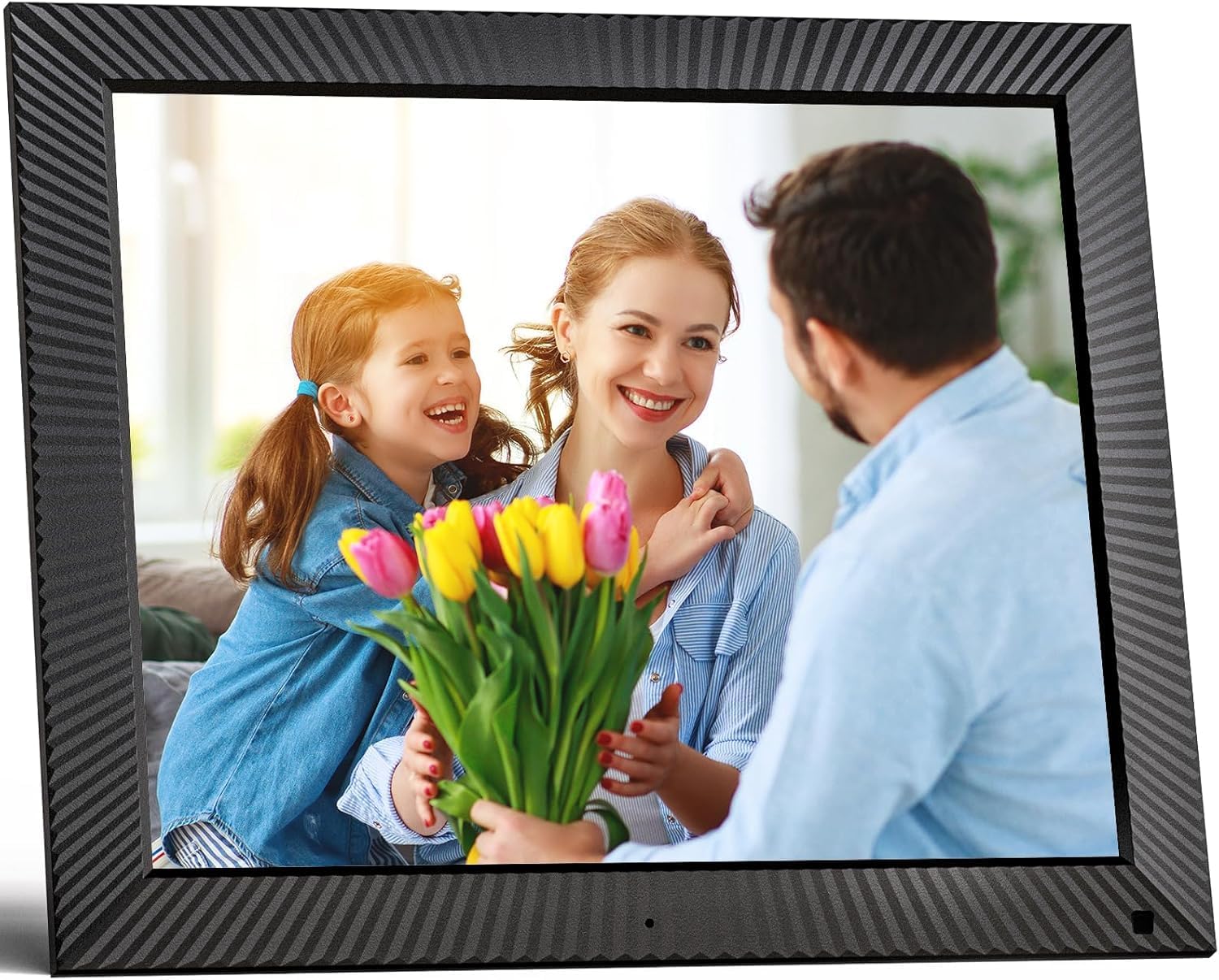
Выява: спераду view of the FULLJA 17-inch Digital Picture Frame
This image displays the front of the digital picture frame, showcasing its large screen with a family photo displayed. The frame has a textured black border.

Image: Features of the FULLJA 17-inch Digital Picture Frame
This image highlights key features of the 17-inch digital picture frame, including its touch screen, HD 1280x1024 pixel resolution, 4:3 aspect ratio, and remote control functionality. It shows the frame in both landscape and portrait orientations, with a view of the back panel and stand.
- Экран дысплея: 17-inch IPS display with 1280x1024 resolution. Touch-enabled for direct interaction.
- Кнопка харчавання: Located on the back or side, used to turn the frame on/off or put it into standby.
- Порт USB: For connecting USB sticks to transfer photos/videos.
- Слот TF карты: For inserting TF (MicroSD) cards (up to 64GB) to expand storage or transfer media.
- Порт Micro USB: For connecting to a computer for data transfer or firmware updates.
- Уваход пастаяннага току: Для падлучэння адаптара сілкавання.
- Датчык руху: Detects presence to automatically turn the screen on/off, saving energy.
- Убудаваны дынамік: For audio playback with videos or background music.
- Wall Mount Holes: VESA compatible holes on the back for wall mounting.
- Stand Bracket: Attachable bracket for desktop placement in portrait or landscape orientation.
4.2. Пульт дыстанцыйнага кіравання
The included remote control provides convenient access to various functions without touching the screen.
- Магутнасць: Turn the frame on/off.
- Меню/Налады: Access the main menu and settings.
- Кнопкі навігацыі (Уверх/Уніз/Улева/Управа): Перамяшчайцеся па меню і параметрах.
- ОК/Увядзіце: Пацвердзіце выбар.
- Назад/Выхад: Вярнуцца да папярэдняга экрана або выйсці з меню.
- Гучнасць +/-: Адрэгулюйце гучнасць гуку.
- Прайграванне/Паўза: Кіруйце прайграваннем мультымедыя.
- Наступны/Папярэдні: Skip to the next or previous photo/video.
5. Настройка
5.1. Пачатковае ўключэнне
- Unpack the digital picture frame and all accessories.
- Attach the stand bracket to the back of the frame if you intend to place it on a desk or shelf. Ensure it is securely fastened.
- Connect the power adapter to the DC power input port on the frame, then plug the adapter into a wall outlet.
- The frame will automatically power on or you may need to press the power button.
- Выконвайце падказкі на экране, каб выбраць мову і гадзінны пояс.
5.2. Падключэнне да Wi-Fi
A Wi-Fi connection is essential for sharing photos via the app or email.
- З галоўнага меню перайдзіце да Налады.
- Выберыце Wi-Fi.
- The frame will scan for available networks. Select your desired 2.4 GHz or 5 GHz network from the list.
- Увядзіце пароль Wi-Fi з дапамогай экраннай клавіятуры.
- Націсніце Злучыцца. Once connected, a Wi-Fi icon will appear on the screen.

Image: Digital Picture Frame with Wi-Fi Sharing
This image illustrates the capability of the digital picture frame to share photos and videos wirelessly via Wi-Fi. It shows the frame displaying a family photo, with a smartphone in the foreground indicating app-based sharing.
5.3. Installing the VPhoto App
The VPhoto app is available for both iOS and Android devices and is the primary method for sharing content remotely.
- Пошук "VPhoto" in the Apple App Store (for iOS) or Google Play Store (for Android).
- Загрузіце і ўсталюйце прыкладанне на свой смартфон або планшэт.
- Open the VPhoto app and create an account or log in.
- To connect your frame, go to the Налады menu on your digital picture frame and find the unique binding code.
- In the VPhoto app, select Дадаць прыладу and enter the binding code displayed on your frame.
- Once connected, you can start sending photos and videos to your frame. Up to 30 app accounts can be bound to one frame.

Image: Sharing Options for Digital Picture Frame
This image demonstrates the various ways to share content with the digital picture frame, including the free VPhoto app for iOS and Android, unlimited cloud storage with 32GB built-in, and the ability to invite multiple family members to share. It shows the frame displaying a photo and a smartphone screen with the VPhoto app interface.
6. Інструкцыя па эксплуатацыі
6.1. Sending Photos and Videos
There are multiple ways to send media to your FULLJA digital picture frame:
- Via VPhoto App: Open the VPhoto app, select the photos/videos you wish to send (up to 50 at a time), choose your connected frame, and tap send.
- Праз электронную пошту: Each frame has a unique email address. You can send photos and short videos as attachments to this email address. The frame will automatically receive and display them.
- Via USB Stick/TF Card: Insert a USB stick or TF card into the respective port. Navigate to the Папка фота or Відэа section on the frame, select the external storage, and copy files to the internal memory if desired.

Image: Digital Picture Frame with 32GB Internal Storage
This image highlights the frame's built-in 32GB internal storage, capable of storing approximately 80,000+ photos. The main frame displays a photo of a mother and child, surrounded by smaller circular images representing the vast number of memories that can be stored.
6.2. Асноўныя функцыі
- Slideshow Playback: Photos and videos will automatically play in a slideshow. You can adjust the display interval and transition effects in the settings.
- Photo/Video Browsing: Tap the screen or use the remote to manually browse through your media.
- Рэгулятар гучнасці: Adjust the volume for videos or background music using the touch screen controls or the remote.
- Аўтаматычны паварот: Рамка аўтаматычна рэгулюе арыентацыю дысплея (партрэтную або альбомную) у залежнасці ад таго, як яна размешчана.
6.3. Пашыраныя функцыі
- Датчык руху: Enable this feature in settings to have the frame automatically turn on when motion is detected and off when no motion is detected for a set period, saving energy.
- Auto Screen On/Off: Set specific times for the frame to automatically turn on and off daily.
- Гадзіннік і каляндар: Access the built-in clock and calendar functions from the main menu.
- Будзільнік: Усталюйце будзільнікі для напамінкаў.
- Раздзелены экран: Display multiple photos simultaneously (check settings for layout options).
- Text Captions: Add captions to your photos via the VPhoto app.
- Прайграванне музыкі: Play background music during slideshows (ensure music files are on the frame's internal storage or connected USB/TF card).

Image: Digital Picture Frame with Function Icons
This image showcases the multi-functional capabilities of the digital picture frame, including Wi-Fi connectivity, weather display, clock, calendar, photo and video playback, music, and slideshow features. Two frames are shown, one on a wall and one on a cabinet, with icons representing these functions below.
7. Тэхнічнае абслугоўванне
7.1. Cleaning the Frame
- Заўсёды адключайце рамку ад сеткі перад чысткай.
- Выкарыстоўвайце мяккую, сухую тканіну без ворса, каб акуратна працерці экран і рамку.
- Для выдалення ўстойлівых плям на экране злёгку працярыцеampen the cloth with water or a screen-cleaning solution (specifically designed for electronics) and wipe carefully. Do not spray liquid directly onto the screen.
- Пазбягайце выкарыстання абразіўных ачышчальнікаў, воску або растваральнікаў, бо яны могуць пашкодзіць паверхню.
7.2. Абнаўленне праграмнага забеспячэння
Periodically check for software updates in the frame's settings menu to ensure optimal performance and access to new features. Updates are typically downloaded and installed over Wi-Fi.
7.3. Кіраванне сховішчам
While the frame has 32GB of internal storage and unlimited cloud storage, you may occasionally want to manage local files:
- Доступ да Папка фота or File Менеджэр in the settings to view, delete, or organize stored media.
- Можна перадаць files to/from a USB stick or TF card to manage internal storage.
8. Выпраўленне непаладак
If you encounter issues with your digital picture frame, refer to the following common problems and solutions:
| праблема | Магчымая прычына / рашэнне |
|---|---|
| Рамка не ўключаецца. |
|
| Немагчыма падключыцца да Wi-Fi. |
|
| Фота/відэа не адлюстроўваюцца ў кадры. |
|
| Screen freezes or is unresponsive. |
|
| Датчык руху не працуе. |
|
9. Тэхнічныя характарыстыкі
| Асаблівасць | Дэталь |
|---|---|
| Нумар мадэлі | B0CCVBSM87 |
| Марка | ФУЛЬЯ |
| Памер экрана | 17 цалі |
| Дазвол дысплея | 1280 x 1024 pixels (IPS) |
| Суадносіны бакоў | 4:3 |
| Унутраная памяць | 32 ГБ |
| Падтрымка знешніх назапашвальнікаў | USB stick, TF card (MicroSD) up to 64GB |
| Падключэнне да Wi-Fi | 2.4 GHz / 5 GHz Dual-Band |
| Метад кантролю | Touch Screen, Remote Control, VPhoto App |
| Датчык руху | так |
| Аўтаматычны паварот | так |
| Насценны мантаж | так |
| Памеры прадукту | 29.67 х 43.51 х 2.51 см |
| Вага прадукту | 2.52 кг |
| Колер | Чорны |
10. Гарантыя і падтрымка
10.1. Абмежаваная гарантыя
The FULLJA 17-inch Dual-WiFi Digital Picture Frame comes with a адзін год абмежаванай гарантыі from the date of purchase. This warranty covers defects in materials and workmanship under normal use. It does not cover damage caused by accident, misuse, abuse, neglect, unauthorized modification, or improper installation.
To make a warranty claim, please retain your proof of purchase and contact FULLJA customer support.
10.2. Падтрымка кліентаў
For any questions, technical assistance, or support inquiries, please contact FULLJA customer service. We offer lifetime support and aim to provide a prompt response within 24 hours.
Please refer to the contact information provided on the product packaging or the official FULLJA webсайт з найбольш актуальнымі каналамі падтрымкі.