1. Уводзіны
This manual provides detailed instructions for the setup, operation, and maintenance of your Logitech POP Mouse. The POP Mouse is a compact, wireless mouse designed for multi-device use with customizable features.

Image: The Logitech POP Mouse in Graphite, showcasinг яго кампактны і эрганамічны дызайн.
2. Змесціва ўпакоўкі
- Logitech POP Wireless Mouse
- 1x AA Battery (pre-installed)
- Карыстальніцкая дакументацыя

Image: The Logitech POP Mouse and a single AA battery, representing the items included in the product package.
3. Інструкцыі па ўсталёўцы
3.1. Устаноўка батарэі
- Gently remove the top cover of the mouse. The cover is magnetically attached.
- Устаўце батарэйку тыпу АА, якая ўваходзіць у камплект, сачыце за правільнай палярнасцю (+/-).
- Replace the top cover, ensuring it snaps securely into place.
3.2. Падключэнне праз Bluetooth
- Уключыце мыш з дапамогай выключальніка харчавання, размешчанага ўнізе.
- Press and hold one of the Easy-Switch buttons (1, 2, or 3) on the bottom of the mouse until the LED indicator starts blinking rapidly. This indicates pairing mode.
- On your device (computer, tablet, or phone), open Bluetooth settings.
- Выберыце «Logitech POP Mouse» са спісу даступных прылад, каб завяршыць працэс спалучэння.
- The LED indicator will glow solid for a few seconds, then turn off, confirming a successful connection.

Image: The underside of the POP Mouse, highlighting the Easy-Switch buttons for multi-device pairing.
4. Інструкцыя па эксплуатацыі
4.1. Асноўныя функцыі
- Пстрычка левай кнопкай мышы: Першасны адбор і ўзаемадзеянне.
- Пстрыкніце правай кнопкай мышы: Доступ да кантэкстных меню.
- Кола пракруткі: Вертыкальная навігацыя па дакументах і web старонкі.
4.2. Тэхналогія SilentTouch
The POP Mouse features SilentTouch Technology, which significantly reduces click noise, providing a quieter user experience without compromising tactile feedback.

Image: A hand operating the POP Mouse, illustrating the quiet operation provided by SilentTouch Technology.
4.3. Пракрутка з дапамогай SmartWheel
SmartWheel аўтаматычна пераключаецца паміж двума рэжымамі:
- Рэжым дакладнасці: For detailed, line-by-line navigation.
- Speed Scroll Mode: For rapid scrolling through long documents or web старонкі.

Image: A user's hand demonstrating the use of the SmartWheel for efficient navigation.
5. Налада
5.1. Customizable Top Button (Emoji Button)
The top button, located below the scroll wheel, is customizable. By default, it can be configured to open an emoji menu or assign other shortcuts.
- Download and install the Logitech Options+ Software from the official Logitech webсайт (logitech.com/optionsplus).
- Open the Logitech Options+ Software.
- Select your POP Mouse from the detected devices.
- Navigate to the button customization settings.
- Assign your desired function to the top button, such as an emoji shortcut, Snip Screen, Mic Mute, or Voice-to-Text.
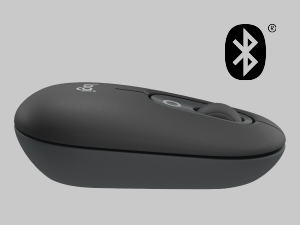
Image: A visual representation of the customizable top button on the POP Mouse, showing its function to access an emoji menu on a connected computer.
6. Multi-Device Connectivity
The Logitech POP Mouse can connect to up to three different devices simultaneously using Bluetooth. You can easily switch between these devices.
6.1. Пераключальныя прылады
To switch between paired devices, press the Easy-Switch button (1, 2, or 3) on the bottom of the mouse corresponding to the desired device. The LED indicator will briefly light up to confirm the selected channel.
6.2. Logitech FLOW (Advanced Feature)
For seamless control across multiple computers, install Logitech Options+ Software on all devices. With Logitech FLOW enabled, you can move your mouse cursor across screens as if they were a single desktop, even copying and pasting text, images, and files паміж імі.
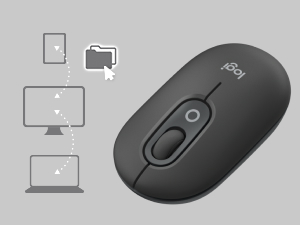
Image: A diagram showing how the POP Mouse can control multiple devices, illustrating the FLOW feature for cross-device interaction.
7. Тэхнічнае абслугоўванне
7.1. Замена батарэі
The POP Mouse operates on a single AA battery with an estimated life of up to 24 months. When the battery is low, the LED indicator on the bottom of the mouse may flash. Replace the battery by following the steps in Section 3.1.
7.2. Уборка
To clean your mouse, use a soft, lint-free cloth. For stubborn dirt, slightly dampпрамыйце тканіну вадой. Пазбягайце выкарыстання агрэсіўных хімічных рэчываў або абразіўных матэрыялаў.
8. Выпраўленне непаладак
| праблема | Рашэнне |
|---|---|
| Мышка не ўключаецца. | Ensure the power switch on the bottom of the mouse is in the 'ON' position. Check and replace the AA battery if necessary. |
| Мышка не падключаецца праз Bluetooth. |
|
| Курсор рухаецца няўстойліва або не рэагуе. |
|
| Custom button not working. | Ensure Logitech Options+ Software is installed and running on your computer, and the button is correctly configured. |
9. Тэхнічныя характарыстыкі
| Асаблівасць | Дэталь |
|---|---|
| Нумар мадэлі | 910-007165 |
| Сувязь | Bluetooth 5.1 |
| Далёкасць бесправадной сувязі | Да 10 метраў (32.81 футаў) |
| Sensor Technology | Logitech High Precision Optical Tracking |
| Колькасць кнопак | 4 (Left/Right click, Scroll wheel click, Top customizable button) |
| Тып батарэі | 1 х АА батарэі |
| Тэрмін службы батарэі | Да 24 месяцаў (можа адрознівацца ў залежнасці ад выкарыстання) |
| Памеры (ДхШхВ) | 14.12 х 2.34 х 1.38 цалі (35.86 х 5.94 х 3.51 см) |
| Вага | 2.89 унцый (82 г з батарэяй) |
| Сумяшчальнасць аперацыйнай сістэмы | Windows 10 or later, macOS 10.15 or later, iPadOS, Chrome OS, Android |

Image: Technical drawing displaying the length, width, and height measurements of the Logitech POP Mouse.
10. Гарантыя і падтрымка
Каб атрымаць інфармацыю аб гарантыі і тэхнічнай падтрымцы, наведайце афіцыйны сайт падтрымкі Logitech. website or refer to the user documentation included in your product package.
- Інтэрнэт-падтрымка: support.logi.com
- Рэгістрацыя прадукту: Рэгістрацыя прадукту дапаможа вам хутчэй атрымліваць падтрымку і абнаўленні.