
Beetronics 19VG7M
Кіраўніцтва карыстальніка 19-цалевага Full HD IPS-манітора Beetronics 19VG7M
Professional Industrial-Grade Display
Уводзіны
This manual provides comprehensive instructions for the installation, operation, and maintenance of your Beetronics 19VG7M 19-Inch Full HD IPS Monitor. Designed for professional and continuous use, this industrial-grade display offers exceptional visual clarity, versatile connectivity, and robust construction. Please read this manual thoroughly before using the monitor to ensure proper setup and optimal performance.

Малюнак 1: Спераду view of the Beetronics 19VG7M Monitor.
Змест пакета
Перад тым, як працягнуць усталёўку, пераканайцеся, што ўсе кампаненты прысутнічаюць у камплекце:
- Beetronics 19VG7M Monitor
- Блок харчавання і шнур
- Пульт дыстанцыйнага кіравання
- Flush Mounting Brackets (if applicable)
- Desktop & Surface Mounting Stand
- Кіраўніцтва карыстальніка (гэты дакумент)
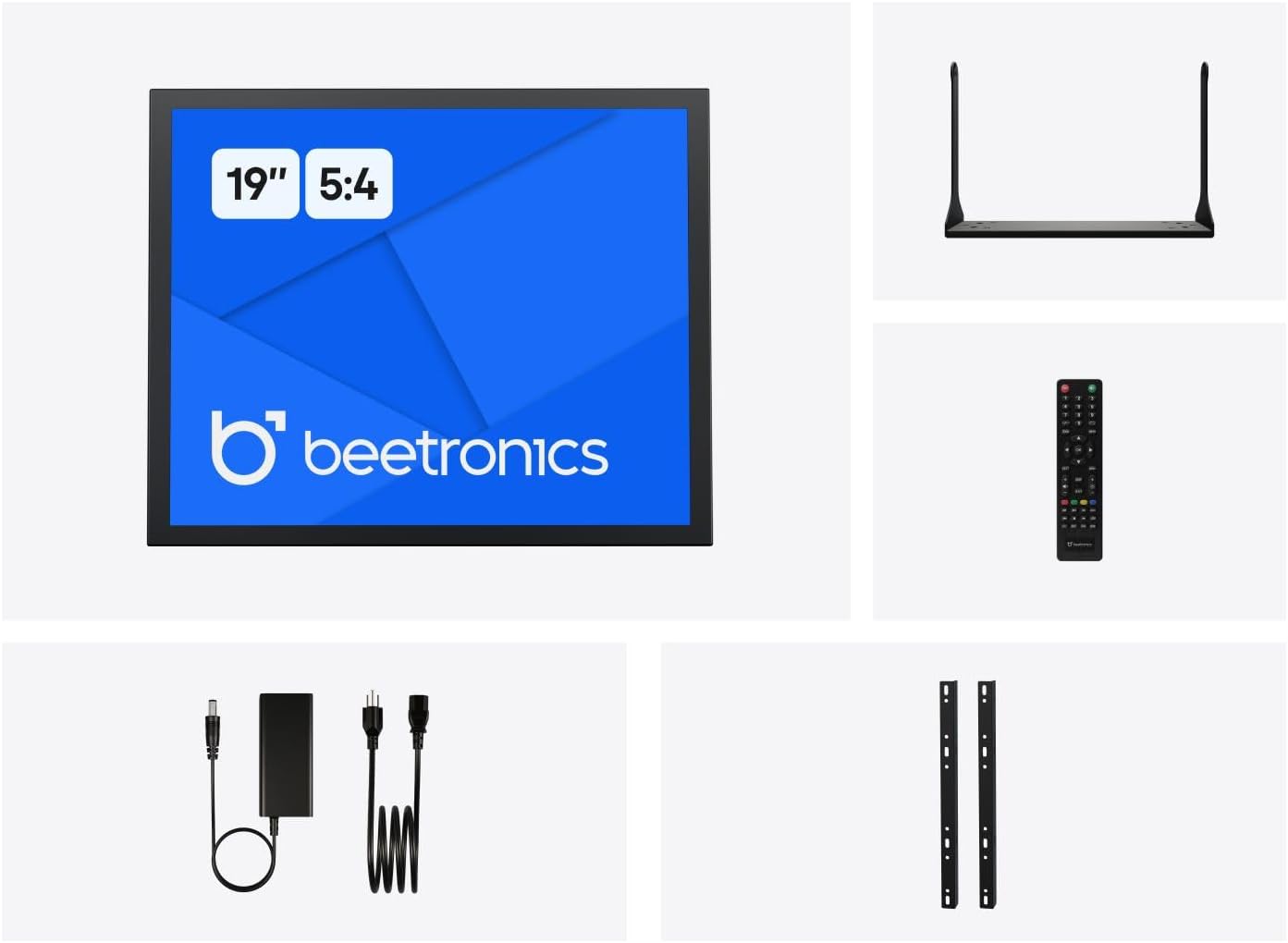
Figure 2: Included accessories with the Beetronics 19VG7M Monitor.
Настройка
1. Варыянты мантажу
The 19VG7M monitor offers flexible mounting solutions, including a collapsible desktop stand and VESA 100mm compatibility for wall or arm mounting.
Усталёўка настольнай падстаўкі:
- Асцярожна пакладзеце манітор экранам уніз на мяккую чыстую паверхню, каб пазбегнуць драпін.
- Attach the desktop stand to the designated mounting points on the rear of the monitor using the provided screws. Ensure it is securely fastened.
- Размесціце манітор на ўстойлівай роўнай паверхні.
VESA Wall/Arm Mounting:
- If the desktop stand is attached, remove it.
- Align the VESA 100mm mounting holes on the back of the monitor with your VESA-compatible wall mount or arm.
- Secure the monitor to the mount using appropriate VESA screws (M4 x 10mm recommended, not always included with monitor).

Figure 3: Monitor dimensions with desktop stand.
2. Злучальныя кабелі
The 19VG7M monitor features a variety of input ports located on the rear, facing downwards for neat cable management. Ensure the monitor and all connected devices are powered off before making connections.

Figure 4: Downward-facing input ports.
- HDMI: Connect an HDMI cable from your source device (e.g., computer, media player) to the HDMI port on the monitor.
- VGA: Connect a VGA cable from your source device to the VGA port on the monitor.
- BNC: For professional video applications, connect a BNC cable to the BNC input.
- RCA (AV): Use RCA cables for composite video and stereo audio input. Connect the yellow plug for video, and red/white for audio.
- USB: (If applicable for touch functionality or specific peripherals, consult product specifications for exact USB function).
- Магутнасць: Connect the provided power supply to the DC input port on the monitor, then plug the power cord into a wall outlet. The monitor supports a wide input voltage range of 9-36 Volts.

Малюнак 5: Задняя панэль зверхуview with control buttons and ports.
Інструкцыя па эксплуатацыі
1. Уключэнне / выключэнне харчавання
Націсніце ВКЛ/ВЫКЛ button located on the rear panel or on the remote control to power the monitor on or off. The power indicator light will illuminate when the monitor is on.
2. Выбар уводу
To switch between different video inputs (HDMI, VGA, BNC, RCA):
- Націсніце АЎТА button on the rear panel or the УВОД кнопку на пульце.
- Выкарыстоўвайце + or - buttons to navigate through the available inputs.
- Націсніце МЕНЮ button or wait a few seconds to confirm your selection.
3. Экраннае меню (OSD).
The OSD menu allows you to adjust various display settings. To access and navigate the OSD menu:
- Націсніце МЕНЮ button on the rear panel or remote control to open the OSD menu.
- Выкарыстоўвайце + or - кнопкі для навігацыі па пунктах меню.
- Націсніце МЕНЮ button again to enter a sub-menu or confirm a setting.
- To exit the OSD menu, navigate to the "Exit" option or press the МЕНЮ button repeatedly until the menu disappears.
Агульныя налады экраннага меню:
- Фота: Adjust brightness, contrast, color temperature, and aspect ratio (e.g., 5:4).
- Аўдыё: Control volume and mute settings.
- Налады экраннага меню: Наладзьце мову экраннага меню, празрыстасць і час чакання.
- Скінуць: Аднавіць заводскія налады па змаўчанні.
The monitor also supports a fully dimmable backlight, which can be adjusted via the OSD menu or dedicated dimmer controls if available.
Тэхнічнае абслугоўванне
Proper maintenance ensures the longevity and optimal performance of your Beetronics monitor.
Ачыстка манітора:
- Заўсёды выключайце манітор і адключайце яго ад электрычнай разеткі перад чысткай.
- экран: Выкарыстоўвайце мяккую безворсовую тканіну, злёгку dampened with water or a non-abrasive, monitor-specific cleaning solution. Do not spray liquid directly onto the screen.
- Casing: Wipe the metal housing with a soft, dry cloth. Avoid using harsh chemicals, abrasives, or solvents, as they may damage the finish.
Агульны догляд:
- Не кладзіце цяжкія прадметы на манітор або яго кабелі.
- Не блакуйце вентыляцыйныя адтуліны на маніторы.
- Keep the monitor away from direct sunlight, excessive heat, and high humidity.
- If the monitor will not be used for an extended period, it is recommended to unplug it from the power source.
Ліквідацыю непаладак
Калі ў вас узніклі праблемы з маніторам, звярніцеся да наступных распаўсюджаных праблем і іх рашэнняў:
| праблема | Магчымая прычына | Рашэнне |
|---|---|---|
| Няма выявы на экране |
|
|
| Занадта цёмная/яркая выява або няправільныя колеры |
|
|
| Няма гуку |
|
|
| Monitor flickering or unstable image |
|
|
If the problem persists after trying these solutions, please contact Beetronics customer support.
Тэхнічныя характарыстыкі
Key technical specifications for the Beetronics 19VG7M 19-Inch Full HD IPS Monitor:
| Нумар мадэлі | 19VG7M |
| Памер экрана | 19 цалі |
| Суадносіны бакоў | 5:4 |
| дазвол | 1280 x 1024 (Full HD) |
| Тып панэлі | IPS |
| Viewing кут | 178° (гарызантальны/вертыкальны) |
| Яркасць | 470 Кандэла |
| Уваходны кнtage | 9-36 вольт (пастаянны ток) |
| Уваходныя парты | HDMI, VGA, BNC, RCA (AV), USB |
| Памеры прадукту (Д х Ш х У) | 1.6 x 16.1 x 15.2 цалі (без падстаўкі) |
| Вага прадмета | 3.3 фунта |
| Вытворца | Beetronics |
| Паверхня экрана | Матавы |

Figure 6: Internal components and key features.
Гарантыя і падтрымка
Інфармацыя аб гарантыі
The Beetronics 19VG7M monitor comes with a solid Гарантыя 2 год, ensuring reliability and peace of mind. This warranty covers defects in materials and workmanship under normal use. Please retain your proof of purchase for warranty claims.
For detailed warranty terms and conditions, please refer to the official Beetronics webсайт або звярніцеся ў службу падтрымкі кліентаў.
Падтрымка кліентаў
If you require technical assistance, have questions about your product, or need to initiate a warranty claim, please contact Beetronics customer support:
- Webсайт: Visit the official Beetronics webсайт з часта задаванымі пытаннямі, рэсурсамі падтрымкі і кантактнымі формамі. www.beetronics.com
- электронная пошта: Refer to the Beetronics webсайт, каб знайсці найноўшы адрас электроннай пошты службы падтрымкі.
- тэлефон: Refer to the Beetronics webсайт з нумарамі тэлефонаў рэгіянальнай падтрымкі.
When contacting support, please have your monitor's model number (19VG7M) and purchase information readily available.
Ask a question about this manual
Ask about setup, troubleshooting, compatibility, parts, safety, or missing instructions. Manuals+ will review the question and use this page’s manual context to help answer it.