
CUPEISI YQ10S MAX
CUPEISI YQ10S MAX Android 15 Tablet User Manual
Model: YQ10S MAX | Brand: CUPEISI
1. Уводзіны
This manual provides detailed instructions for the setup, operation, maintenance, and troubleshooting of your CUPEISI YQ10S MAX Android 15 Tablet. Please read this manual thoroughly before using your device to ensure proper functionality and to maximize your user experience. Keep this manual for future reference.

Image 1.1: CUPEISI YQ10S MAX Android 15 Tablet with included accessories (keyboard, mouse, stylus, and protective case).
2. Змесціва ўпакоўкі
Пераканайцеся, што ўсе пералічаныя ніжэй элементы прысутнічаюць у камплекце з вашым прадуктам:
- CUPEISI YQ10S MAX Android 15 Tablet
- Бесправадная клавіятура
- Bluetooth мыш
- Foldable Protective Cover
- Стылус
- Кабель Type-C
- Зарадная прылада
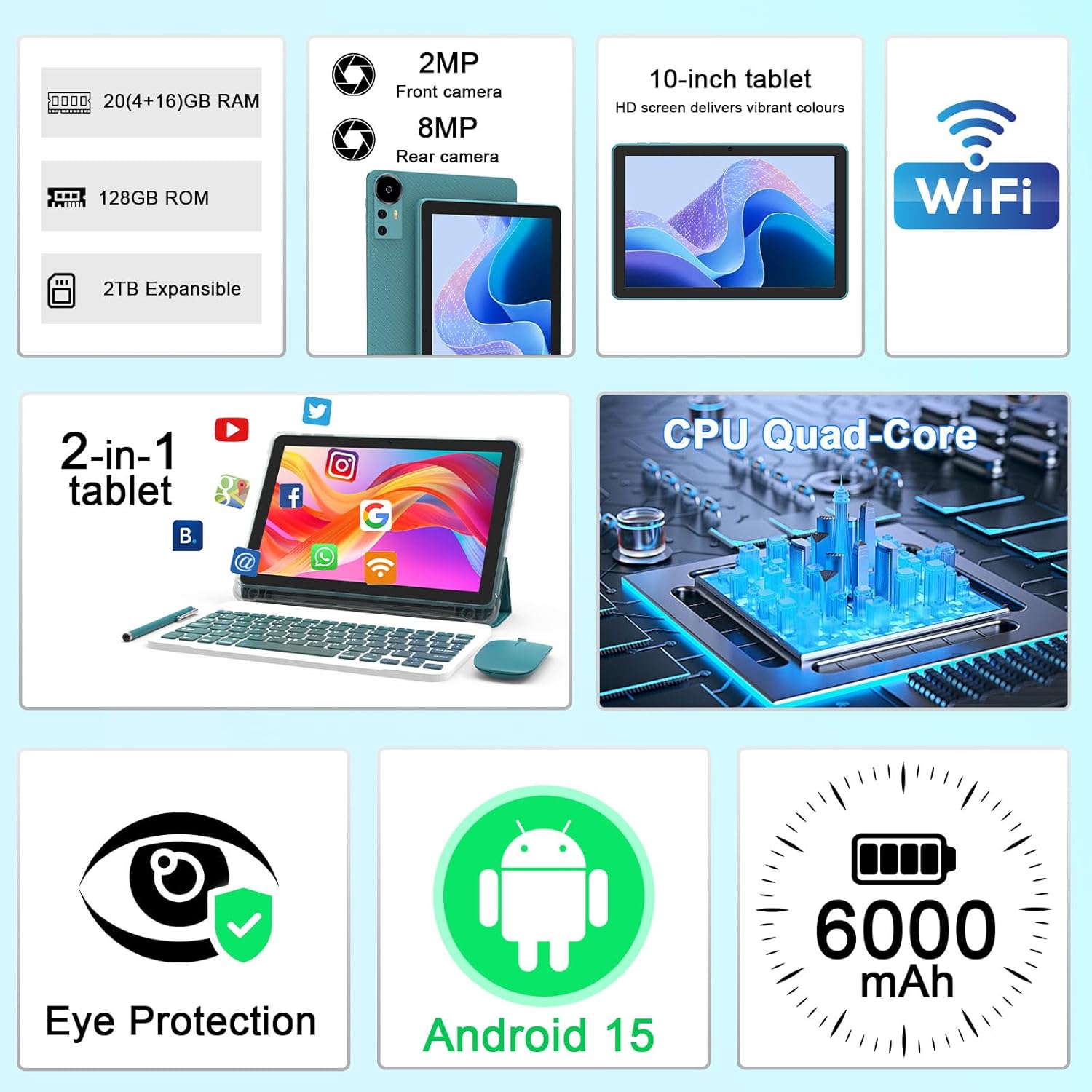
Выява 2.1: Канецview of key features and included components.
3. Пачатковая налада
3.1 Уключэнне/выключэнне
- Каб уключыць: Націсніце і ўтрымлівайце кнопку харчавання, размешчаную на бакавой панэлі планшэта, пакуль не падсвеціцца экран.
- Каб выключыць: Press and hold the power button, then select 'Power off' from the options that appear on the screen.
- Каб перазапусціць: Націсніце і ўтрымлівайце кнопку харчавання, затым абярыце «Перазагрузка» з прапанаваных опцый.
3.2 Зарадка планшэта
Before first use, fully charge the tablet. Use the provided Type-C cable and charger.
- Падключыце кабель Type-C да зараднага порта планшэта.
- Падключыце іншы канец кабеля да адаптара сілкавання.
- Падключыце адаптар сілкавання да насценнай разеткі.
- The battery icon on the screen will indicate charging status. A full charge typically takes several hours.

Image 3.1: Battery and charging information.
3.3 Падключэнне аксесуараў (клавіятура, мыш, стылус)
The tablet supports Bluetooth connectivity for the included keyboard and mouse.
- Уключыць Bluetooth: Перайсці да Налады > Падключаныя прылады > Bluetooth і ўключыце яго.
- Pair Keyboard/Mouse: Put the keyboard or mouse into pairing mode (refer to their individual instructions if needed). Select the device name from the list of available Bluetooth devices on your tablet to pair.
- Стылус: The included stylus is typically passive and does not require pairing. It can be used directly on the screen for navigation or drawing.
3.4 Падключэнне Wi-Fi
Connect your tablet to a Wi-Fi network for internet access.
- Перайсці да Налады > Сетка і інтэрнэт > Wi-Fi.
- Уключыце Wi-Fi. Планшэт пачне пошук даступных сетак.
- Выберыце патрэбную сетку са спісу.
- Калі будзе прапанавана, увядзіце пароль сеткі і націсніце Злучыцца.
4. Асноўная аперацыя
4.1 Навігацыя па Android 15
Your tablet runs on Android 15, offering an intuitive user interface. Swipe gestures, tap actions, and the navigation bar (Back, Home, Recents) are standard for interaction. The Google Mobile Services (GMS) certification ensures access to the Google Play Store and other Google applications.

Image 4.1: Android 15 operating system features.
4.2 Налады дысплея
The 10.1-inch IPS display with 1280x800 resolution provides clear visuals. You can adjust display settings to suit your preferences:
- Яркасць: Адрэгулюйце яркасць экрана з панэлі хуткіх налад або ў Налады > Дысплей.
- Рэжым чытання: Enable 'Reading Mode' in display settings to reduce blue light emission, which can enhance comfort during extended reading sessions.
- Памер шрыфта: Customize text size for better readability.

Image 4.2: Details of the 10.1-inch HD screen display.
4.3 Кіраванне сховішчам
The tablet features 128GB of internal storage and 20GB RAM (4GB physical + 16GB virtual expansion). Storage can be expanded up to 2TB using a microSD card (not included).
- Праверце сховішча: Перайсці да Налады > Захоўванне каб view internal and external storage usage.
- Устаўце карту MicroSD: Locate the microSD card slot on the tablet, insert the card gently until it clicks into place.

Image 4.3: Storage and RAM configuration.
4.4 Выкарыстанне камеры
The tablet is equipped with an 8MP rear camera and a 2MP front camera.
- Open Camera App: Націсніце на значок камеры на галоўным экране або ў панэлі праграм.
- Пераключэнне камер: Use the camera switch icon to toggle between front and rear cameras.
- Capture Photos/Videos: Націсніце кнопку спуску засаўкі, каб зрабіць фотаздымак або пачаць/спыніць відэазапіс.

Image 4.4: Camera specifications and modes.
4.5 Прайграванне мультымедыя
The tablet supports Widevine L1, enabling high-definition streaming from platforms like Netflix, Hulu, YouTube, and Prime Video.
- Забяспечце стабільнае падключэнне да Інтэрнэту для аптымальнай якасці трансляцыі.
- Download streaming apps from the Google Play Store.

Image 4.5: Widevine L1 support for multimedia streaming.
4.6 Шматзадачнасць
Android 15 enhances multitasking capabilities. Use the 'Recents' button to switch between open applications or utilize split-screen mode for running two apps simultaneously.
- Падзелены экран: From the 'Recents' view, tap the app icon at the top of an app's card and select 'Split screen'. Choose a second app to open alongside it.
- The included keyboard and mouse facilitate a laptop-like experience for productivity tasks.

Image 4.6: Tablet used in 2-in-1 mode with keyboard and mouse.
5. Догляд і абслугоўванне
5.1 Ачыстка
- Выкарыстоўвайце мяккую тканіну без ворса для чысткі экрана і корпуса планшэта.
- Пазбягайце выкарыстання агрэсіўных хімікатаў, абразіўных ачышчальнікаў або аэразольных распыляльнікаў.
- Ensure the tablet is powered off and unplugged before cleaning.
5.2 Сыход за акумулятарам
- Пазбягайце ўздзеяння на планшэт экстрэмальных тэмператур (высокіх або нізкіх).
- Не пакідайце планшэт цалкам разраджаным на працяглы час.
- Use only the provided charger and cable to prevent damage to the battery.
5.3 Абнаўленне праграмнага забеспячэння
- Рэгулярна правярайце наяўнасць абнаўленняў праграмнага забеспячэння і ўсталёўвайце іх, каб забяспечыць аптымальную прадукцыйнасць, бяспеку і доступ да новых функцый.
- Перайсці да Налады > сістэма > Абнаўленне сістэмы каб праверыць наяўнасць даступных абнаўленняў.
6. Выпраўленне непаладак
Калі ў вас узніклі праблемы з планшэтам, звярніцеся да наступных распаўсюджаных праблем і рашэнняў:
6.1 Праблемы з харчаваннем
- Планшэт не ўключаецца: Пераканайцеся, што акумулятар зараджаны. Падключыце зарадную прыладу і пачакайце некалькі хвілін, перш чым зноў уключыць прыладу.
- Tablet freezes: Націсніце і ўтрымлівайце кнопку харчавання каля 10-15 секунд, каб прымусова перазагрузіць прыладу.
6.2 Праблемы з падключэннем
- Wi-Fi не падключаецца: Check if Wi-Fi is enabled in settings. Restart your router and the tablet. Ensure you are entering the correct password.
- Прылада Bluetooth не спалучаецца: Ensure the Bluetooth accessory is in pairing mode and within range. Restart Bluetooth on the tablet and try pairing again.
6.3 Performance Lags
- Павольная прадукцыйнасць: Close unused applications running in the background. Clear cache data for frequently used apps. Consider adding a microSD card for additional storage if internal storage is nearly full.
- Збоі ў праграмах: Ensure apps are updated to their latest versions. Clear the app's cache and data (Налады > Праграмы > [Назва праграмы] > Захоўванне).
7. Тэхнічныя характарыстыкі прадукту
| Асаблівасць | Спецыфікацыя |
|---|---|
| Марка | КУПЕЙЗІ |
| Назва мадэлі | CP31M (Item model number: YQ10S MAX) |
| Аперацыйная сістэма | Android 15 |
| Памер экрана | 10.1 цалі |
| Дазвол экрана | 1280 x 800 пікселяў (HD) |
| Працэсар | 2.0 ГГц чатырох'ядравы працэсар |
| АЗП | 20 ГБ (4 ГБ фізічнай памяці + 16 ГБ пашырэння) |
| Унутраная памяць | 128 ГБ |
| Сховішча з магчымасцю пашырэння | Up to 2TB with microSD card (not included) |
| Бесправадны тып | 802.11ax (Wi-Fi 6.0, 2.4G/5G) |
| Bluetooth | БТ 5.0 |
| Задняя камера | 8 МП |
| Пярэдняя камера | 2 МП |
| Ёмістасць батарэі | 6000 мАг |
| Сярэдні тэрмін службы батарэі | 6-8 гадзін (у залежнасці ад выкарыстання) |
| Памеры (ДхШхВ) | 9.7 х 6.5 х 0.3 цалі |
| Вага прадмета | 0.176 унцыі |
| Колер | NavyBlue |
8. Гарантыя і падтрымка
For warranty information, please refer to the warranty card included in your product packaging or contact CUPEISI customer support directly. If you require technical assistance or have questions not covered in this manual, please reach out to our support team through the contact information provided with your purchase.