
1. Уводзіны
The ELECOM EX-G Left Hand Wired USB Ergonomic Mouse (M-XGL31UBSKBK) is designed to provide comfort and efficiency for left-handed users. Its unique ergonomic shape supports a natural hand posture, reducing strain during extended use. This manual provides essential information for setting up, operating, and maintaining your mouse.

Image: A person's left hand resting comfortably on the ELECOM ergonomic mouse, demonstrating its left-handed design.

Image: Diagram illustrating the ergonomic shape of the mouse, highlighting the concave nest for fingers and angled shape to reduce wrist stress.

Image: Comparison image showing the difference in hand posture between a vertical mouse and the EX-G Half-Vertical mouse, emphasizing easier clicking with gravity.
2. Асноўныя магчымасці
- Эрганамічная форма: Designed with a specific height and angle to allow for a relaxed posture from the palm to the wrist and arm.
- Left-Handed Design: Exclusively crafted for left-handed users, with the left click button positioned on the right side for primary index finger operation.
- Silent Click Switch: Equipped with a silent switch to eliminate clicking sounds, ideal for quiet environments like meetings or late-night work.
- Наладжвальныя кнопкі: Utilize the ELECOM Mouse Assistant software (available for download) to assign preferred functions to the mouse buttons.
- Высокадакладны аптычны датчык: Features a 2000 DPI optical sensor with BlueLED technology, ensuring comfortable operation and accurate tracking on various surfaces.
- Правадное падключэнне USB: Provides a reliable plug-and-play connection without concerns about radio interference.

Image: A hand fitment chart with measurements to help users determine the correct mouse size.

Image: Close-up of the Panasonic silent click switch components and a user operating the mouse quietly.

Image: A hand on the mouse with a DPI gauge, indicating 2000 DPI for comfortable operation.
3. Настройка
The ELECOM EX-G mouse is a plug-and-play device, requiring no additional driver installation for basic functionality.
- Locate an available USB port on your computer (PC, Mac, or Laptop).
- Plug the USB connector of the mouse cable into the USB port.
- Your operating system will automatically detect and install the necessary drivers. The mouse will be ready for use within a few moments.

Image: The wired USB connection of the mouse to a laptop, with a coiled 1.5m USB cable shown next to it.
4. Інструкцыя па эксплуатацыі
Функцыі кнопак
- Left Click (Primary Button): Located on the right side of the mouse, operated by the index finger. Performs primary selection and activation functions.
- Right Click (Secondary Button): Located on the left side of the mouse, typically operated by the thumb. Accesses contextual menus and secondary functions.
- Кола пракруткі: Located on the top surface. Scroll up or down to navigate documents and web pages. Can also be pressed for middle-click functionality (e.g., opening links in new tabs).
- Бакавыя кнопкі: Two additional buttons are located on the side for customizable functions, often used for 'forward' and 'back' navigation in web браўзэры.
Рэгуляванне DPI
The mouse operates at 2000 DPI, providing a balance of speed and precision for most tasks. No manual DPI adjustment button is present on this model, as it is optimized for consistent performance.
Праграмнае забеспячэнне для наладкі
For advanced customization of button functions and other settings, download the ELECOM Mouse Assistant software from the official ELECOM website (elecomusa.com).
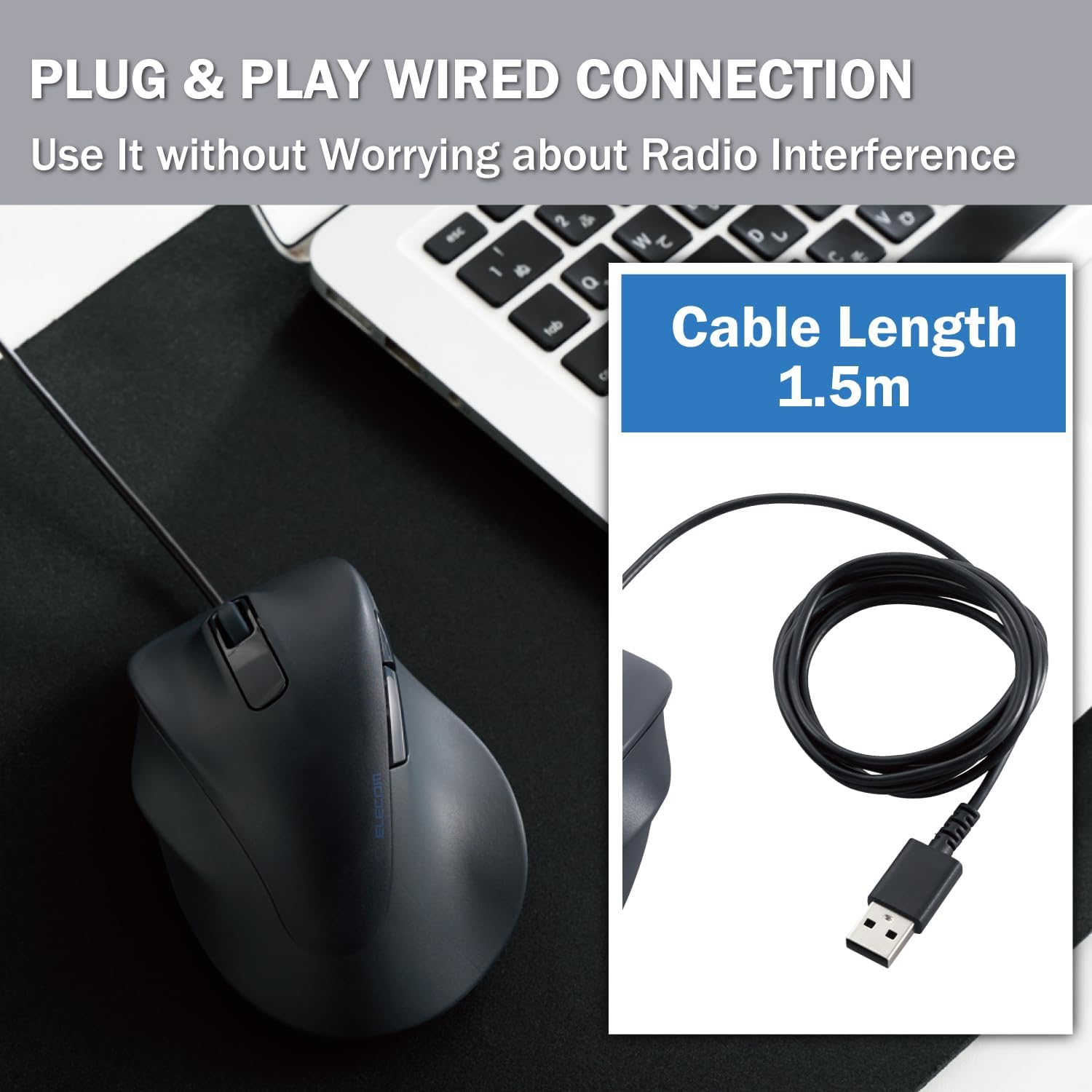
Image: Screenshot of the ELECOM Mouse Assistant software interface on a laptop, showing customization options for buttons and cursor speed.
5. Тэхнічнае абслугоўванне
- Уборка: Regularly wipe the mouse surface with a soft, dry cloth. For stubborn dirt, use a slightly damp тканінай і мяккім мылам, затым старанна высушыце. Пазбягайце агрэсіўных хімічных рэчываў або абразіўных матэрыялаў.
- Сыход за датчыкам: Для забеспячэння дакладнага адсочвання падтрымлівайце аптычны датчык на ніжняй частцы мышы ў чысціні і без пылу і смецця.
- Кабельнае кіраванне: Пазбягайце рэзкіх выгібаў або празмернага нацягвання USB-кабеля, каб пазбегнуць пашкоджанняў.
- захоўванне: Калі мыш не выкарыстоўваецца, захоўвайце яе ў чыстым, сухім месцы, удалечыні ад экстрэмальных тэмператур.
6. Выпраўленне непаладак
- Мышка не рэагуе:
- Пераканайцеся, што кабель USB надзейна падключаны да спраўнага порта USB.
- Try plugging the mouse into a different USB port or a different computer to rule out port or system issues.
- Перазагрузіце кампутар.
- Няправільны рух курсора:
- Ачысціце аптычны датчык у ніжняй частцы мышы.
- Пераканайцеся, што вы карыстаецеся мышшу на адпаведнай паверхні. Моцна адбівальныя або празрыстыя паверхні могуць паўплываць на адсочванне. Рэкамендуецца выкарыстоўваць кілімок для мышы.
- Кнопкі не працуюць:
- Check if the ELECOM Mouse Assistant software is installed and configured correctly. Reset settings to default if necessary.
- Test the mouse on another computer to determine if it's a hardware or software issue.
7. Тэхнічныя характарыстыкі
| Памеры прадукту | 4.72 х 3.11 х 2.28 цалі |
| Вага прадмета | 4.1 унцыі |
| Нумар мадэлі тавару | M-XGL31UBSKBK |
| Марка | ЭЛЕКАМ |
| Колер | Left-Hand Black |
| Тэхналогія падлучэння | USB (правадной) |
| Асаблівасць | Бясшумны перамыкач |
| Тэхналогія выяўлення руху | Аптычны |
8. Гарантыя і падтрымка
This ELECOM product comes with a Гарантыя 2 год. In the unlikely event of a product defect, ELECOM offers a product warranty for quality issues. Within 2 years of purchase, you may be eligible for a replacement of the defective product by applying for a return or exchange through the return/exchange request form on the official ELECOM USA website (elecomusa.com).
For more information regarding warranty terms, product support, or to download the ELECOM Mouse Assistant software, please visit the official ELECOM USA webсайт.