
1. Уводзіны
Welcome to the user manual for your new SGIN E10P 10-inch Kids Tablet. This guide provides essential information on setting up, operating, maintaining, and troubleshooting your device. Please read this manual thoroughly to ensure proper use and to maximize your tablet's features.
Што ў скрынцы
Пасля распакавання пераканайцеся, што ўсе пералічаныя ніжэй прадметы наяўныя:
- SGIN E10P Kids Tablet (with protective case)
- Кіраўніцтва карыстальніка
- USB-кабель Type-C
- Адаптар сілкавання (зарадная прылада)
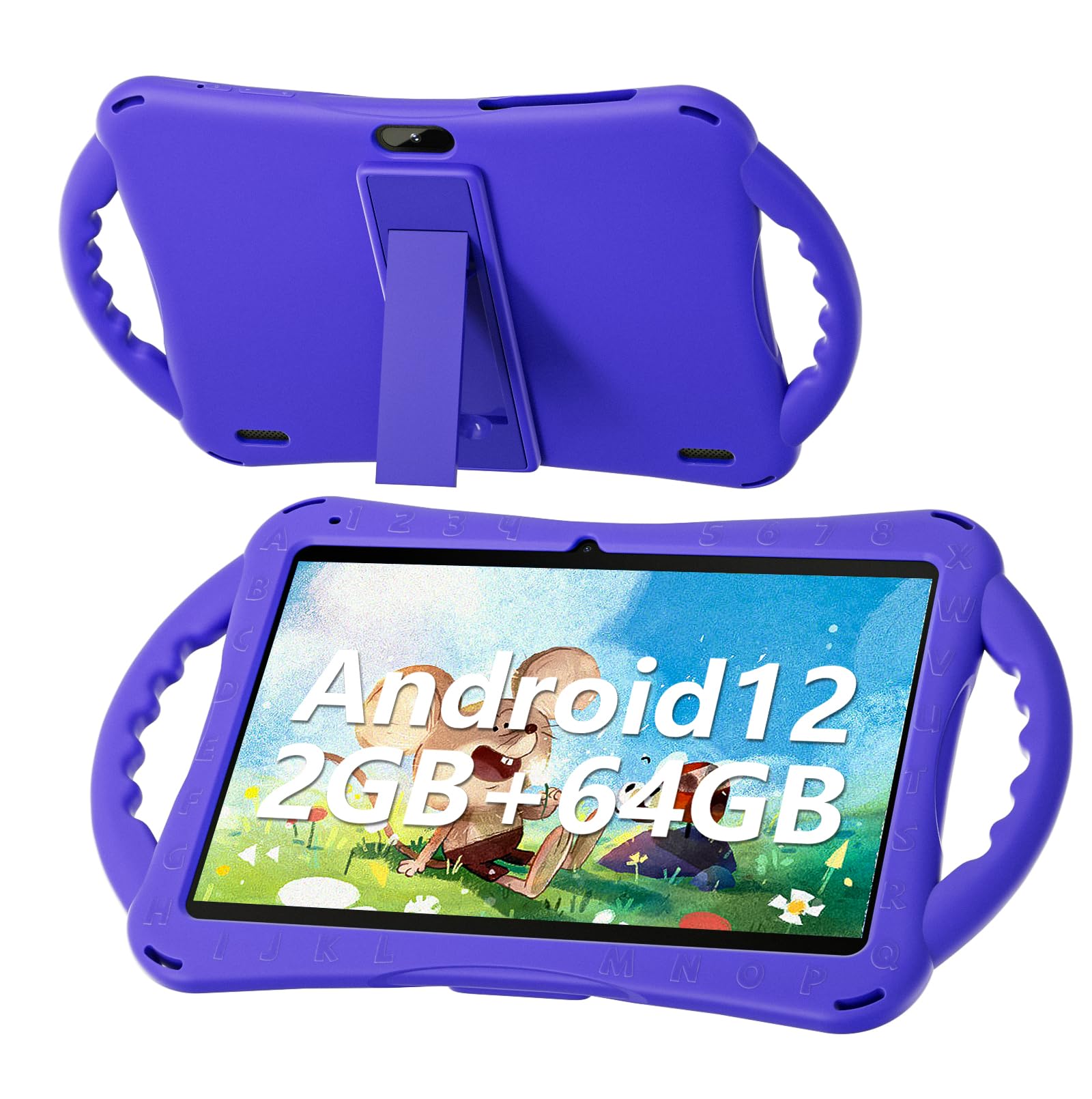
Figure 1: SGIN E10P Kids Tablet with its protective case.
2. Прадукт скончыўсяview
Familiarize yourself with the physical components of your SGIN E10P Kids Tablet.

Figure 2: Labeled diagram of the SGIN E10P Kids Tablet components.
- Пярэдняя камера: Для відэазванкоў і сэлфі.
- Задняя камера: Для здымкі фота і відэа.
- Дакладчыкі: Аўдыё выхад.
- Порт тыпу C: Для зарадкі і перадачы дадзеных.
- Слот TF карты: Для пашырэння памяці з дапамогай карты microSD.
- Раз'ём для навушнікаў: Для падключэння правадных навушнікаў.
- Павялічыць гучнасць: Button to raise the audio level.
- Паменшыць гучнасць: Button to lower the audio level.
- Bracket (Kickstand): Integrated stand for hands-free viewінж.
- Armrest (Handle): Ergonomic handles on the protective case for easy gripping.
3. Настройка
3.1 Зарадка планшэта
Before first use, fully charge the tablet. Connect the USB Type-C cable to the tablet's Type-C port and the other end to the power adapter. Plug the power adapter into a wall outlet. The battery indicator on the screen will show charging status. A full charge typically takes several hours.
3.2 Уключэнне/выключэнне
- Каб уключыць: Press and hold the Power button (usually located on the side or top edge) until the SGIN logo appears on the screen.
- Каб выключыць: Press and hold the Power button until a menu appears. Select "Power off" from the options.
- Каб перазапусціць: Press and hold the Power button until a menu appears. Select "Restart" from the options.
3.3 Пачатковая налада
The first time you power on the tablet, you will be guided through an initial setup process:
- Выбар мовы: Выберыце пераважную мову.
- Падключэнне Wi-Fi: Выберыце сваю сетку Wi-Fi і ўвядзіце пароль для падключэння да Інтэрнэту.
- Уліковы запіс Google: Sign in with an existing Google account or create a new one. This is necessary for downloading apps from the Google Play Store.
- Дата і час: Усталюйце правільную дату і час або дазвольце сетцы ўсталяваць іх аўтаматычна.
- Бацькоўскі кантроль: Configure Google Kids Space or other parental control features to manage content and screen time for children.
4. Кіраванне планшэтам
4.1 Асноўная навігацыя
The SGIN E10P tablet uses a touch-sensitive screen for navigation:
- Націсніце: Дакраніцеся да экрана адзін раз, каб адкрыць праграму, выбраць элемент або націснуць кнопку.
- Націсніце і ўтрымлівайце: Націсніце і ўтрымлівайце элемент, каб атрымаць доступ да дадатковых опцый або перамясціць яго.
- Правядзіце пальцам: Правядзіце пальцам па экране, каб пракручваць старонкі або спісы.
- Звядзенне пальцамі для павелічэння: Пакладзеце два пальцы на экран і развядзіце іх, каб павялічыць маштаб, або разам, каб паменшыць маштаб.
4.2 Падключэнне да Wi-Fi
To connect or manage Wi-Fi networks:
- Перайсці да Налады > Сетка і інтэрнэт > Wi-Fi.
- Уключыць/выключыць Wi-Fi On.
- Выберыце патрэбную сетку са спісу і ўвядзіце пароль, калі будзе прапанавана.

Figure 3: The tablet supports both 2.4GHz and 5GHz Wi-Fi for stable connections.
4.3 Applications and Content
The tablet runs on Android 12 and comes with access to the Google Play Store, allowing you to download a wide range of applications. It is pre-configured for children's use, supporting apps like YouTube Kids, educational games, and other child-friendly content.

Figure 4: The Android 12 interface with various pre-installed and downloadable kids' apps.
4.4 Бацькоўскі кантроль
Utilize the built-in parental control features to manage your child's tablet experience. This includes setting screen time limits, filtering content, and approving app downloads. Access these settings through the Google Family Link app or directly in the tablet's settings under "Digital Wellbeing & parental controls."
5. Тэхнічнае абслугоўванне
5.1 Ачыстка
- экран: Выкарыстоўвайце мяккую тканіну без ворса, спецыяльна прызначаную для электронікі. Для ўстойлівых плям злёгку працярыцеampпрацярыце тканіну вадой або растворам для чысткі экранаў (не распыляйце непасрэдна на экран).
- Справа: The silicone protective case can be wiped with a damp cloth and mild soap if necessary. Ensure it is completely dry before reattaching it to the tablet.
- парты: Keep all ports (USB-C, headphone jack, TF card slot) free of dust and debris. Use a soft brush or compressed air if needed.
5.2 Сыход за акумулятарам
The tablet is equipped with a 5000mAh battery, providing extended usage time.

Figure 5: The tablet features a 5000mAh battery for prolonged use.
- Пазбягайце экстрэмальных тэмператур, бо яны могуць пагоршыць тэрмін службы батарэі.
- Выкарыстоўвайце толькі зарадную прыладу і кабель, якія ўваходзяць у камплект, каб пазбегнуць пашкоджанняў.
- Для аптымальнага тэрміну службы батарэі пазбягайце частай поўнай разрадкі батарэі або працяглага захоўвання яе зараджанай на 100%.
5.3 Захоўванне
Store the tablet in a cool, dry place away from direct sunlight and moisture when not in use.
6. Выпраўленне непаладак
This section addresses common issues you might encounter with your SGIN E10P tablet.
6.1 Планшэт не ўключаецца
- Ensure the tablet is sufficiently charged. Connect it to the charger for at least 30 minutes before attempting to power it on again.
- Націсніце і ўтрымлівайце кнопку харчавання на працягу 10-15 секунд, каб выканаць прымусовы перазапуск.
6.2 Праблемы з падключэннем да Wi-Fi
- Check if Wi-Fi is enabled in the tablet's settings.
- Verify that your Wi-Fi router is working correctly and other devices can connect.
- Forget the network in the tablet's Wi-Fi settings and reconnect.
- Restart both the tablet and your Wi-Fi router.
6.3 Збоі або завісанні праграм
- Зачыніце і зноў адкрыйце праграму.
- Ачысціце кэш і дадзеныя праграмы ў Налады > Праграмы > [Назва праграмы] > Сховішча і кэш.
- Ensure the app is updated to its latest version via the Google Play Store.
- Перазапусціце планшэт.
6.4 Павольная праца
- Зачыніце непатрэбныя фонавыя праграмы.
- Clear cached data from apps and the system.
- Ensure there is sufficient storage space available. Delete unused apps or files.
- Consider performing a factory reset as a last resort (Заўвага: This will erase all data on the tablet. Back up important fileспачатку).
7. Тэхнічныя характарыстыкі
Key technical specifications for the SGIN E10P Kids Tablet:
| Асаблівасць | Спецыфікацыя |
|---|---|
| Марка | SGIN |
| Нумар мадэлі | E10P |
| Памер экрана | 10 цалі |
| Дазвол экрана | 1280 х 800 |
| Працэсар | 1.5 GHz Allwinner Quad-core A133 |
| АЗП | 2 ГБ |
| Захоўванне (ROM) | 64 ГБ |
| Сховішча з магчымасцю пашырэння | TF Card Slot (for additional expansion) |
| Аперацыйная сістэма | Android 12 |
| Тыл WebДазвол камеры | 5 МП |
| Пярэдняя камера | 2 МП |
| Ёмістасць батарэі | 5000 мАг |
| Сувязь | 2.4G/5G WiFi, Bluetooth 4.2 |
| Памеры (ДхШхВ) | 10.1 х 6 х 0.4 цалі |
| Вага прадмета | 2.27 фунта |
8. Гарантыя і падтрымка
SGIN provides a 1-year maintenance period from the date of purchase for this product. If you encounter any issues or require assistance, please contact SGIN customer support.
For further support, please refer to the contact information provided with your purchase documentation or visit the official SGIN webсайт.