
1. Прадукт скончыўсяview
The Otcboimo Zigbee Relay Switch Module is a versatile 2-channel smart relay designed for remote control of various electrical devices. It operates on Zigbee 3.0 protocol and requires a compatible Zigbee gateway, such as a Tuya Zigbee hub, Samsung SmartThings hub, or select Amazon Echo devices, for full functionality. This module provides dry contact outputs, making it suitable for automating garage door openers, lamps, roller blinds, and other AC/DC motors.

Малюнак 1: Спераду view of the Otcboimo Zigbee Relay Switch Module, showing input and output terminals, mode buttons, and model information.
Key features include APP remote control, voice control compatibility with Alexa and Google Home (via Tuya Zigbee hub), timing functions, and sharing capabilities. It supports three working modes: self-locking, inching, and locking mode, and can be powered via USB 5V or AC 85-250V/DC 7V-32V.
2. Тэхнічныя характарыстыкі
| Параметр | Каштоўнасць |
|---|---|
| Уваходны кнtage | USB 5V or DC/AC 7V-32V |
| Тып вываду | Passive Output (Dry Contact), NC NO COM |
| Макс. Ток | 10A per gang (2200W total) |
| бесправадной стандарт | Zigbee 3.0 |
| Працоўная тэмпература | -20℃ да 70℃ |
| Памеры прадукту | 1.5 х 0.9 х 4.7 цалі |
| Матэрыял | Aluminum (Contact Material) |
| Тып раздыма | USB |
| Тып мацавання | Through Hole Mount |
3. Настройка і ўстаноўка
3.1 Перадумовы
- A compatible Zigbee gateway (e.g., Tuya Zigbee hub, Samsung SmartThings hub, Amazon Echo Plus/Show 2nd Gen). Note: This device is not compatible with Sonoff Zigbee Bridge.
- Appropriate wiring for your application (e.g., linear motor, lamp, AC motor).
- Basic electrical knowledge for safe installation.
3.2 Электронныя схемы
The relay provides passive dry contact outputs (NC, NO, COM). The power supply input (USB 5V or AC/DC 7V-32V) is solely for powering the module's internal PCBA and does not provide output power. You must add an input power supply at the output side for the connected device.

Figure 2: Wiring the Zigbee Relay Module with a Linear Motor. Ensure to set the interlock mode using the mode button for this application.

Figure 3: Wiring the Zigbee Relay Module with a Lamp. This diagram illustrates both normally closed (NC) and normally open (NO) connections for self-locking operation.
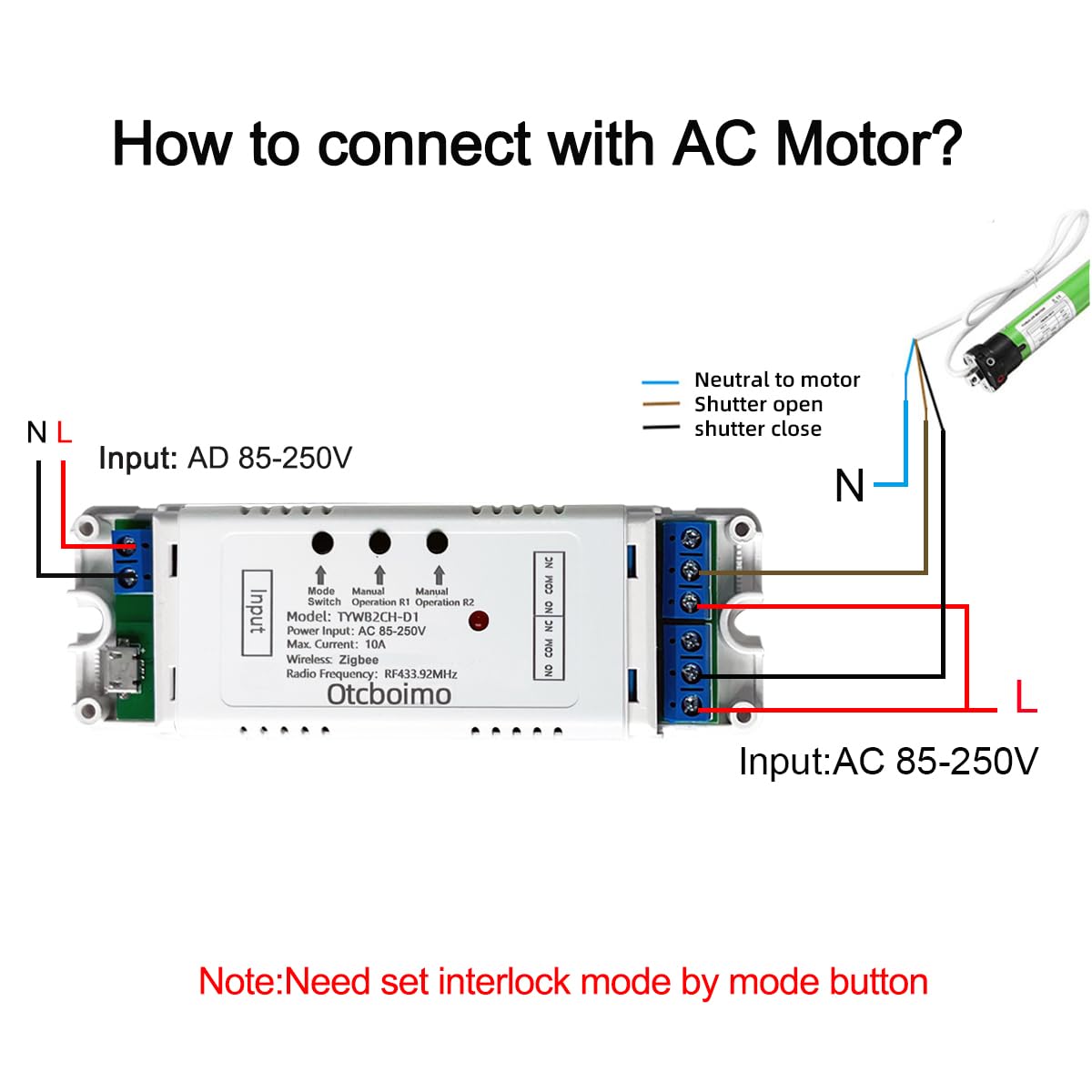
Figure 4: Wiring the Zigbee Relay Module with an AC Motor. For this setup, the interlock mode must be configured via the mode button.
3.3 Initial Pairing with Zigbee Hub
The device requires a Zigbee hub for smart functionality. It can connect directly to Samsung SmartThings hubs and specific Amazon Echo models (Echo Plus ZE39KL, Echo Show 2nd Gen DW84JL, Echo Plus 2nd Gen L9D29R) without an additional Tuya Zigbee hub.
- Пераканайцеся, што ваш Zigbee-хаб уключаны і знаходзіцца ў рэжыме спалучэння.
- Power on the Zigbee Relay Switch Module.
- Follow the pairing instructions specific to your Zigbee hub (e.g., Tuya APP, SmartThings APP, Alexa APP) to discover and add the device.
Note: If using the Tuya APP, a Tuya Zigbee hub is required.
4. Інструкцыя па эксплуатацыі
4.1 рэжыму працы
The module supports three working modes: Самоблокирующийся, Двухразовы, і Рэжым блакіроўкі. These modes can be configured using the physical mode button on the device. Refer to the device's labeling for specific button presses to cycle through modes.
- Самаблакіроўка: Each press of the button (or command) toggles the relay state (ON/OFF).
- Inching (Momentary): The relay turns ON for a brief period (e.g., 1 second) and then automatically turns OFF. This is ideal for applications like garage door openers.
- Locking Mode (Interlock): When one relay is ON, the other relay is forced OFF. This is typically used for controlling motors with forward/reverse functionality.
4.2 RF433MHz Remote Control (Optional)
The module supports RF433MHz remote control for local operation. Note: The 433MHz frequency may not be legal for remote control devices in all regions, particularly the United States, where 315MHz is more common. Verify local regulations before relying on this feature.

Figure 5: Remote Control Modification for RF433MHz Pairing. Ensure the device is set to inching mode for this application.
Pairing RF433MHz Remote Controller:
- Press the RF433 pairing button on the device for 3 seconds.
- Wait until the blue LED indicator turns on.
- Press any button on your RF433MHz remote controller. The device should now be paired.
Clearing RF433MHz Pairing:
- Press the RF433 pairing button for 8 seconds.
- Wait until the blue LED indicator turns off. This indicates that all RF433MHz pairings have been cleared.
4.3 Дыстанцыйнае кіраванне праз праграму
Once paired with a compatible Zigbee hub and its associated application (e.g., Tuya APP, SmartThings APP), you can remotely control the relay module from anywhere with an internet connection. This allows for automation of various devices like garage door openers, lights, and motors.
4.4 Галасавое кіраванне
When connected via a Tuya Zigbee hub, the module is compatible with Amazon Alexa and Google Assistant. You can use voice commands to turn connected appliances on or off.
- Ensure your Tuya Zigbee hub is linked to your Alexa or Google Home account.
- Discover new devices through the Alexa or Google Home app.
- Use commands such as "Alexa, turn on [device name]" or "Hey Google, turn off [device name]".
4.5 Timing and Sharing
- Час: Set schedules within the Tuya or SmartThings app to automatically turn devices on or off based on your daily habits.
- Абмен: Share control of the device with family members through the app, allowing multiple users to manage connected appliances.
5. Тэхнічнае абслугоўванне
The Otcboimo Zigbee Relay Switch Module is designed for low maintenance. Keep the device clean and free from dust. Ensure proper ventilation around the module to prevent overheating, especially when operating at maximum load. Avoid exposing the device to extreme temperatures or moisture beyond its specified operating conditions.
Regularly check wiring connections to ensure they remain secure. If the device is installed in an environment with significant temperature fluctuations, periodically inspect for any signs of wear or damage to the casing or terminals.
6. Выпраўленне непаладак
- Device not responding/offline:
- Ensure the module is powered correctly (USB 5V or AC/DC 7V-32V).
- Пераканайцеся, што ваш Zigbee-хаб падключаны да Інтэрнэту і працуе правільна.
- Check the distance between the module and the Zigbee hub. Obstacles or excessive distance can weaken the signal.
- Attempt to re-pair the device with your Zigbee hub if connection issues persist.
- Не магу падключыцца да Wi-Fi:
- This device operates on Zigbee protocol, not Wi-Fi. It requires a Zigbee hub to function. It cannot directly connect to a Wi-Fi network.
- RF433MHz remote control not working:
- Ensure the module is in the correct working mode (e.g., inching mode for some remote applications).
- Verify that the remote control is paired correctly (refer to Section 4.2).
- Check the battery in your RF433MHz remote control.
- Be aware of regional frequency regulations; 433MHz may not be optimal or legal in all areas (e.g., USA).
- USB port connection issues:
- Some units may have a slightly misaligned USB port. If you experience difficulty inserting the USB cable, gently adjust the cable or consider using the screw terminal input for power.
7. Гарантыя і падтрымка
For warranty information and technical support, please refer to the purchase platform or contact Otcboimo customer service directly. Keep your purchase receipt as proof of purchase.
For integration with third-party platforms like Tuya, Samsung SmartThings, Amazon Alexa, or Google Home, please refer to the respective platform's support documentation and community forums for assistance with specific configurations or advanced automations.