
Уводзіны
This manual provides instructions for the installation, operation, and maintenance of the Generic MTU Diagnostic Kit USB-to-CAN Diasys 2.72. This kit is designed for communicating with various MTU controllers, RCS-5 Remote Control Systems, and MCS-5 Monitoring and Control Systems, facilitating diesel engine truck diagnosis. Please read this manual thoroughly before using the product.
Настройка
1. Камплектуючыя
The MTU Diagnostic Kit includes the following items:
- MTU DiaSys 2.72 Software
- USB-to-CAN Adapter (Ixxat USB-to-CAN V2 compact)
- MDEC Cable (for ECU2, 4, etc.)
- ADEC Cable (for ECU 7, 8, 9)
- Additional diagnostic cables and adapters

Малюнак 1: Закончанаview of the MTU Diagnostic Kit components.
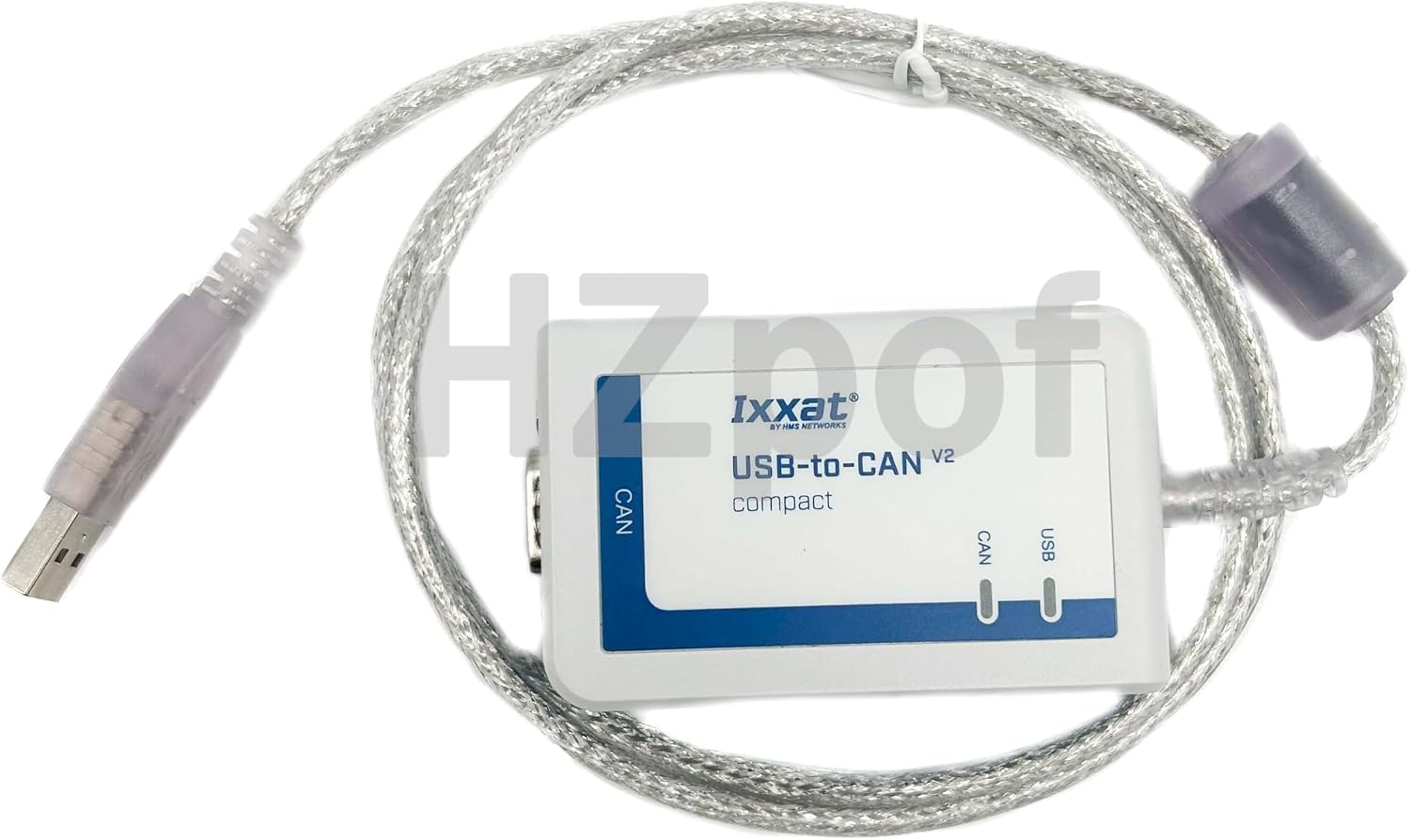
Figure 2: The Ixxat USB-to-CAN V2 compact adapter.
2. Сістэмныя патрабаванні
The DiaSys 2.72 software requires a computer running Windows 10 64-bit Professional version.
3. Ўстаноўка праграмнага забеспячэння
- Insert the software installation media (if provided) or run the installer file for MTU DiaSys 2.72.
- Follow the on-screen prompts to complete the installation. Ensure all necessary drivers for the USB-to-CAN adapter are installed during this process.
- Upon successful installation, restart your computer if prompted.
4. Апаратнае падключэнне
- Connect the USB-to-CAN adapter to an available USB port on your computer.
- Connect the appropriate diagnostic cable (MDEC or ADEC) from the USB-to-CAN adapter to the diagnostic port of the MTU controller on the diesel engine or system. Refer to your engine's service manual for the exact location of the diagnostic port.
- Перш чым працягнуць, пераканайцеся, што ўсе злучэнні надзейныя.
Інструкцыя па эксплуатацыі
1. Launching DiaSys Software
- Double-click the DiaSys 2.72 icon on your desktop or find it in the Start Menu to launch the application.
- The DiaSys splash screen will appear, indicating the software version.

Figure 3: DiaSys Version 2.72 startup screen.
2. Selecting Controller Type
- Once the software loads, you will be presented with a screen to select the type of unit (ECU) you wish to diagnose.
- Choose the appropriate ECU type from the list (e.g., ECU-4, ADEC-Uni, ECU-7, ECU-8).

Figure 4: DiaSys 'Select type of unit' interface.
3. Асноўныя функцыі
The DiaSys software enables communication with MTU controllers, RCS-5 Remote Control Systems, and MCS-5 Monitoring and Control Systems. Its main features include:
- Абмен дадзенымі: Facilitates data exchange with central databases.
- Controller Parameter Setting: Allows for adjustment and configuration of controller parameters.
- Запіс дадзеных: Supports recording of operational data for analysis.

Figure 5: DiaSys 'Available functions' for ECU-7, showing options for data link, recording, and export.
4. Падтрымліваюцца мовы
The DiaSys software supports нямецкі і англійская мовы.
5. Important Note on ECU9 Support
Please be aware that DiaSys software version 2.72 does not support ECU9. For ECU9 compatibility, software version 2.75 or higher is required. If you need support for ECU9, please contact the seller for information on obtaining the 2.75 software version, which may involve additional fees.
Тэхнічнае абслугоўванне
1. Агульны догляд
- Keep the USB-to-CAN adapter and cables clean and free from dust and moisture.
- Store the kit in a dry, cool place when not in use.
- Avoid bending or crimping the cables excessively to prevent internal damage.
2. Абнаўленне праграмнага забеспячэння
Periodically check for software updates, especially if you encounter compatibility issues with newer MTU controllers or require support for specific ECU versions (e.g., ECU9). Updates may provide enhanced features and improved performance.
Ліквідацыю непаладак
1. Праблемы з падключэннем
- Ensure the USB-to-CAN adapter is securely connected to your computer's USB port.
- Verify that the diagnostic cable is correctly attached to both the adapter and the MTU controller.
- Check the LED indicators on the USB-to-CAN adapter for connection status.
- Confirm that the necessary drivers for the USB-to-CAN adapter are installed and up-to-date in your Windows 10 64-bit Professional system.
2. Software Not Launching or Functioning
- Ensure your operating system is Windows 10 64-bit Professional. Other versions may not be supported.
- Reinstall the DiaSys software if you suspect a corrupted installation.
- Verify that no other diagnostic software is interfering with DiaSys.
3. ECU9 Compatibility
As noted in the Operating section, DiaSys 2.72 does not support ECU9. If you are attempting to diagnose an ECU9 controller, you will need to acquire DiaSys version 2.75 or higher.
4. Дадатковая дапамога
If you encounter issues not covered in this section, please refer to the Support section for contact information.
Тэхнічныя характарыстыкі
- Марка: Радавыя
- мадэль: MTU Tool with Software
- Версія праграмнага забеспячэння: DiaSys 2.72
- Падтрымоўваная аперацыйная сістэма: Windows 10 64-разрадная прафесійная
- Уключаныя кампаненты: MTU DiaSys 2.72 software, USB-to-CAN adapter, MDEC Cable, ADEC Cable, other diagnostic cables.
Інфармацыя аб гарантыі
Гэты прадукт пастаўляецца з a Гарантыя ад вытворцы 1 годКалі ласка, захавайце пацвярджэнне пакупкі для прэтэнзій па гарантыі. Гарантыя распаўсюджваецца на дэфекты матэрыялаў і вырабу пры нармальным выкарыстанні.
Падтрымка
For any technical assistance, questions, or issues regarding your MTU Diagnostic Kit, please contact our support team:
электронная пошта: kkumkomi@gmail.com
Please note that due to the technical complexity of software installation, we provide one free software installation service. Subsequent installations, regardless of the reason, may incur additional fees. We guarantee that the initial free software installation will be fully functional.