
1. Уводзіны
This manual provides instructions for the Macally Wired Keyboard for Mac with an integrated USB Hub (Model: UCAMINIZHUB). This compact keyboard is designed for Apple computers, offering a familiar MacOS layout, convenient shortcut keys, and a built-in 3-port USB hub for connecting additional peripherals. Its 2-in-1 USB-C and USB-A plug ensures broad compatibility.

Выява: Зверхуview of the Macally Wired Keyboard for Mac, showcasinдзякуючы кампактнаму дызайну і інтэграванаму кабелю.
2. Настройка
2.1 Змест пакета
- Macally Wired Keyboard (UCAMINIZHUB)
- Кіраўніцтва карыстальніка (гэты дакумент)
2.2 Падключэнне клавіятуры
- Locate the integrated USB cable on the Macally keyboard. This cable features a unique 2-in-1 plug, allowing connection to either a USB-A or USB-C port.
- Connect the appropriate end of the keyboard's USB cable to an available USB-A or USB-C port on your Mac computer (MacBook Pro/Air, Mac mini, iMac).
- Your Mac should automatically detect the keyboard. Follow any on-screen prompts to identify the keyboard type if necessary. No additional drivers are required for basic functionality.

Выява: Крупны план view of the keyboard's 2-in-1 USB-A and USB-C plug, demonstrating its versatility for different port types.
3. Аперацыя
3.1 MacOS Layout and Shortcut Keys
The Macally UCAMINIZHUB keyboard features a 78-key MacOS layout, providing a familiar typing experience for Mac users. It includes 12 convenient shortcut keys for quick access to common functions such as screen brightness, volume control, media playback, and Mission Control.
- F1-F2: Рэгуляванне яркасці экрана
- F3: Кантроль місіі
- F4: Стартавая пляцоўка
- F7-F9: Media Playback Controls (Previous, Play/Pause, Next)
- F10-F12: Volume Control (Mute, Volume Down, Volume Up)

Image: The Macally keyboard positioned next to an iMac, highlighting its MacOS-specific layout and shortcut keys.
3.2 Integrated USB Hub
The keyboard includes a built-in 3-port USB hub, consisting of two USB-C ports and one USB-A port. This allows you to connect additional peripherals directly to your keyboard, such as a mouse, flash drive, or external hard drive, providing convenient access and reducing cable clutter.
- 2x USB-C Ports: For connecting USB-C compatible devices.
- 1x USB-A Port: For connecting standard USB-A compatible devices.
To use the USB hub, simply plug your peripheral devices into the available ports on the side of the keyboard.

Выява: буйны план view of the side of the Macally keyboard, clearly showing the integrated USB-C and USB-A ports of the built-in hub.
3.3 Scissor Switch Keys
The keyboard utilizes scissor-switch key technology, providing a tactile and responsive typing experience similar to Apple's native keyboards. This design ensures comfortable and efficient typing.
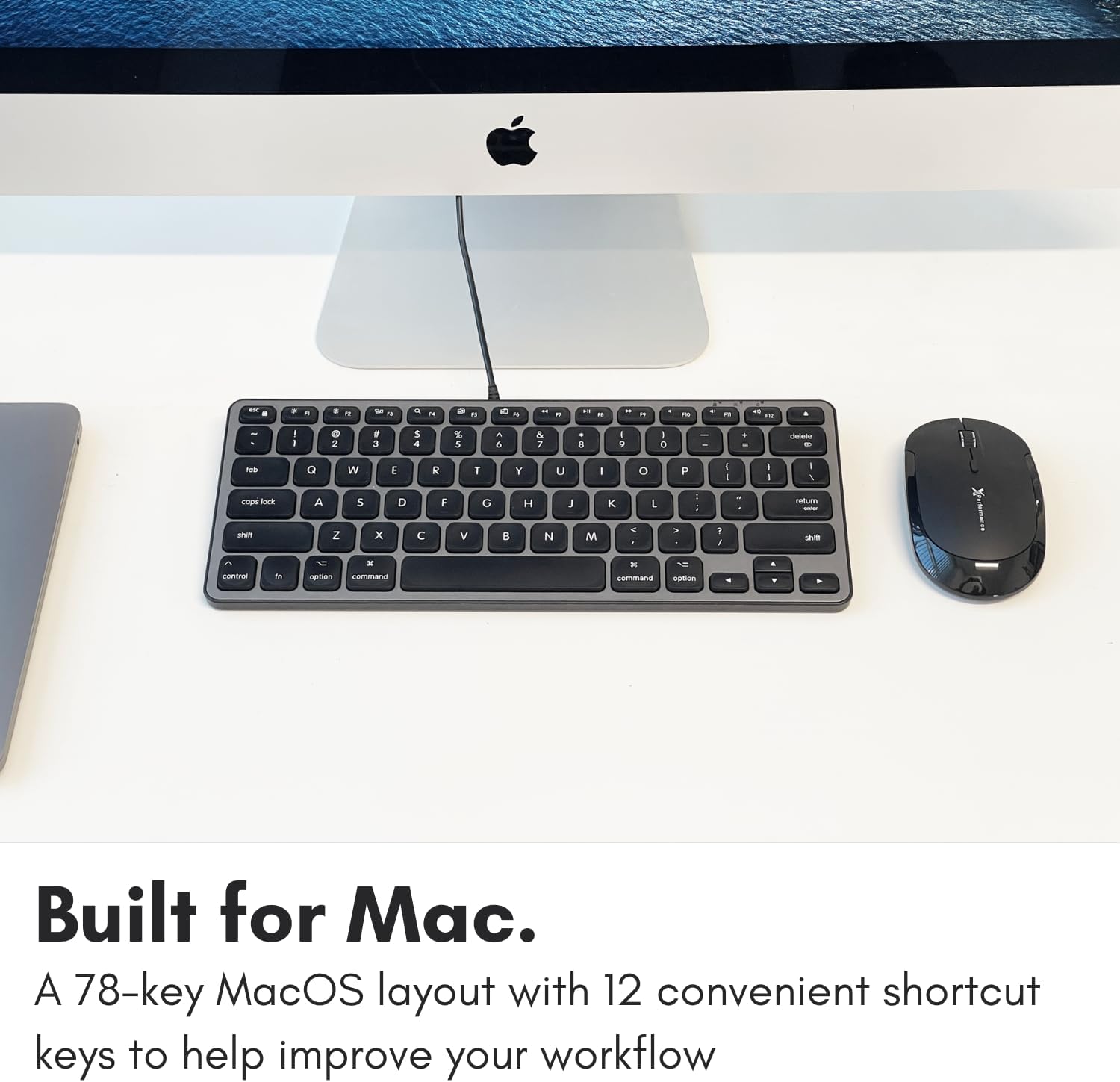
Image: A close-up of the keyboard keys, illustrating the low-profile design and keycap structure indicative of scissor-switch technology.
3.4 Эрганоміка і партатыўнасць
The keyboard features an integrated kickstand that angles the keyboard slightly, enhancing typing comfort. Its compact size makes it suitable for various desk setups and easy to transport.
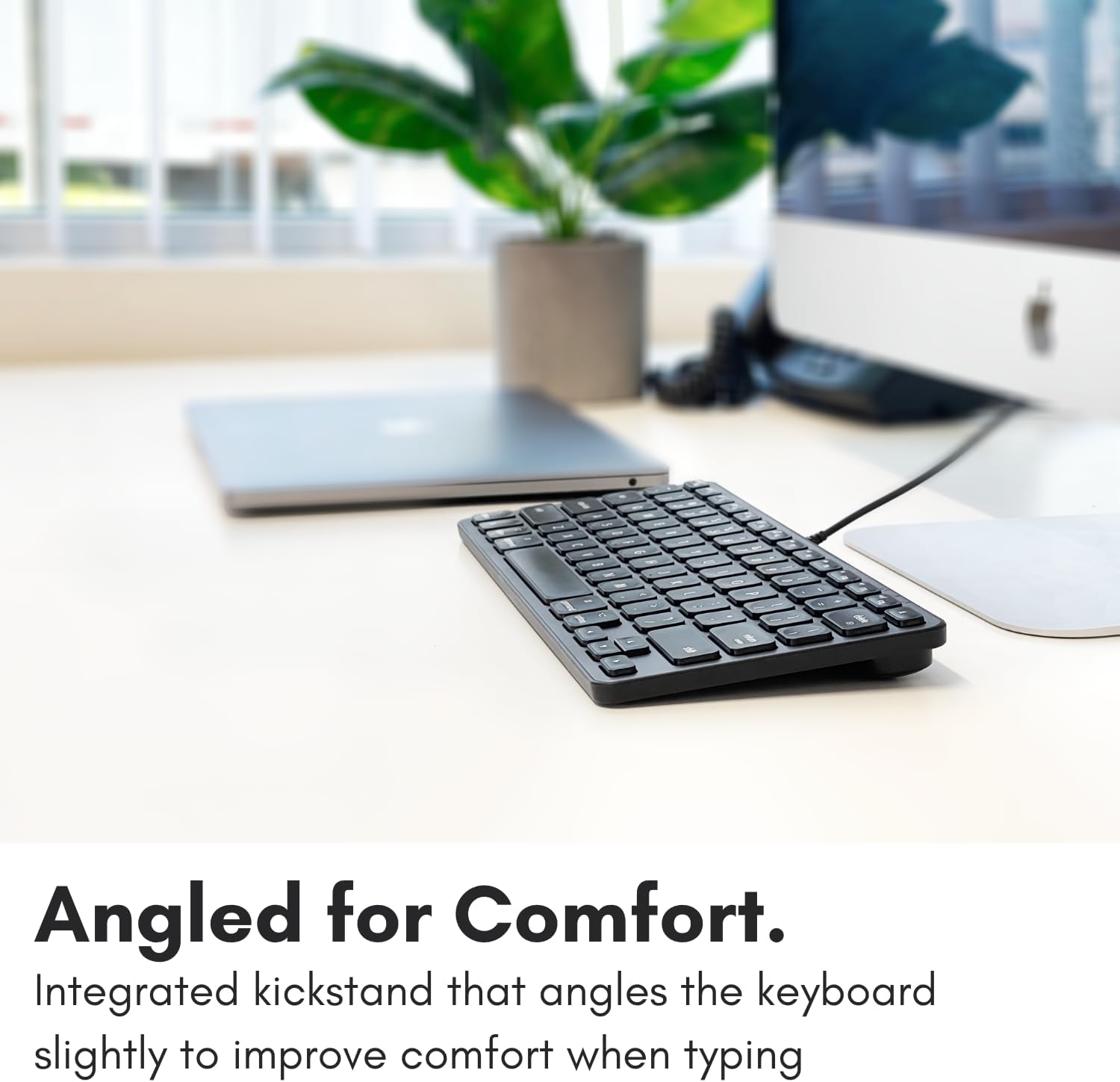
Image: The Macally keyboard shown from a side angle, highlighting the slight incline provided by its integrated kickstand for ergonomic typing.

Image: The compact Macally keyboard on a desk, demonstrating how its small footprint helps save desk space.
4. Тэхнічнае абслугоўванне
To ensure the longevity and optimal performance of your Macally keyboard, follow these maintenance guidelines:
- Уборка: Выкарыстоўвайце мяккую безворсовую тканіну, злёгку dampпрацярыце паверхню клавіятуры вадой або мяккім ачышчальным растворам. Пазбягайце агрэсіўных хімічных рэчываў, абразіўных ачышчальнікаў або празмернай вільгаці.
- Выдаленне пылу: Выкарыстоўвайце сціснутае паветра, каб выдаліць пыл і смецце паміж клавішамі.
- захоўванне: Калі клавіятура не выкарыстоўваецца, захоўвайце яе ў чыстым, сухім месцы, удалечыні ад экстрэмальных тэмператур і прамых сонечных прамянёў.
- Сыход за кабелем: Пазбягайце празмернага згінання або абціскання кабеля USB, каб пазбегнуць пашкоджанняў.
5. Выпраўленне непаладак
If you encounter issues with your Macally keyboard, refer to the following common troubleshooting steps:
- Клавіятура не адказвае:
- Ensure the USB cable is securely connected to your Mac's USB-A or USB-C port.
- Паспрабуйце падключыць клавіятуру да іншага USB-порта на вашым Mac.
- Restart your Mac computer.
- Check System Settings/Preferences > Keyboard to ensure the keyboard is recognized and configured correctly.
- USB-канцэнтратар не працуе:
- Пераканайцеся, што сама клавіятура правільна падключана і працуе.
- Verify that the peripheral device connected to the hub is working correctly when plugged directly into your Mac.
- Some high-power devices may require direct connection to your Mac or a powered USB hub. The keyboard's hub is designed for low-power peripherals.
- Shortcut Keys Not Working:
- Ensure your Mac's operating system is up to date.
- Check System Settings/Preferences > Keyboard > Keyboard Shortcuts to ensure no conflicts exist.
6. Тэхнічныя характарыстыкі
| Нумар мадэлі | UCAMINIZHUB |
| Тэхналогія падлучэння | Правадны (USB-A, USB-C) |
| Сумяшчальныя прылады | MacBook Pro/Air, Mac mini, iMac, Laptop, PC, Smartphone, Tablet (with appropriate USB port) |
| Раскладка клавіятуры | 78-key MacOS layout with 12 shortcut keys |
| Тып ключа Пераключальнік | Нажніцы |
| Інтэграваны USB-канцэнтратар | 2x USB-C ports, 1x USB-A port |
| Памеры прадукту | 11.81 х 5.91 х 0.79 цалі (30 х 15 х 2 см) |
| Вага прадмета | 1.08 фунта (0.49 кг) |
| Матэрыял | Метал, пластык |
| Колер | Чорны |
7. Гарантыя і падтрымка
Macally products are designed for reliability and performance. This product comes with a 2-гадовая абмежаваная гарантыя з дня пакупкі.
For technical support, warranty claims, or further assistance, please contact Macally customer support. US-based support is available to assist you with any questions or issues you may have.
Please visit the official Macally website for the most current contact information and support resources: www.macally.com