
A4TECH FG20
A4TECH FG20 2.4G Wireless Mouse User Manual
Model: FG20 | Brand: A4TECH
Уводзіны
This manual provides comprehensive instructions for the setup, operation, maintenance, and troubleshooting of your A4TECH FG20 2.4G Wireless Mouse. Please read this manual carefully before using the product to ensure optimal performance and longevity.
Змест пакета
- A4TECH FG20 2.4G Wireless Mouse
- USB нана прыёмнік
- AA Battery (may be pre-installed or included separately)
- Кіраўніцтва карыстальніка (гэты дакумент)
Кіраўніцтва па ўстаноўцы
Follow these steps to set up your A4TECH FG20 Wireless Mouse:
- Усталюйце акумулятар: Locate the battery compartment on the underside of the mouse. Open the cover and insert the AA battery, ensuring the polarity (+/-) matches the diagram inside the compartment. Close the battery cover securely.
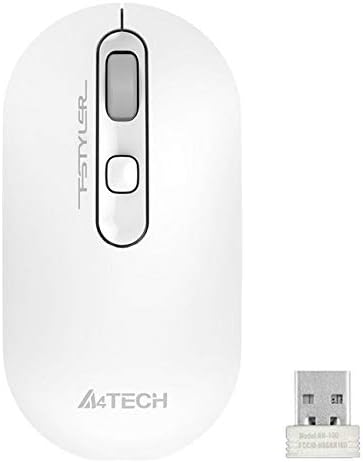
Image: A4TECH FG20 Wireless Mouse shown alongside its USB Nano Receiver. This illustrates the two main components required for operation.
- Падключыце USB Nano Receiver: Remove the USB Nano Receiver from its storage slot, usually located within the battery compartment or near it. Plug the receiver into an available USB port on your computer.

Image: A schematic diagram depicting the wireless connection between the mouse and a computer via the USB receiver. This visual aid helps understand the connection process.
- Уключэнне мышы: If your mouse has an On/Off switch, slide it to the "On" position. The mouse should automatically connect to the receiver.
- Ўстаноўка драйвера: Your computer's operating system (Windows, Linux) should automatically detect and install the necessary drivers. No manual driver installation is typically required.
Інструкцыя па эксплуатацыі
The A4TECH FG20 Wireless Mouse is designed for intuitive use. Here are its primary functions:
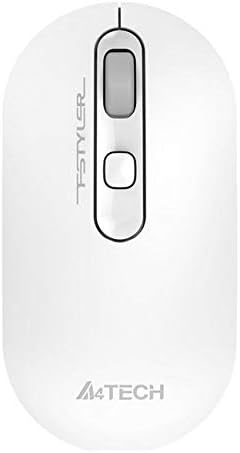
Выява: зверху ўніз view of the A4TECH FG20 Wireless Mouse, highlighting its ergonomic shape and button layout.
- Пстрычка левай кнопкай мышы: Выкарыстоўваецца для выбару элементаў, адкрыцця fileі актывуючыя функцыі.
- Пстрыкніце правай кнопкай мышы: Адкрывае кантэкстныя меню з дадатковымі опцыямі для выбраных элементаў.
- Кола пракруткі: Пракручвайце дакументы ўверх або ўніз і web pages. The scroll wheel can also function as a middle click button.
- Кнопка рэгулявання DPI: (If applicable, typically located near the scroll wheel) This button allows you to cycle through different cursor speeds (DPI settings) to suit your preference and task.
- Эрганамічны дызайн: The mouse features an ergonomic design for comfortable use during extended periods.
Тэхнічнае абслугоўванне
Proper maintenance ensures the longevity and performance of your mouse:
- Уборка: Выкарыстоўвайце мяккую сухую тканіну для чысткі паверхні мышы. Для выдалення ўстойлівага бруду злёгкуampПрацярыце тканіну вадой або мяккім ачышчальным растворам. Пазбягайце агрэсіўных хімічных рэчываў або абразіўных матэрыялаў.
- Ачыстка датчыка: Occasionally, clean the optical sensor on the underside of the mouse with a cotton swab to ensure accurate tracking.
- Замена батарэі: When the mouse performance degrades or it stops responding, replace the AA battery with a fresh one.
- захоўванне: When not in use for extended periods, turn off the mouse to conserve battery life. Store the USB Nano Receiver in its designated slot to prevent loss.
Ліквідацыю непаладак
If you encounter issues with your A4TECH FG20 Wireless Mouse, refer to the following common solutions:
- Мышка не рэагуе:
- Пераканайцеся, што мыш уключана.
- Праверце, ці правільна ўсталяваны акумулятар і ці дастаткова ён зараджаны. Пры неабходнасці замяніце яго.
- Verify the USB Nano Receiver is securely plugged into a working USB port on your computer. Try a different USB port.
- Перазагрузіце кампутар.
- Lagging or Erratic Cursor Movement:
- Ачысціце аптычны датчык на ніжняй частцы мышы.
- Пераканайцеся, што вы карыстаецеся мышшу на адпаведнай паверхні (небліскучай, непразрыстай).
- Move the mouse closer to the USB Nano Receiver to reduce interference.
- Праверце наяўнасць іншых бесправадных прылад, якія могуць ствараць перашкоды.
- Праблемы з падключэннем:
- If the mouse loses connection frequently, try re-pairing it (if a pairing button is available, otherwise, simply unplug and replug the receiver).
- Ensure no large metal objects are between the mouse and the receiver.
Тэхнічныя характарыстыкі

Выява: Side profile view of the A4TECH FG20 Wireless Mouse, illustrating its slim and ergonomic contour.
| Асаблівасць | Дэталь |
|---|---|
| мадэль | FG20 |
| Тэхналогія падлучэння | 2.4G Wireless (Infrared) |
| Выяўленне руху | Лазерная |
| Колькасць кнопак | 3 |
| Рука арыентацыі | Амбідэкстр |
| Асаблівасці | Эрганамічны дызайн |
| Колер | Белы |
| Сумяшчальныя прылады | Персанальны кампутар |
| Сумяшчальнасць аперацыйнай сістэмы | Лінукс, Віндовс 7, Віндовс XP |
| Вытворца | A4TECH |
| Краіна паходжання | Кітай |
Гарантыя і падтрымка
The A4TECH FG20 Wireless Mouse is manufactured to high-quality standards. For information regarding the manufacturer's warranty, please refer to the documentation provided with your purchase or visit the official A4TECH webсайт.
Пашыраныя гарантыйныя варыянты могуць быць даступныя ад старонніх пастаўшчыкоў, такіх як пашыраная гарантыя на 1 год або 2 гады ад Salama Care. Яны асобныя ад гарантыі вытворцы.
For technical support or further assistance, please contact the retailer where you purchased the product or visit the official A4TECH support channels.