
1. Уводзіны
The Sonoro MeisterSTÜCK Compact System (Gen.2) is an advanced all-in-one audio system designed for high-fidelity sound and versatile connectivity. This manual provides essential information for setting up, operating, and maintaining your device, ensuring optimal performance and longevity.

Малюнак 1: Спераду view of the Sonoro MeisterSTÜCK Compact System (Gen.2).
2. Настройка
2.1 Распакоўка і размяшчэнне
- Асцярожна выміце ўсе кампаненты з упакоўкі. Захавайце ўпакоўку для будучай транспарціроўкі або абслугоўвання.
- Place the MeisterSTÜCK on a stable, level surface, ensuring adequate ventilation around the unit. Avoid direct sunlight, heat sources, and excessive moisture.
Малюнак 2: Выпample placement of the Sonoro MeisterSTÜCK in a home environment.
2.2 Падключэнне харчавання
- Connect the power cable to the AC IN port on the rear of the unit, then plug it into a suitable wall outlet.
2.3 Пачатковая налада
- Upon first power-on, the system will guide you through initial setup steps, including language selection and network configuration (Wi-Fi).
- For optimal sound, utilize the dedicated room correction application to calibrate the audio output to your specific room acoustics.
3. Інструкцыя па эксплуатацыі
3.1 Асноўныя элементы кіравання
- Уключэнне/выключэнне харчавання: Націсніце кнопку харчавання на пярэдняй панэлі або пульце дыстанцыйнага кіравання.
- Рэгулятар гучнасці: Use the rotary knob on the front panel or the volume buttons on the remote control.
- Выбар крыніцы: Press the 'Source' button on the front panel or remote to cycle through available inputs (CD, FM, DAB+, Internet Radio, Bluetooth, Aux, Optical, HDMI).
3.2 Праца CD-плэера
- Insert a CD into the slot on the front panel. The system will automatically detect and begin playback.
- Use the Play/Pause, Skip Forward, and Skip Backward buttons on the front panel or remote for control.
- To eject a CD, press the Eject button.
3.3 Radio (FM/DAB+/Internet Radio)
- Select FM, DAB+, or Internet Radio as the source.
- Use the navigation controls to browse stations. For Internet Radio, you can search by genre, location, or name.
- Save your favorite stations as presets for quick access.
3.4 Wireless Streaming (Bluetooth, AirPlay, Google Cast, Spotify Connect)
- Bluetooth: Select Bluetooth as the source. On your mobile device, search for 'Sonoro MeisterSTÜCK' in Bluetooth settings and pair. The system supports bidirectional Bluetooth for connecting headphones or external speakers.
- AirPlay/Google Cast: Ensure your device and the MeisterSTÜCK are on the same Wi-Fi network. Select the MeisterSTÜCK from the AirPlay or Google Cast options in your streaming application.
- Spotify Connect: Open the Spotify app on your device, play music, and select the MeisterSTÜCK as the playback device.
3.5 Пульт дыстанцыйнага кіравання

Figure 3: The included remote control for the Sonoro MeisterSTÜCK.
The remote control provides full functionality for the MeisterSTÜCK, including power, volume, source selection, playback controls, and menu navigation. Ensure the included AAA batteries are correctly inserted.
4. Сувязі
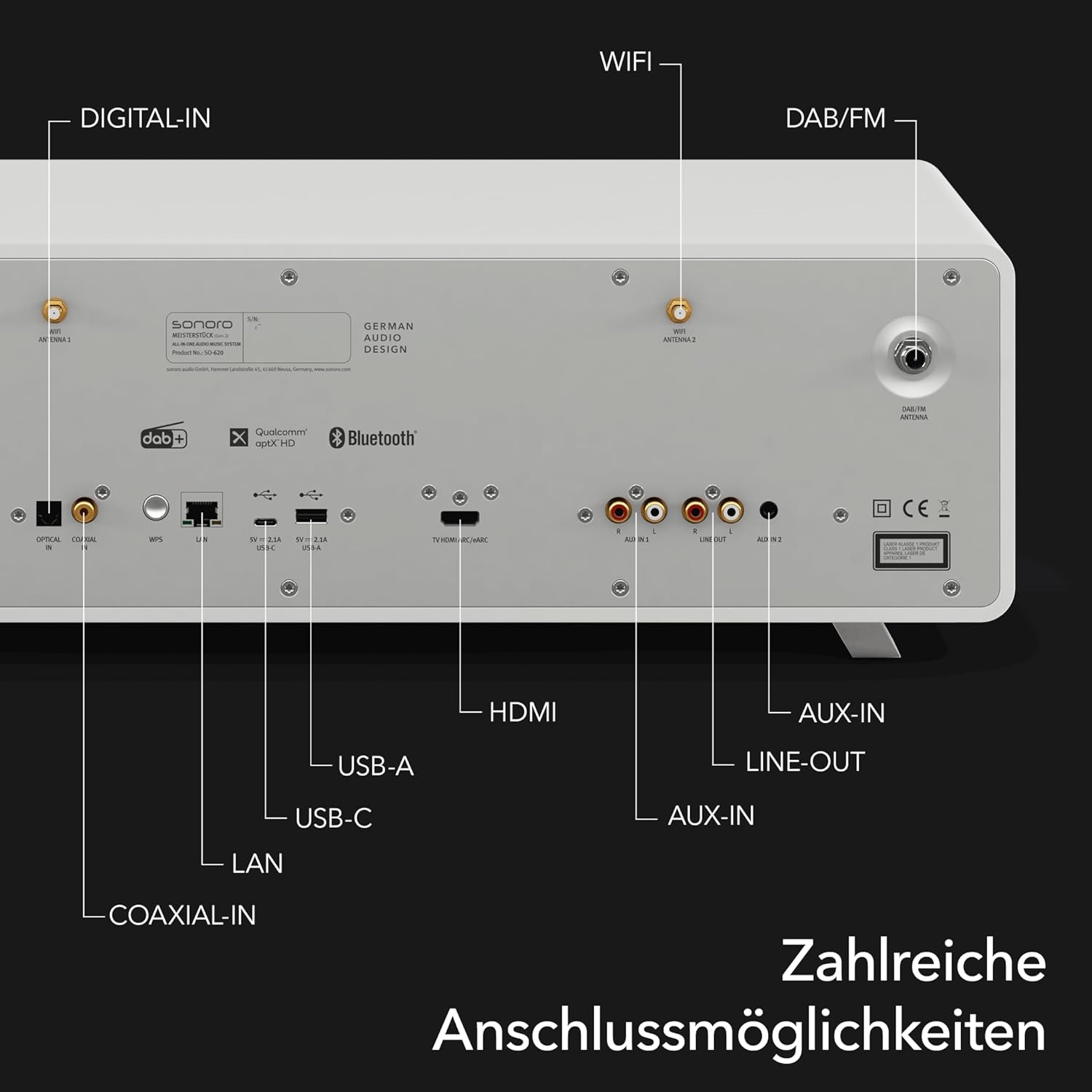
The MeisterSTÜCK offers a wide array of connectivity options on its rear panel to integrate with various audio and video devices.

Малюнак 4: падрабязна view задняй панэлі падключэння.
- HDMI (eARC): Connect to a compatible TV for enhanced audio return channel functionality.
- USB-A: Для прайгравання мультымедыя з USB-назапашвальнікаў.
- USB-C: Supports both charging external devices and media playback.
- Аптычны лічбавы ўваход: Connect digital audio sources such as TVs or game consoles.
- Auxiliary Input (3.5mm & RCA): Connect analog audio sources like MP3 players or older audio equipment.
- Лакальная сетка (Ethernet): Для стабільнага праваднога сеткавага падключэння.
- DAB/FM-антэна: Connect the included antennas for digital and analog radio reception.
- Лінейны выхад: Для падлучэння да знешніх ampліфікатары або прылады запісу.
5. Тэхнічнае абслугоўванне
5.1 Ачыстка
- Працірайце прыладу мяккай сухой тканінай. Не выкарыстоўвайце абразіўныя ачышчальнікі, воск або растваральнікі.
- Перад чысткай пераканайцеся, што прылада адключана ад сеткі.
5.2 Абнаўленне праграмнага забеспячэння
- Periodically check for software updates through the system's menu or the Sonoro app to ensure optimal performance and access to new features.
6. Выпраўленне непаладак
- Няма харчавання: Check if the power cable is securely connected to both the unit and the wall outlet. Ensure the outlet is functional.
- Няма гуку: Verify the volume level is not muted or too low. Check source selection and ensure external devices are properly connected and powered on.
- Праблемы з падключэннем: For Wi-Fi, ensure the unit is within range of your router. For Bluetooth, ensure the device is in pairing mode and within range.
- CD Playback Errors: Пераканайцеся, што кампакт-дыск чысты і без драпін. Паспрабуйце іншы кампакт-дыск.
If problems persist, consult the Sonoro support webсайт або звярніцеся ў службу падтрымкі кліентаў для атрымання дадатковай дапамогі.
7. Тэхнічныя характарыстыкі
| Асаблівасць | Спецыфікацыя |
|---|---|
| Марка | Санора |
| Нумар мадэлі | SO-6200-100 |
| Колер | Белы матавы |
| Тэхналогія падлучэння | Auxiliary, Bluetooth, USB, Wi-Fi, LAN |
| Сумяшчальныя прылады | Персанальны камп'ютар, смартфон, тэлевізар, MP3-плэер, планшэт |
| Тып дынаміка | Stereo with integrated subwoofer |
| Выхадная магутнасць | 30 Вт (RMS) |
| Крыніца харчавання | Правадная электрычная |
| Падтрымліваюцца стандарты | Bluetooth, AirPlay, Chromecast, USB, Auxiliary |
| Сумяшчальны з Bluetooth | Yes (Bidirectional) |
| Падтрымліваюцца аўдыяфарматы | CD-DA, MP3, AAC |
| Акумулятар (пульт) | 2 AAA (у камплекце) |
| Вытворца | sonoro audio GmbH |
8. Гарантыя і падтрымка
The Sonoro MeisterSTÜCK Compact System (Gen.2) comes with a manufacturer's warranty. Please refer to the warranty card included with your product or visit the official Sonoro webсайт для атрымання падрабязных гарантыйных умоў.
For technical support, spare parts, or service inquiries, please contact Sonoro customer support through their official channels. Information regarding software updates and product registration can also be found on their webсайт.