
Goobay 41074
Goobay 41074 USB-C Sync & Charge Cable Instruction Manual
Мадэль: 41074
1. Уводзіны
This manual provides instructions for the Goobay 41074 USB-C Sync & Charge Cable. This cable is designed for high-speed data transfer, fast charging, and video/audio transmission between compatible USB-C enabled devices.

Image 1.1: The Goobay 41074 USB-C Sync & Charge Cable, featuring a USB-A connector on one end and a USB-C connector on the other. The image also highlights key specifications such as USB-C compatibility, 1-meter length, 60W power delivery, and 20x faster speed than USB 2.0.
2. Асаблівасці прадукту
- Хуткая зарадка: Supports power delivery up to 60 W (20 V / 3 A) for rapid charging of compatible USB-C devices.
- SuperSpeed+ Data Transfer: Achieves data transfer rates up to 10 Gbit/s, which is 20 times faster than USB 2.0.
- USB 3.2 Gen 2 Standard: Utilizes the latest USB 3.2 Gen 2x2 standard for efficient data handling.
- Рэверсіўны раз'ём USB-C: The USB-C plug can be inserted in either orientation.
- Video & Audio Transmission: Capable of transmitting video and audio content to external displays with a USB-C input.
- Універсальнае выкарыстанне: Suitable for transferring movies, music, videos, and various files.

Малюнак 2.1: Падрабязны view of the Goobay USB-C cable, highlighting its USB-A and USB-C connectors and indicating its 1-meter length, 60W power delivery, and 10 Gbps data transfer speed.
3. Змесціва ўпакоўкі
У камплекце знаходзіцца наступны прадмет:
- 1x Goobay 41074 USB-C Sync & Charge Cable (1 meter)
4. Настройка
To set up your Goobay 41074 USB-C cable, follow these general steps:
- Вызначыць парты: Locate the appropriate USB-A and USB-C ports on your devices (e.g., computer, charger, smartphone, monitor).
- Падключыце прылады: Insert the USB-A end of the cable into a compatible USB-A port on your host device (e.g., computer, wall charger).
- Connect USB-C Device: Insert the USB-C end of the cable into the USB-C port of your target device (e.g., smartphone, tablet, laptop, monitor). The USB-C connector is reversible, allowing for easy connection in either direction.
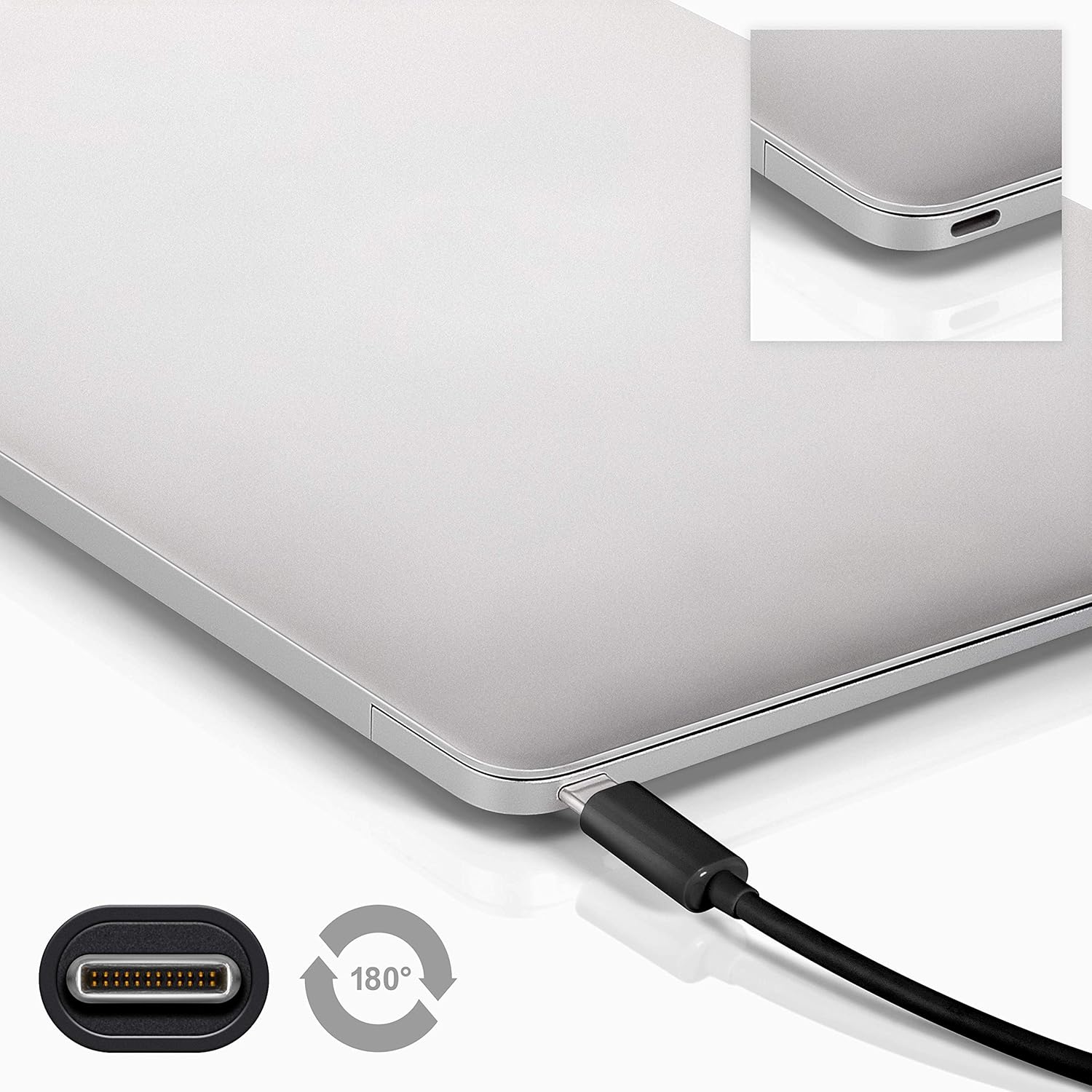
Image 4.1: A Goobay USB-C cable connected to a laptop, demonstrating the reversible nature of the USB-C connector and its ease of use. A close-up of the USB-C port is also shown.
5. Інструкцыя па эксплуатацыі
5.1. Зарадныя прылады
To charge a USB-C enabled device:
- Connect the USB-A end of the cable to a compatible USB wall charger or power adapter.
- Connect the USB-C end of the cable to your USB-C device (e.g., smartphone, tablet, laptop).
- Ensure the power adapter is plugged into a working power outlet. Your device should begin charging.
5.2. Перадача дадзеных
To transfer data between a computer and a USB-C device:
- Падключыце канец кабеля USB-A да даступнага порта USB-A на вашым кампутары.
- Падключыце канец кабеля USB-C да прылады USB-C.
- Your computer should recognize the connected device. Follow the on-screen prompts on your computer and device to manage data transfer (e.g., select 'File Transfer' mode on your smartphone).

Image 5.1: A Goobay USB-C cable connecting a smartphone to a laptop, illustrating its use for data transfer between devices.
5.3. Video and Audio Output
To transmit video and audio to an external display:
- Connect the USB-A end of the cable to your source device (e.g., laptop with a USB-A port that supports video output via an adapter, or a docking station).
- Connect the USB-C end of the cable to a compatible monitor or television with a USB-C input that supports video.
- Ensure your source device and display are configured correctly for video output.
6. Тэхнічнае абслугоўванне
- захоўванне: Захоўвайце кабель у прахалодным, сухім месцы, удалечыні ад прамых сонечных прамянёў і экстрэмальных тэмператур. Пазбягайце тугога згортвання або згінання кабеля пад вострымі вугламі, каб пазбегнуць унутраных пашкоджанняў.
- Уборка: Disconnect the cable from all devices and power sources before cleaning. Use a soft, dry, lint-free cloth to gently wipe the cable and connectors. Avoid using liquid cleaners or abrasive materials.
- Апрацоўка: Always grasp the connector head when plugging or unplugging the cable. Avoid pulling on the cable itself, as this can damage the internal wires or the connector.
- агляд: Periodically inspect the cable and connectors for any signs of wear, fraying, or damage. If damage is observed, discontinue use and replace the cable.
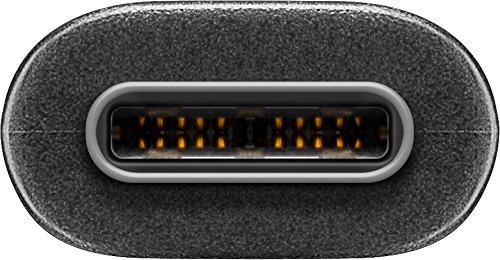
Малюнак 6.1: Крупны план view of the USB-C connector, showing its internal pins. Regular inspection of connectors helps ensure proper function and longevity.
7. Выпраўленне непаладак
7.1. Device Not Charging
- Праверце злучэнні: Ensure both ends of the cable are securely plugged into the device and the power source.
- Праверце крыніцу харчавання: Confirm that the wall outlet or power adapter is functioning correctly. Try another power source if available.
- Сумяшчальнасць прылад: Ensure your device supports charging via USB-C and that the power adapter provides sufficient wattage.
- Try Another Cable/Port: If possible, test with a different USB-C cable or a different port on your power source/device to isolate the issue.
7.2. No Data Transfer
- Праверце злучэнні: Ensure the cable is firmly connected to both the computer and the USB-C device.
- Налады прылады: On your USB-C device (e.g., smartphone), check if it's set to 'File Transfer' or 'MTP' mode after connecting to the computer.
- Кампутарнае распазнаванне: Verify that your computer's operating system recognizes the connected device. You may need to install specific drivers for your device.
- Port Functionality: Test the USB-A port on your computer with another known working device/cable.
7.3. No Video/Audio Output
- Сумяшчальнасць: Ensure both your source device (e.g., laptop) and the external display support video output over USB-C. Not all USB-C ports support this feature.
- Увод на дысплеі: Select the correct input source on your monitor or television.
- Налады сістэмы: Check your computer's display settings to ensure the external monitor is detected and configured correctly (e.g., extended display, duplicate display).
8. Тэхнічныя характарыстыкі
| Асаблівасць | Спецыфікацыя |
|---|---|
| Марка | Губей |
| Нумар мадэлі | 41074 |
| Connector Type 1 | USB Type-A (Male) |
| Connector Type 2 | USB Type-C (мужчынскі) |
| Тып кабеля | USB |
| Стандарт USB | USB 3.2 Gen 2 (SuperSpeed+) |
| Хуткасць перадачы даных | Да 10 Гбіт/с |
| Пастаўка электраэнергіі | Up to 60 W (20 V / 3 A) |
| Даўжыня кабеля | 1 метраў |
| Колер | Чорны |
| Сумяшчальныя прылады | Monitors, Televisions, USB-C enabled devices |
| Асаблівасць | Fast Charging, Video & Audio Transmission |
9. Гарантыя і падтрымка
Каб атрымаць інфармацыю аб гарантыі і тэхнічнай падтрымцы, звярніцеся да дакументацыі, якая пастаўляецца з пакупкай, або наведайце афіцыйны сайт Goobay. webсайт. Захоўвайце пацвярджэнне пакупкі для прэтэнзій па гарантыі.