
Уводзіны
This manual provides detailed instructions for the OWC Gemini Thunderbolt (USB-C) Docking Station and External RAID Storage Solution. It covers setup, operation, maintenance, troubleshooting, and technical specifications to ensure optimal performance and longevity of your device.
Інфармацыя па бяспецы
- Перад выкарыстаннем прылады ўважліва прачытайце ўсе інструкцыі.
- Не падвяргайце прыладу ўздзеянню вільгаці або экстрэмальных тэмператур.
- Выкарыстоўвайце толькі адаптар сілкавання, які пастаўляецца з прыладай.
- Не спрабуйце адкрываць або рамантаваць прыладу самастойна. Звяртайцеся да кваліфікаванага персаналу па любыя паслугі па абслугоўванні.
- Забяспечце належную вентыляцыю вакол прылады, каб прадухіліць перагрэў.
Змест пакета
Праверце, ці ёсць усе прадметы ў вашай упакоўцы:
- OWC Gemini Thunderbolt (USB-C) Docking Station
- Адаптар сілкавання
- Thunderbolt (USB-C) Cable
- Кіраўніцтва карыстальніка (гэты дакумент)
- Drives (pre-installed for 32TB model)
Прадукт скончаныview
The OWC Gemini is a versatile docking station and external storage solution designed for high-performance data management and expanded connectivity.

Выява: спераду view of the OWC Gemini Thunderbolt Docking Station, showcasing its sleek black design and OWC branding.
Асноўныя характарыстыкі
- Dual Drive Bays: Supports 2.5-inch and 3.5-inch SATA drives for flexible storage configurations.
- Hardware RAID: Offers RAID 0, RAID 1, SPAN, and JBOD modes for optimized performance or data redundancy.
- Thunderbolt (USB-C) Connectivity: Two Thunderbolt 3 (USB-C) ports for host connection, daisy-chaining, and power delivery (up to 27W).
- Пашыраная сувязь: Includes two USB 3.2 Gen 2 Type-A ports, one HDMI port, one 2.5 Gigabit Ethernet port, and one SD 4.0/UHS-II media slot.
- High-Resolution Display Support: HDMI 2.1 supports up to 8K @ 120Hz, and Thunderbolt 3 supports up to 8K @ 60Hz or 4K @ 120Hz.
Макет порта
The OWC Gemini provides a comprehensive set of ports for various connectivity needs.

Выява: Задняя частка view of the OWC Gemini Docking Station, highlighting the 7 ports of connectivity including Thunderbolt, USB, HDMI, and Ethernet.
- Thunderbolt 3 (USB-C) Host Port: Падключаецца да вашага кампутара.
- Thunderbolt 3 (USB-C) Downstream Port: For daisy-chaining, additional displays, or charging USB-C devices.
- Парты USB 3.2 Gen 2 тыпу A (x2): Для падлучэння перыферыйных прылад USB.
- Порт HDMI 2.1: Для падключэння знешняга дысплея.
- Порт 2.5 Gigabit Ethernet: For high-speed network connectivity.
- SD 4.0/UHS-II Media Slot: Located on the front panel for convenient access.
- Уваходная магутнасць 12 В пастаяннага току: Падключаецца да адаптара сілкавання.

Image: Close-up of the front panel of the OWC Gemini, showing the easily accessible SD card slot.
Настройка
1. Drive Installation (if applicable)
For models without pre-installed drives, follow these steps to install 2.5-inch or 3.5-inch SATA drives.

Image: The OWC Gemini unit illustrating its two flexible drive bays, compatible with both 2.5-inch and 3.5-inch drives.
- Ensure the device is powered off and disconnected from your computer.
- Open the drive bay door(s) according to the product's physical design.
- Insert your 2.5-inch or 3.5-inch SATA drives into the bays, ensuring they are securely seated.
- Close the drive bay door(s).
2. Канфігурацыя RAID
The OWC Gemini supports hardware RAID. Refer to the specific RAID configuration utility or physical switches on the device (if present) to set your desired RAID level (RAID 0, RAID 1, SPAN, or JBOD).
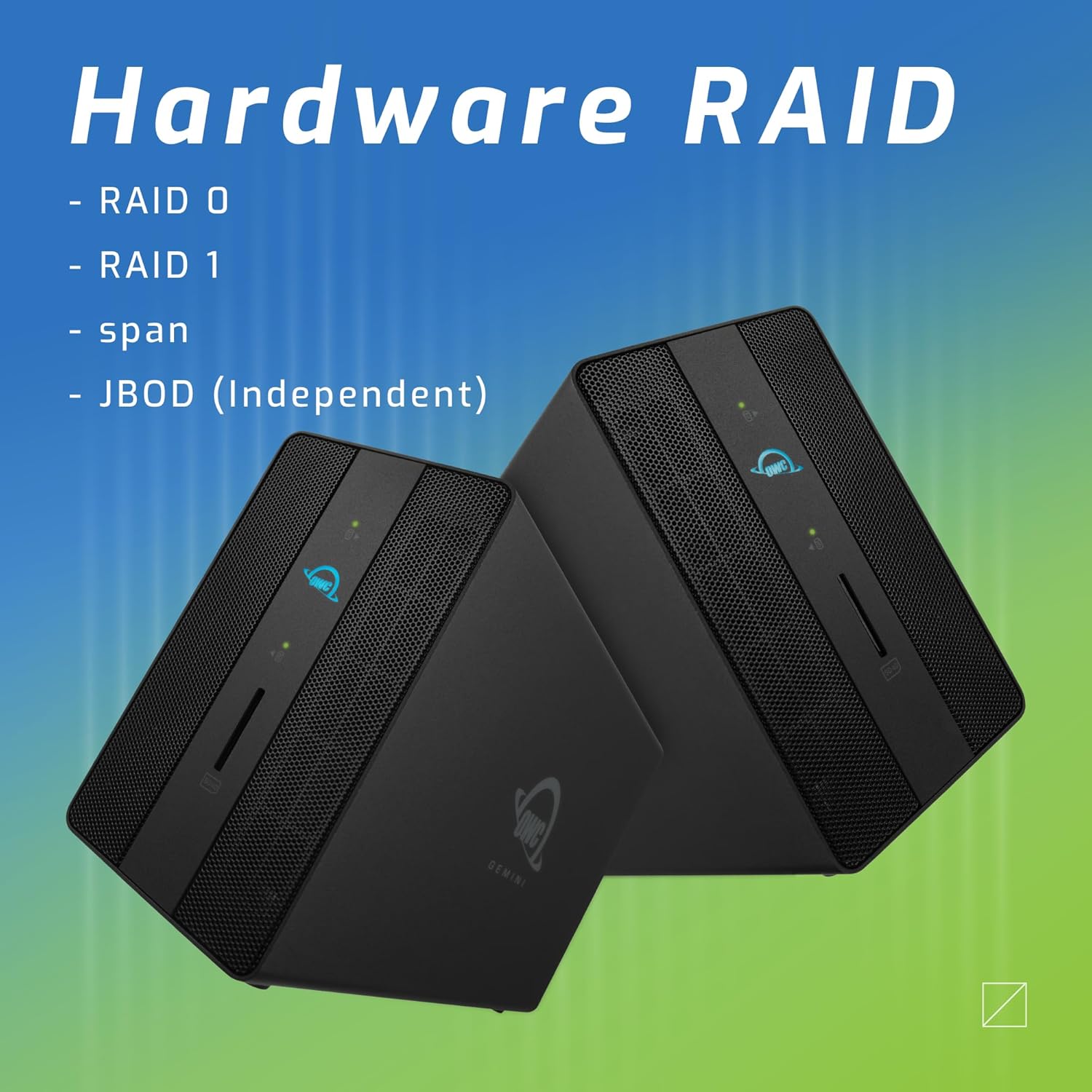
Image: Two OWC Gemini units, emphasizing the hardware RAID capabilities for configurations like RAID 0, RAID 1, SPAN, and JBOD.
RAID Levels Explained:
- RAID 0 (чаргаванне): Combines drives for maximum speed and capacity, but offers no data redundancy.
- RAID 1 (люстраванне): Duplicates data across drives for redundancy, sacrificing half the total capacity for data protection.
- SPAN (Concatenation): Combines drives into a single large volume without striping or mirroring.
- JBOD (Just a Bunch Of Disks): Treats each drive as an independent volume.
3. Падключэнне да кампутара
- Connect the power adapter to the DC 12V power input on the OWC Gemini and then to a power outlet.
- Connect one end of the Thunderbolt (USB-C) cable to the host port on the OWC Gemini.
- Connect the other end of the Thunderbolt (USB-C) cable to a Thunderbolt (USB-C) port on your computer.
- The device should power on automatically.
4. Initializing Drives
After connecting, your operating system may prompt you to initialize and format the new drives. Follow the on-screen instructions. For macOS, use Disk Utility. For Windows, use Disk Management.
Інструкцыя па эксплуатацыі
Перадача дадзеных
Once the drives are initialized and formatted, they will appear as accessible volumes on your computer. You can drag and drop files to and from these volumes as you would with any other storage device.
Выкарыстанне партоў USB
Connect USB peripherals such as external drives, keyboards, or mice to the two USB 3.2 Gen 2 Type-A ports. These ports support data transfer speeds up to 10 Gb/s.
Падключэнне вонкавага дысплея
Use the HDMI 2.1 port to connect an external monitor. The Gemini supports resolutions up to 8K @ 120Hz via HDMI.
Падключэнне да сеткі
Connect an Ethernet cable from your network router or switch to the 2.5 Gigabit Ethernet port on the Gemini for high-speed wired network access.
Using the SD Card Slot
Insert an SD 4.0/UHS-II compatible SD card into the front-facing slot for quick data transfer from cameras or other devices.
Daisy-Chaining and Power Delivery

Image: A close-up of the OWC Gemini's Thunderbolt ports, illustrating their use for daisy-chaining, connecting additional displays, and charging USB-C devices.
The second Thunderbolt 3 (USB-C) port allows you to:
- Рамонак-ланцужок additional Thunderbolt devices.
- Злучыць ан additional display (up to 8K @ 60Hz or 4K @ 120Hz).
- Charge USB-C devices with up to 27 watts of power.
Тэхнічнае абслугоўванне
- Уборка: Для чысткі вонкавых паверхняў прылады выкарыстоўвайце мяккую сухую тканіну. Не выкарыстоўвайце вадкія ачышчальнікі або аэразолі.
- Вентыляцыя: Пераканайцеся, што вентыляцыйныя рашоткі не заблакіраваны, каб пазбегнуць перагрэву.
- Абнаўленні прашыўкі: Periodically check the OWC webсайт для абнаўленняў прашыўкі, каб забяспечыць аптымальную прадукцыйнасць і сумяшчальнасць.
- Бяспечны выкід: Always safely eject the OWC Gemini from your operating system before disconnecting it or powering it off to prevent data corruption.
Ліквідацыю непаладак
Прылада не распазнана
- Ensure all cables are securely connected, especially the Thunderbolt cable to both the Gemini and your computer.
- Verify the power adapter is correctly connected and the device is receiving power.
- Try connecting the Gemini to a different Thunderbolt port on your computer.
- Перазагрузіце кампутар.
- Check your operating system's Disk Utility (macOS) or Disk Management (Windows) to see if the drives are detected but uninitialized or unformatted.
Павольная хуткасць перадачы дадзеных
- Ensure you are using a Thunderbolt 3 compatible cable and port.
- Check the RAID configuration. RAID 1 (mirroring) will have slower write speeds than RAID 0 (striping).
- Зачыніце ўсе непатрэбныя праграмы, якія могуць спажываць сістэмныя рэсурсы.
- Пераканайцеся, што драйверы вашага кампутара абноўленыя.
Дысплей Праблемы
- Verify the HDMI cable is securely connected to both the Gemini and your monitor.
- Check your display settings in your operating system.
- Ensure your monitor supports the resolution and refresh rate you are attempting to use.
- Паспрабуйце іншы кабель HDMI або манітор, калі такі маецца.
Праблемы з падключэннем да сеткі
- Ensure the Ethernet cable is securely connected to both the Gemini and your network device.
- Праверце сеткавыя налады вашага кампутара.
- Перазагрузіце маршрутызатар/мадэм.
Тэхнічныя характарыстыкі
| Асаблівасць | Дэталь |
|---|---|
| Марка | OWC |
| Нумар мадэлі | OWCTB3GM000H32 |
| Ёмістасць захоўвання | 32.0 ТБ (як настроена) |
| Прывадныя адсекі | 2 (supports 2.5" and 3.5" SATA drives) |
| Узроўні RAID | SPAN, RAID 0, RAID 1, JBOD (Hardware RAID) |
| Інтэрфейс хоста | Thunderbolt 3 (USB-C) |
| Хуткасць перадачы даных | Up to 40 Gb/s (Thunderbolt 3), Up to 10 Gb/s (USB 3.2 Gen 2) |
| Парты | (1) Thunderbolt 3 (USB-C) Host, (1) Thunderbolt 3 (USB-C) Downstream, (2) USB 3.2 Gen 2 Type-A, (1) HDMI 2.1, (1) 2.5 Gigabit Ethernet, (1) SD 4.0/UHS-II |
| Падтрымка дысплея | HDMI 2.1: Up to 8K @ 120Hz; Thunderbolt 3: Up to 8K @ 60Hz or 4K @ 120Hz |
| Пастаўка электраэнергіі | Да 27 Вт праз Thunderbolt 3 |
| Сумяшчальныя прылады | Desktop, Laptop, Tablet (with Thunderbolt/USB-C port) |
| Колер | Чорны |
| Вага | 9.35 фунта (прыбл.) |
| UPC | 810100983697 |
Гарантыя і падтрымка
Інфармацыя аб гарантыі
OWC products are covered by a limited warranty. Please refer to the official OWC webна сайце або ў дакументацыі па куплі, каб даведацца пра канкрэтныя гарантыйныя ўмовы. Захоўвайце пацвярджэнне пакупкі для прэтэнзій па гарантыі.
Тэхнічная падтрымка
For technical assistance, troubleshooting, or further inquiries, please visit the official OWC support webсайт або звярніцеся ў службу падтрымкі кліентаў.