
FMOUSE B0CSPT61TF
Кіраўніцтва карыстальніка бесправадной мышы FMOUSE Transparent
Model: B0CSPT61TF
1. Уводзіны
This user manual provides detailed instructions for the FMOUSE Transparent Wireless Mouse (Model: B0CSPT61TF). This device features a unique transparent design, multi-mode connectivity, and customizable settings for enhanced user experience.
Асноўныя характарыстыкі:
- Трымадынальнае падключэнне: Supports Dual Bluetooth 5.1 and 2.4GHz wireless connections, allowing connection to up to three devices.
- Transparent Magnetic Shell: Unique design with a removable magnetic cover for easy access to receivers.
- Rechargeable with LED Lighting: Built-in rechargeable battery with Type-C charging port and cool LED light ring.
- Рэгуляваны DPI: Four adjustable DPI levels (800/1200/1600/2400) for precise cursor control.
- Бясшумныя клікі: Распрацаваны для ціхай працы.
- Шырокая сумяшчальнасць: Compatible with Windows XP, Vista, 7, 8, 10, 11, Windows ME, Mac OS, and more.
2. Настройка
2.1 Што ў камплекце
Пасля адкрыцця ўпакоўкі пераканайцеся ў наяўнасці ўсіх кампанентаў:
- 1 x Wireless Bluetooth Tri-mode Mouse
- 1 x USB Receiver (USB-A)
- 1 х прыёмнік Type-C
- 1 х USB-кабель для зарадкі (тып C)
- 1 х Кіраўніцтва карыстальніка
2.2 Зарадка мышы
The mouse is equipped with a built-in rechargeable battery. Before first use, or when the battery indicator shows low power, charge the mouse using the provided USB Type-C cable.
- Locate the Type-C charging port on the front of the mouse.
- Connect one end of the USB charging cable to the mouse and the other end to a USB power source (e.g., computer USB port, USB wall adapter).
- The LED lights on the mouse will indicate charging status. A full charge typically takes approximately 2 hours and can provide 5-10 days of heavy use.

Image: The FMOUSE Transparent Wireless Mouse connected to a USB-C charging cable, illustrating the charging process.
Video: Demonstrates the charging process and various features of the FMOUSE Wireless Bluetooth transparent mouse.
2.3 Connecting the Mouse (Tri-mode)
The mouse supports three connection modes: 2.4GHz wireless (via USB-A or Type-C receiver) and two separate Bluetooth 5.1 connections (BT1 and BT2).
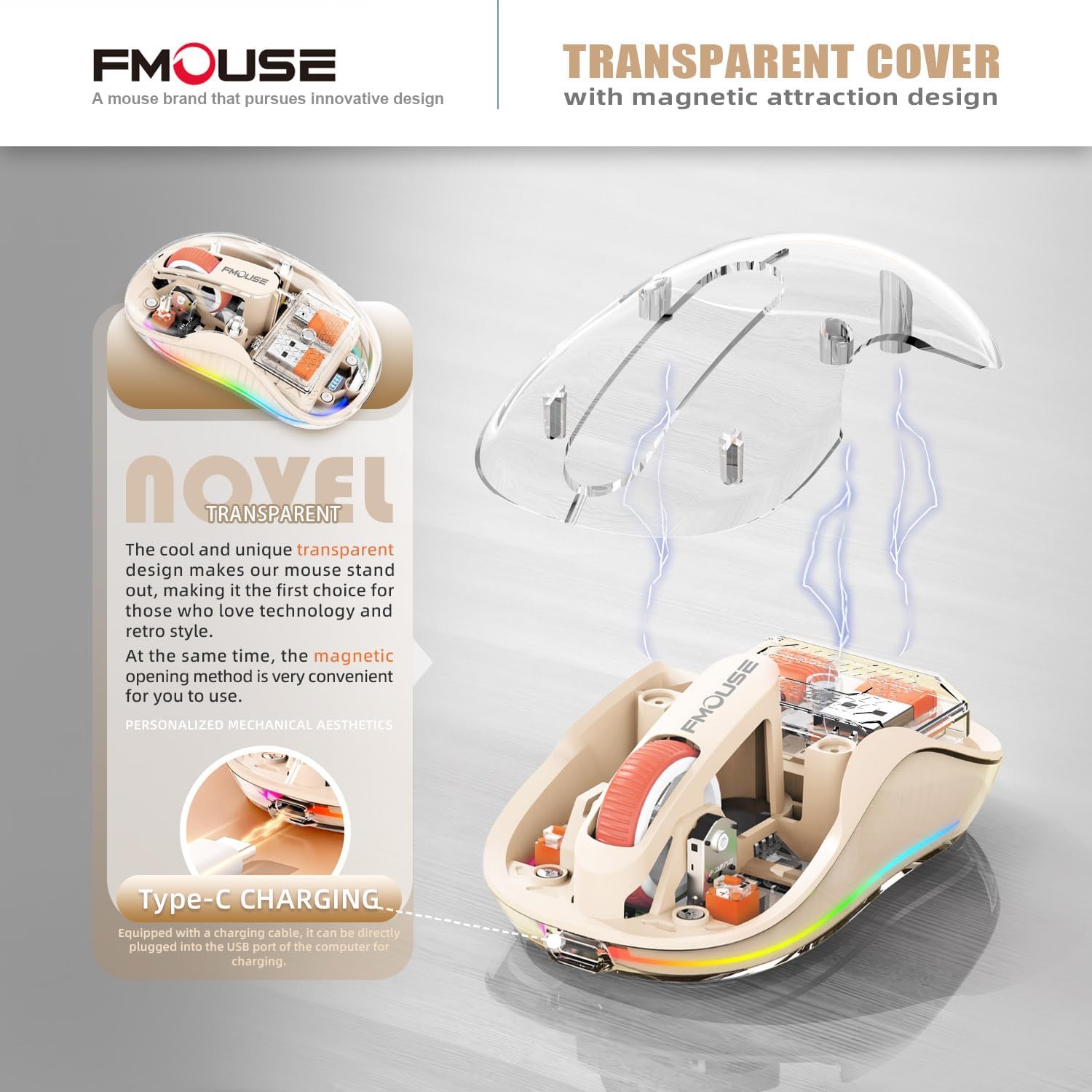
Image: A visual representation of the mouse's tri-mode connectivity, highlighting the USB-A, Type-C, and Bluetooth options for connecting to multiple devices.

Выява: Выбухнула view of the mouse showing the internal storage for the USB-A and Type-C receivers, which are magnetically held under the transparent cover.
2.3.1 Бесправадное злучэнне 2.4 ГГц
- Open the magnetic transparent cover of the mouse to access the USB-A and Type-C receivers.
- Select the appropriate receiver (USB-A or Type-C) for your device and plug it into an available port on your computer or laptop.
- Уключыце мыш з дапамогай выключальніка харчавання, размешчанага ўнізе.
- Switch the mode button on the bottom of the mouse to the "2.4G" position. The mouse should automatically connect to your device.
2.3.2 Падключэнне Bluetooth (BT1 / BT2)
- Уключыце мыш з дапамогай выключальніка харчавання, размешчанага ўнізе.
- Switch the mode button on the bottom of the mouse to either "BT1" or "BT2" position.
- For first-time pairing, press and hold the mode button for approximately 3-5 seconds until the LED lights on the mouse start flashing rapidly, indicating pairing mode.
- On your device (computer, laptop, tablet, or smartphone), go to Bluetooth settings and search for new devices.
- Select "FMOUSE" or a similar name from the list of available devices to pair.
- Once paired, the LED lights on the mouse will stop flashing and remain solid.
- To switch between paired Bluetooth devices or the 2.4G connection, simply press the mode button on the bottom of the mouse to cycle through BT1, BT2, and 2.4G.
3. Інструкцыя па эксплуатацыі
3.1 Function Buttons Overview
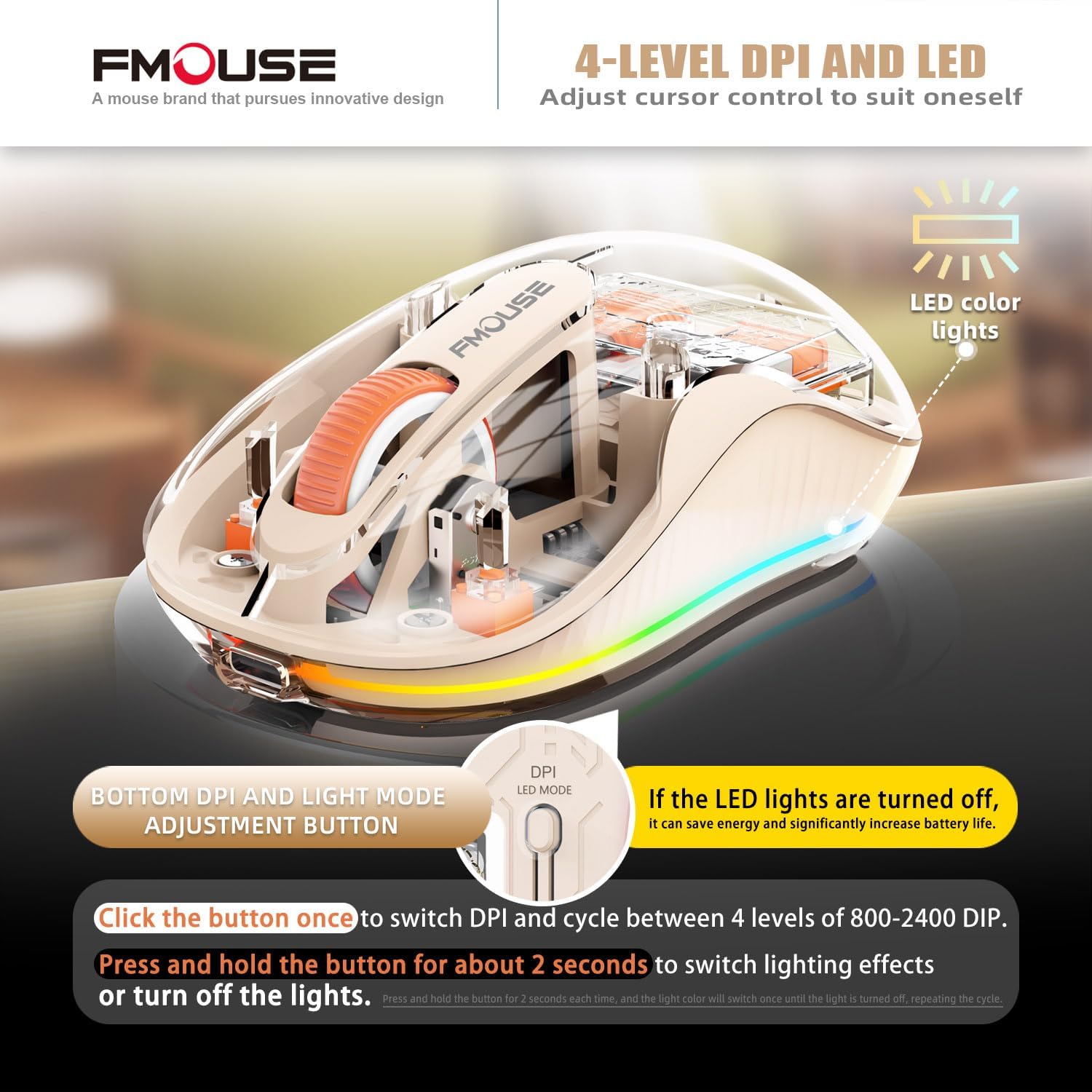
Image: The underside of the mouse, highlighting the power switch, the tri-mode connection switch, and the DPI/LED mode adjustment button.
- Выключальнік сілкавання: Located on the bottom, slides to ON/OFF.
- Tri-mode Switching Button: Located on the bottom, allows quick switching between 2.4G, BT1, and BT2 connections.
- DPI/LED Mode Adjustment Button: Located on the bottom, near the power indicator.
3.2 Рэгуляванне DPI (адчувальнасці)
The mouse offers four adjustable DPI levels to suit different tasks and preferences.
- Press the DPI/LED Mode Adjustment button once to cycle through the DPI settings: 800, 1200, 1600, and 2400 DPI.
- Each press will change the cursor speed, allowing you to find your preferred sensitivity.
3.3 Controlling LED Lights
The mouse features a cool LED light ring that illuminates when the mouse is stationary and turns off when it moves to conserve battery.
- To turn off the LED lights completely and extend battery life, press and hold the DPI/LED Mode Adjustment button for approximately 2 seconds.
- Repeat the action to turn the LED lights back on.
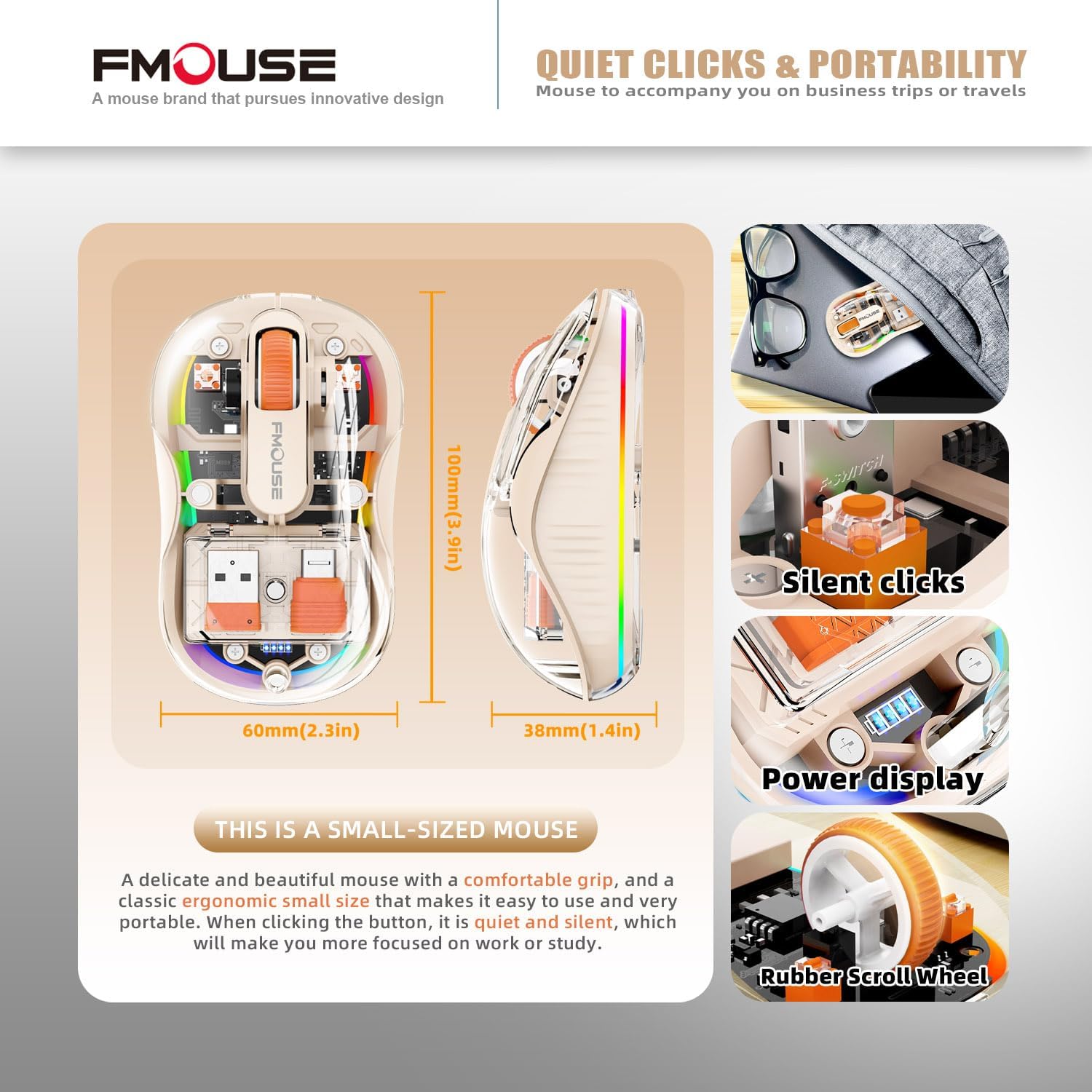
Image: The mouse demonstrating its LED lighting effects and the button used to control them, emphasizing the option to turn lights off for battery saving.
3.4 Бясшумныя клікі
The mouse is designed with silent click technology, minimizing noise during use. This feature is integrated into the mouse's buttons and does not require specific activation.
3.5 Сумяшчальнасць з паверхнямі
The optical sensor technology allows the mouse to operate effectively on a variety of surfaces without the need for a mouse pad.
- Compatible surfaces include wood, metal, leather, glass, and fabric.

Image: The mouse shown on different surfaces (wood, metal, leather, fabric) to illustrate its broad surface compatibility without a mouse pad.
4. Тэхнічнае абслугоўванне
Proper maintenance ensures the longevity and optimal performance of your FMOUSE Transparent Wireless Mouse.
- Уборка: Use a soft, dry, lint-free cloth to wipe the exterior of the mouse. For stubborn dirt, slightly dampпрамыйце тканіну вадой. Пазбягайце выкарыстання агрэсіўных хімікатаў, растваральнікаў або абразіўных ачышчальнікаў.
- Сыход за датчыкам: Для забеспячэння дакладнага адсочвання падтрымлівайце аптычны датчык у ніжняй частцы мышы ў чысціні і без пылу і смецця.
- захоўванне: When not in use for extended periods, store the mouse in a cool, dry place. The included cloth carrying bag is ideal for travel and protection.
- Сыход за батарэяй: Avoid fully discharging the battery frequently. Charge the mouse when the power indicator shows low battery.
5. Выпраўленне непаладак
If you encounter issues with your mouse, refer to the following common troubleshooting steps:
| праблема | Магчымая прычына | Рашэнне |
|---|---|---|
| Мышка не рэагуе | Low battery; Incorrect connection mode; Receiver not properly plugged in (2.4G); Bluetooth not paired. |
|
| Рух курсора няўстойлівы або павольны | Dirty optical sensor; Unsuitable surface; Low battery; Incorrect DPI setting. |
|
| Святлодыёдныя ліхтары не працуюць | LEDs turned off; Low battery. |
|
| Немагчыма падключыцца праз Bluetooth | Мыш не ў рэжыме спалучэння; Bluetooth прылады выключаны; Перашкоды. |
|
6. Тэхнічныя характарыстыкі
| Асаблівасць | Дэталь |
|---|---|
| Памеры прадукту | 3.94 х 2.36 х 0.1 цалі |
| Вага прадмета | 2.68 унцыі |
| Тэхналогія падлучэння | Bluetooth 5.1 (Dual), 2.4GHz Wireless |
| Тэхналогія выяўлення руху | Аптычны |
| Ўзроўні DPI | 800/1200/1600/2400 |
| Тып батарэі | 1 літый-іённы акумулятар (у камплекце) |
| Порт для зарадкі | Тып-C |
| Далёкасць бесправадной сувязі | Up to 10m (33ft) for Bluetooth |
| Сумяшчальнасць | Windows XP/Vista/7/8/10/11, Windows ME, Mac OS, etc. |
| Асаблівасці | Transparent magnetic shell, Cool LED Lights, Silent Clicks, USB-A & Type-C Receivers |
7. Падтрымка і дадатковая інфармацыя
For additional support or detailed documentation, please refer to the official user guide or contact FMOUSE customer service.
- Афіцыйнае кіраўніцтва карыстальніка (PDF): Спампаваць PDF
- FMOUSE Store: Visit FMOUSE Store on Amazon
Ask a question about this manual
Ask about setup, troubleshooting, compatibility, parts, safety, or missing instructions. Manuals+ will review the question and use this page’s manual context to help answer it.