
1. Уводзіны
This manual provides detailed instructions for the Rapoo V500Pro Full-Size Mechanical Gaming Keyboard. Please read this manual thoroughly before using the product to ensure proper operation and to maximize its features. The V500Pro is designed for both gaming and office use, featuring durable mechanical switches, customizable RGB backlighting, and programmable keys.

Image 1: Rapoo V500Pro Full-Size Mechanical Gaming Keyboard (White version).
2. Кіраўніцтва па наладцы
2.1 Змест пакета
- Rapoo V500Pro Mechanical Gaming Keyboard
- USB-кабель C
- Кіраўніцтва карыстальніка (гэты дакумент)
2.2 Падключэнне клавіятуры
- Знайдзіце порт USB-C на задняй панэлі клавіятуры.
- Падключыце адзін канец кабеля USB-C, які ўваходзіць у камплект, да порта USB-C клавіятуры.
- Connect the other end of the USB-C cable (USB-A connector) to an available USB port on your computer or compatible device.
- Клавіятура будзе аўтаматычна распазнана вашай аперацыйнай сістэмай. Для базавай функцыянальнасці звычайна не патрабуюцца дадатковыя драйверы.
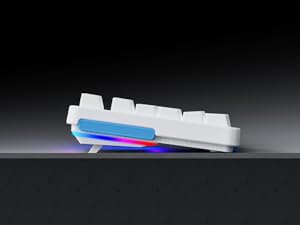
Image 2: Connecting the USB-C cable to the keyboard. The keyboard features an optimized cable management system allowing the cable to be routed to the left, center, or right.
2.3 Арганізацыя кабеляў
The V500Pro features an optimized cable management system on its underside. You can route the USB-C cable to the left, center, or right to suit your desk setup and minimize cable clutter.

Image 3: Underside of the keyboard showing the three-way cable routing channels.
3. Інструкцыя па эксплуатацыі
3.1 Mechanical Switches
The Rapoo V500Pro utilizes brown mechanical switches, offering a tactile feel with a lower audible click compared to blue switches, making them suitable for both gaming and typing in various environments.

Image 4: Detail of the brown mechanical switch, highlighting its design for balanced performance.
3.2 RGB Backlighting Customization
The keyboard features customizable Rainbow RGB backlighting with 20 lighting modes. You can adjust brightness and speed directly from the keyboard.
- FN + PGUP/PGDN: Пераключэнне паміж рознымі рэжымамі падсвятлення.
- FN + INS: Пераключэнне рэжымаў габарытных агнёў (RGB/суцэльны колер/суцэльнае дыханне/выкл.).
- FN + DEL: Змена колеру габарытных агнёў (чырвоны/аранжавы/жоўты/зялёны/блакітны/сіні/фіялетавы/белы).
- FN + D: Brightness adjustment (press repeatedly to cycle through levels).
- FN + D: Breathing frequency adjustment (press repeatedly to cycle through speeds).
- FN + ESC (кароткатэрміновае націсканне): Уключыць/выключыць падсветку.
- FN + ESC (long press): Аднавіць налады асвятлення па змаўчанні.
- FN + V: Уключыць падсветку лагатыпа (уключыць/дыхаць/выключыць).
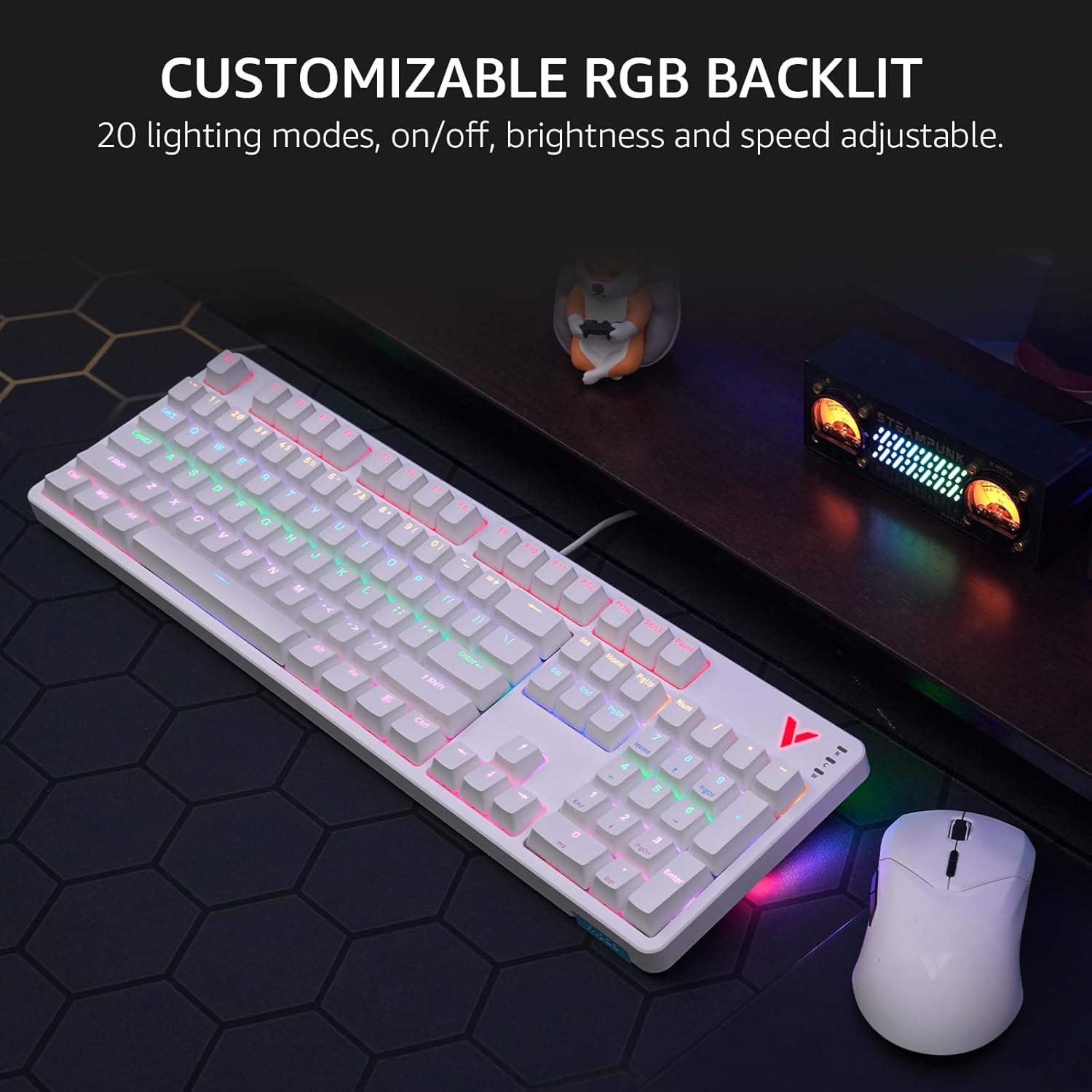
Image 5: The keyboard displaying its customizable RGB backlighting in a typical desktop setup.
Відэа 1: Оверview of the Rapoo V500Pro keyboard, demonstrating its features including RGB lighting and mechanical switches.
3.3 мультымедыйных гарачых клавіш
The keyboard includes 12 multimedia hotkeys, accessible by pressing the FN ключ у спалучэнні з F1-F12 keys. These provide quick access to common functions.
| Камбінацыя клавіш | Функцыя |
|---|---|
| FN + F1 | Кампутар |
| FN + F2 | Калькулятар |
| FN + F3 | Паштовая скрыня |
| FN + F4 | Хатняя старонка |
| FN + F5 | пошук |
| FN + F6 | Медыяплэер |
| FN + F7 | Папярэдні трэк |
| FN + F8 | Наступны трэк |
| FN + F9 | Прайграванне/Паўза |
| FN + F10 | Памяншэнне гучнасці |
| FN + F11 | Павялічыць гучнасць |
| FN + F12 | Адключыць гук |
| FN + Win | Блакаванне клавіш Windows |

Image 6: Visual representation of the FN key combinations for multimedia and system controls.
3.4 Programmable Keys and On-board Memory
The V500Pro allows for programming 103 keys (excluding the FN key) to assign commands and macros. This functionality is managed through dedicated software (available for Windows operating systems) and stored in the keyboard's on-board memory. This enables users to save profiles and apply them across different devices without re-configuration.

Image 7: The software interface for customizing key functions and creating macros. Note: Keyboard driver available for Windows system only.
3.5 Анты-гостынг
The keyboard supports full 104-key anti-ghosting, ensuring that all simultaneous key presses are registered accurately. This is particularly beneficial for complex skill combinations in gaming.
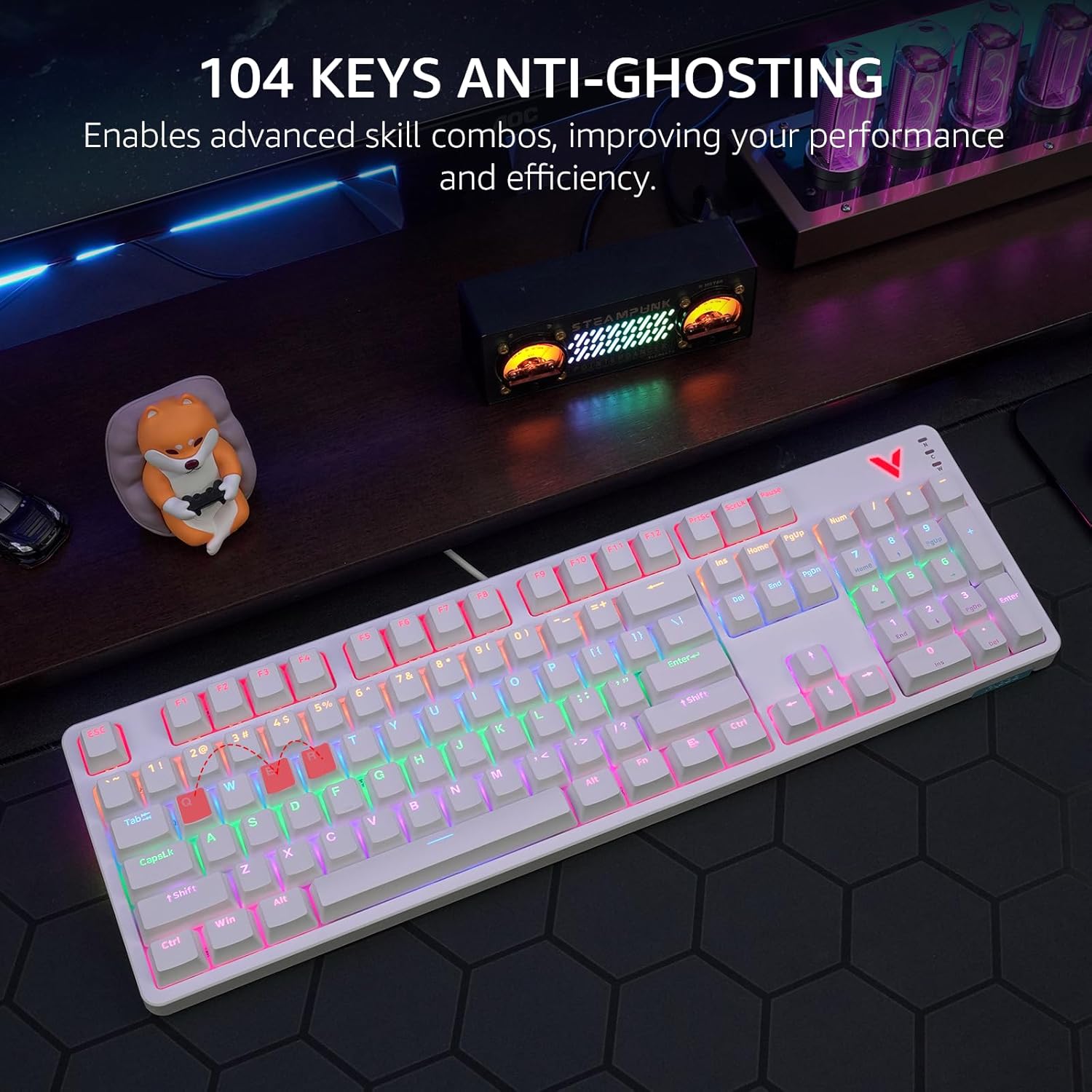
Image 8: Visual explanation of anti-ghosting technology, showing multiple key presses being registered simultaneously.
4. Тэхнічнае абслугоўванне
4.1 Чыстка клавіятуры
To clean your Rapoo V500Pro keyboard, follow these steps:
- Адключыце клавіятуру ад кампутара перад чысткай.
- Выкарыстоўвайце мяккую безворсовую тканіну, злёгку dampпрамыйце вадой або мяккім ачышчальным растворам, каб праціраць клавішы і корпус.
- For deeper cleaning, the top case of the keyboard is removable, allowing easier access to the switches and plate. Gently detach the top case as shown in the product images.
- Пазбягайце распылення вадкасцей непасрэдна на клавіятуру.
- Выкарыстоўвайце сціснутае паветра, каб выдаліць пыл і смецце паміж клавішамі.

Image 9: The removable top case feature, which facilitates cleaning and allows for switching between high and low profile keycap setups.
4.2 Захоўванне
Store the keyboard in a dry, cool environment away from direct sunlight and extreme temperatures to prevent damage.
5. Выпраўленне непаладак
| праблема | Магчымае рашэнне |
|---|---|
| Клавіятура не адказвае |
|
| Падсветка не працуе або працуе няправільна |
|
| Keys are not registering or double-typing |
|
6. Тэхнічныя характарыстыкі
| Асаблівасць | Дэталь |
|---|---|
| мадэль | V500Pro |
| Тып клавіятуры | Full-Size Mechanical Gaming Keyboard |
| Колькасць ключоў | 104 |
| Тып перамыкача | Brown Mechanical Switches |
| Падсвятленне | Customizable Rainbow RGB (20 modes) |
| Анты-прывіды | Усе 104 клавішы |
| Праграмуемыя ключы | 103 (excluding FN) with On-board Memory |
| Мультымедыйныя гарачыя клавішы | 12 (FN + F1-F12) |
| Сувязь | USB-C (правадны) |
| Матэрыял | Aircraft-grade aluminum alloy frame |
| Памеры прадукту | 17.4 х 5.29 х 1.58 цалі (44.2 х 13.4 х 4 см) |
| Вага прадмета | 2.42 фунта (1.1 кг) |
| Сумяшчальныя прылады | PC, Laptop, Gaming Console, Smart TV |

Image 10: Dimensions and weight of the Rapoo V500Pro keyboard.
7. Гарантыя і падтрымка
Rapoo products are designed for durability and performance. For warranty information, technical support, or service inquiries, please refer to the official Rapoo webсайт або звярніцеся да мясцовага дыстрыбутара. Захоўвайце чэк аб куплі для прэтэнзій па гарантыі.
Online resources and software downloads (e.g., for programmable keys) can typically be found on the official Rapoo support page.