
Pisichen QTH-16INTS
Кіраўніцтва карыстальніка партатыўнага сэнсарнага манітора Pisichen
Model: QTH-16INTS
1. Уводзіны
This manual provides comprehensive instructions for the setup, operation, and maintenance of your Pisichen Portable Touchscreen Monitor. Please read this manual thoroughly before using the product to ensure proper functionality and to maximize your user experience.
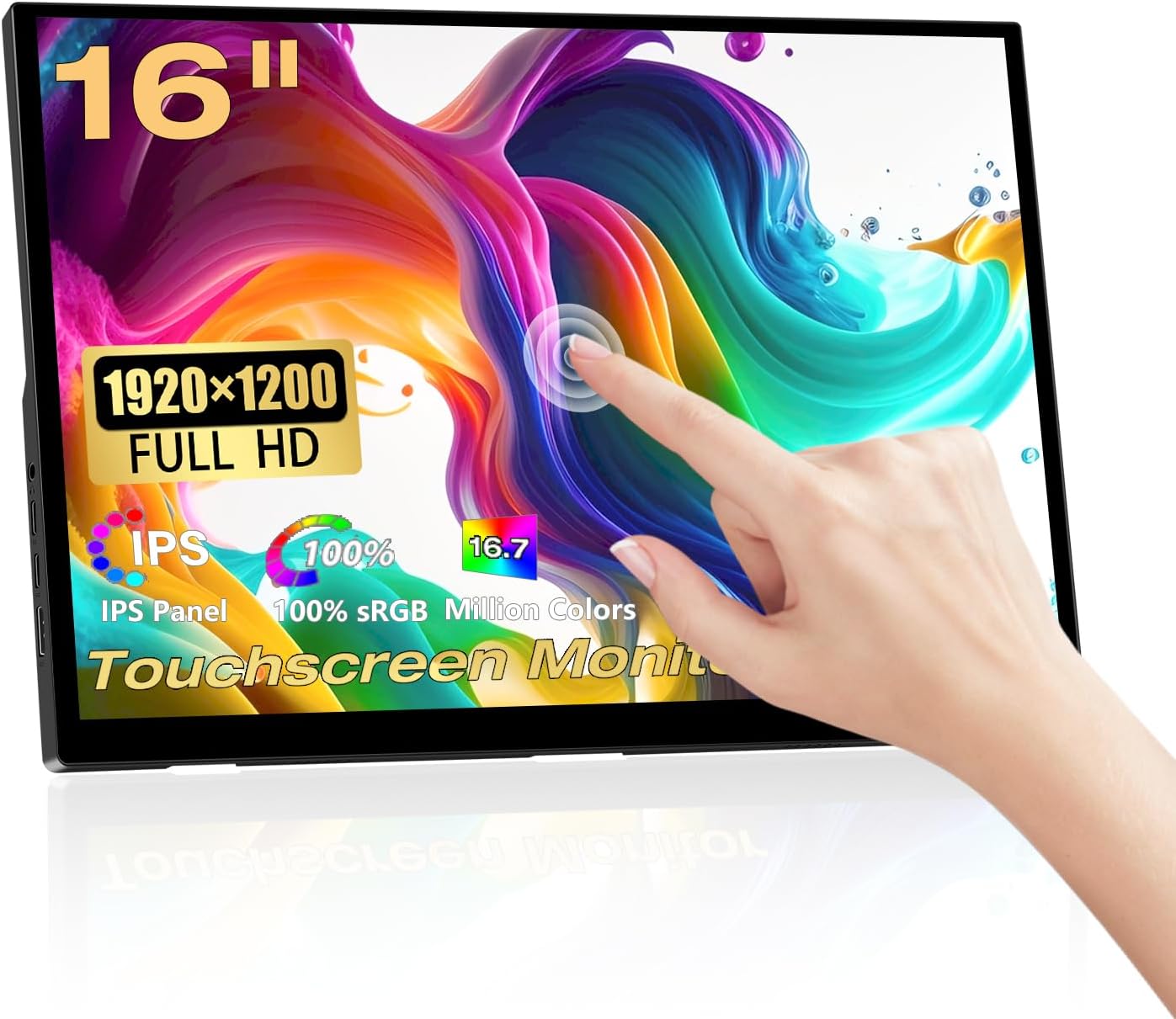
Image: Pisichen 16 Inch Portable Touchscreen Monitor, showcasing its sleek design and touch capabilities.
2. Асноўныя магчымасці
- FHD Portable Display: 16-inch Full HD (1920x1200P) IPS panel with 178° full viewing angle, 60Hz refresh rate, 1000:1 contrast, and 300 cd/m² brightness. Supports 100% sRGB and 16.7 million colors for accurate and vibrant visuals. Features blue light reduction and flicker-free technology for eye comfort.
- Responsive 10-Point Capacitive Touchscreen: Offers smooth and natural interaction with 10-point multi-touch capability, allowing for intuitive control without a mouse or keyboard.
- HDR Technology & Integrated Kickstand: High Dynamic Range (HDR) mode provides deeper and more realistic colors. The built-in adjustable kickstand (0-90°) and VESA compatibility (75x75mm) offer flexible placement options.
- Універсальнае падключэнне: Equipped with a standard HDMI port, two full-featured USB-C 3.1 ports, and an OTG USB-A port (for mouse/keyboard). Supports single Type-C cable for video and power transmission.
- Некалькі рэжымаў адлюстравання: Supports duplicate mode, extend mode, and second screen mode for various applications with laptops, PCs, smartphones (USB Type-C 3.1 version), PS4/PS5, and other compatible devices.
- Убудаваныя два дынамікі: Features 1.5W dual speakers for audio output.

Image: The monitor displaying vibrant colors, highlighting its IPS panel for immersive visual enjoyment.

Image: Two monitors demonstrating the 178-degree ultra-wide viewing angle of the IPS panel, showing consistent color from different perspectives.

Выява: Крупны план views of the monitor's design details, including the 90-degree integrated adjustable stand, VESA mount holes, and non-slip rubber mat.
3. Змесціва ўпакоўкі
Калі ласка, пераканайцеся, што ўсе пералічаныя ніжэй прадметы ўваходзяць у камплект. Калі якія-небудзь прадметы адсутнічаюць або пашкоджаныя, звярніцеся ў службу падтрымкі кліентаў.
- Pisichen Portable Touchscreen Monitor (QTH-16INTS)
- Адаптар сілкавання
- Кабель USB-A - USB-C (2 шт.)
- Кабель HDMI - HDMI
- Кабель USB-C да USB-C
- Кіраўніцтва карыстальніка

Image: An illustration showing the monitor and its included accessories: Power Adapter, two USB-A to USB-C cables, one HDMI to HDMI cable, one USB-C to USB-C cable, and the User Manual.
4. Усталёўка і падключэнне
Your Pisichen Portable Touchscreen Monitor offers flexible connectivity options to suit various devices. Ensure your device supports the necessary video output and power delivery for optimal performance.
4.1. Available Ports

Image: A diagram illustrating the various ports on the monitor: 3.5mm audio port, USB C port 1, USB C port 2, HDMI port, Brightness/Up button, Menu/OK button, Volume/Down button, and USB-A port.
- Аўдыяпорт 3.5 мм: Для падлучэння навушнікаў або знешніх дынамікаў.
- USB C Port 1 (Full-featured): Supports video, audio, touch, and power delivery.
- USB C Port 2 (Full-featured): Supports video, audio, touch, and power delivery.
- Порт HDMI: For video and audio input from devices with HDMI output.
- Порт USB-A: For connecting peripherals like a mouse or keyboard (OTG function).
- Кнопкі кіравання: Brightness/Up, Menu/OK, Volume/Down for OSD navigation.
4.2. Спосабы злучэння

Image: A visual guide demonstrating two primary connection methods: single USB-C cable connection for video, audio, touch, and power, and two-cable connection using HDMI for video/audio and USB-C for power and touch data.
- Single Cable Connection (USB-C):
If your device (laptop, smartphone, etc.) has a full-featured USB-C 3.1 port (which supports DisplayPort Alternate Mode and Power Delivery), you can connect the monitor using a single USB-C to USB-C cable. This cable will transmit video, audio, touch signals, and power to the monitor.
Note: If the power supplied by the single USB-C cable is insufficient, the monitor may require additional power via the included power adapter connected to one of the USB-C ports.
- Two Cable Connection (HDMI + USB-C):
For devices with an HDMI output (e.g., PC, game console, older laptops), connect the HDMI port on your device to the monitor's HDMI port using the provided HDMI cable. For touch functionality and power, connect a USB-A to USB-C cable from your device's USB-A port to one of the monitor's USB-C ports. The power adapter can also be used for dedicated power if needed.
Note: For touch functionality to work with HDMI, the USB-A to USB-C cable must be connected from your device to the monitor.
5. Інструкцыя па эксплуатацыі
5.1. Уключэнне/выключэнне харчавання
The monitor will typically power on automatically when connected to a powered device via USB-C or HDMI. To manually power off, disconnect the power source. The monitor does not have a dedicated power button.
5.2. Экраннае меню (OSD).
Use the control buttons on the side of the monitor to navigate the OSD menu. The buttons are typically labeled or intuitively positioned for Brightness/Up, Menu/OK, and Volume/Down.
- Націсніце Меню / ОК кнопку, каб адкрыць экраннае меню.
- Выкарыстоўвайце Яркасць/Уверх і Гучнасць/памяншэнне кнопкі для навігацыі па пунктах меню.
- Прэса Меню / ОК зноў, каб выбраць опцыю або пацвердзіць наладу.
- To exit the menu, navigate to the 'Exit' option or wait for the menu to time out.
Common OSD settings include: Brightness, Contrast, Color Temperature, HDR Mode, Aspect Ratio, Input Source, and Volume.
5.3. Функцыянальнасць сэнсарнага экрана
The monitor supports 10-point capacitive touch. Ensure the USB-C cable (for single-cable connection) or the USB-A to USB-C cable (for HDMI connection) is properly connected to your device for touch input to function.

Image: A laptop and the portable monitor side-by-side, demonstrating the 10-point capacitive touch functionality for responsive interaction.

Image: A close-up showing the upgraded bezel-less touch panel, emphasizing its seamless design for accurate clicking and interaction.
Сумяшчальнасць: Touch functionality is generally supported by Windows, Chrome OS, and Android devices. macOS typically requires third-party drivers for full touch support, and basic touch (like mouse movement) might be recognized as a trackpad.
5.4. Рэжымы адлюстравання
Depending on your connected device and operating system, you can configure the monitor for various display modes:
- Рэжым дубліравання (люстраны рэжым): Displays the same content on both your primary screen and the portable monitor.
- Рэжым пашырэння: Пашырае працоўны стол на абодва экраны, забяспечваючы больш працоўнай прасторы.
- Рэжым толькі другога экрана: Displays content only on the portable monitor, with your primary screen turned off.
These settings are typically adjusted within your operating system's display settings (e.g., Windows Display Settings, macOS System Preferences).
5.5. Adaptive Image Ratios
The monitor is designed to automatically recognize the input image ratio and adjust the display accordingly. However, some devices or content might require manual adjustment through the OSD menu or your device's display settings to prevent distortion.

Image: A comparison showing how the monitor adjusts to correct display ratios versus a distorted image when the ratio is not properly matched.
6. Тэхнічнае абслугоўванне
Proper care and maintenance will extend the life of your portable monitor.
- Ачыстка экрана: Акуратна працярыце экран мяккай тканінай без ворса. Для выдалення ўстойлівых плям злёгку працярыцеampen the cloth with water or a screen-specific cleaning solution. Avoid using harsh chemicals, alcohol, or abrasive materials.
- Ачыстка Casing: Выкарыстоўвайце мяккую сухую тканіну, каб працерці паверхню манітораasing.
- захоўванне: When not in use, store the monitor in a cool, dry place, away from direct sunlight and extreme temperatures. It is recommended to use a protective sleeve or case to prevent scratches during transport.
- Пазбягайце вадкасці: Трымайце манітор далей ад вадкасцей і празмернай вільгаці.
- Асцярожна звяртайцеся: Пазбягайце падзення манітора або моцных удараў.
7. Выпраўленне непаладак
If you encounter issues with your Pisichen Portable Touchscreen Monitor, please refer to the following common problems and solutions:
| праблема | Магчымая прычына / рашэнне |
|---|---|
| Няма дысплея / чорны экран |
|
| Touchscreen Not Responding or Slow |
|
| Flickering Display / Visual Artifacts |
|
| Image is Distorted or Cut Off |
|
| Няма гуку з дынамікаў |
|
If the problem persists after trying these solutions, please contact Pisichen customer support for further assistance.
8. Тэхнічныя характарыстыкі
| Асаблівасць | Дэталь |
|---|---|
| Нумар мадэлі | QTH-16INTS |
| Памер экрана | 16 цалі |
| Тып панэлі | IPS |
| дазвол | 1920 x 1200 пікселяў (FHD) |
| Суадносіны бакоў | 16:10 |
| Яркасць | 300 кд/м² |
| Каэфіцыент кантраснасці | 1000:1 |
| Viewing кут | 178° (IPS) |
| Частата абнаўлення | 60 Гц |
| Колеравая гама | 100% sRGB |
| Колеры дысплея | 16.7 мільёна |
| Сэнсарны экран | 10-кропкавы ёмістны сэнсарны экран |
| Парты | 2x Full-featured USB-C 3.1, 1x HDMI, 1x USB-A (OTG), 1x 3.5mm Audio Jack |
| Выступоўцы | Built-in Dual 1.5W Speakers |
| VESA Mount | 75x75mm Compatible |
| Памеры прадукту | 0.39 х 14 х 9.2 цалі |
| Вага прадмета | 3.52 фунта |
| Вытворца | Shenzhen Konowa Electronics Co., LTD |
9. Гарантыя і падтрымка
For warranty information, technical support, or any inquiries regarding your Pisichen Portable Touchscreen Monitor, please contact the manufacturer or seller directly.
You can visit the official Pisichen store on Amazon for more information and contact options: Pisichen Store.
Protection plans may also be available for purchase separately to extend coverage beyond the standard warranty period. Please refer to the product listing for details on available protection plans.
Ask a question about this manual
Ask about setup, troubleshooting, compatibility, parts, safety, or missing instructions. Manuals+ will review the question and use this page’s manual context to help answer it.