1. Уводзіны
This manual provides essential information for the safe and efficient operation of your Next YE-43020GG4 43-inch Full HD Google Android TV. Please read this manual thoroughly before using the product and retain it for future reference.

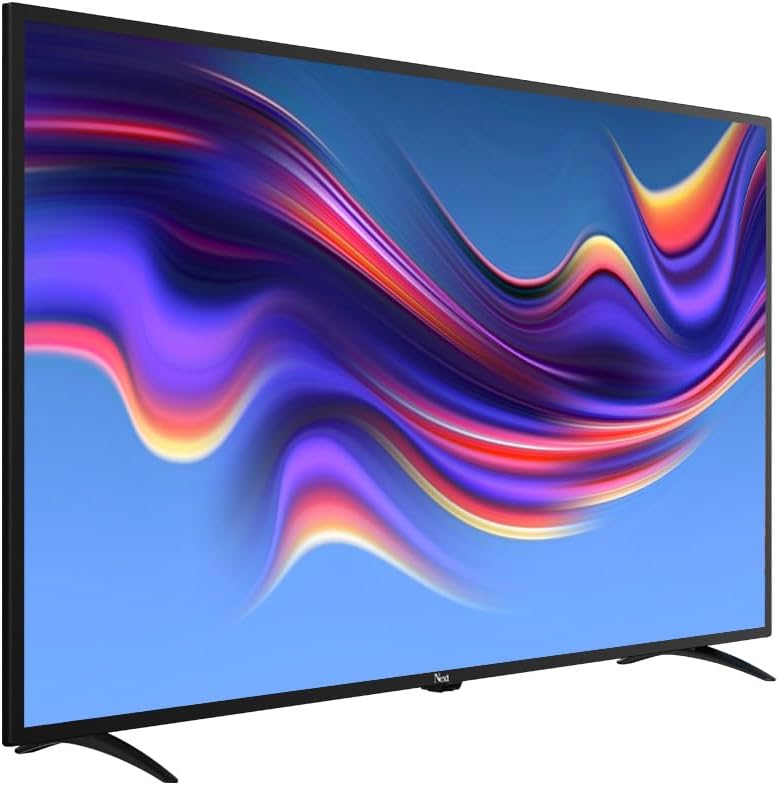
Малюнак 1.1: Фронт view of the Next YE-43020GG4 43-inch Full HD Google Android TV, showcasing its sleek design and the Google Android TV interface.
The Next YE-43020GG4 is a 43-inch Full HD (1920x1080p) LED television featuring the Google Android TV operating system. It offers a dynamic contrast enhancer for improved picture quality and integrated Wi-Fi for seamless internet connectivity. This model is designed for ease of use and provides access to a wide range of applications and streaming services.
2. Інфармацыя па бяспецы
Observe the following safety precautions to prevent damage to the TV and ensure personal safety:
- крыніца харчавання: Connect the TV only to an AC 100-240V, 50/60Hz power source. Ensure the power cord is not damaged or pinched.
- Вентыляцыя: Не блакуйце вентыляцыйныя адтуліны. Пакіньце дастатковую прастору вакол тэлевізара для належнай цыркуляцыі паветра і прадухілення перагрэву.
- Вада і вільгаць: Не падвяргайце тэлевізар уздзеянню дажджу, вільгаці і не стаўце прадметы, напоўненыя вадкасцямі, на тэлевізар або побач з ім.
- Уборка: Адключыце тэлевізар ад сеткі перад чысткай. Выкарыстоўвайце мяккую сухую тканіну. Не выкарыстоўвайце вадкія ачышчальнікі або аэразольныя спрэі.
- Размяшчэнне: Place the TV on a stable, level surface. If wall-mounting, ensure the mount is compatible and installed by qualified personnel.
- Маланка: During lightning storms or when unused for long periods, unplug the TV from the power outlet and disconnect the antenna cable.
- Абслугоўванне: Не спрабуйце абслугоўваць тэлевізар самастойна. Звяртайцеся па любыя тэхнічныя работы да кваліфікаванага персаналу.
3. Змесціва ўпакоўкі
Праверце наяўнасць усіх прадметаў у камплекце:
- Next YE-43020GG4 43-inch Full HD Google Android TV Unit
- Пульт дыстанцыйнага кіравання
- Тумба пад тэлевізар (2 штукі)
- Шнур харчавання
- Кіраўніцтва карыстальніка (гэты дакумент)
- Батарэйкі для пульта дыстанцыйнага кіравання (могуць адрознівацца ў залежнасці ад рэгіёна)
4. Фізічныя характарыстыкі і злучэнні
Familiarize yourself with the physical layout and connection ports of your television.

Малюнак 4.1: Тыл view of the TV with labeled connection ports.
4.1. Злучэнне задняй панэлі
| Порт | Апісанне |
|---|---|
| HDMI 1 (ARC) | High-Definition Multimedia Interface with Audio Return Channel support. Connect external devices like Blu-ray players or soundbars. |
| HDMI 2 | High-Definition Multimedia Interface. Connect external devices. |
| USB (2x) | Universal Serial Bus ports for connecting USB storage devices (e.g., flash drives) to play media or for software updates. |
| Ethernet | RJ45 port for wired internet connection. |
| DVB-S / DVB-S2 | Satellite input for connecting a satellite dish. |
| DVB-T / DVB-T2 | Terrestrial antenna input for connecting a digital terrestrial antenna. |
| DVB-C | Cable input for connecting to a cable TV network. |
| CI MODULE | Common Interface slot for inserting a CI+ module and smart card, typically used for encrypted digital TV services. |
| MINI AV-IN | Mini Audio/Video input for connecting older devices using an adapter cable (not always included). |
4.2. Side Profile

Малюнак 4.2: Левы бок, прафесіяналfile тэлевізара.

Малюнак 4.3: Прафесіянал правага бокуfile тэлевізара.
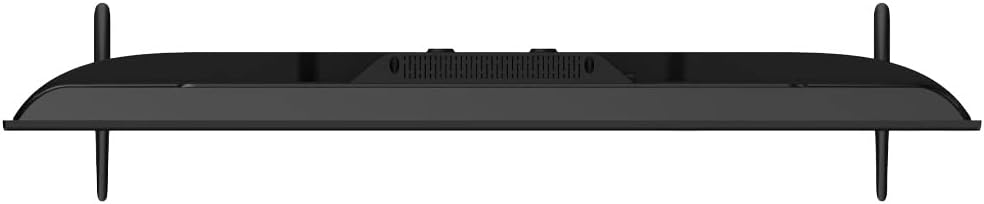
The slim design of the television allows for versatile placement options, whether on a stand or wall-mounted. The side profiles illustrate the minimal depth of the unit.
5. Настройка
5.1. Мацаванне падстаўкі для тэлевізара
- Carefully place the TV face down on a soft, flat surface (e.g., a blanket or foam) to prevent screen damage.
- Вызначце левую і правую часткі стойкі.
- Сумясціце кожную частку падстаўкі з адпаведнымі адтулінамі для шруб у ніжняй частцы тэлевізара.
- Замацуйце падстаўкі з дапамогай шруб, якія ўваходзяць у камплект. Не перацягвайце.
- Carefully lift the TV to an upright position and place it on a stable surface.
5.2. Насценнае мацаванне (неабавязкова)
If you choose to wall-mount your TV, ensure you use a VESA-compatible wall mount kit (not included) and follow the instructions provided with the wall mount. It is recommended to have this installation performed by a qualified professional.
5.3. Падключэнне сілкавання і знешніх прылад
- Падключыце шнур харчавання да ўваходу харчавання тэлевізара, а затым да разеткі.
- Connect your antenna, satellite dish, or cable TV source to the appropriate input ports (DVB-T/T2, DVB-S/S2, DVB-C).
- Connect any external devices (e.g., game consoles, Blu-ray players) to the HDMI ports.
- For wired internet, connect an Ethernet cable to the ETHERNET port. For Wi-Fi, ensure your router is on and within range.
5.4. Майстар пачатковай налады
- Уключыце тэлевізар кнопкай харчавання на пульце дыстанцыйнага кіравання або самім тэлевізарам.
- Follow the on-screen instructions to select your language, country, and network settings (Wi-Fi or Ethernet).
- Sign in with your Google Account to access Google Play Store, Google Assistant, and other Google services.
- Complete the channel scan for terrestrial, satellite, or cable broadcasts.
6. Інструкцыя па эксплуатацыі
6.1. Пульт дыстанцыйнага кіраванняview

Малюнак 6.1: The remote control for your Next Google Android TV, featuring quick access buttons for popular streaming services and voice control.
The remote control provides access to all TV functions. Insert two AAA batteries (not included) into the battery compartment, observing polarity.
- Кнопка харчавання: Уключае або выключае тэлевізар.
- Навігацыйная панэль (Уверх/Уніз/Улева/Управа/ОК): Навігацыя па меню і пацвярджэнне выбару.
- Кнопка "Назад": Вяртае да папярэдняга экрана.
- Кнопка дадому: Доступ да галоўнага экрана Android TV.
- Павялічыць/паменшыць гучнасць: Рэгулюе ўзровень гучнасці.
- Канал уверх/уніз: Змяняе тэлеканалы.
- Netflix, YouTube, Prime Video, Google Play Buttons: Прамы доступ да гэтых праграм.
- Google Assistant Button (Microphone Icon): Актывуе галасавое кіраванне.
6.2. Выкарыстанне Google Assistant

Малюнак 6.2: Voice search functionality via the remote control, activated by the Google Assistant button.
Press the Google Assistant button on your remote and speak into the microphone to:
- Пошук movies, TV shows, or information.
- Кіруйце прыладамі разумнага дома.
- Адкрытыя праграмы.
- Атрымайце адказы на пытанні.
6.3. Accessing Applications and Streaming Services
From the Android TV home screen, you can access pre-installed applications or download new ones from the Google Play Store. Use the dedicated buttons on the remote for quick access to popular streaming platforms.
Малюнак 6.3: The Next Google Android TV provides access to a wide range of streaming applications, enhancing your entertainment options.
7. Тэхнічнае абслугоўванне
7.1. Чыстка тэлевізара
- экран: Акуратна працярыце экран мяккай тканінай без ворса. Для выдалення ўстойлівых плям злёгкуampПрамыйце тканіну вадой або спецыяльным сродкам для чысткі экранаў (пераканайцеся, што ён бяспечны для святлодыёдных экранаў) і акуратна працярыце. Не распыляйце вадкасць непасрэдна на экран.
- Кабінет: Wipe the TV cabinet with a soft, dry cloth. Avoid using abrasive cleaners, waxes, or solvents.
- Перад чысткай: Заўсёды адключайце тэлевізар ад электрычнай разеткі перад чысткай.
7.2. Абнаўленне праграмнага забеспячэння
Your Android TV may receive software updates periodically. It is recommended to keep your TV's software updated to ensure optimal performance and access to the latest features and security patches. You can usually check for updates in the TV's settings menu under "About" or "System Update."
8. Выпраўленне непаладак
Звярніцеся да наступнай табліцы, каб азнаёміцца з распаўсюджанымі праблемамі і іх рашэннямі:
| праблема | Магчымая прычына / рашэнне |
|---|---|
| Няма сілы |
|
| Няма выявы, але гук ёсць |
|
| Няма гуку, але выява ёсць |
|
| Пульт дыстанцыйнага кіравання не працуе |
|
| Праблемы з падключэннем да Wi-Fi |
|
| Збоі або завісанні праграм |
|
9. Тэхнічныя характарыстыкі
Technical specifications for the Next YE-43020GG4 43-inch Full HD Google Android TV:
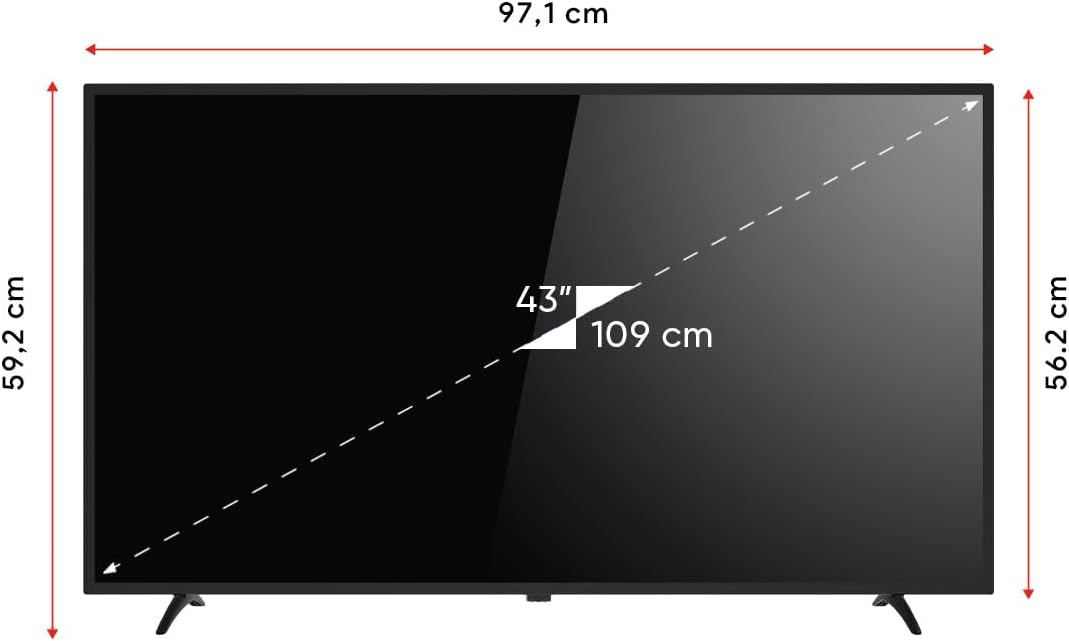
Малюнак 9.1: Dimensions of the Next YE-43020GG4 TV.
| Асаблівасць | Дэталь |
|---|---|
| Назва мадэлі | YE-43020GG4 |
| Марка | Далей |
| Памер экрана | 43 цалі (109 см) |
| Тэхналогія адлюстравання | святлодыёд |
| дазвол | Full HD (1920x1080p) |
| Частата абнаўлення | 60 Гц |
| Аперацыйная сістэма | Google Android TV |
| Сувязь | Wi-Fi, Ethernet |
| Парты HDMI | 2 (1x ARC) |
| Парты USB | 2 |
| Суадносіны бакоў | 16:9 |
| Каэфіцыент кантраснасці | 3000:1 |
| Асаблівасці | Dynamic Contrast Enhancer, Google Assistant |
| Памеры прадукту (ШxГxВ) | 97.1 х 19.4 х 59.2 см |
| Вага прадукту | 5.9 кілаграма |
| Мадэльны год | 2024 |
Малюнак 9.2: EU Energy Label for the Next YE-43020GG4, indicating its energy efficiency rating and consumption.
10. Гарантыя і падтрымка
10.1. Інфармацыя аб гарантыі
Your Next YE-43020GG4 television comes with a manufacturer's warranty. Please refer to the warranty card included in your product packaging for specific terms, conditions, and duration of the warranty. Keep your purchase receipt as proof of purchase for warranty claims.
10.2. Падтрымка кліентаў
For technical assistance, troubleshooting beyond this manual, or warranty service, please contact Next customer support. Contact details can typically be found on the manufacturer's official webсайце або ў гарантыйным талоне.
Пры звароце ў службу падтрымкі падрыхтуйце наступную інфармацыю:
- Назва мадэлі: YE-43020GG4
- Серыйны нумар (знаходзіцца на задняй панэлі тэлевізара)
- Дата пакупкі
- Зразумелае апісанне праблемы