
1. Уводзіны
This manual provides detailed instructions for the setup, operation, and maintenance of your HUNSN RJ47 Micro Firewall Appliance. The RJ47 is a compact, fanless mini PC designed for network security applications, supporting various open-source firewall solutions like OPNsense and pfSense, as well as Linux distributions and Windows operating systems.
Equipped with an Intel 12th Gen Alder Lake-N N200 processor and multiple 2.5GbE network interfaces, this appliance offers robust performance for network routing and security tasks.
2. Асаблівасці прадукту
- Працэсар: Intel 12th Gen Alder Lake-N N200 with AES-NI support.
- Памяць: 1 x SO-DIMM DDR5 4800 MT/s slot, supporting up to 32GB RAM.
- захоўванне: 2 x M.2 2280 NVMe x1 SSD slots and 1 x 2.5-inch SATA SSD/HDD bay.
- Сеткавыя інтэрфейсы: 6 x Intel 2.5GbE I226-V LAN ports.
- Відэа выхад: 2 x HDMI 2.1 ports and 1 x Type-C port for display.
- Парты USB: 1 x USB 3.2, 4 x USB 2.0, and 1 x Type-C (data/display).
- Additional I/O: TF slot for data storage/system boot, Power ON/OFF button, RST button, DC_IN.
- Астуджэнне: Безвентылятарная канструкцыя для бясшумнай працы.
- Сумяшчальнасць сістэмы: Supports 5.10.x and above core-based FreeBSD router systems, Linux distributions, and Windows OS. UEFI support only.
- Упраўленне харчаваннем: Supports hardware auto power-on (enabled by default), network wake-up, and system power management.
3. Кіраўніцтва па наладцы
3.1 Змест пакета
Перад тым, як працягнуць, пераканайцеся, што ўсе прадметы прысутнічаюць у камплекце:
- HUNSN RJ47 Firewall Appliance
- Power Supply (12V3A)
- Шнур харчавання
- Гарантыйны талон
3.2 Абсталяванне скончанаview

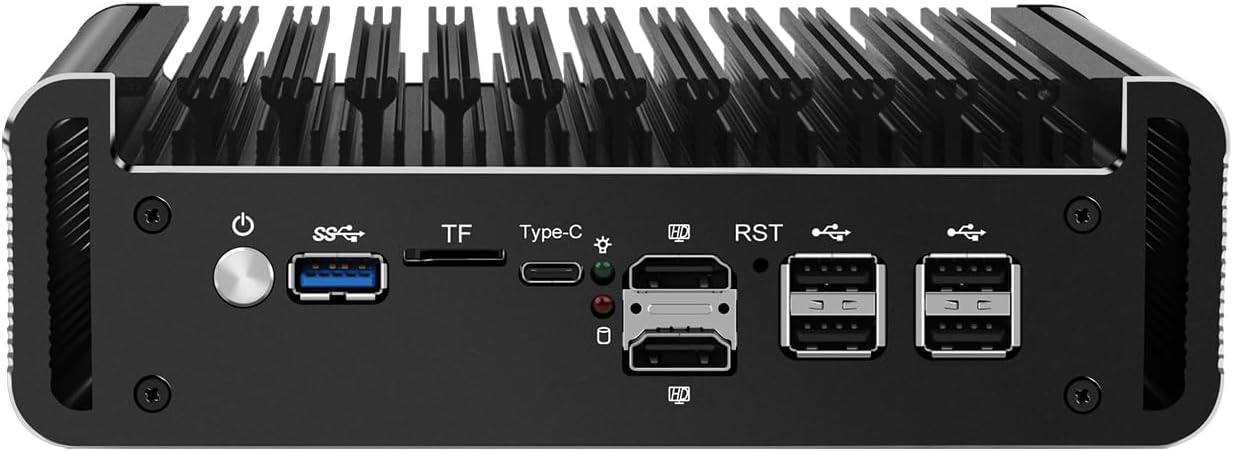
Малюнак 1: Пярэдняя панэль зверхуview
This image displays the front panel of the HUNSN RJ47, featuring the power button, USB 3.2 port, TF card slot, Type-C port, two HDMI 2.1 ports, RST button, and four USB 2.0 ports.
Малюнак 2: Задняя панэль зверхуview
This image illustrates the rear panel of the HUNSN RJ47, showing the DC 12V power input and six 2.5 Gigabit Ethernet (LAN) ports labeled ETH0 to ETH5.
3.3 Пачатковае падключэнне
- Падключэнне дысплея: Connect a monitor to one of the HDMI 2.1 ports or the Type-C port using an appropriate cable.
- Падключэнне перыферыйных прылад: Падключыце клавіятуру і мыш USB да даступных партоў USB.
- Падключыць сетку: Connect your network cables to the 2.5GbE LAN ports as required for your network configuration.
- Падключыце харчаванне: Connect the power supply to the DC_IN port on the appliance and then plug the power cord into an electrical outlet.
- Уключэнне: Press the power button on the front panel to turn on the appliance.
3.4 Устаноўка аперацыйнай сістэмы
The HUNSN RJ47 supports various operating systems, including FreeBSD-based router systems (e.g., OPNsense, pfSense), Linux distributions, and Windows OS. It supports UEFI boot only.
- Prepare a bootable USB drive with your chosen operating system.
- Insert the bootable USB drive into a USB port on the appliance.
- Power on the appliance and access the BIOS/UEFI settings (usually by pressing DEL or F2 during startup) to set the boot order or select the USB drive as the boot device.
- Выконвайце інструкцыі на экране, каб усталяваць аперацыйную сістэму.
4. Інструкцыя па эксплуатацыі
4.1 Уключэнне/выключэнне сілкавання
- Уключэнне: Press the power button on the front panel. The system will automatically power on if configured in BIOS.
- Звычайнае выключэнне: Initiate a shutdown through your installed operating system.
- Прымусовае адключэнне: Press and hold the power button for approximately 5 seconds. Use this only when a normal shutdown is not possible.
4.2 Канфігурацыя сеткі
The RJ47 features six 2.5GbE LAN ports. After installing your operating system, configure the network interfaces according to your specific network topology and firewall requirements. Refer to the documentation of your chosen operating system (e.g., OPNsense, pfSense) for detailed network setup instructions.
4.3 Налады BIOS/UEFI
To access the BIOS/UEFI settings, power on the appliance and repeatedly press the DEL or F2 key. Here you can configure boot options, enable/disable features, and manage power settings such as "Auto Power On" and "Network Wake-up".
5. Тэхнічнае абслугоўванне
5.1 Ачыстка
Due to its fanless design, the RJ47 requires minimal cleaning. Periodically wipe the exterior with a soft, dry cloth to remove dust. Ensure the ventilation fins are clear of obstructions to maintain optimal passive cooling.
- Не выкарыстоўвайце вадкія ачышчальнікі або аэразольныя спрэі непасрэдна на прыладзе.
- Перад чысткай пераканайцеся, што прылада выключана і адключана ад сеткі.
5.2 Умовы навакольнага асяроддзя
To ensure longevity and stable operation, operate the appliance within the specified environmental conditions:
- Працоўная тэмпература: -10°C да 70°C
- Тэмпература захоўвання: ад 0°C да 70°C
- Адносная вільготнасць: Ад 5% да 85% (без кандэнсацыі)
6. Выпраўленне непаладак
- Няма харчавання:
- Ensure the power adapter is securely connected to the appliance and the electrical outlet.
- Пераканайцеся, што разетка працуе.
- Праверце, ці правільна націснута кнопка харчавання.
- Няма вываду на дысплей:
- Confirm the monitor is powered on and connected to the correct HDMI or Type-C port.
- Паспрабуйце іншы кабель дысплея або манітор.
- Пераканайцеся, што на маніторы выбрана правільная крыніца ўваходнага сігналу.
- Праблемы з падключэннем да сеткі:
- Check all Ethernet cable connections to the LAN ports.
- Verify network settings within your installed operating system.
- Ensure your router/switch is functioning correctly.
- Operating System Installation Failure:
- Confirm your bootable USB drive is created correctly and is recognized in BIOS/UEFI.
- Remember that the appliance supports UEFI boot only. Ensure your OS installer is configured for UEFI.
- Check the integrity of your OS image.
7. Тэхнічныя характарыстыкі
| Асаблівасць | Спецыфікацыя |
|---|---|
| Нумар мадэлі | RJ47 |
| працэсар | Intel Processor N200 (12th Gen Alder Lake-N), 6M Cache, up to 3.70 GHz |
| AES-NI Support | так |
| Памяць | 1 x SO-DIMM DDR5 4800 MT/s, up to 32GB |
| Захоўванне | 2 x M.2 2280 NVMe x1 SSD, 1 x 2.5 Inch SATA SSD/HDD |
| Сеткавая карта | 6 x Intel 2.5GbE I226-V |
| Інтэрфейс уводу-вываду | Power ON/OFF, USB 3.2, TF slot, Type-C (display/data), 2 x HDMI 2.1, RST, 4 x USB 2.0, DC_IN, 6 x LAN |
| Пашырэнне | Built-in reserved TPM header, 1 x COM pin, 1 x GPIO pin |
| Увод магутнасці | DC 100-240V AC/50-60Hz, 12V3A |
| Працоўная тэмпература | -10°C да 70°C |
| Тэмпература захоўвання | ад 0°C да 70°C |
| Адносная вільготнасць | 5%~85% без кандэнсацыі |
| TDP | 6W |
| Сістэма астуджэння | Без вентылятара |
| Памеры | 178.3 х 126.5 х 55 мм |
| Вага | 1.3 kgs (Appliance), 2 kg (Shipping Weight) |
| Сумяшчальнасць сістэмы | FreeBSD router systems (5.10.x+), Linux distros, Windows OS (UEFI support only) |
| Батарэі | 1 батарэя CR2032 (у камплекце) |
8. Інфармацыя аб гарантыі
The HUNSN RJ47 Firewall Appliance includes a warranty card in its packaging. Please refer to this card for specific details regarding warranty coverage, terms, and conditions. Retain your proof of purchase for warranty claims.
9. Падтрымка
For technical assistance, product inquiries, or support, please contact HUNSN directly.
- вытворца: Shenzhen Shi Han Song Ke Ji You Xian Gong Si
- тэлефон: (86) 13613019665
- Факс: (86) 0755-23057094
- Інтэрнэт-крама: Наведайце чыноўніка HUNSN Store on Amazon каб атрымаць больш прадуктаў і інфармацыі.


