
1. Уводзіны
This manual provides essential information for the safe and efficient use of your Google TV 7000 Series 4K Ultra HD LED Television. Please read these instructions thoroughly before operating the device and retain them for future reference.
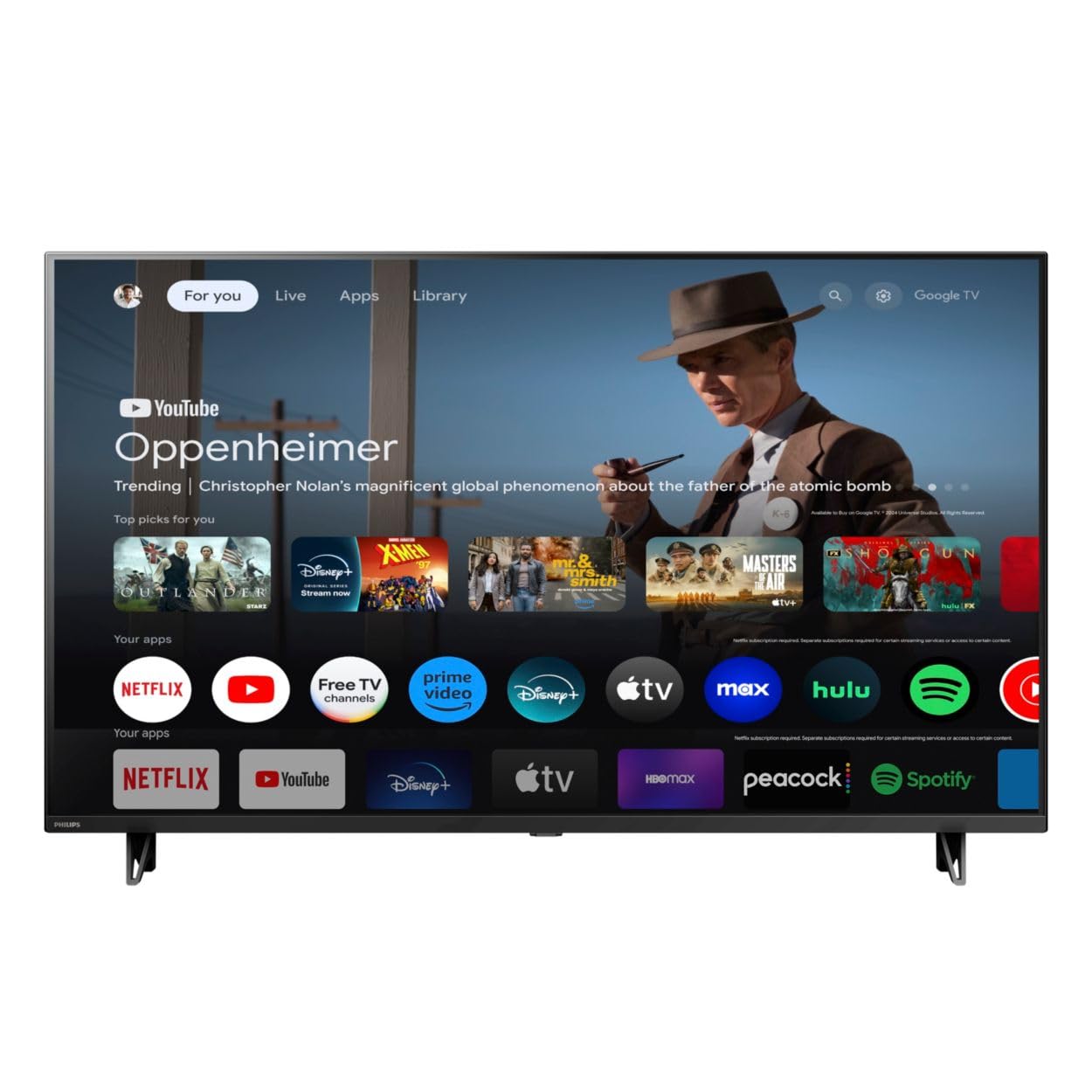
Фронт view of the Google TV 7000 Series 4K Ultra HD LED Television, showcasinяго тонкую рамку і дысплей.
2. Настройка
2.1 Распакоўка і змесціва ўпакоўкі
Асцярожна выміце ўсе прадметы з упакоўкі. Пераканайцеся, што ўсе кампаненты наяўныя:
- Google TV 7000 Series Television
- Пульт дыстанцыйнага кіравання
- Батарэі для пульта
- Настольная падстаўка
- Screws for tabletop stand
- Кароткае кіраўніцтва
- Кіраўніцтва карыстальніка (гэты дакумент)
2.2 Падключэнне сілкавання
Connect the power cord to the TV's power input, then plug the other end into a wall outlet. Ensure the power outlet is easily accessible.
2.3 Падключэнне знешніх прылад
Your television supports various connectivity options:
- HDMI: Connect devices like Blu-ray players, game consoles, or set-top boxes to the HDMI ports. This model features Audio Return Channel (HDMI 2).
- USB: Use the USB port for media playback or connecting compatible accessories.
- Ethernet: Для стабільнага праваднога падключэння да Інтэрнэту падключыце кабель Ethernet да порта LAN.
- Выхад для навушнікаў: Падключыце навушнікі для асабістага праслухоўвання.
- Лічбавы аўдыёвыхад (аптычны): Для падлучэння да знешніх аўдыёсістэм.
- CVBS+Audio L/R In: Для падключэння старых аналагавых прылад.
2.4 Пачатковая налада
Пры першым уключэнні тэлевізар правядзе вас праз працэс пачатковай налады. Гэта ўключае ў сябе:
- Выбар мовы
- Connecting to a Wi-Fi network or using Ethernet
- Signing in with your Google account to access Google TV features and apps
- Scanning for available channels (ATSC, NTSC)
2.5 Варыянты мантажу
You can place your TV on a tabletop using the included stand or mount it on a wall.
- Настольная падстаўка: Attach the tabletop stand using the provided screws as per the quick start guide.
- Насценны мацаванне: For wall mounting, use a VESA compatible mount (600 x 400 mm). Consult a professional for wall mounting to ensure safety and proper installation.
3. Інструкцыя па эксплуатацыі
3.1 Пульт дыстанцыйнага кіраванняview
The remote control allows you to navigate the Google TV interface, adjust settings, and control playback. It supports voice control for Google Assistant.
3.2 Асноўныя функцыі
- Магутнасць: Націсніце кнопку харчавання, каб уключыць або выключыць тэлевізар.
- Аб'ём: Выкарыстоўвайце кнопкі рэгулявання гучнасці для рэгулявання ўзроўню гуку.
- Каналы: Use the channel buttons to switch between TV channels.
- Увод: Select the desired input source (HDMI, USB, etc.).
3.3 Навігацыя па інтэрфейсе Google TV
Use the directional pad and 'OK' button on your remote to navigate the Google TV home screen. The home screen provides access to your installed apps, recommended content, and settings.
3.4 Разумныя функцыі
- Убудаваны Chromecast: Cast content from your compatible mobile devices or computer directly to your TV.
- Убудаваны памочнік Google: Press the Google Assistant button on your remote to use voice commands for searching content, controlling smart home devices, getting information, and more.
- Праграмы для струменевай перадачы: Access popular streaming services like Netflix, YouTube, Discovery+, Tubi TV, and Prime Video directly from the Google TV interface.
3.5 Налады выявы і гуку
Наладзьце свой viewгукавога досведу праз меню налад тэлевізара:
- Picture Style: Choose from various preset picture modes or customize settings like brightness, contrast, color, and sharpness. Features include Dynamic contrast, Film mode, Blue stretch, and Custom Color management.
- Падтрымка HDR: Тэлевізар падтрымлівае HDR10 і HLG для палепшанай кантраснасці і колераперадачы сумяшчальнага кантэнту.
- Рэжым гульні: Optimize picture settings for gaming to reduce input lag.
- Стыль гуку: Select sound presets or adjust bass and treble. Features include Dolby Audio and Auto Volume Leveling.
- Суадносіны бакоў: Adjust the screen aspect ratio (e.g., Automatic, 4:3, Movie Expand, Full).
3.6 Падключэнне
Your TV offers various ways to connect to networks and devices:
- Wi-Fi: Падключыцеся да хатняй сеткі бесправадным спосабам для доступу ў Інтэрнэт.
- Bluetooth: Connect compatible Bluetooth devices such as headphones or game controllers.
- Ethernet: Забяспечвае стабільнае правадное падключэнне да Інтэрнэту.
4. Тэхнічнае абслугоўванне
4.1 Ачыстка экрана і корпуса тэлевізара
- Заўсёды адключайце тэлевізар ад сеткі перад чысткай.
- Use a soft, dry, lint-free cloth to gently wipe the screen and TV body.
- Для ўстойлівых плям злёгку пачысціцеampПрацярыце тканіну вадой або спецыяльным сродкам для чысткі экранаў. Ніколі не распыляйце ачышчальнік непасрэдна на экран.
- Пазбягайце выкарыстання абразіўных ачышчальнікаў, воску або растваральнікаў.
4.2 Абнаўленне праграмнага забеспячэння
Your Google TV may receive automatic software updates to improve performance and add new features. Ensure your TV is connected to the internet to receive these updates. You can also manually check for updates in the settings menu.
4.3 Сыход за пультам дыстанцыйнага кіравання
Replace batteries when the remote control's response becomes sluggish. Do not mix old and new batteries or different types of batteries. Keep the remote control away from moisture and direct sunlight.
5. Выпраўленне непаладак
Калі ў вас узніклі праблемы з тэлевізарам, звярніцеся да наступных распаўсюджаных рашэнняў:
| праблема | Магчымае рашэнне |
|---|---|
| Няма ўлады | Праверце, ці шнур сілкавання надзейна падключаны да тэлевізара і разеткі. Пераканайцеся, што разетка спраўная. |
| Няма выявы, але гук ёсць | Пераканайцеся, што выбрана правільная крыніца ўваходнага сігналу. Праверце падключэнне знешніх прылад. |
| Няма гуку, але выява ёсць | Check the volume level and mute status. Ensure external audio systems are properly connected and powered on. |
| Пульт дыстанцыйнага кіравання не працуе | Замяніце батарэйкі. Пераканайцеся, што паміж пультам дыстанцыйнага кіравання і ІЧ-датчыкам тэлевізара няма перашкод. |
| Праблемы з падключэннем да сеткі | Перазагрузіце маршрутызатар і мадэм. Падключыцеся зноў да сеткі Wi-Fi або праверце падключэнне кабеля Ethernet. |
| Picture quality issues (e.g., pixelation) | Check the signal strength for broadcast channels. For streaming content, ensure a stable internet connection. Adjust picture settings. |
5.1 Скід да заводскіх налад
If problems persist, a factory reset may resolve them. This will erase all personal settings and installed apps, returning the TV to its original factory state. Consult the on-screen menu for the factory reset option, usually found under System or Device Preferences in Settings.
6. Тэхнічныя характарыстыкі
Key technical specifications for the Google TV 7000 Series 4K Ultra HD LED Television:
| Асаблівасць | Спецыфікацыя |
|---|---|
| Памер экрана | 43 цалі |
| Тэхналогія адлюстравання | LCD UltraHD Display, LED Backlight |
| дазвол | 4K (2160p) |
| Частата абнаўлення | 120 PMR (Picture Motion Rate) |
| Падтрымліваецца фармат HDR | HDR10, HLG |
| Аперацыйная сістэма | Android 11 (Google TV) |
| Тэхналогія падлучэння | Bluetooth, Ethernet, USB, Wi-Fi |
| Функцыі гуку | Dolby Audio, Auto Volume Leveling |
| Асаблівасці | Chromecast Built-in, Google Assistant Built-in, Game Mode, Digital Noise Reduction, MPEG artifact reduction, Dynamic contrast |
| Памеры прадукту (Д х Ш х У) | 9.8" Г x 37.9" Ш x 23.9" У |
| Вага прадмета | 14.99 фунта |
| Стандарт мацавання VESA | 600 х 400 мм |
| Вытворца | Philips |
| Нумар мадэлі | 43PUL7652/F7 |
| UPC | 609585254893 |
7. Гарантыя і падтрымка
7.1 Інфармацыя аб гарантыі
This product comes with a Limited Warranty. Please refer to the warranty card included in your package or contact the manufacturer for specific terms and conditions regarding coverage and duration.
7.2 Падтрымка кліентаў
For technical assistance, troubleshooting beyond this manual, or warranty claims, please contact the manufacturer, Philips, or your retailer. Have your model number (43PUL7652/F7) and serial number ready when contacting support.