
Уводзіны
Thank you for choosing the AZDOME M550 Pro 3 Channel Dash Cam. This manual provides detailed instructions for the installation, operation, and maintenance of your device. Please read this manual carefully before using the product to ensure proper functionality and safety. Keep this manual for future reference.
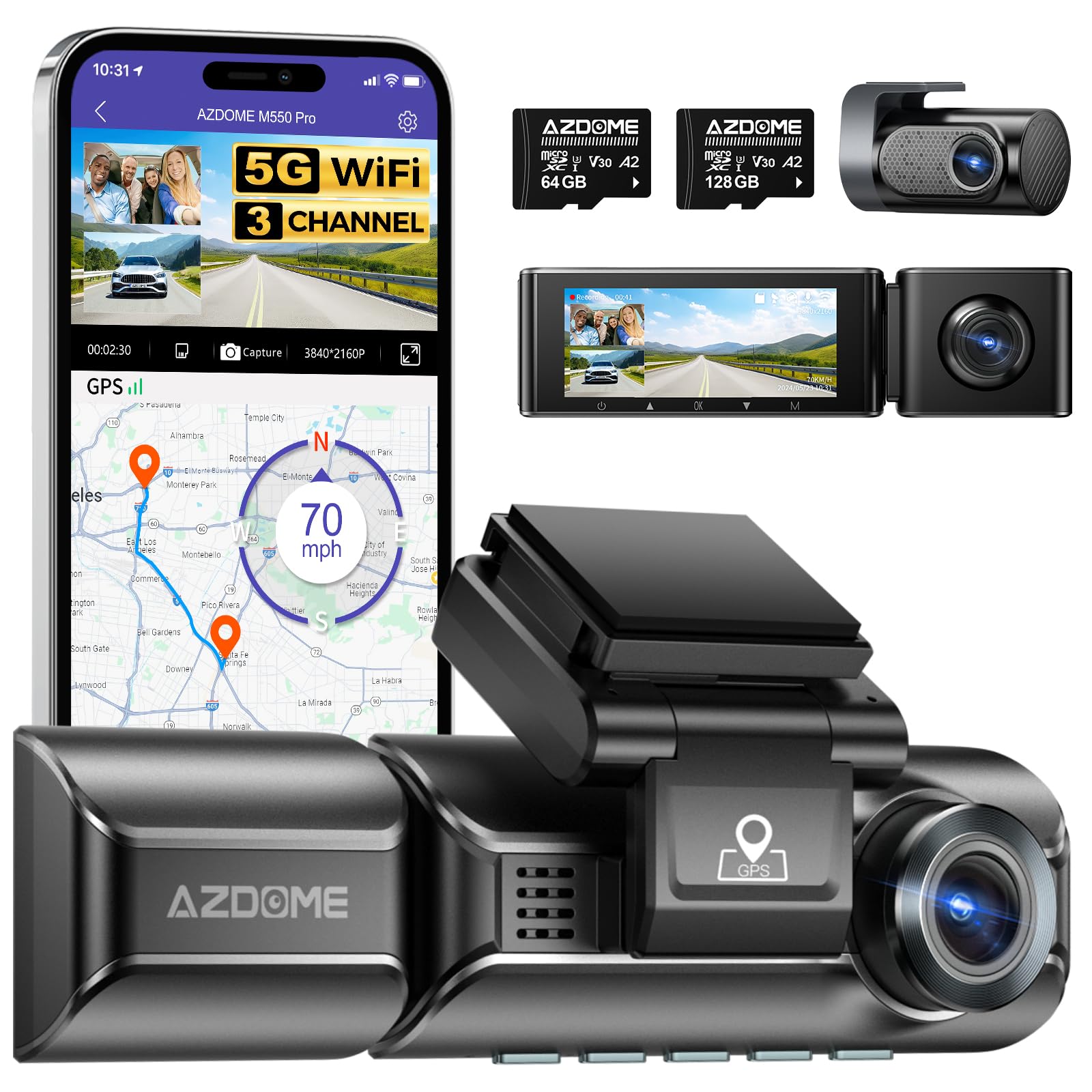
Image: The AZDOME M550 Pro dash cam, showing the main unit, interior camera, rear camera, and a smartphone displaying the companion app interface with GPS and video playback.
Змест пакета
Калі ласка, праверце змесціва ўпакоўкі пасля распакавання. Калі якія-небудзь прадметы адсутнічаюць або пашкоджаныя, звярніцеся ў службу падтрымкі кліентаў.
- AZDOME M550 Pro Dash Cam (Main Unit)
- Унутраная камера
- Задняя камера
- AZDOME 128GB TF Card (Memory Card)
- Сеткавы кабель (аўтамабільная зарадная прылада)
- Мантажны кранштэйн
- Кіраўніцтва карыстальніка

Image: A close-up of the AZDOME 128GB MicroSD TF Card, included with the dash cam.
Прадукт скончаныview
The AZDOME M550 Pro is a 3-channel dash cam system designed to record video from the front, interior, and rear of your vehicle. It features a 3.19-inch IPS screen, built-in 5.8G WiFi, GPS, and various parking monitoring modes.
Main Unit (Front Camera)
- Front Lens: Records the road ahead in up to 4K resolution.
- Display Screen: 3.19-inch IPS screen for live view і прайграванне.
- Control Buttons: For menu navigation and settings.
- GPS Module: Integrated for location and speed data.
- MicroSD Card Slot: For memory card insertion.
Унутраная камера
- Records the vehicle's interior in 1080P.
- Equipped with 6 IR LEDs for enhanced night vision inside the cabin.
- Removable (Type-C Port) for flexible installation.
Задняя камера
- Records the rear view of the vehicle in 1080P.
- Connects to the main unit via a dedicated cable.
Настройка
1. Устаўка карты MicroSD
- Пераканайцеся, што відэарэгістратар выключаны.
- Locate the MicroSD card slot on the main unit.
- Insert the 128GB TF card with the gold contacts facing the back of the dash cam until it clicks into place.
- Каб выняць, акуратна націсніце на карту, пакуль яна не выскочыць.
2. Мантаж Dash Cam
- Ачысціце лабавое шкло, дзе вы плануеце ўсталяваць відэарэгістратар.
- Прымацуеце мантажны кранштэйн да відэарэгістратара.
- Secure the dash cam with the bracket to the windshield, ensuring a clear view of the road. Adjust the lens angle as needed.
3. Падключэнне сілкавання
- Падключыце аўтамабільную зарадную прыладу да ўваходнага порта харчавання відэарэгістратара.
- Падключыце другі канец аўтамабільнай зараднай прылады да гнязда прыпальвальніка вашага аўтамабіля.
- Route the power cable neatly along the windshield and dashboard to avoid obstructing your view.
4. Installing the Interior and Rear Cameras
- Connect the interior camera to its dedicated port on the main unit. Mount it to capture the cabin view.
- Connect the rear camera to its dedicated port on the main unit. Mount it on the rear windshield, ensuring a clear view. Route the cable discreetly.
5. Пачатковае ўключэнне і налады
- Once powered, the dash cam will automatically turn on and begin recording.
- Access the menu to set the correct date and time.
- It is recommended to format the MicroSD card within the dash cam's settings before first use and periodically thereafter to ensure optimal performance.
Інструкцыя па эксплуатацыі
1. 3 Channel Recording
The M550 Pro supports simultaneous recording from three cameras: front, interior, and rear. You can configure recording resolutions:
- Толькі спераду: 4 тыс. (3840x2160 пікселяў)
- Пярэдні і задні: 4K + 1080P
- Front and Interior: 2K (2560x1440P) + 1080P
- Front, Interior, and Rear: 2K + 1080P + 1080P
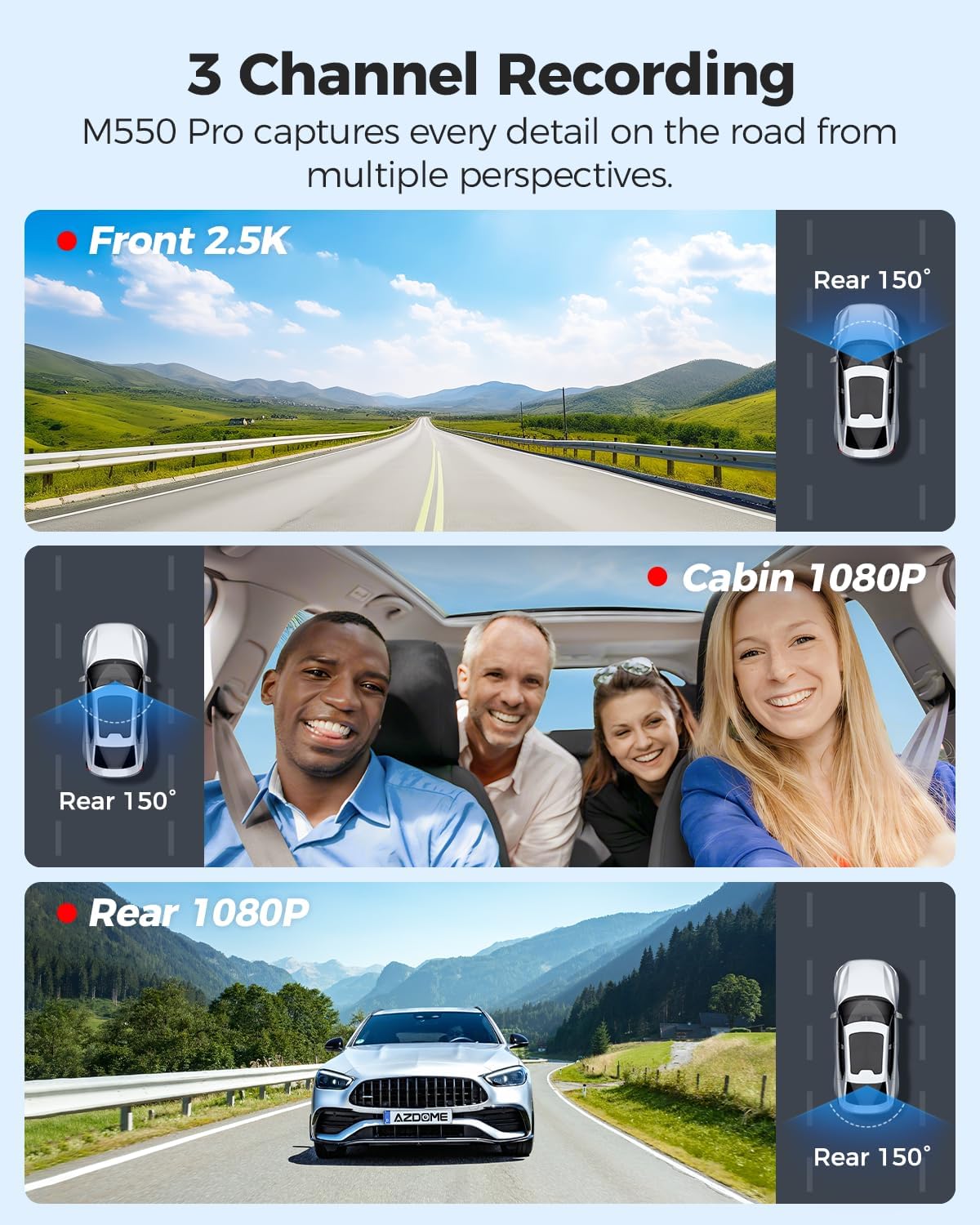
Image: Visual representation of the 3-channel recording capability, showing viewз пярэдняй (2.5K), салоннай (1080P) і задняй (1080P) камер.
2. Цыкл запісу
The dash cam records video in continuous loops. When the memory card is full, the oldest unlocked fileаўтаматычна перазапісваюцца новымі запісамі. Гэта забяспечвае бесперапынны запіс без ручнога ўмяшання.
3. G-сенсор (выяўленне сутыкненняў)
The built-in G-sensor detects sudden impacts or collisions. When triggered, it automatically locks the current video segment, preventing it from being overwritten by loop recording. The sensitivity of the G-sensor can be adjusted in the settings.
4. Кругласутачнае маніторынг паркоўкі
The M550 Pro offers two modes for 24-hour parking monitoring. A 3-lead hardwire kit (not included, ASIN: B096G6FKZP) is required for this feature.
- Рэжым паркоўкі выяўлення сутыкненняў: The G-sensor detects impacts and automatically records and locks video segments.
- Рэжым пакадравай паркоўкі: The dash cam records continuously at a low frame rate (e.g., 1 FPS) for 24 hours, compressing long periods into short videos.

Image: Illustration of the 24-hour parking mode, detailing collision detection and time-lapse recording options, with a car parked under a protective shield icon.
5. Built-in 5.8G WiFi and App Usage
The dash cam features built-in 5.8G WiFi for faster data transfer. Download the AZDOME app on your smartphone to connect to the dash cam.
- Запампуйце праграму AZDOME з крамы Google Play або Apple App Store.
- Enable WiFi on your dash cam and smartphone.
- Connect your smartphone to the dash cam's WiFi network (SSID and password displayed on the dash cam screen).
- Выкарыстоўвайце прыкладанне для жывых view, video playback, downloading recorded files, and adjusting settings. 5.8GHz WiFi allows for downloading 800MB video within 10 seconds.
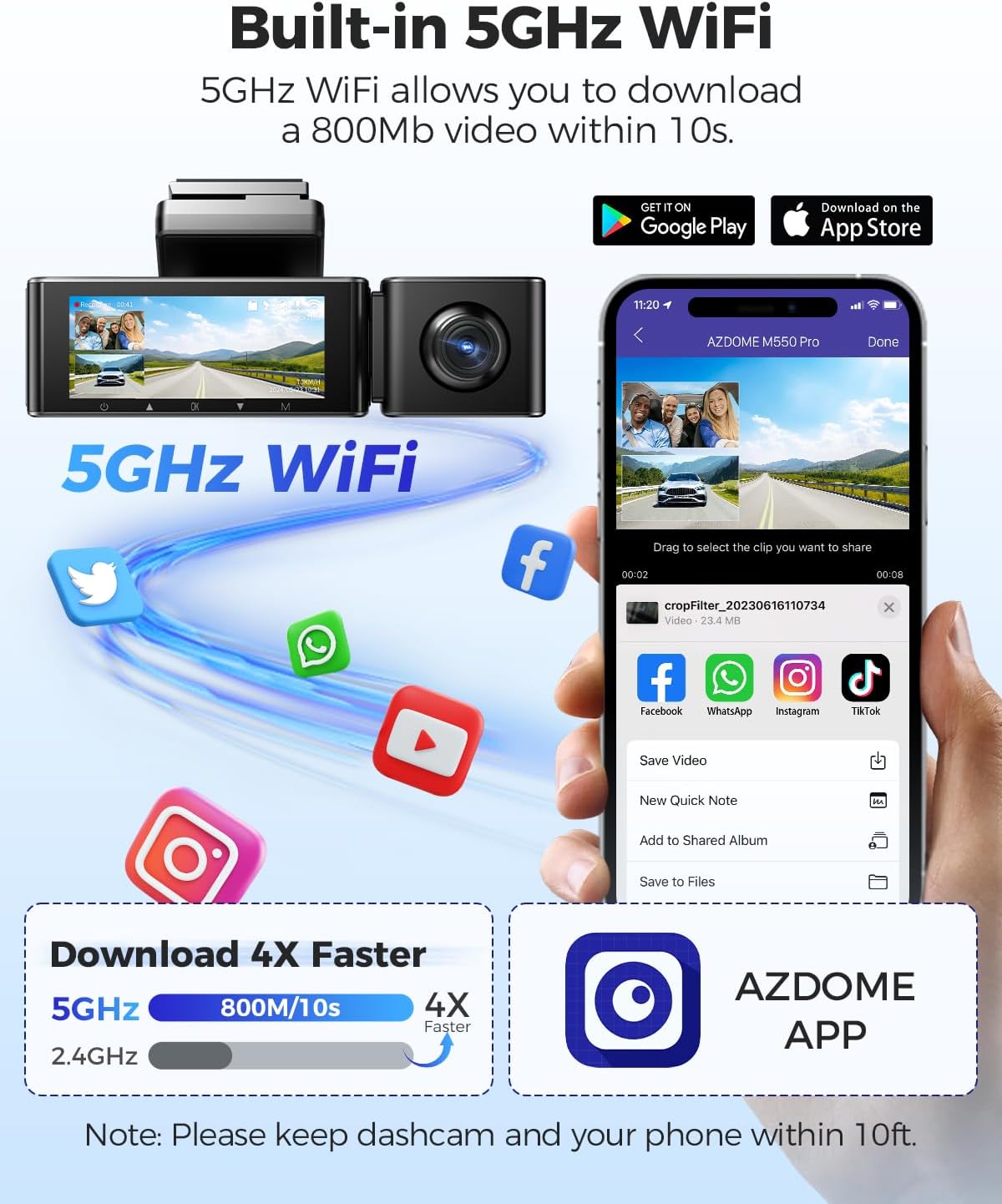
Image: Diagram showing the dash cam connecting to a smartphone via 5GHz WiFi, highlighting faster download speeds for videos through the AZDOME app.
6. Убудаваная функцыя GPS
The integrated GPS module records your driving route, speed, latitude, and longitude data. This information can be viewed using the AZDOME GPS Player software on a computer.
- Download the AZDOME GPS Player software from the official AZDOME webсайт.
- Transfer recorded video files на ваш кампутар.
- Адкрыйце відэа files with the AZDOME GPS Player to view synchronized video, map, and driving data.

Image: A laptop screen displaying the AZDOME GPS Player, showing video playback alongside a map with the driving route, speed, and location details.
7. Начное бачанне
The interior camera is equipped with 6 IR LEDs and a Starvis Sensor to provide clear recordings in low-light conditions inside the vehicle. The front camera also features a 6-glass lens and F=1.8 aperture for improved low-light performance.
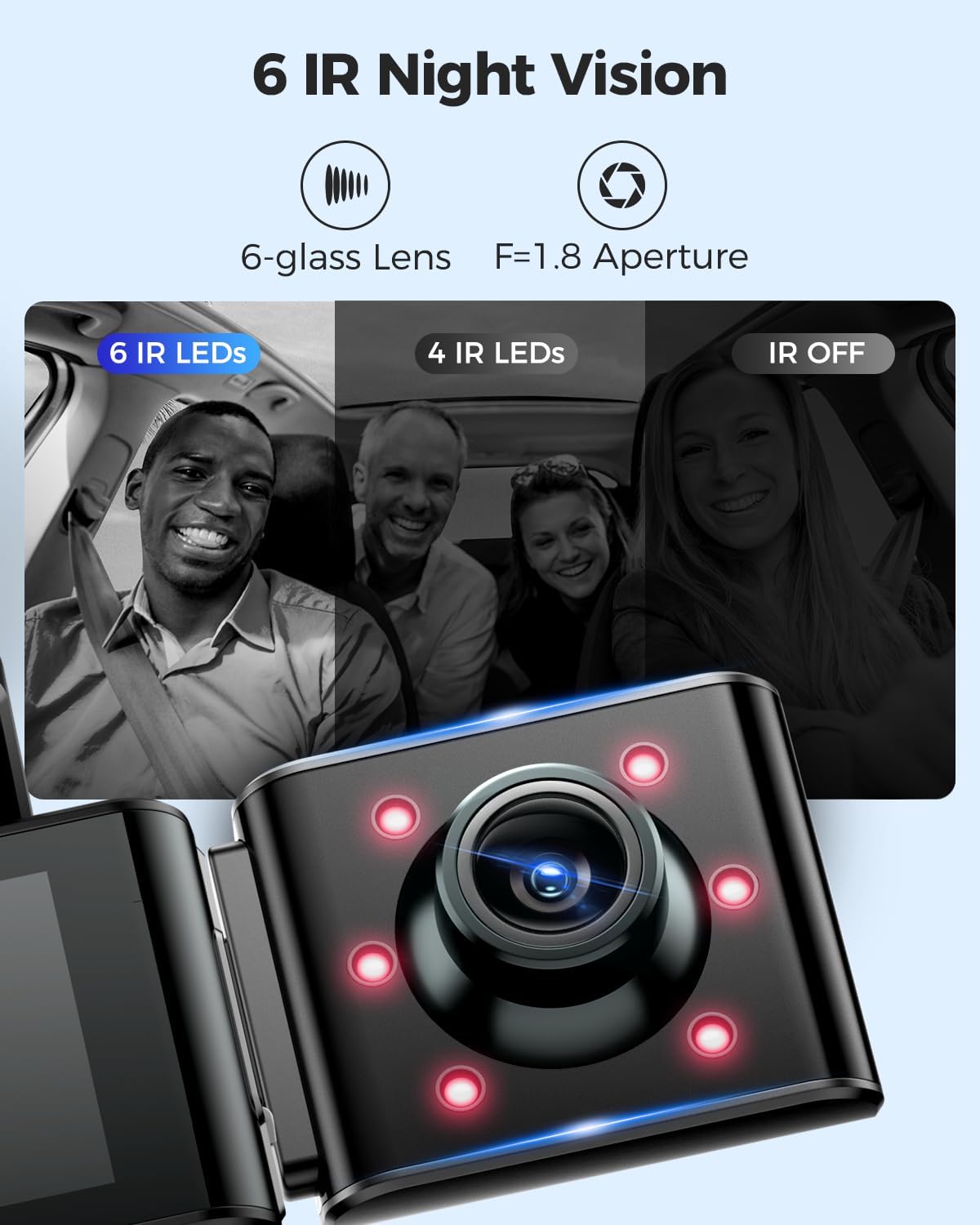
Image: A visual comparison demonstrating the effectiveness of 6 IR LEDs for night vision in the interior camera, showing clearer images compared to 4 IR LEDs or IR off.
Тэхнічнае абслугоўванне
1. Memory Card Care
- Regularly format the MicroSD card (at least once a month) through the dash cam's settings to prevent data corruption and ensure optimal recording performance.
- Use high-quality, high-endurance MicroSD cards (Class 10 or U3 recommended) for reliable operation.
- Avoid removing or inserting the MicroSD card while the dash cam is powered on to prevent damage to the card or device.
2. Ачыстка прылады
- Use a soft, dry cloth to clean the dash cam's body and screen.
- For camera lenses, use a lens cleaning cloth and specialized lens cleaning solution to avoid scratches and ensure clear video quality.
- Не выкарыстоўвайце абразіўныя ачышчальнікі або растваральнікі, бо яны могуць пашкодзіць прыладу.
Ліквідацыю непаладак
- Відэарэгістратар не ўключаецца: Check the power connection. Ensure the car charger is properly plugged into both the dash cam and the vehicle's power outlet. Test the power outlet with another device.
- Dash Cam stops recording: Ensure the MicroSD card is inserted correctly and has sufficient free space. Format the card. If the issue persists, try a different MicroSD card.
- Відэа files are corrupted or unplayable: Format the MicroSD card. Ensure the card is a high-quality, high-endurance type.
- Праблемы з падключэннем Wi-Fi: Ensure the dash cam's WiFi is enabled. Keep your smartphone within 10 feet of the dash cam for optimal connection. Restart both the dash cam and your phone.
- GPS не працуе: Пераканайцеся, што відэарэгістратар мае чысты view of the sky. GPS signal acquisition may take a few minutes, especially after initial setup or in areas with poor signal.
- Не працуе манітор паркоўкі: Ensure the 3-lead hardwire kit is correctly installed and connected. Check parking monitor settings in the menu.
Тэхнічныя характарыстыкі
Below are the key specifications for the AZDOME M550 Pro Dash Cam:
| Асаблівасць | Спецыфікацыя |
|---|---|
| мадэль | M550 Pro |
| Памер дысплея | 3.19-цалевы IPS-экран |
| Раздзяленне відэа (макс.) | Front: 4K (3840x2160P) |
| 3-Channel Resolution | 2K(F)+1080P(I)+1080P(R) |
| Тэхналогія падлучэння | 5.8G Wi-Fi |
| Асаблівасць | Parking Monitor (Collision Detection, Time-lapse) |
| Убудаваны GPS | так |
| Унутраная камера | Removable (Type-C Port), 6 IR LEDs, Starvis Sensor |
| Поле View | 170 Degrees (Front) |
| Метад кантролю | дадатак |
| Тып флэш-памяці | TF (MicroSD) |
| Уключаныя кампаненты | Memory Card (128GB) |

Image: A detailed comparison table highlighting features and specifications of the M550 Pro against other AZDOME models, including display size, video resolution, WiFi, and parking modes.
Гарантыя і падтрымка
Інфармацыя аб гарантыі
AZDOME products typically come with a standard manufacturer's warranty. Please refer to the warranty card included in your package or visit the official AZDOME website for specific warranty terms and conditions. Keep your proof of purchase for warranty claims.
Падтрымка кліентаў
For technical assistance, troubleshooting, or any questions regarding your AZDOME M550 Pro Dash Cam, please contact AZDOME customer support. Contact information can usually be found on the official AZDOME webсайце або ў гарантыйным талоне.