
Natec SH4F
Natec FURY SHOBO SH4F RGB MIDI TOWER PC Case User Manual
Model: SH4F | Brand: Natec
1. Уводзіны
Welcome to the user manual for your Natec FURY SHOBO SH4F RGB MIDI TOWER PC Case. This guide provides essential information for the proper assembly, installation, operation, and maintenance of your new computer chassis. Please read this manual thoroughly before beginning installation to ensure optimal performance and longevity of your components.
2. Правілы бяспекі
- Always disconnect the power supply from the wall outlet before installing or removing any components inside the PC case.
- Handle components with care to avoid damage from electrostatic discharge (ESD). Consider using an anti-static wrist strap.
- Keep small parts, such as screws, away from children.
- Забяспечце належную вентыляцыю вакол корпуса ПК, каб прадухіліць перагрэў.
- Do not expose the case to extreme temperatures, humidity, or direct sunlight.
- Avoid placing heavy objects on top of the case.
3. Змесціва ўпакоўкі
Калі ласка, пераканайцеся, што ўсе прадметы прысутнічаюць у вашай упакоўцы:
- Natec FURY SHOBO SH4F RGB MIDI TOWER PC Case
- Accessory box (containing screws, cable ties, and other small parts)
- Кіраўніцтва карыстальніка (гэты дакумент)
4. Прадукт скончыўсяview
The Natec FURY SHOBO SH4F is a MIDI TOWER PC case designed for gaming and general-purpose computing, offering ample space for components and efficient cooling. It features a modern design with RGB lighting.
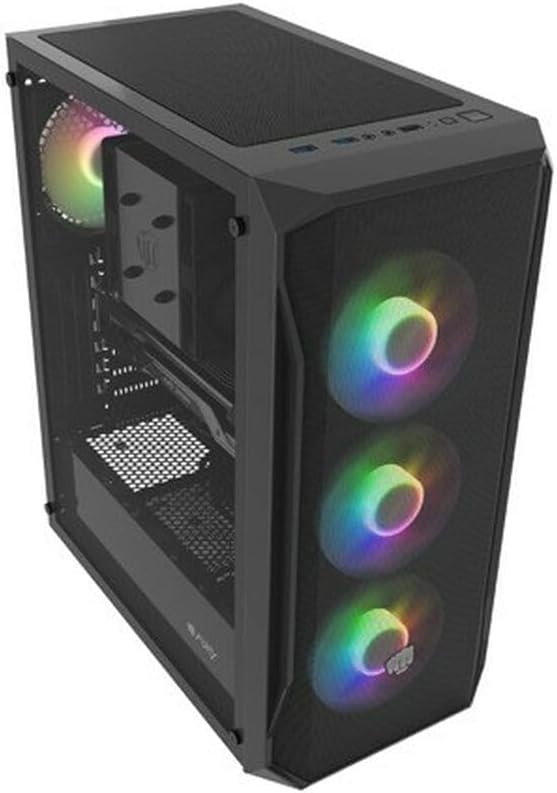
Малюнак 4.1: Вуглавы view of the Natec FURY SHOBO SH4F RGB MIDI TOWER PC Case, showcasing its black metal and tempered glass construction. The front panel features a mesh design with three illuminated RGB fans, and a single RGB fan is visible at the rear exhaust. The top panel includes I/O ports and a mesh filter.
4.1 Пярэдняя панэль уводу/вываду
- Кнопка харчавання
- Кнопка скіду
- Порт USB 2.0 (x1)
- Audio Jacks (Headphone/Microphone)
- RGB Control Button (if applicable)
4.2 Internal Layout
The case supports Micro ATX and Mini ATX motherboards and features a bottom-mounted power supply bay. It includes dedicated areas for storage drives and efficient cable management.
5. Усталёўка і ўстаноўка кампанентаў
Follow these steps to install your PC components into the FURY SHOBO SH4F case.
5.1 Падрыхтоўка справы
- Пастаўце корпус на роўную, устойлівую паверхню.
- Remove the side panels. Typically, the tempered glass side panel is secured with thumbscrews.
5.2 Устаноўка мацярынскай платы
- Install the I/O shield (if not pre-installed on your motherboard) into the rear opening of the case.
- Ensure the motherboard standoffs are correctly aligned for your Micro ATX or Mini ATX motherboard. Adjust or install additional standoffs if necessary.
- Акуратна ўстаўце матчыну плату на апоры, сумясціўшы адтуліны для шруб.
- Замацуйце матчыну плату з дапамогай шруб, якія ўваходзяць у камплект. Не перацягвайце.
5.3 Устаноўка блока харчавання
- Locate the power supply bay at the bottom rear of the case.
- Slide your power supply unit (PSU) into the bay from the rear of the case, ensuring the fan faces downwards (if the case has a bottom vent) or upwards.
- Замацуеце блок харчавання шрубамі з задняй часткі корпуса.
5.4 Усталёўка назапашвальніка
Refer to your case's specific drive bay design for 2.5" SSDs and 3.5" HDDs. Typically, these involve trays or direct screw mounting.
5.5 Expansion Card Installation (e.g., Graphics Card)
- Зніміце неабходныя вечкі слотаў PCI-E з задняй панэлі корпуса.
- Insert your expansion card into the corresponding PCI-E slot on the motherboard.
- Замацуйце карту шрубай або механізмам фіксацыі корпуса.
5.6 Арганізацыя кабеляў
Выкарыстоўвайце выразы і кропкі мацавання за паддонам матчынай платы, каб пракласці і замацаваць кабелі. Гэта паляпшае цыркуляцыю паветра і эстэтыку.
5.7 Connecting RGB Fans
The pre-installed RGB fans typically connect to a central RGB controller or directly to your motherboard's RGB headers. Consult your motherboard manual for specific RGB header locations and software control. Ensure all fan power cables are connected to appropriate fan headers on the motherboard or a fan hub.
6. Эксплуатацыя корпуса ПК
6.1 Уключэнне/выключэнне
After all components are installed and cables connected, plug your power supply into a wall outlet. Press the power button on the front I/O panel to turn on your system. To turn off, use the operating system's shutdown function or press and hold the power button for several seconds.
6.2 Кіраванне RGB-падсветкай
If your case features an RGB control button on the front I/O panel, press it to cycle through various lighting modes and colors. For advanced customization, use your motherboard's RGB software (e.g., ASUS Aura Sync, MSI Mystic Light, Gigabyte RGB Fusion) if the fans are connected to compatible headers.
7. Тэхнічнае абслугоўванне
Regular maintenance helps ensure optimal performance and extends the lifespan of your PC components.
7.1 Ачыстка пылавога фільтра
The FURY SHOBO SH4F case includes dust filters (e.g., on the top and bottom). Periodically remove and clean these filters by rinsing them with water and allowing them to dry completely before re-installing. This prevents dust buildup and maintains airflow.
7.2 Знешняя ўборка
Працярыце вонкавую паверхню корпуса мяккай губкайamp cloth. Avoid abrasive cleaners or solvents that could damage the finish or tempered glass.
8. Выпраўленне непаладак
Калі ў вас узніклі праблемы, звярніцеся да наступных распаўсюджаных крокаў па ліквідацыі непаладак:
- Няма харчавання: Ensure the power supply is properly connected to the wall outlet and the motherboard. Check all internal power cables (24-pin ATX, 8-pin CPU, GPU power). Verify the power button cable is correctly connected to the motherboard's front panel header.
- Вентылятары не круцяцца: Check if fan power cables are securely connected to the motherboard or fan hub. Ensure the power supply is functioning.
- RGB-асвятленне не працуе: Verify RGB cables are correctly connected to the RGB controller or motherboard header. If using a button, try cycling through modes. If using software, ensure it's installed and configured correctly.
- Перагрэў: Ensure all fans are spinning correctly and oriented for proper airflow (intake/exhaust). Clean dust filters and internal components. Verify CPU cooler and GPU cooler are properly installed.
9. Тэхнічныя характарыстыкі
| Марка | Натэк |
| серыял | SH4F |
| Нумар мадэлі | NFO-2154 |
| Тып корпуса | Мідзі вежа |
| Сумяшчальнасць матчыных поплаткаў | Micro ATX, Mini ATX |
| Колер | Чорны |
| Матэрыял | Метал |
| Памеры прадукту (ДxШxВ) | 19.69 х 16.93 х 9.84 цалі (50 х 43 х 25 см) |
| Вага прадмета | 9.46 фунта (4.3 кілаграма) |
| Тып мацавання блока харчавання | Ніжняе мацаванне |
| Спосаб астуджэння | паветра |
| Колькасць партоў USB 2.0 | 1 |
10. Гарантыя і падтрымка
Natec products are manufactured to high-quality standards. For information regarding warranty terms and conditions, please refer to the warranty card included with your product or visit the official Natec website. If you encounter any issues not covered in this manual or require further assistance, please contact Natec customer support through their official channels.
вытворца: Натэк
Ask a question about this manual
Ask about setup, troubleshooting, compatibility, parts, safety, or missing instructions. Manuals+ will review the question and use this page’s manual context to help answer it.