
1. Уводзіны
This manual provides comprehensive instructions for the setup, operation, and maintenance of your A4tech FGK21C 2.4G Wireless Numeric Keypad. Please read this manual thoroughly before using the device to ensure proper functionality and longevity.
2. Змесціва ўпакоўкі
Праверце наяўнасць усіх прадметаў у камплекце:
- A4tech FGK21C Wireless Numeric Keypad
- USB-прыёмнік 2.4G
- Зарадны кабель USB Type-C
- Кіраўніцтва карыстальніка (гэты дакумент)
3. Прадукт скончыўсяview
The A4tech FGK21C is a 2.4G wireless numeric keypad designed for enhanced productivity, featuring ultra-slim keycaps, a rechargeable battery, and dual-mode Num Lock functionality. It is compatible with Windows operating systems.

Малюнак 3.1: Фронт view of the A4tech FGK21C numeric keypad, showing all keys and the FSTYLER branding.

Малюнак 3.2: Вуглавы пярэдні view of the A4tech FGK21C numeric keypad, highlighting its ergonomic design.
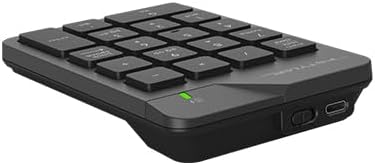
Малюнак 3.3: Збоку view of the A4tech FGK21C numeric keypad, displaying the USB Type-C charging port and the power switch.
4. Настройка
4.1. Зарадка клавіятуры
- Connect the supplied USB Type-C charging cable to the charging port on the keypad.
- Падключыце другі канец кабеля да крыніцы харчавання USB (напрыклад, USB-порт кампутара, насценны адаптар USB).
- The charging indicator light will illuminate. Once fully charged, the light may change color or turn off, depending on the keypad's design.
4.2. Connecting the Keypad
- Locate the 2.4G USB receiver. It is typically stored in a compartment on the keypad itself or included separately in the packaging.
- Plug the USB receiver into an available USB-A port on your computer. If your computer only has USB-C ports, use a USB-C to USB-A adapter (not included unless specified).
- Turn on the keypad using the power switch, usually located on the side or back of the device.
- The keypad should automatically connect to your computer. No additional drivers are typically required for Windows operating systems.
5. Інструкцыя па эксплуатацыі
5.1. Basic Keypad Usage
The numeric keypad functions like a standard 10-key pad. Simply press the desired number or operator keys to input data into your applications.
5.2. Dual Mode Num Lock
The FGK21C features a dual-mode Num Lock function. This means the Num Lock key on the keypad operates independently of your main keyboard's Num Lock. This allows you to use the numeric keypad for number input while your main keyboard's Num Lock is off, or vice-versa.
- Націсніце Num Lock / Clear key once to activate or deactivate the numeric input mode.
- When Num Lock is active, the numeric keys (0-9) will input numbers.
- When Num Lock is inactive, the keys will function as navigation keys (e.g., Home, End, Pg Up, Pg Dn, Insert, Delete) as indicated by the secondary legends on the keycaps.
6. Тэхнічнае абслугоўванне
6.1. Уборка
To clean the keypad, gently wipe the surface with a soft, damp cloth. Avoid using harsh chemicals or abrasive materials, as these can damage the finish or keycap legends. Ensure the keypad is powered off before cleaning.
6.2. Сыход за батарэяй
The keypad contains a built-in rechargeable lithium-ion battery. To prolong battery life:
- Пазбягайце частай поўнай разрадкі акумулятара.
- Store the keypad in a cool, dry place when not in use for extended periods.
- Charge the keypad regularly, even if not used daily.
7. Выпраўленне непаладак
7.1. Keypad Not Responding
- Пераканайцеся, што клавіятура ўключана.
- Праверце, ці надзейна падключаны USB-прыёмнік да спраўнага USB-порта вашага кампутара.
- Verify that the keypad's battery is charged. Connect it to a power source using the USB Type-C cable.
- Паспрабуйце падключыць USB-прыёмнік да іншага порта USB.
- Перазагрузіце кампутар.
7.2. Перарывістае падключэнне
- Ensure the keypad is within the effective range (up to 10-15 meters) of the USB receiver.
- Minimize obstructions between the keypad and the receiver, such as large metal objects.
- Пазбягайце размяшчэння прыёмніка побач з іншымі бесправаднымі прыладамі, якія могуць выклікаць перашкоды (напрыклад, маршрутызатары Wi-Fi, бесправадныя тэлефоны).
7.3. Num Lock Not Working as Expected
- Remember that the keypad's Num Lock operates independently. Press the Num Lock / Clear key on the numeric keypad to toggle its state.
- Ensure the keypad is properly connected and powered on.
8. Тэхнічныя характарыстыкі

Малюнак 8.1: Diagram showing the dimensions of the A4tech FGK21C numeric keypad (124mm width, 187mm length, 24mm thickness).
| Асаблівасць | Дэталь |
|---|---|
| Назва мадэлі | FGK21C |
| Марка | A4tech |
| Тэхналогія падлучэння | 2.4 GHz Wireless (USB-A, USB-C Adaptor) |
| Сумяшчальныя прылады | ПК (Windows) |
| Апісанне клавіятуры | Membrane, Ultra-Slim Keycaps |
| Асаблівасці | Ergonomic, Rechargeable, Dual Mode Num Lock |
| Крыніца харчавання | 1 Lithium Ion battery (included, built-in) |
| Далёкасць бесправадной сувязі | 10-15 метраў |
| Вага прадмета | 4.8 унцыі |
| Памеры ўпакоўкі | 7.25 х 5.5 х 1.5 цалі |
| Дата першай даступнасці | 23 мая 2024 г |
9. Гарантыя і падтрымка
For warranty information and technical support, please refer to the documentation provided with your purchase or visit the official A4tech webсайт. Захоўвайце пацвярджэнне пакупкі для прэтэнзій па гарантыі.