This manual provides comprehensive instructions for the YQSAVIOR Kids Tablet, model YQQ1K. It covers setup, operation, maintenance, and troubleshooting to ensure a safe and optimal user experience. Please read this manual thoroughly before using the device.
Змест пакета
Пасля адкрыцця ўпакоўкі пераканайцеся, што ўсе прадметы наяўныя:
YQSAVIOR Kids Tablet (Pink, Model YQQ1K)
Protective Silicone Case (pre-installed)
USB-кабель для зарадкі
Кіраўніцтва карыстальніка (гэты дакумент)
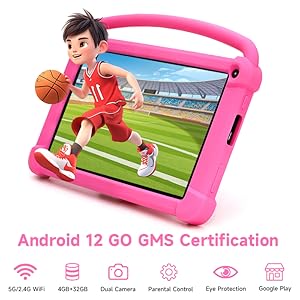
Image: The YQSAVIOR Kids Tablet, featuring its durable pink protective case and integrated kickstand. The screen displays vibrant educational content, highlighting its primary use for children.
Настройка
1. Пачатковая зарадка
Before first use, fully charge the tablet. Connect the provided USB charging cable to the tablet's charging port and the other end to a compatible USB power adapter (not included) or a computer's USB port.
Поўная зарадка звычайна займае 3-4 гадзіны.
Індыкатар батарэі на экране будзе паказваць стан зарадкі.
2. Уключэнне / выключэнне харчавання
Каб уключыць: Press and hold the Power button located on the side of the tablet until the YQSAVIOR logo appears.
Каб выключыць: Націсніце і ўтрымлівайце кнопку харчавання, пакуль не з'явіцца меню параметраў харчавання. Выберыце «Выключыць харчаванне» і пацвердзіце.
3. Майстар пачатковай налады
Пры першым уключэнні планшэт правядзе вас праз працэс пачатковай налады:
Выберыце жаданую мову.
Connect to a Wi-Fi network. This is essential for downloading apps and updates.
Sign in with your Google account or create a new one. This is required for accessing the Google Play Store and other Google services.
Follow on-screen prompts to complete the setup.
Інструкцыя па эксплуатацыі
1. Навігацыя па інтэрфейсе
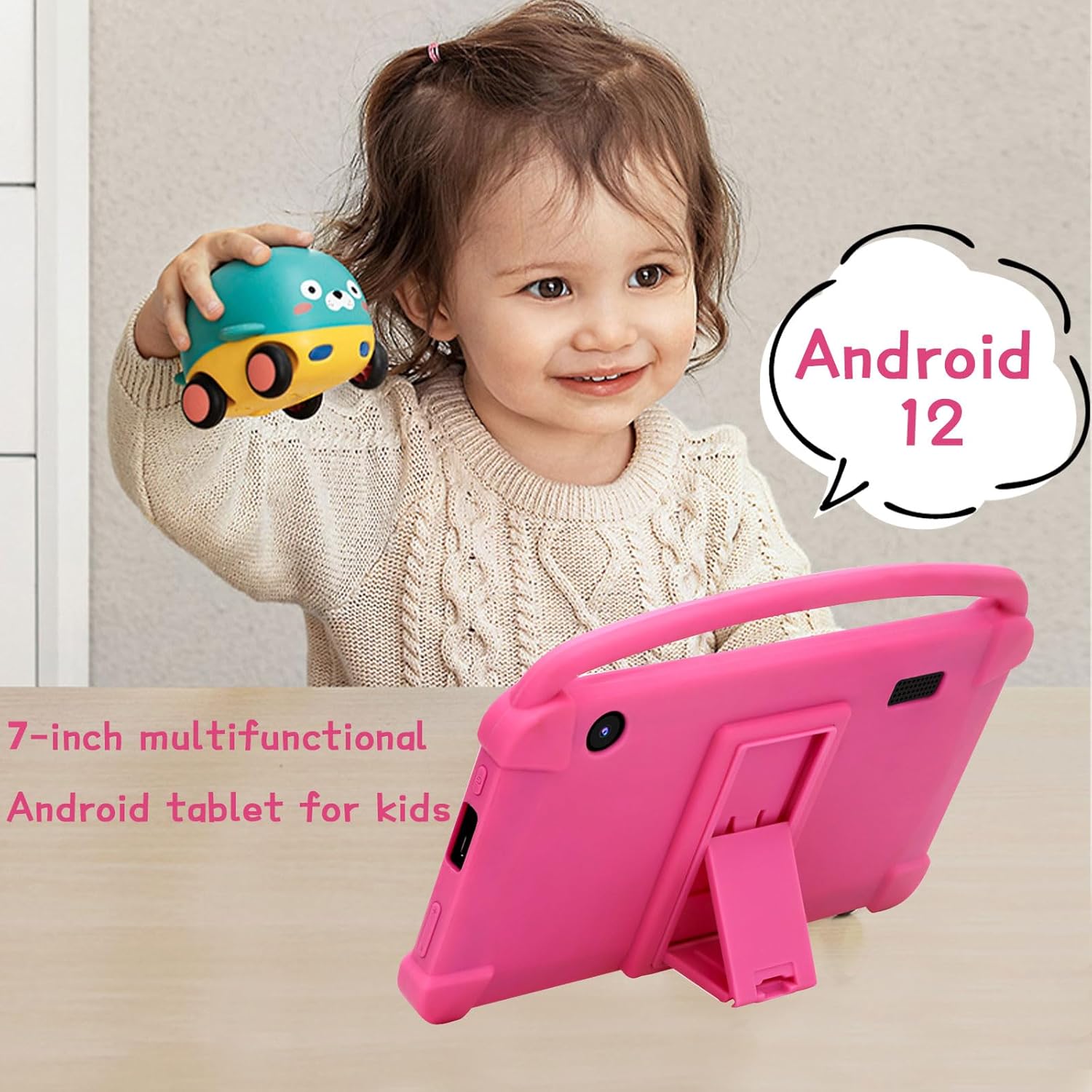
The YQSAVIOR Kids Tablet runs on Android 12. Navigation is primarily touch-based:
Націсніце: Выберыце элемент або адкрыйце праграму.
Правядзіце пальцам: Пракручваць старонкі або спісы.
Звядзенне пальцамі для павелічэння: Павялічваць або памяншаць маштаб малюнкаў або web старонкі.
Кнопка дадому: Вяртаецца на галоўны экран.
Кнопка "Назад": Вяртае да папярэдняга экрана.
Кнопка апошніх праграм: Паказвае нядаўна адкрытыя праграмы.
Image: The tablet's screen showing a grid of colorful application icons, including "Learning Fruits," "Photo," "Calculator," and "Camera," demonstrating its pre-installed educational and utility apps.
2. Бацькоўскі кантроль
The tablet includes robust parental control features to manage content and screen time:
Access the parental control settings through the dedicated "Kids Space" or "Family Link" app (if pre-installed) or via Android's system settings.
Set daily screen time limits.
Фільтраваць web content and block inappropriate applications.
Monitor app usage and activity.
Стварыце некалькі даччыных прафесійfiles with customized settings for each.
Image: A family interacting with the YQSAVIOR Kids Tablet, emphasizing the ease of use for both children and parents, and the importance of parental controls for a safe digital environment.
3. Усталёўка і кіраванне праграмамі
Apps can be downloaded from the Google Play Store. Ensure the tablet is connected to Wi-Fi.
Open the "Play Store" app.
Пошук desired apps or browse categories.
Націсніце «Усталяваць», каб загрузіць і ўсталяваць праграму.
To uninstall an app, go to Settings > Apps & notifications, select the app, and tap "Uninstall."
Image: The YQSAVIOR Kids Tablet showing an interactive learning game, with a child's hand reaching towards the screen, demonstrating the tablet's touch responsiveness and suitability for educational play.
4. Функцыянальнасць камеры
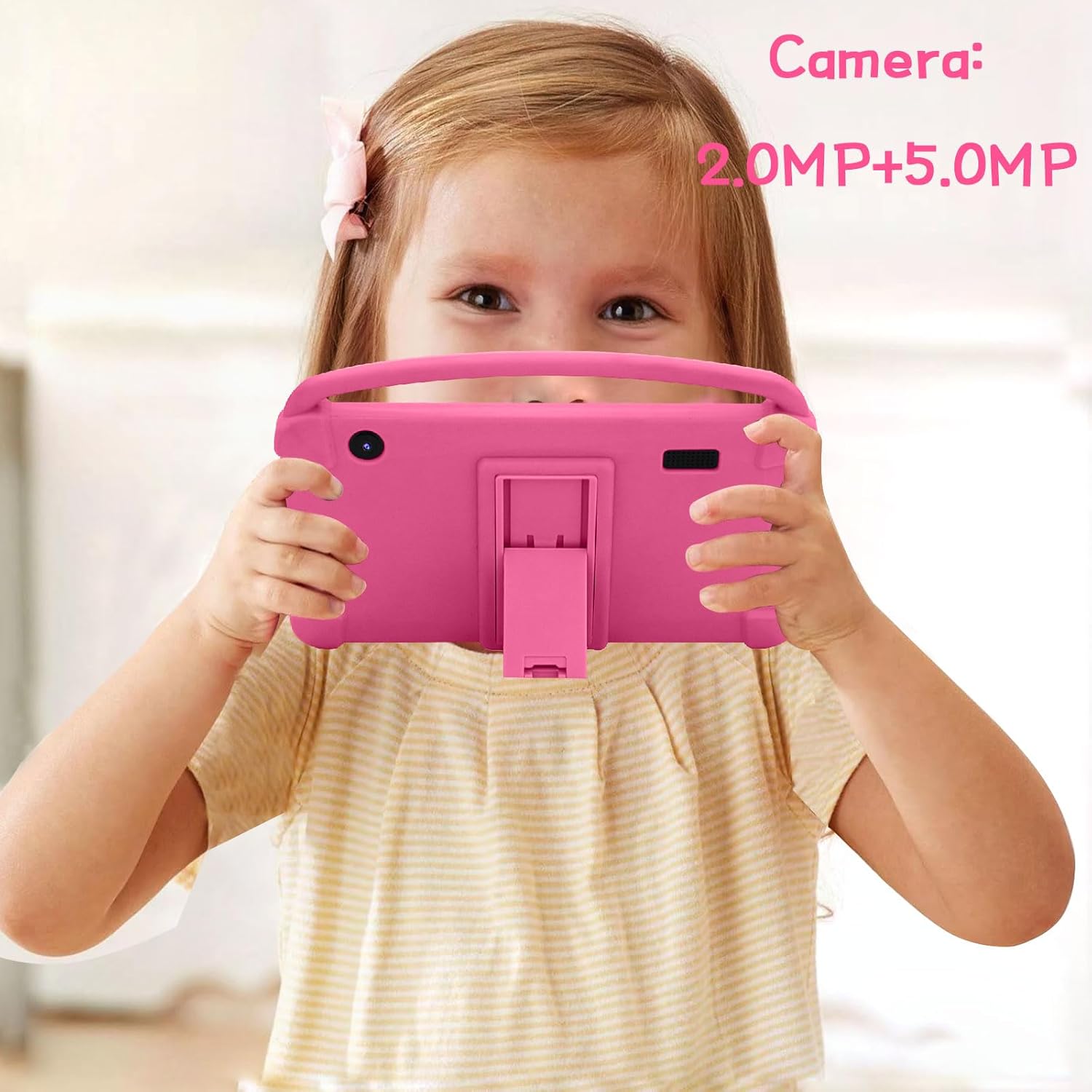
Планшэт абсталяваны франтальнай камерай на 2.0 Мп і задняй камерай на 5.0 Мп.
Open the "Camera" app from the home screen or app drawer.
Націсніце кнопку спуску засаўкі, каб зрабіць фота.
Пераключайцеся паміж пярэдняй і задняй камерамі з дапамогай значка пераключэння камеры.
Photos and videos are saved to the "Gallery" app.
Image: A young girl holding the YQSAVIOR Kids Tablet, positioned as if taking a photo, highlighting the tablet's dual camera functionality and ease of use for children.
Тэхнічнае абслугоўванне
1. Ачыстка планшэта
Для чысткі экрана і корпуса выкарыстоўвайце мяккую тканіну без ворса.
Для ўстойлівых плям злёгкуampпрацярыце тканіну вадой або сродкам для чысткі экранаў.
Пазбягайце выкарыстання агрэсіўных хімікатаў, абразіўных матэрыялаў або празмернай вільготнасці.
2. Сыход за батарэяй
Пазбягайце частай поўнай разрадкі акумулятара.
Не падвяргайце планшэт уздзеянню экстрэмальных тэмператур.
Use only the provided charging cable or a certified compatible alternative.
3. Абнаўленне праграмнага забеспячэння
Рэгулярна правярайце наяўнасць абнаўленняў сістэмы і ўсталёўвайце іх, каб забяспечыць аптымальную прадукцыйнасць і бяспеку. Перайдзіце ў Налады > Сістэма > Абнаўленне сістэмы.
4. Кіраванне сховішчам
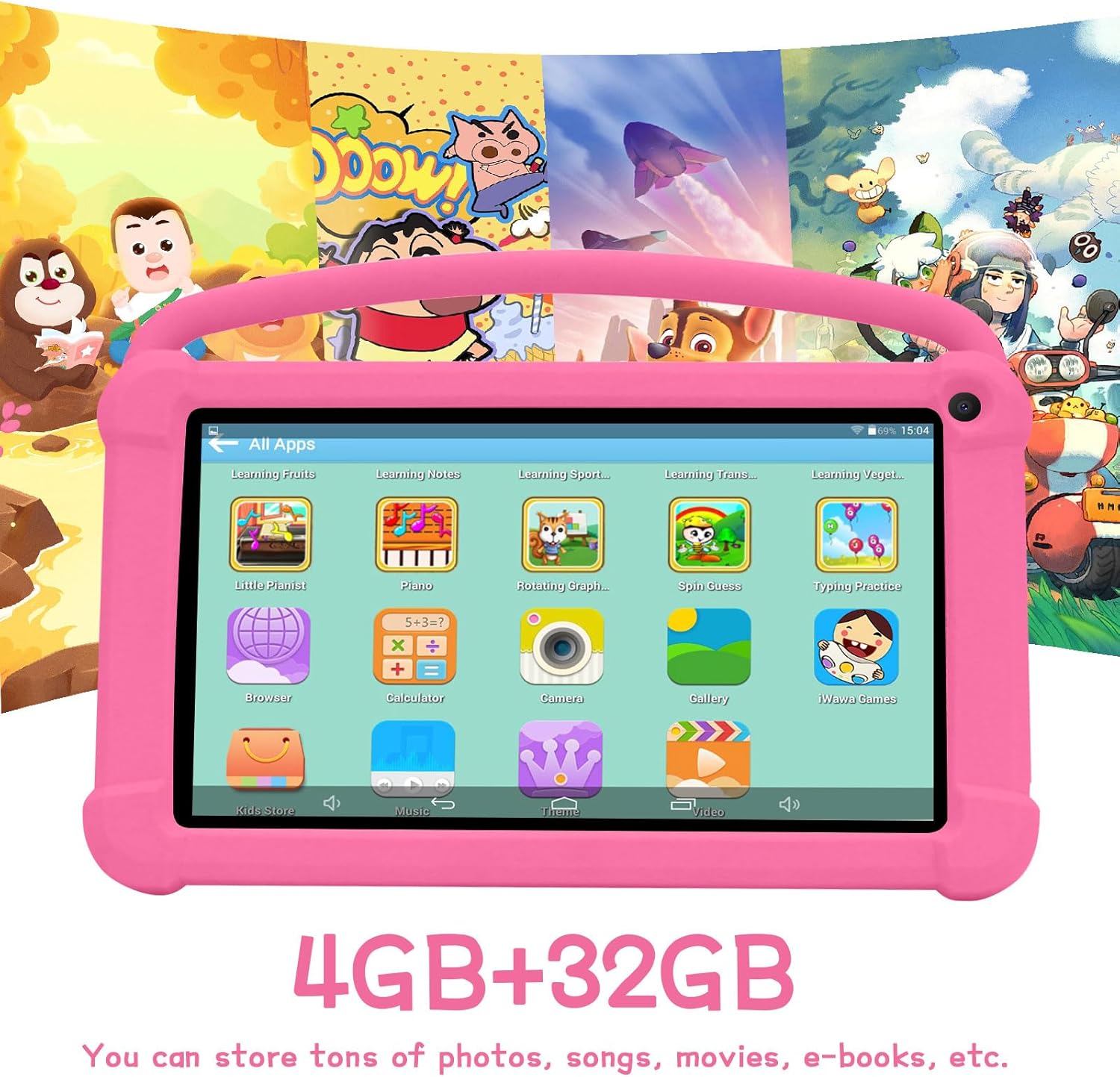
The tablet has 32GB of internal storage, expandable up to 512GB via a Micro SD card (not included).
To insert a Micro SD card, locate the card slot on the side of the tablet and gently push the card in until it clicks.
Regularly clear cache and uninstall unused apps to free up space.
Image: The YQSAVIOR Kids Tablet displaying its app interface, with text overlays indicating "4GB+32GB," signifying its memory and storage capacity for various media and applications.
Ліквідацыю непаладак
праблема
Магчымая прычына
Рашэнне
Планшэт не ўключаецца.
Нізкі зарад батарэі; збой сістэмы.
Зараджайце планшэт не менш за 30 хвілін. Калі ён усё яшчэ не рэагуе, націсніце і ўтрымлівайце кнопку харчавання 10-15 секунд, каб прымусова перазагрузіць яго.
Праблемы з падключэннем да Wi-Fi.
Incorrect password; Router issue; Out of range.
Verify Wi-Fi password. Restart your router. Ensure tablet is within Wi-Fi range.
Праграмы працуюць павольна або выходзяць з ладу.
Insufficient RAM; Too many apps open; Outdated app.
Close background apps. Clear app cache (Settings > Apps). Update apps from Play Store. Consider a factory reset if issues persist (backup data first).
Экран не рэагуе.
Часовы збой праграмнага забеспячэння.
Force restart the tablet by holding the power button for 10-15 seconds.
Акумулятар хутка разраджаецца.
High screen brightness; Background apps; Wi-Fi/Bluetooth always on.
Reduce screen brightness. Close unused apps. Turn off Wi-Fi/Bluetooth when not in use.
Тэхнічныя характарыстыкі
Асаблівасць
Дэталь
мадэль
YQQ1K
Аперацыйная сістэма
Android 12
Памер дысплея
7-цалевы IPS
Дазвол дысплея
1024x600 пікселяў
АЗП
4GB (2GB+2GB)
Унутраная памяць
32 ГБ ПЗУ
Сховішча з магчымасцю пашырэння
Micro SD да 512 Гб
Пярэдняя камера
2.0 МП
Задняя камера
5.0 МП
Сувязь
Wi-Fi (802.11n), Bluetooth
Аўдыё
Dual Speaker, 3.5mm Headphone Jack
акумулятар
Літый-іённы (у камплекце)
Памеры (ДхШхВ)
7 х 0.3 х 3 цалі
Вага прадмета
1.19 фунта
Image: A detailed graphic of the 7-inch YQSAVIOR Kids Tablet, accompanied by key specifications such as Android 12 OS, 7-inch IPS display, 4GB RAM, 32GB ROM, 3000mAh battery, and built-in Google Play, summarizing its core features.
Гарантыя і падтрымка
YQSAVIOR products are designed for reliability and performance. For warranty information and technical support, please refer to the contact details provided on the product packaging or visit the official YQSAVIOR webсайт.
Інфармацыю пра распаўсюджаныя праблемы можна знайсці ў раздзеле «Ліквідацыя непаладак» гэтага кіраўніцтва.
Ask about setup, troubleshooting, compatibility, parts, safety, or missing instructions. Manuals+ will review the question and use this page’s manual context to help answer it.