
1. Уводзіны
This manual provides comprehensive instructions for the safe and efficient use of your NEC VKT16XZG5 laptop. Please read this manual thoroughly before using the product and retain it for future reference. This laptop is equipped with Windows 11, an Intel Core i5-8th Generation processor, and solid-state drive (SSD) storage, designed for general computing tasks.
2. Інфармацыя па бяспецы
Observe the following safety precautions to prevent damage to the laptop or injury to yourself.
- Не падвяргайце ноўтбук уздзеянню экстрэмальных тэмператур, прамых сонечных прамянёў або высокай вільготнасці.
- Не кладзіце цяжкія прадметы на ноўтбук.
- Трымайце вадкасці далей ад ноўтбука, каб пазбегнуць паражэння электрычным токам або пашкоджанняў.
- Выкарыстоўвайце толькі прадастаўлены адаптар пераменнага току або сумяшчальны яго заменнік.
- Не спрабуйце разбіраць або рамантаваць ноўтбук самастойна. Звярніцеся да кваліфікаванага спецыяліста па абслугоўванні.
- Забяспечце належную вентыляцыю, каб прадухіліць перагрэў. Не блакуйце вентыляцыйныя адтуліны.
3. Змесціва ўпакоўкі
Праверце наяўнасць усіх прадметаў у камплекце:
- NEC VKT16XZG5 Laptop
- Адаптар пераменнага току
- Security Zero License Card
- 64GB USB Recovery Storage
- Digital Recovery Manual (pre-saved on the laptop)

Image: 64GB USB Recovery Storage device. This USB drive contains essential recovery files for your laptop.

Image: ZERO Security software box. A license card for this security software is included.
4. Прадукт скончыўсяview
Familiarize yourself with the components of your NEC VKT16XZG5 laptop.
4.1 Вярх View (Keyboard and Touchpad)

Выява: Уверсе view of the NEC VKT16XZG5 laptop. This image highlights the Japanese keyboard layout and the integrated touchpad for navigation.
- Клавіятура: Standard Japanese layout for text input.
- Сэнсарная панэль: For cursor control and gesture input.
- Кнопка харчавання: Located above the keyboard, typically on the right side.
4.2 Exterior Design and Durability
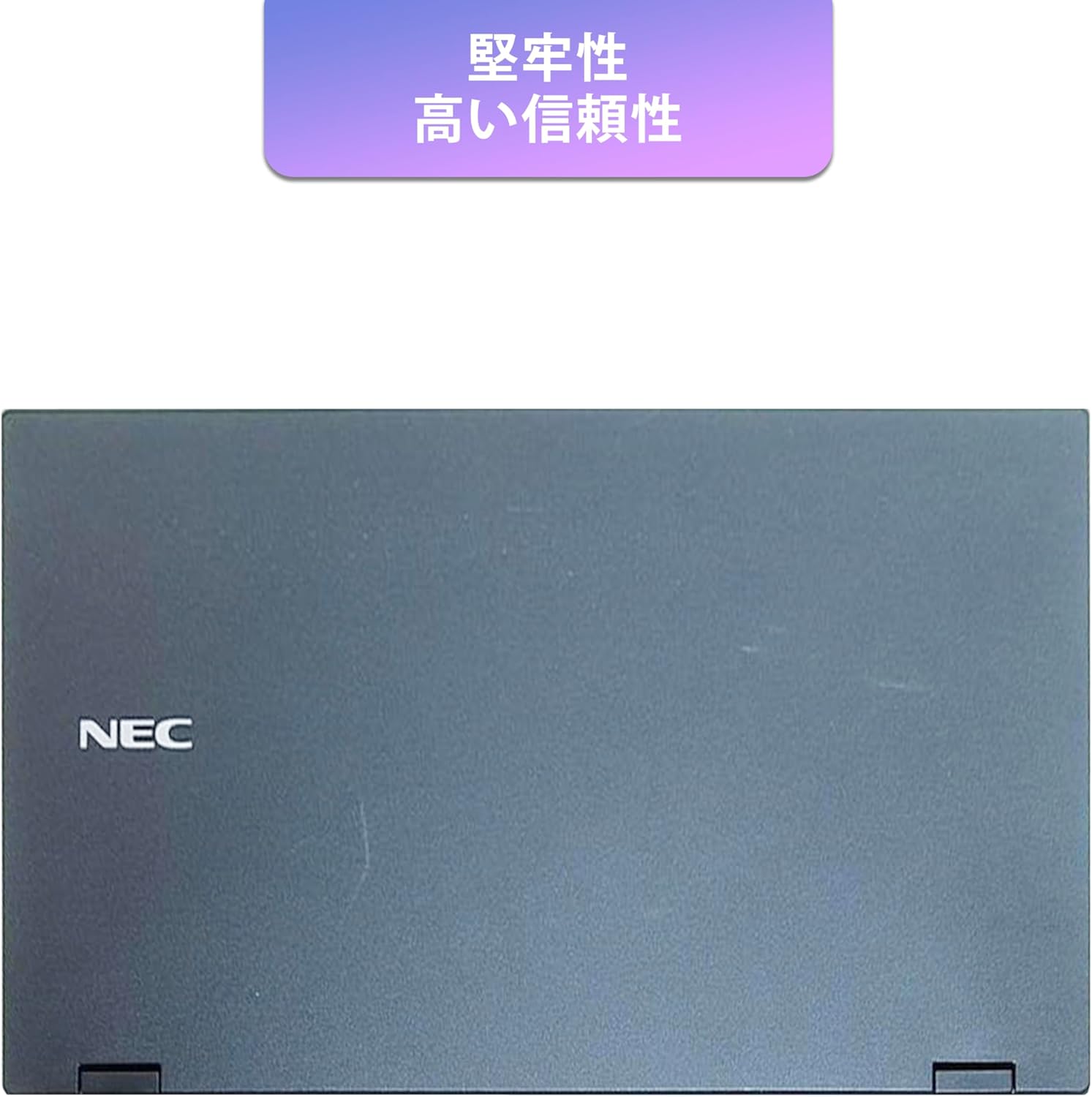
Image: Closed NEC VKT16XZG5 laptop, top casing. The design emphasizes durability and high reliability.
The laptop features a robust casing designed for durability and reliable performance.
4.3 Integrated Camera and Battery Life

Выява: Збоку view of the open NEC VKT16XZG5 laptop. This view indicates the presence of an integrated camera and highlights the laptop's long battery life capability.
- Убудаваная камера: Located at the top center of the display for video conferencing and other applications.
- акумулятар: Designed for extended usage on a single charge.
4.4 Характарыстыкі прадукцыйнасці

Выява: Збоку view of the open NEC VKT16XZG5 laptop. This image emphasizes the Intel Core i5-8th Generation processor and the high-speed SSD for enhanced performance.
- працэсар: Intel Core i5-8th Generation processor for efficient multitasking.
- SSD: High-speed Solid State Drive for faster boot times and application loading.
5. Настройка
Follow these steps for initial setup of your laptop:
- Распакуйце: Акуратна дастаньце ноўтбук і ўсе аксэсуары з упакоўкі.
- Падключыце харчаванне: Падключыце адаптар пераменнага току да порта харчавання ноўтбука, а затым да разеткі.
- Першапачатковае ўключэнне: Open the laptop lid and press the power button. The laptop will begin the Windows 11 setup process.
- Настройка Windows: Follow the on-screen prompts to configure Windows 11, including language, region, network connection, and user account creation.
- Актывацыя WPS Office: Your laptop comes with WPS Office pre-installed. Use the provided license card to activate the software upon first use.
- Security Software Installation: Install the included ZERO Security software using the license card for protection against malware.

Image: Laptop screen displaying information about the WPS Office 2 license card. This indicates that WPS Office is ready for use immediately after activation.
6. Інструкцыя па эксплуатацыі
This section covers basic operation of your NEC VKT16XZG5 laptop.
6.1 Уключэнне/выключэнне сілкавання
- Уключэнне: Націсніце кнопку харчавання.
- Выключыць: Націсніце кнопку «Пуск» у Windows, а затым выберыце «Харчаванне» > «Завяршыць працу».
- Перазапуск: Націсніце кнопку «Пуск», а затым выберыце «Харчаванне» > «Перазагрузка».
- сон: Зачыніце вечка або націсніце кнопку «Пуск», а затым выберыце «Харчаванне» > «Сон».
6.2 Выкарыстанне клавіятуры і сэнсарнай панэлі
- Клавіятура: Type text and use function keys (Fn) for special commands (e.g., volume, brightness).
- Сэнсарная панэль: Move your finger across the surface to control the cursor. Tap to click, use two fingers to scroll.
6.3 Падключэнне да Wi-Fi
- Націсніце на значок Wi-Fi на панэлі задач.
- Выберыце патрэбную сетку са спісу.
- Увядзіце ключ бяспекі сеткі (пароль), калі будзе прапанавана.
- Націсніце «Падключыцца».
6.4 Выкарыстанне прывада DVD-ROM
- Націсніце кнопку выкіду на дыску, каб адкрыць латок.
- Place a DVD or CD onto the tray, ensuring it is seated correctly.
- Gently push the tray back into the laptop.
- The disc content should appear in File Правадыр.
7. Тэхнічнае абслугоўванне
Правільнае абслугоўванне гарантуе даўгавечнасць і прадукцыйнасць вашага ноўтбука.
- Уборка: Для чысткі экрана і вонкавых паверхняў выкарыстоўвайце мяккую тканіну без ворса. Для выдалення ўстойлівых плям...ampзлёгку прамакніце тканіну вадой або сродкам для чысткі экранаў. Пазбягайце агрэсіўных хімічных рэчываў.
- Сыход за батарэяй: To maximize battery life, avoid fully discharging the battery frequently. Store the laptop in a cool, dry place if not used for extended periods.
- Абнаўленні праграмнага забеспячэння: Рэгулярна правярайце наяўнасць абнаўленняў і драйвераў Windows і ўсталёўвайце іх, каб забяспечыць стабільнасць і бяспеку сістэмы.
- Функцыя аднаўлення: Your laptop includes a recovery area and a 64GB USB recovery storage. In case of system issues, refer to the digital recovery manual saved on your laptop for instructions on how to restore the system.

Image: Laptop screen displaying information about the recovery area, large capacity USB storage for recovery, and the performance benefits of the high-speed SSD.
8. Выпраўленне непаладак
У гэтым раздзеле разглядаюцца распаўсюджаныя праблемы, з якімі вы можаце сутыкнуцца.
| праблема | Магчымае рашэнне |
|---|---|
| Ноўтбук не ўключаецца. | Ensure the AC adapter is securely connected to both the laptop and a working power outlet. Check if the power outlet is functional. Try charging the battery for a while before attempting to power on again. |
| Няма падключэння да Wi-Fi. | Check if Wi-Fi is enabled in Windows settings. Ensure your router is working correctly. Try restarting the laptop and the router. Verify the Wi-Fi password. |
| Ноўтбук працуе павольна. | Close unnecessary applications. Check for background processes consuming high resources (Task Manager). Ensure Windows and drivers are up to date. Run a virus scan using the ZERO Security software. |
| Клавіятура або сэнсарная панэль не рэагуюць. | Restart the laptop. Check for any physical obstructions. Ensure drivers are updated. |
9. Тэхнічныя характарыстыкі
Detailed technical specifications for the NEC VKT16XZG5 laptop.
| Асаблівасць | Спецыфікацыя |
|---|---|
| Марка | NEC |
| Назва мадэлі | VKT16XZG5 |
| Памер экрана | 15.6 цаляў |
| Тып дысплея | святлодыёд |
| Максімальнае дазвол дысплея | 1366x768 пікселяў |
| Ёмістасць жорсткага дыска | 256 ГБ (SSD) |
| Мадэль працэсара | Intel Core i5-8th Generation |
| Хуткасць працэсара | 1.6 GHz (Max 3.9 GHz) |
| Колькасць працэсараў | 4 |
| Памер усталяванай аператыўнай памяці | 8 ГБ / 16 ГБ |
| Тэхналогія аператыўнай памяці | DDR4 |
| Аперацыйная сістэма | Windows 11 |
| Графічны супрацэсар | Intel UHD Graphics 620 |
| Optical Storage Device | DVD-ROM |
| Бесправадны тып | Bluetooth, Wireless LAN |
| Інтэрфейс сувязі | USB |
| Памеры прадмета (ДxШxВ) | 37.6 х 25.4 х 2.5 см |
| Апісанне клавіятуры | JP (Japanese) |
| Уключаныя кампаненты | AC Adapter, Security Zero License Card, 64GB USB Recovery Storage |
| Тып батарэі | Літый-іённы |
| Ват-гадзіны батарэі | 45 Вт гадзін |
| Release Year/Model Year | 2019 |
10. Гарантыя і падтрымка
Your NEC VKT16XZG5 laptop comes with a warranty to ensure your peace of mind.
- Гарантыйны тэрмін: 6 months of free repair service from the date of purchase.
- Палітыка замены: If a repair is not possible, the product will be replaced with an equivalent item.
- For technical support or warranty claims, please refer to the contact information provided at the point of purchase or on the official NEC support webсайт.