
X9 Performance X9RFBLERGBAL
Эрганамічная бесправадная клавіятура X9 Performance з трэкболам, кіраўніцтва карыстальніка
Model: X9RFBLERGBAL
1. Уводзіны
Thank you for choosing the X9 Performance Ergonomic Wireless Keyboard with Trackball. This keyboard is designed to enhance your typing comfort and efficiency with its split ergonomic layout, integrated trackball, and convenient features. This manual provides detailed instructions to help you set up, operate, and maintain your new keyboard.

Image: The X9 Performance Ergonomic Wireless Keyboard with Trackball, showcasing its split design and integrated trackball.
2. Настройка
2.1. Што ў скрынцы
- X9 Performance Ergonomic Wireless Keyboard
- USB-A 2.4GHz Wireless Adapter
- Зарадны кабель USB-C
- Кіраўніцтва карыстальніка (гэты дакумент)
2.2. Падключэнне клавіятуры
The X9 Performance keyboard uses a 2.4GHz wireless connection via a USB-A adapter. No software installation is required for basic functionality.
- Locate the USB-A wireless adapter. It is typically stored in a compartment on the underside of the keyboard for safekeeping.
- Plug the USB-A wireless adapter into an available USB-A port on your computer (PC or Chrome device).
- Turn on the keyboard using the power switch, usually located on the underside or side of the keyboard. The keyboard should automatically connect to your computer.

Image: The keyboard's underside showing the USB-A dongle storage and the USB-C charging port, highlighting its wireless and rechargeable capabilities.
2.3. Зарадка клавіятуры
The keyboard features a built-in 2000mAh rechargeable battery. To charge:
- Connect the provided USB-C charging cable to the USB-C port on the keyboard.
- Падключыце другі канец кабеля USB-C да крыніцы харчавання USB (напрыклад, USB-порта кампутара, насценнага адаптара USB).
- The charging indicator light on the keyboard will illuminate during charging and turn off when fully charged. A full charge can provide up to 12 months of use.
3. Інструкцыя па эксплуатацыі
3.1. Эрганамічны дызайн і камфорт
The keyboard's split and sloped structure, combined with an integrated wrist rest, is designed to promote a natural hand and wrist posture, reducing strain during extended typing sessions.

Image: The keyboard's ergonomic split design and integrated wrist rest, illustrating how it promotes comfortable typing posture.
3.2. Integrated Trackball and Mouse Controls
The keyboard features a centralized trackball for thumb-controlled navigation, eliminating the need for a separate mouse. It includes dedicated mouse buttons and a scroll wheel.
- трэкбол: Use your thumb to control the cursor movement.
- Левая кнопка мышы: Located to the left of the trackball.
- Правая кнопка мышы: Located to the right of the trackball.
- Кола пракруткі: Positioned above the trackball for vertical scrolling.

Image: Close-up of the keyboard's central area, highlighting the thumb-controlled trackball for precise navigation.

Image: Diagram showing the scroll wheel, right click, left click, and trackball components on the keyboard.
3.3. Adjusting Trackball Sensitivity
You can fine-tune the trackball's cursor speed through your computer's operating system settings.
- Для ПК з Windows:
- Адкрыты Налады.
- Перайсці да Bluetooth і прылады.
- Выберыце Мышка.
- Адрэгулюйце Mouse pointer speed slider to your preferred sensitivity.

Image: Step-by-step visual guide on how to adjust trackball sensitivity within Windows settings.
3.4. Рэгуляванне падсвятлення
The keyboard features white backlighting with 3 adjustable brightness levels for optimal visibility in various lighting conditions.
- To cycle through brightness levels (Off, Low, Medium, High), press the dedicated backlight control key (often indicated by a light bulb icon or similar).
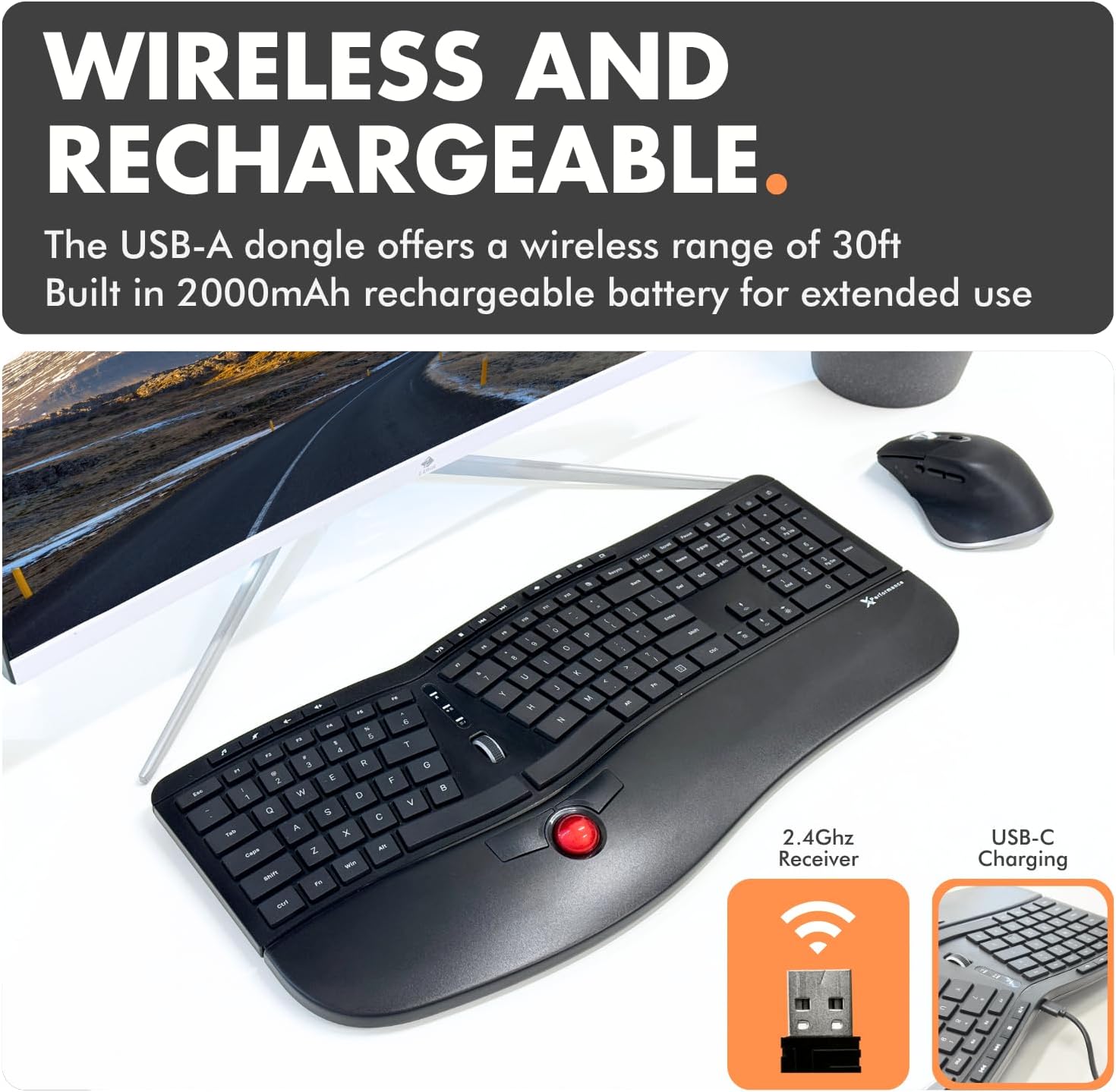
Image: The keyboard with its white backlit keys illuminated, demonstrating visibility in a dim setting.
3.5. Клавішы хуткага доступу
The keyboard includes 19 dedicated shortcut keys for quick access to various functions, such as volume control, media playback, and application management. Refer to the key legends for specific functions.

Выява: Над галавой view of the keyboard, pointing out the split 128-key layout, media keys, and 19 shortcut keys.
3.6. Прадукт скончыўсяview Відэа
Паглядзіце гэтае афіцыйнае відэа пра прадукт, каб атрымаць візуальнае ўяўленнеview of the X9 Performance Ergonomic Wireless Keyboard with Trackball, demonstrating its key features and benefits.
Відэа: Оверview of the X9 Split Wireless Keyboard with Thumb-Controlled Trackball, demonstrating its ergonomic design, integrated trackball, and other features.
4. Тэхнічнае абслугоўванне
4.1. Чыстка клавіятуры
To ensure longevity and optimal performance, clean your keyboard regularly:
- Адключыце клавіятуру ад кампутара перад чысткай.
- Выкарыстоўвайце мяккую безворсовую тканіну, злёгку dampвадой або мяккім неабразіўным ачышчальным растворам.
- Пазбягайце распылення вадкасцей непасрэдна на клавіятуру.
- Для выдалення пылу і смецця паміж клавішамі выкарыстоўвайце сціснутае паветра.
4.2. Trackball Cleaning
If the trackball's movement becomes rough or inaccurate, it may need cleaning:
- Gently remove the trackball from its housing (refer to product diagrams if available for specific removal instructions).
- Clean the trackball and the inside of its housing, especially the small rollers or sensors, with a clean, lint-free cloth.
- Зноў устаўце трэкбол у яго корпус.
4.3. Сыход за батарэяй
- Пазбягайце частай поўнай разрадкі акумулятара, каб падоўжыць тэрмін яго службы.
- Захоўвайце клавіятуру ў прахалодным, сухім месцы, калі яна не выкарыстоўваецца працяглы час.
5. Выпраўленне непаладак
If you encounter issues with your X9 Performance keyboard, try the following solutions:
5.1. Keyboard Not Responding / Connectivity Issues
- Праверце магутнасць: Ensure the keyboard is turned on and fully charged. Connect the USB-C charging cable to verify if the battery is low.
- USB адаптар: Ensure the 2.4GHz USB-A adapter is securely plugged into a working USB port on your computer. Try a different USB port.
- Паўторная пара: If connection is lost, try unplugging and re-plugging the USB adapter. Turn the keyboard off and on again.
- Перашкоды: Move the keyboard closer to the USB adapter or away from other wireless devices that might cause interference.
5.2. Trackball Not Moving Smoothly or Inaccurately
- Чысты трэкбол: Refer to Section 4.2 for trackball cleaning instructions. Dust or debris can affect performance.
- Адрэгуляваць адчувальнасць: The trackball sensitivity might be too low or too high for your preference. Refer to Section 3.3 for instructions on adjusting trackball sensitivity in your operating system settings.
5.3. Не працуе падсвятленне
- Check Brightness Level: Press the backlight control key (often with a light bulb icon) to cycle through brightness levels and ensure it's not set to 'Off'.
- Узровень батарэі: Ensure the keyboard has sufficient battery charge. Low battery might disable backlighting to conserve power.
6. Тэхнічныя характарыстыкі
| Асаблівасць | Дэталь |
|---|---|
| Марка | Прадукцыйнасць X9 |
| Нумар мадэлі | X9RFBLERGBAL |
| Памеры прадукту | 18.3"Д х 8.7"Ш х 0.3"В (18.3 х 8.7 х 0.3 цалі) |
| Вага прадмета | 2.42 фунта |
| Тэхналогія падлучэння | РФ 2.4G |
| Сумяшчальныя прылады | PC (Windows), Chrome |
| Апісанне клавіятуры | Built-in Trackball and Mouse Keys, Multi Functional, Multimedia, Full Size, Rechargeable, Split Ergonomic |
| Асаблівасць | Backlit wireless ergonomic keyboard, carpal tunnel keyboard, full size trackball keyboard for PC, rechargeable split keyboard, wireless keyboard with trackball |
| Колькасць ключоў | 128 |
| Падтрымка колеру падсвятлення клавіятуры | Single Color (White) |
| Уключаныя кампаненты | Keyboard, USB-A adapter, USB-C charging cable, user manual |

Image: Technical drawing showing the dimensions of the X9 Performance Ergonomic Wireless Keyboard.
7. Гарантыя і падтрымка
X9 Performance products are designed for reliability and performance. For specific warranty information regarding your keyboard, please refer to the warranty card included with your product or visit the official X9 Performance webсайт.
If you require technical assistance, troubleshooting, or have questions about your product, please contact X9 Performance customer support through their official channels. Contact information can typically be found on the product packaging or the brand's webсайт.