
1. Уводзіны
This manual provides detailed instructions for the installation, operation, and maintenance of your autoabc 12.3 Inch Wireless CarPlay/Android Auto Multimedia Linux Touchscreen. This device is designed to enhance your in-car experience by integrating modern connectivity features while retaining your vehicle's original functionalities.
2. Сумяшчальнасць
This product is compatible with specific Mercedes Benz models equipped with NTG5.0, NTG5.1, and NTG5.2 systems. Please verify your vehicle's system before installation.
- Mercedes Benz GLC Class X253 (2015-2018)
- Mercedes Benz GLA Class X156 (2016-2018)
- Mercedes Benz CLA Class C117 (2016-2018)
- Mercedes Benz A Class (2016-2018)
- Mercedes Benz C Class W205 (C180, C200, C220, C250, C320, C43 AMG, C63 AMG, C63 GLS, C650)
Важная заўвага:
Гэта прылада не сумяшчальны with NTG4.0, NTG4.5, or NTG4.7 systems. Please ensure your original car system matches the compatible versions. If unsure, consult a professional or contact customer support.

Image: Compatibility chart for Mercedes Benz NTG systems. The image displays examples of NTG5.0/5.1/5.2 as compatible and NTG4.5/4.7 and NTG4.0 as incompatible, with corresponding screen visuals.
3. Прадукт скончыўсяview і Асаблівасці
The autoabc 12.3 Inch Multimedia Linux Touchscreen upgrades your vehicle's display with a high-definition screen and integrated smart features.
- Бесправадны CarPlay/Android Auto: Seamlessly integrate your smartphone for navigation, calls, messages, and music via voice assistant.
- HD 12.3 Inch Screen: Features a 1920x720 resolution LED display for an enhanced visual experience. Supports screen projection for photos and videos.
- Original Car Function Retention: Maintains all original vehicle functions, including radio, booster, joystick controls, rear view camera, and display of speed, fuel level, oil pressure, and safety warnings.
- Функцыянальнасць камеры: Supports factory original reverse camera parking radar, aftermarket reverse cameras, and 360-degree cameras. Includes support for front view відэарэгістратар (CVBS уваход).

Image: Comparison of the car's dashboard before and after installing the autoabc 12.3-inch touchscreen, highlighting the larger display and new interface.

Image: Four-panel display showing the screen's capabilities with CarPlay, Android Auto, Airplay, and Autolink, demonstrating smartphone integration.

Image: Illustration of the camera functions, including front camera view, parking assist lines, and a 360-degree overhead view of a car, indicating support for various camera systems.

Image: Six panels demonstrating the retention of original car functions: car system, CD/DVD player, steering wheel control, horn speaker sound output, reversing camera, and iDrive rotation button.
4. Настройка і ўстаноўка
Installation of this unit typically involves replacing the original screen and connecting the provided cables. While designed for ease of installation, professional assistance is recommended if you are unfamiliar with car electronics.
4.1. Праверка перад устаноўкай
- Confirm your vehicle's NTG system version (NTG5.0, NTG5.1, or NTG5.2).
- Пераканайцеся, што ўсе кампаненты, пералічаныя ў раздзеле «Камплектацыя», ёсць у наяўнасці.
- Перад пачаткам усталёўкі адключыце акумулятар аўтамабіля.
4.2. General Installation Steps (Consult a professional or installation video for detailed steps)
- Carefully remove the original car screen and trim panels.
- Connect the provided power cable and LVDS/USB cable to the new unit and the vehicle's wiring harness.
- If applicable, install the bracket for the new screen.
- Route all cables neatly to avoid interference.
- Mount the new 12.3-inch touchscreen in place.
- Reconnect the vehicle's battery and test all functions before reassembling the trim.
Папярэджанне:
If you are unsure about the installation process, it is highly recommended to seek assistance from a qualified car workshop or refer to official installation videos provided by the manufacturer.
5. Інструкцыя па эксплуатацыі
5.1. Пераключэнне паміж сістэмамі
The unit allows seamless switching between the new Linux system and the original car system.
- To access the Linux system (CarPlay, Android Auto, AirPlay, Autolink), select the corresponding icon on the main interface.
- To return to the original car system, select the "Original car" icon or use the designated button/control as per your vehicle's original setup.
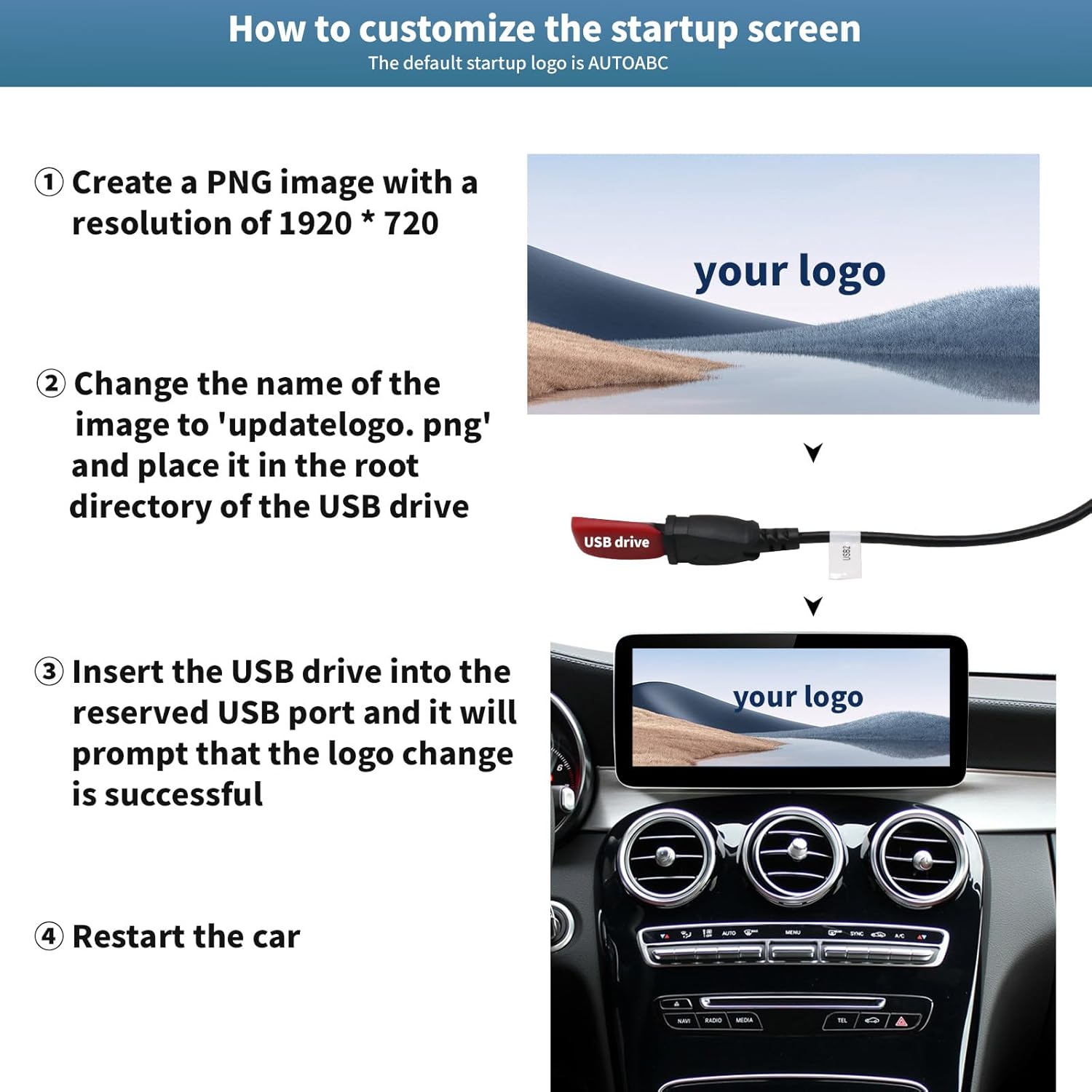
Image: Flowchart illustrating the process of switching between the new Linux system interface (showing CarPlay, Android Auto, AirPlay, Autolink icons) and the original car system interface (showing radio frequencies).
5.2. Бесправадны CarPlay / Android Auto
To use Wireless CarPlay or Android Auto:
- Пераканайцеся, што Bluetooth уключаны на вашым смартфоне.
- On the car screen, navigate to the CarPlay or Android Auto section.
- Пошук and connect to the device's Bluetooth name from your phone's Bluetooth settings.
- Follow any on-screen prompts on both your phone and the car display to establish the connection.
Once connected, you can access navigation, phone contacts, email, notifications, and music directly on the touchscreen.
5.3. Функцыі камеры
Сістэма аўтаматычна адлюстроўвае заднюю частку view when the vehicle is in reverse gear. You can also access front camera or 360-degree camera views if installed and configured.
5.4. Метады кантролю
The system supports multiple control methods:
- Сэнсарны экран: Directly interact with the 12.3-inch display.
- Original Joystick Controls: Utilize your vehicle's existing joystick or rotary controller.
- Элементы кіравання на рулі: Use your steering wheel buttons for audio control and other functions.
6. Налада
6.1. Customizing the Startup Screen Logo
You can personalize the startup screen with a custom logo.
- Create a PNG image with a resolution of 1920 x 720 pixels.
- Перайменаваць малюнак file каб 'updatelogo.png'.
- Месца гэта file in the root directory of a USB drive.
- Insert the USB drive into the reserved USB port on the unit. The system will prompt you when the logo change is successful.
- Restart the car to apply the new startup logo.

Image: Step-by-step visual guide on how to customize the startup screen logo using a USB drive with a 1920x720 PNG image named 'updatelogo.png'.
7. Інфармацыя аб прадукце і тэхнічныя характарыстыкі
7.1. Што ў скрынцы
- autoabc 12.3 Inch Multimedia Linux Touchscreen
- Сілавы кабель
- LVDS/USB Cable
- Bracket (for specific models, if required)
- Кіраўніцтва карыстальніка (гэты дакумент)

Image: Display of the product components: the main screen unit (front and back views), power cable, LVDS/USB cable, and mounting bracket.
7.2. Тэхнічныя характарыстыкі
- Нумар мадэлі: AR-X123
- Памер экрана: 12.3 цаляў
- дазвол: 1920 x 720 HD LED
- Аперацыйная сістэма: Linux
- Падключэнне: Wireless CarPlay, Android Auto, AirPlay, Autolink, Bluetooth, USB
- Рэжым вываду гуку: Стэрэа
- Канфігурацыя канала аб'ёмнага гуку: 4.0
- Video Encoding Support: H.264, H.265/HEVC, VP9, AV1, MPEG-4
- Вага прадмета: 2.2 фунта
- вытворца: аўтаабв
8. Тэхнічнае абслугоўванне
To ensure the longevity and optimal performance of your autoabc touchscreen, follow these maintenance guidelines:
- Уборка: Use a soft, lint-free cloth to clean the screen. For stubborn smudges, lightly dampПрацярыце тканіну вадой або сродкам для ачысткі экрана. Пазбягайце агрэсіўных хімічных рэчываў або абразіўных матэрыялаў.
- тэмпература: Avoid exposing the unit to extreme temperatures for extended periods.
- Абнаўленні праграмнага забеспячэння: Перыядычна правярайце інфармацыю вытворцы website or contact support for any available software updates to ensure optimal performance and compatibility.
- Кабельныя злучэнні: Ensure all cables remain securely connected. Avoid pulling on cables forcefully.
9. Выпраўленне непаладак
If you encounter issues with your autoabc touchscreen, refer to the following common troubleshooting steps:
- Няма харчавання:
- Праверце ўсе злучэнні кабеляў харчавання, каб пераканацца ў іх надзейнасці.
- Verify the vehicle's battery is properly connected and charged.
- Check relevant fuses in your vehicle's fuse box.
- Няма гуку:
- Ensure the volume on both the unit and your vehicle's original audio system is turned up.
- Confirm the audio input source is correctly selected (e.g., AUX, Bluetooth).
- If using Bluetooth, ensure your phone is properly paired and connected.
- CarPlay/Android Auto не падключаецца:
- Пераканайцеся, што Bluetooth і Wi-Fi уключаны на вашым смартфоне.
- Выдаліце прыладу з налад Bluetooth тэлефона і зноў падключыце яе.
- Restart both your phone and the car's multimedia system.
- Check for any software updates for your phone's operating system or the car unit.
- Screen Not Responding to Touch:
- Перазапусціце прыладу.
- Пераканайцеся, што экран чысты і без смецця.
- Original Car Functions Not Working:
- Verify all original wiring harness connections are correctly made.
- Ensure the unit is properly switched to the "Original car" system mode.
If these steps do not resolve the issue, please contact autoabc customer support for further assistance.
10. Гарантыя і падтрымка
autoabc provides a one-year global warranty for this product, covering manufacturing defects and malfunctions under normal use. Additionally, lifetime technical service support is available.
- Гарантыйны тэрмін: 1 год з дня пакупкі.
- Тэхнічная падтрымка: Lifetime online technical support via Amazon email.
For any questions, problems, or technical assistance, please contact autoabc customer support through Amazon's messaging system. Please have your product model number (AR-X123) and purchase details ready when contacting support.

Image: Graphic detailing customer support availability, including 24-hour response, 60-day return policy, 12-month replacement, and lifetime technical support.


